
An error pops up when you save or open the software, or a message keeps appearing. This guide is a checklist of what to try yourself and what to send to Synergy if it does not go away. It does not fix one particular error. Most of these cases are solved quickly once the exact message and the situation are known. The quickest way to send it is Support Helpdesk, a small Synergy program on your PC.
Before you start
- Do not click the message away before you have written down or photographed what it says.
- Know which PC it happens on: the main PC or a client PC.
- Know what you were doing when it appeared, for example saving a bank receipt, keying an invoice or opening the program.
- The first time you use Support Helpdesk you accept a short user agreement and confirm an e-mail address with a PIN, so Synergy can follow up.
Steps
1. Note the exact message
Read the message and write down the exact words, or take a screenshot of the whole screen so the message and the screen behind it can be seen. A screenshot is better than a description.
2. Note what you were doing
Write down which screen you were on and what you did just before, for example saving a bank receipt, settling a receipt or opening the program. Also note whether it happens only for one customer (debtor), one outlet or one PC, and whether it has happened before.
3. Close the software and open it again
Close Synergy Acc2026, open it again and log in again. Then repeat the action that gave the message. If the program is frozen and will not close, ask Synergy to close it for you in a remote session (see the guide “Synergy Acc2026 – Getting Remote Help from Synergy Support”).
4. Restart the PC
If the message is still there, restart the PC and try the action once more.
5. If the message keeps coming after a wrong click on Kitchen Display
In one case the message kept appearing because the Kitchen Display function was clicked by mistake. Click OK each time until it stops, then close the software and open it again. If it comes back, tell Synergy.
6. Check the program is up to date
Make sure the software is updated on the main PC and on the client PCs. The update does not install by itself and everyone must close the software first, so arrange it with Synergy (see the guide “Synergy Acc2026 – Updating the Program”).
7. Open Support Helpdesk
Open Support Helpdesk from the sign-in screen. It is also in the System menu of the main window. The first time, it downloads itself and opens; after that it opens straight away and keeps itself up to date.
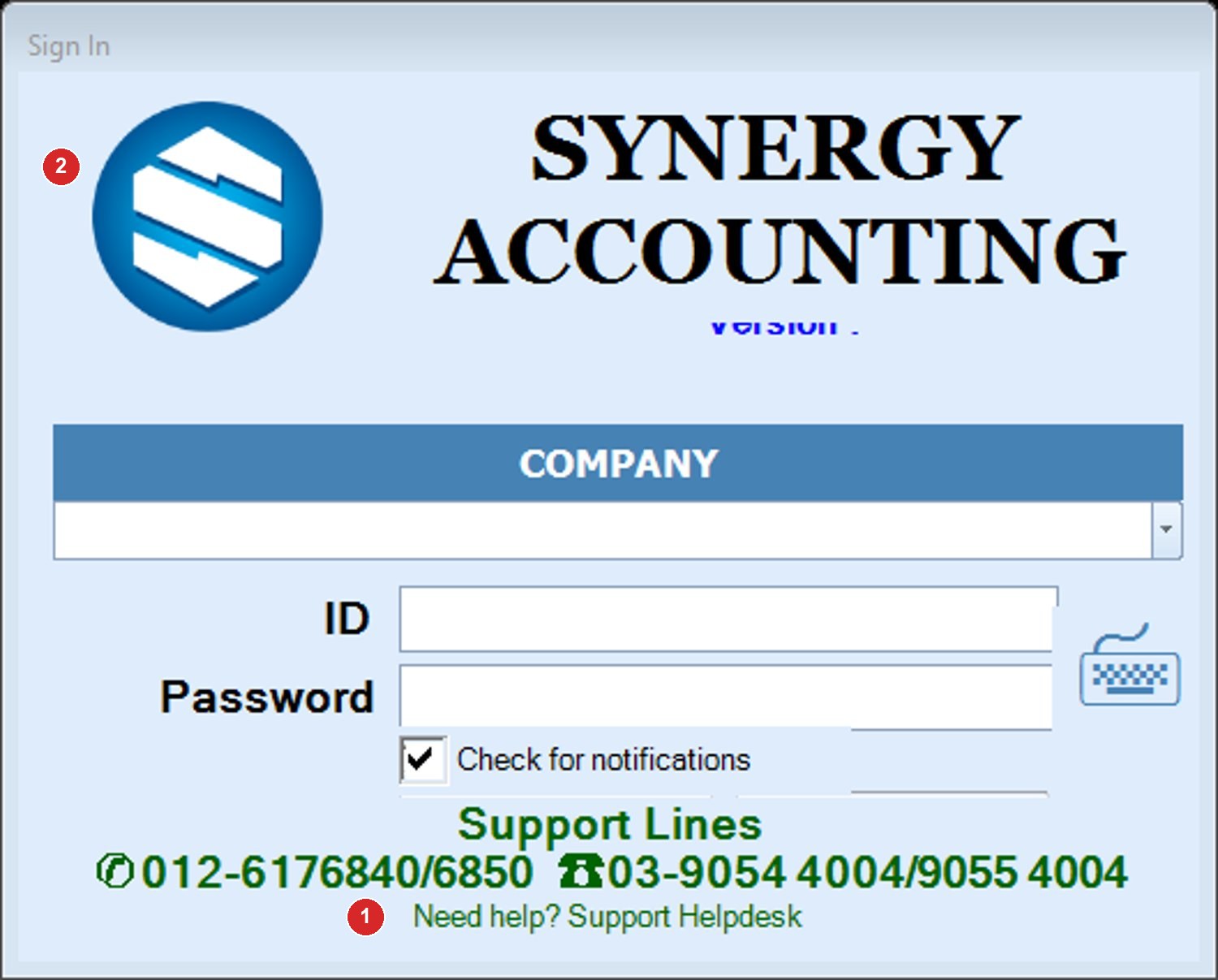
| Step | What to do |
|---|---|
| 1 | Click the link Need help? Support Helpdesk under the support phone numbers. |
| 2 | Or click the Synergy logo and choose Support Helpdesk from the menu. |
8. Describe the problem and attach the screenshot
In the window titled Synergy Support Helpdesk, stay on the Ask Synergy tab. Synergy’s assistant answers and, when it helps, checks this PC first. It only looks: nothing changes unless you click Fix this.
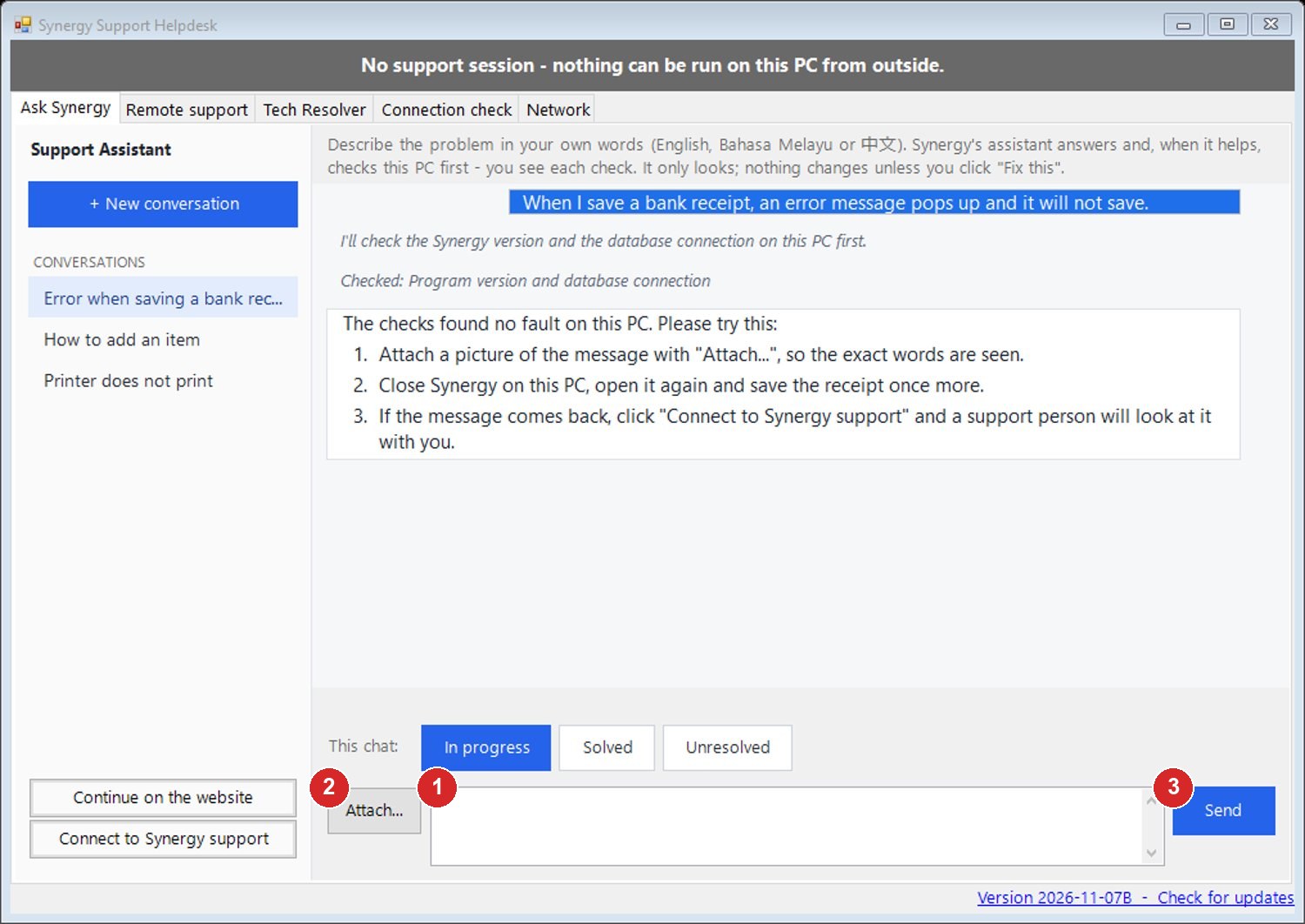
| Step | What to do |
|---|---|
| 1 | Type the problem in your own words (English, Bahasa Melayu or 中文) in the box at the bottom. |
| 2 | Click Attach… and add the screenshot of the error. |
| 3 | Click Send. |
9. Ask Synergy to follow up
If the answer does not solve it, mark the chat Unresolved or press Connect to Synergy support. A person from Synergy then follows up.
10. Or contact Synergy directly
If you cannot use Support Helpdesk, or you prefer to phone or message, contact Synergy and send the screenshot and what you were doing. Be ready for a remote session on the PC where it happens. Only Synergy can check the settings behind the problem and switch a pop-up off or correct a setting that has shifted.
11. Repeat the action after the fix
When Synergy says it is fixed, repeat the same action (for example save or settle the bank receipt) to confirm that it works. If the message comes back later, tell Synergy again.
Tips
- The Need help? Support Helpdesk link on the sign-in screen is in Acc2026 build 12D and later. On an older build, use the Synergy logo menu on the sign-in screen or the System menu of the main window. Older notes may call this program Diagnostic Tool.
- Most cases like this were solved in a remote session on the PC where the problem happened, so have the PC switched on and ready.
- If a short video shows the problem better (for example it is slow or hard to repeat), send that too.
- If the whole outlet or several PCs cannot open the program, contact Synergy straight away instead of trying the steps on every PC.
- For a frozen or slow PC, read “Synergy Acc2026 – PC Slow, Lagging or Hanging”. For a login problem, read “Synergy Acc2026 – What To Do When You Cannot Log In”. For odd behaviour at the POS, read “Synergy Acc2026 POS – When the POS Behaves Oddly”.
- The cause is often not known until Synergy looks at the PC. It can be a setting that has shifted, an old version, a pop-up option that was switched on or an accidental click.
Common problems
The message appears every time I save, on a client PC.
Note which screen you were saving and send Synergy the screenshot. Be ready to give a remote session on the main PC. In one case the save worked after Synergy checked it remotely.
The program shows an error when I open it.
Close it and open it again, log in again and restart the PC. If it still does not open, contact Synergy with a screenshot and say which PC it is. See also “Synergy Acc2026 – What To Do When an Update or a New PC Does Not Work”.
The program will not close or the screen is frozen.
Ask Synergy to close it in a remote session. After that the program worked normally in the cases we know.
The message happens for one debtor only, or the system hangs while keying one invoice.
Tell Synergy the debtor and the exact step where it hangs, and be ready for a remote session. If it comes back later, tell Synergy again.
I only have a screenshot and cannot describe the problem.
Send the screenshot with one line on which screen you were on and what you tried. Synergy may ask for a remote session to look at it.
A new pop-up suddenly appears and does not go away.
Send a screenshot to Synergy. In the cases we know, the pop-up was switched off or the setting was corrected in a remote session, and it no longer showed.
I cannot see Need help? Support Helpdesk on the sign-in screen.
Click the Synergy logo on the sign-in screen and choose Support Helpdesk, or open the System menu in the main window. The link needs Acc2026 build 12D or later. If you cannot find it, contact Synergy.