
This guide shows how to export a report or list to PDF or Excel, save a POS receipt as PDF, and find your saved file, including when you are working on a remote session.
Before you start
- Know whether you are exporting a report, a document or a POS receipt.
- Know whether you are on the main PC or on a remote session (for example a laptop connected to the main PC).
Steps
1. Preview the report or document
Open the report or document. On the report options screen, keep Output as Preview and click Preview.
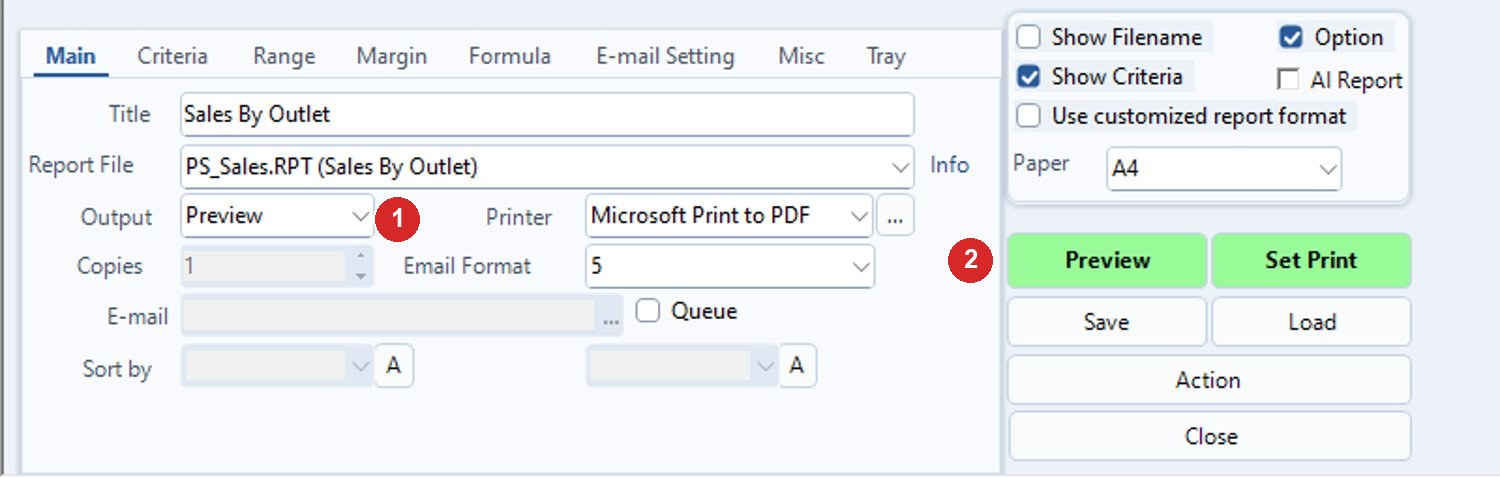
| Step | What to do |
|---|---|
| 1 | Output: Preview. |
| 2 | Preview. The report opens in the preview window, where the Export icon is. |
2. Click the Export icon
After Preview, click the Export icon.
3. Choose where to save
Choose the location and enter the file name.
4. Choose PDF or Excel
Set Save as type to PDF or Excel, then save.
5. Export the debtor list to Excel (optional)
Go to Debtor Ledger > Masterfile > Debtors. Click a column heading in the list and choose Export To File. Select Excel (xlsx 64bit), choose a location and save.
6. E-mail a report
Save the report as PDF first. Then attach the PDF in your mail program.
7. Save a POS receipt as PDF
Change the printer to Standard Printer. When printing, choose Save as PDF.
8. Find your file on a remote session
Save or export into the designated export folder on the remote session. On your own PC, open the C drive and then the folder Synergy Files. Files saved by the software over remote desktop are stored on the main PC, so you can also look in the C drive of the main PC in the remote window.
9. Save on your own laptop instead
When exporting over remote desktop, choose ‘C on DESKTOP’ (your own PC) as the save location.
Tips
- If you cannot see the Export icon, make sure you have clicked Preview first.
- Over remote desktop, the software saves to the main PC unless you choose your own PC as the save location.
- If the printout looks wrong: for A4 portrait, set the paper size to A4 outside the preview before opening it, and choose the first report file in the report list. For a 58mm receipt printer, change the report file to the 58mm version before printing, then print again.
Common problems
Export to Excel gives an error and no data.
Click Download, then download and install the component, then export again.
Export to Excel stopped working after a PC or Office update (64-bit Excel).
Contact Synergy support. Have the error text ready.
Excel export does not work properly over remote desktop.
Contact Synergy support and have your remote access ready.
Importing an Excel file fails or gives errors.
Delete blank rows at the end of the file. Check the U.O.M. column for empty cells or an empty last row. Make sure every item code already exists in the item list (create new items first or fix the code). In the item Excel, use TRUE or Y for active items and N for inactive items.
Error when opening a stock ledger preview.
Check the item Description for an empty row or line and delete it.
Still not working.
Contact Synergy support. Have the error text, the Excel file and a screenshot of the export screen ready.