
When you fill in the item import Excel, the e-invoice classification code goes under one specific column header. Video (1:43): https://youtu.be/iP2KwwEU940
Before you start
- Take a full database backup before importing.
Steps
1. Use the right header
The header is MyInvois Item Class.
2. Type the code number only
In that column, type the classification code number, for example 022. Type the number only.
3. Remove the column if you do not want to change it
If the column is in your file, every item in the file gets that value. A blank or invalid cell clears the classification already saved on that item. Remove the column if you do not want to change it.
4. Do not mix up the self-billed column
‘Self-Billed Item Class’ is a separate column. Do not put the same code in both unless both apply.
5. Follow the other headers
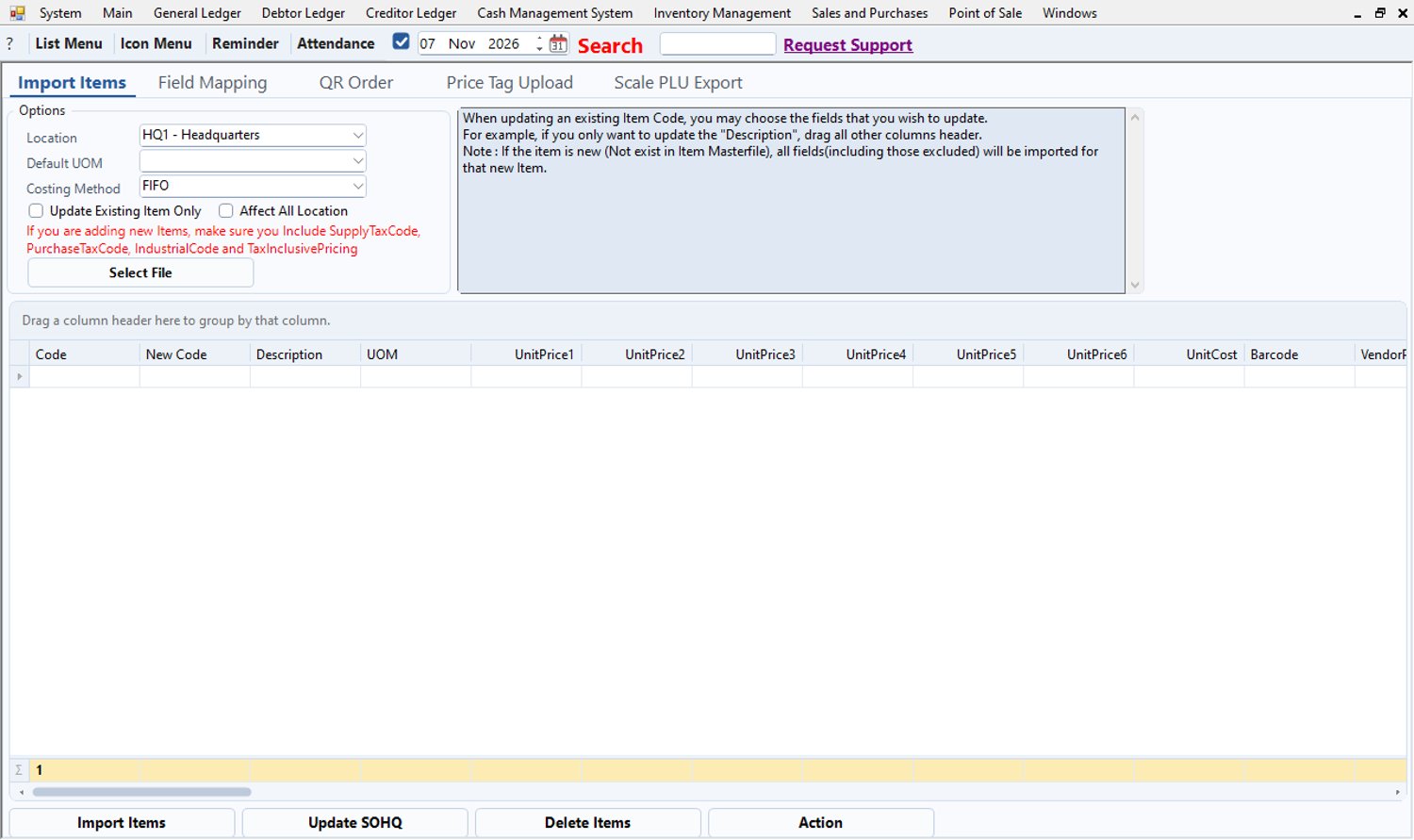
Follow the other header names shown in Inventory > Utilities > Item Masterfile Import Utility.
Tips
- A blank or invalid value clears the item’s saved classification.
Common problems
The import gives a message you do not understand
Contact Synergy support and send the Excel file and the import message.