
This guide shows where to find your Profit and Loss, Balance Sheet and Trial Balance reports, how to key in closing stock, and how to check figures that do not match.
Before you start
- Know which report you need (P&L, Balance Sheet or Trial Balance) and which period or month end you want.
- Make sure stock quantities are correct before you use stock figures.
- If you need a reference figure for closing stock, check Inventory > Report > Stock Movement Summary.
Steps
1. Open the Profit and Loss report
Go to General Ledger > Reports > Financial > P&L Accounts. Fixed and current assets are not shown in the P&L.
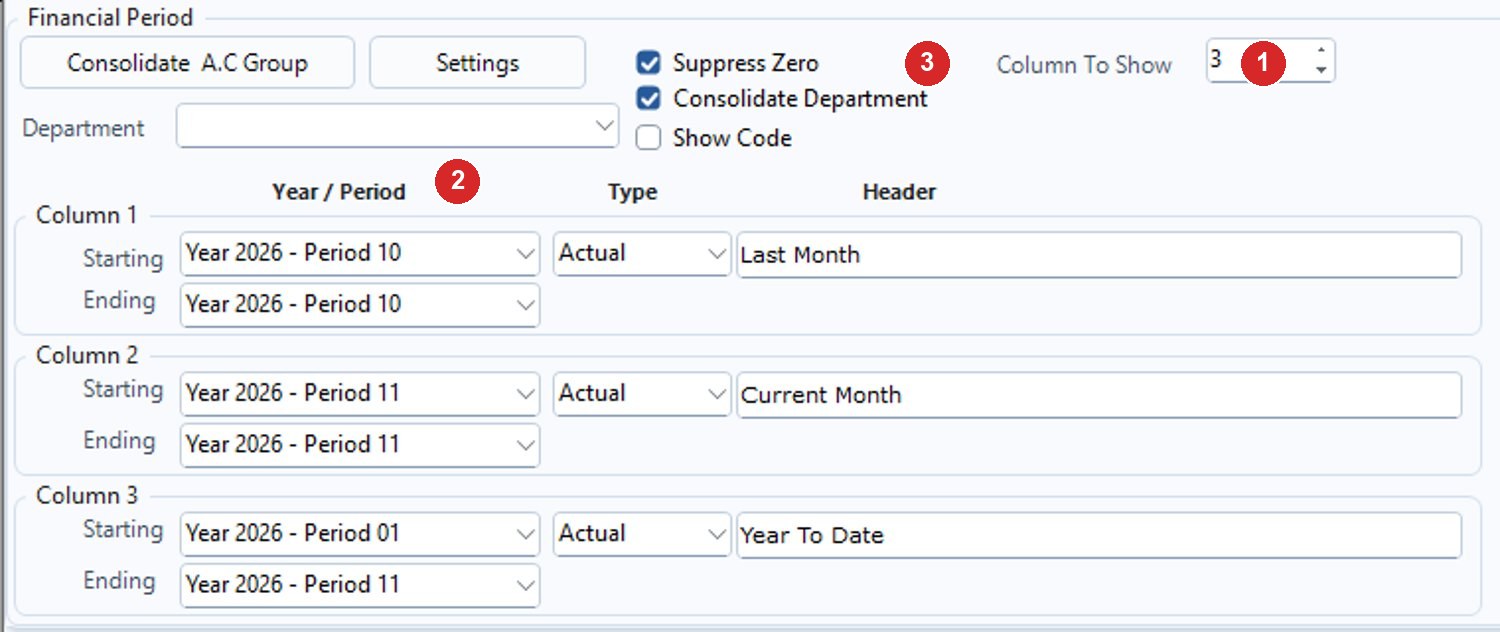
| Step | What to do |
|---|---|
| 1 | Column To Show: 1, 2 or 3. |
| 2 | For each column: Starting and Ending Year / Period, Type and Header (here Last Month, Current Month and Year To Date). |
| 3 | Suppress Zero, Consolidate Department and Show Code as needed; then Preview. |
2. Open the Balance Sheet
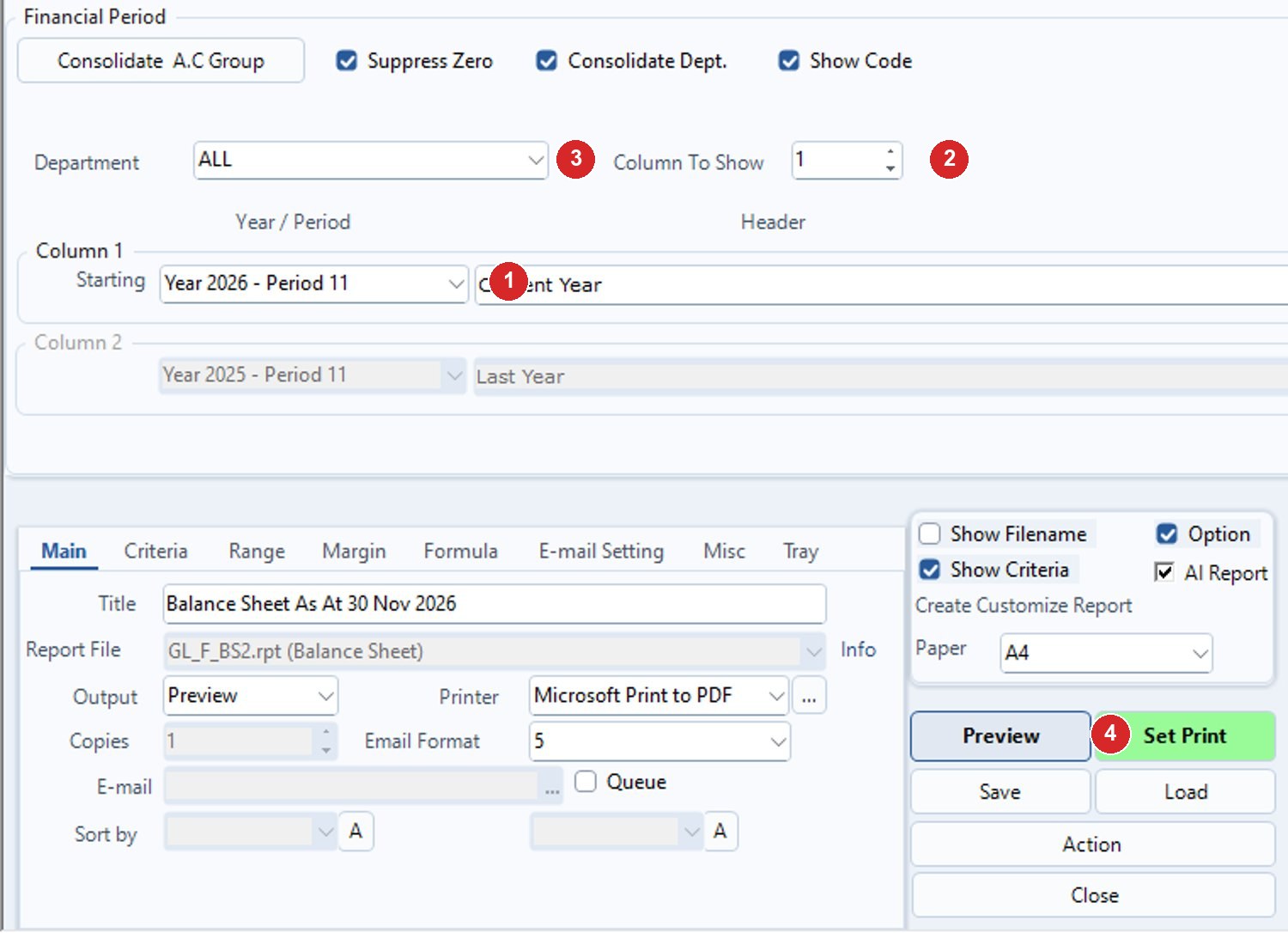
Go to General Ledger > Reports > Financial and choose Balance Sheet [2 Column], Balance Sheet [1 Column] or Balance Sheet [1 Column – Format 2].
3. Choose the period for Column 1
Under Financial Period, pick the Year / Period in the Starting field. For a year, choose the last period of the year. For a month, choose that month’s period so the report ends at the month end (for example 31/01/2026), not in the next month.
| Step | What to do |
|---|---|
| 1 | Column 1 Starting Year / Period: for a year choose its last period, for a month that month (here Year 2026 – Period 11). |
| 2 | Column To Show: 1, or 2 to compare with Column 2 (here Last Year). |
| 3 | Department, or ALL. |
| 4 | Click Preview. |
4. Open the Trial Balance
Go to General Ledger > Reports > Financial > Trial Balance > Trial Balance [Type 2]. Choose From As At and To As At, then run the report.
5. Key in closing stock
Closing stock only shows if you key it in. Go to Account > General Ledger > Chart of Account and open Closing Stock. Key in the figure under the month (at year end, use the last month) and save.
6. Check closing stock on the reports
Preview the Balance Sheet or P&L to see the closing stock. It does not appear in the Trial Balance.
7. Compare debtor or creditor ledger with the General Ledger
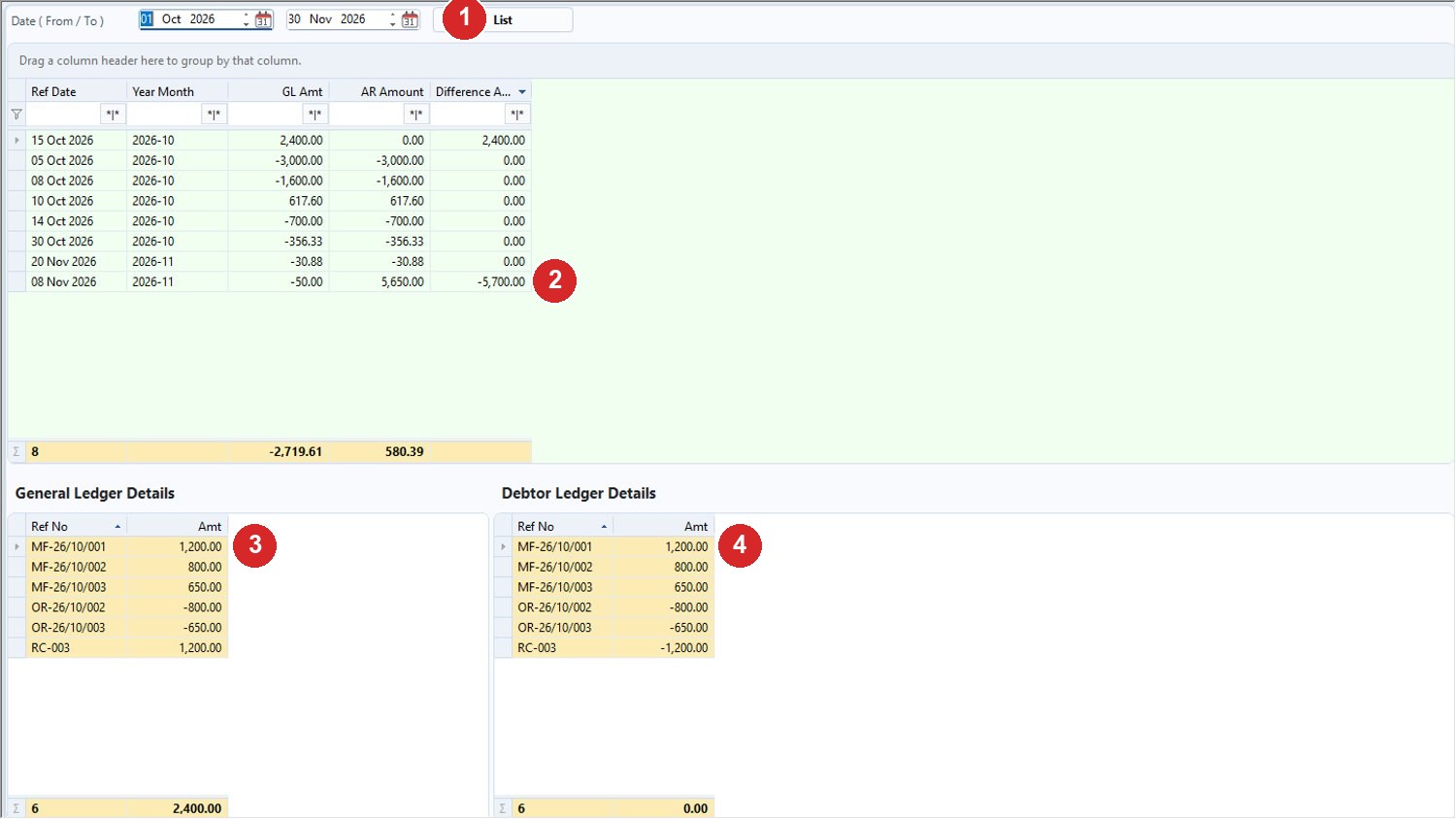
Go to General Ledger > Query > GL-DL Balance Reconcile (or GL-CL Balance Reconcile for creditors). Set the Date ( From / To ) range and press List.
| Step | What to do |
|---|---|
| 1 | Date ( From / To ) and List. |
| 2 | Difference Amount: a date where the GL and the debtor ledger do not agree (here 15 Oct 2026 and 08 Nov 2026). |
| 3 | General Ledger Details: the GL entries of the selected date. |
| 4 | Debtor Ledger Details: the debtor ledger entries of the same date. |
8. Trace an account’s transactions
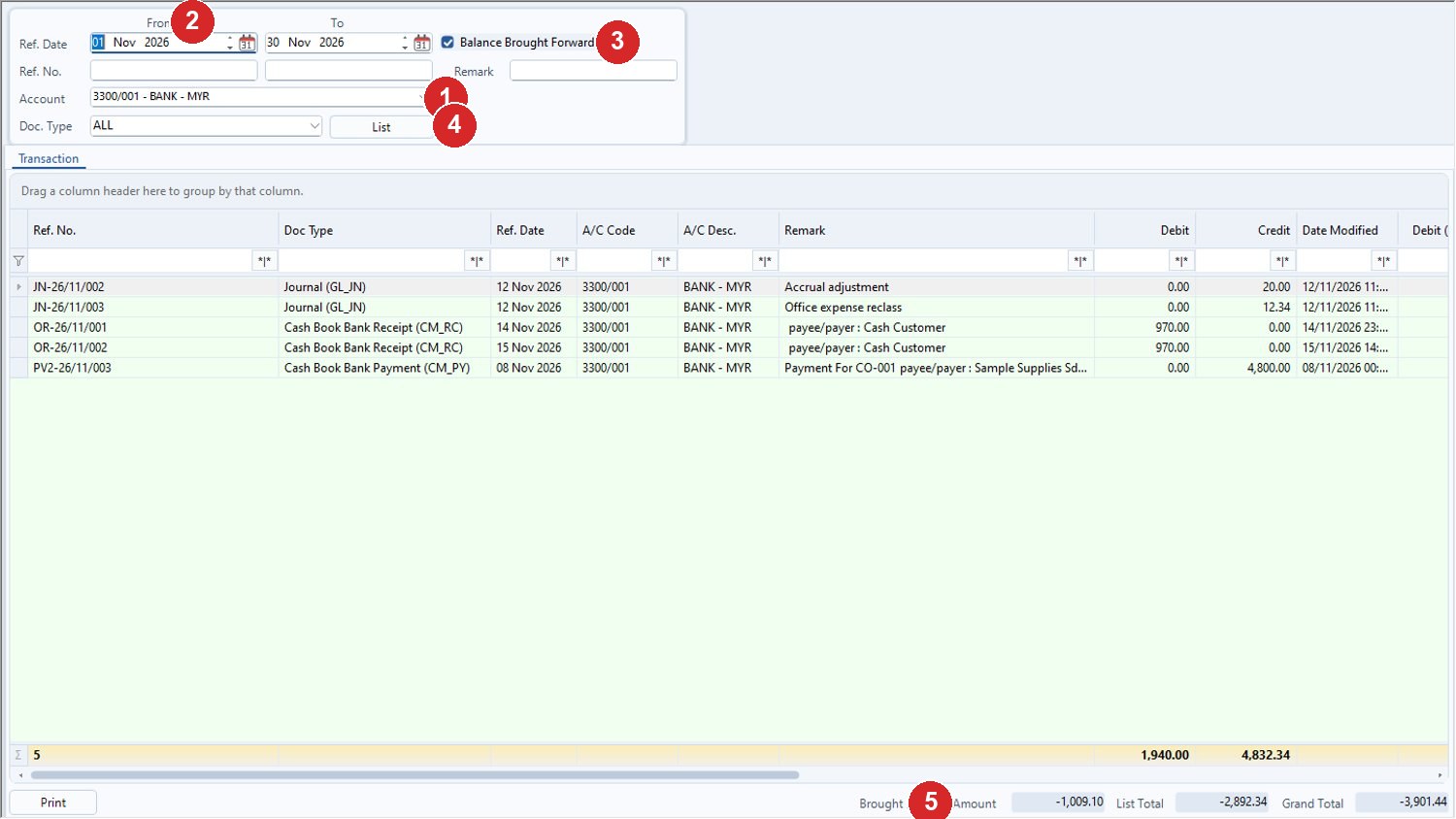
Go to General Ledger > Query > Transaction Query.
| Step | What to do |
|---|---|
| 1 | Account (here 3300/001 BANK – MYR). |
| 2 | Ref. Date From and To. |
| 3 | Balance Brought Forward includes the opening amount before the start date. |
| 4 | Click List. Double-click a row to open the original transaction. |
| 5 | Brought Forward Amount, List Total and Grand Total (here -1,009.10, -2,892.34 and -3,901.44). |
9. Export the ledger to Excel
In Transaction Query, click a column header, choose Export to file, then Grid row to Excel.
Tips
- The financial report designs are fixed. The P&L cannot have a 4th column, and the category of retained earnings cannot be changed.
- P&L sales follow sales invoices, not bank receipts. Differences can come from partial payments, overpayments or receipts not related to sales.
- Tax and dividend appear on the P&L Appropriation report, so print both P&L reports.
- The Balance Sheet has several types. Choose the one you want, for example the 1-column type rather than Format 2.
- Suppress Zero hides lines with a zero balance. Untick it if lines seem to be missing.
- Report exports to Excel are not column-based.
- There is no parent or sub account. The Account Group is the header and the account codes are the lines under it.
- To add a group such as Selling and Distribution, use Account Group > New. Moving an existing account into it changes how history is shown, so create a new code to keep history.
- Debtor aging: go to Account > Debtor ledger > Report > Aging, pick the date and Preview.
- Old GST Payable/Claimable balances can be cleared with a journal that zeros them and moves the balance to another account.
Common problems
Closing stock is missing from the Balance Sheet or P&L.
Key in the figure under Chart of Account > Closing Stock for the month and save, then preview again.
Trial Balance does not show closing stock.
This is normal. Closing stock appears only in the P&L and the Balance Sheet.
Column 2 is greyed out on the Balance Sheet.
Set Column To Show to 2.
Column 2 or 3 is greyed out on the P&L.
Increase Column To Show.
The saved Column 2 period does not come back on the Balance Sheet.
Choose both periods again before you run the report.
A message says a period is required.
Choose both the starting and ending period for every column you show on the P&L, the Column 1 and, if used, Column 2 period on the Balance Sheet, or both From As At and To As At on the Trial Balance.
Total bank receipts do not equal sales in the P&L.
The P&L follows sales invoices, not receipts. Check for partial payments, overpayments or receipts not related to sales.
Retained earnings is not carried forward.
Try Trial Balance Type 2, using the prior year closing as the first period.
Balance sheet does not agree with the ledger.
Check the Chart of Accounts links, then use General Ledger > Query > Transaction Query to look at the accounts.
Aging and balance sheet differ.
Decide which is correct and adjust the balance sheet by journal, or check the invoices one by one.
Creditor aging does not tally with the General Ledger.
Look in the General Ledger for entries to creditor accounts without a specific creditor, such as an opening journal. Key the opening at the creditor side, or reverse the entry. If creditors were moved from Trade to Other, post one journal to swap the balance.
SST amount differs from what you filed.
Check for a reference date earlier than the real entry date. SST follows the received amount, so the period can differ. Hold off posting until checked. A small leftover SST balance of a few sen can be cleared with a journal entry.
The Transaction Query list is empty.
Widen the date range, clear the Ref. No. and Remark, and choose ALL for Doc. Type.
Grand Total in Transaction Query looks different from the report.
Make sure Balance Brought Forward is ticked the same way for both.
Figures still do not agree after these checks.
Contact Synergy support. Have ready the report name, the period or date range, the figures that differ and the figure on the other side (tax website, bank or supplier statement).