
This guide shows how to add a fixed asset with its depreciation schedule, post the scheduled depreciation to the general ledger, reverse a depreciation journal, and record the disposal or sale of an asset.
Before you start
- Fixed asset: General Ledger > Fixed Asset > Fixed Asset Masterfile.
- Depreciation posting: General Ledger > Fixed Asset > Fixed Asset Depreciation Posting.
- Disposal: General Ledger > Fixed Asset > Fixed Asset Disposal Transaction.
- The accounts you need (fixed asset, accumulated depreciation, depreciation expenses, gain and loss) must exist in the chart of accounts.
- Financial years must be set up in the general ledger, and each must be 12 months.
Steps
1. Enter the asset details
Go to General Ledger > Fixed Asset > Fixed Asset Masterfile. Here VAN-01, a delivery van bought on 5 Jan 2026.
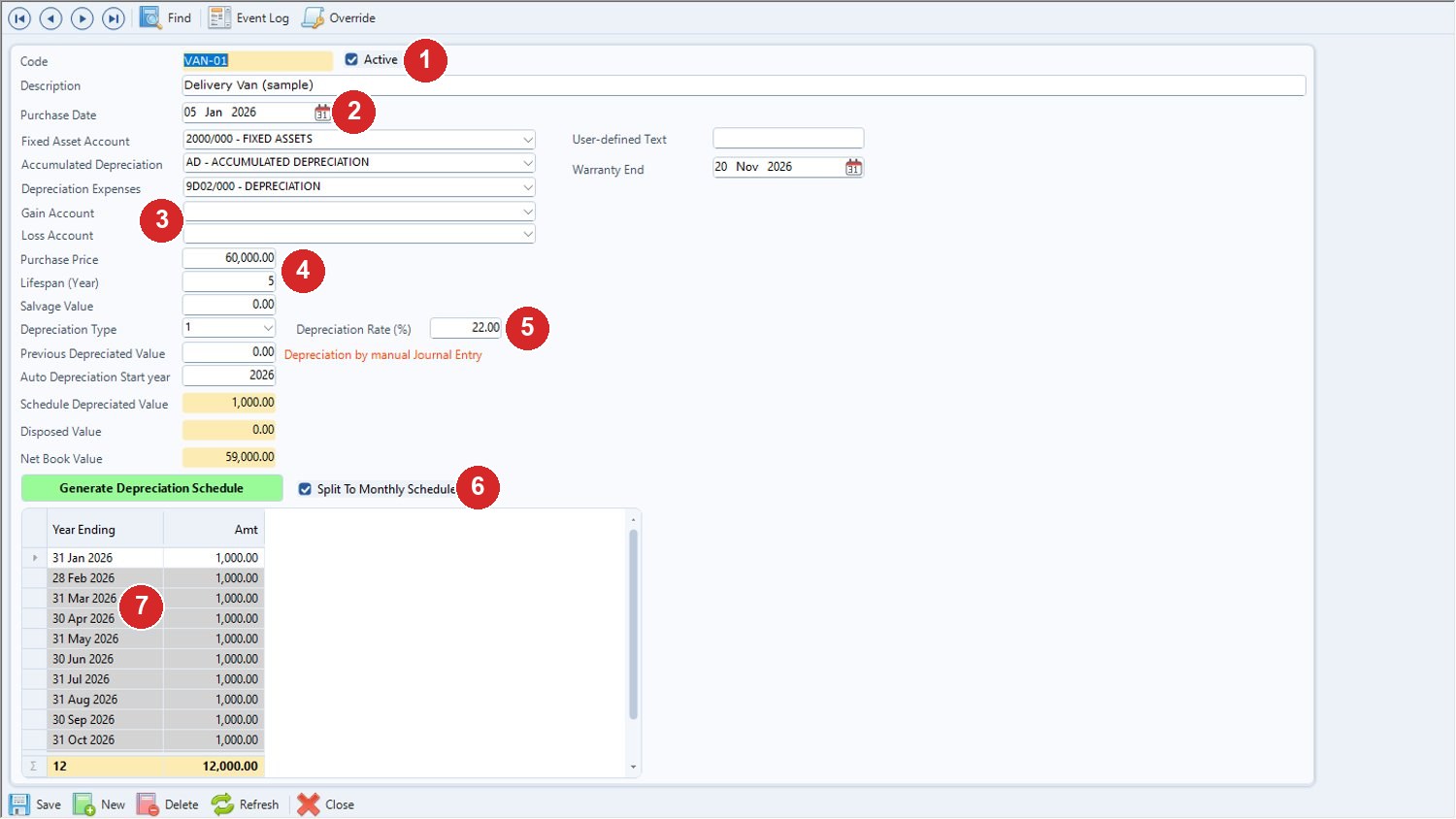
| Step | What to do |
|---|---|
| 1 | Code and Description; keep Active ticked while in use. |
| 2 | Purchase Date. |
| 3 | Fixed Asset Account, Accumulated Depreciation, Depreciation Expenses, Gain Account and Loss Account. |
| 4 | Purchase Price, Lifespan (Year) and Salvage Value. |
| 5 | Depreciation Type (1 = straight line, down to zero; 2 = reducing balance, down to the salvage value) and Depreciation Rate (%). |
| 6 | Generate Depreciation Schedule; tick Split To Monthly Schedule for monthly rows. |
| 7 | The schedule (here 1,000.00 a month on a 60,000.00 van). Then Save. |
2. Post the depreciation
Open Fixed Asset Depreciation Posting. On the Post tab, enter the Year and the Month (enter 0 for yearly posting) and click List. Remove any rows marked invalid, enter the Journal Ref No., click Post and answer yes.
3. Reverse a depreciation journal (if needed)
On the Reverse tab, enter the Year and click List. Click the button on the journal you want to undo, read the warning and tick the confirmation box. The whole journal is deleted, not one asset only.
4. Record a disposal or sale
Open Fixed Asset Disposal Transaction. Enter the Ref. No. and Ref. Date, choose the Asset Code (Purchase Price, Accumulated Depreciation and Net Book Value are filled in), and choose the Dispose Type. For a sale, fill in the Billing Info group: Price Sold, Tax Code, Sold To, Billing Item Code, Billing Item Description, Invoice/Bill Ref. No., Bank / Cash In Hand A/C and the buyer’s details.
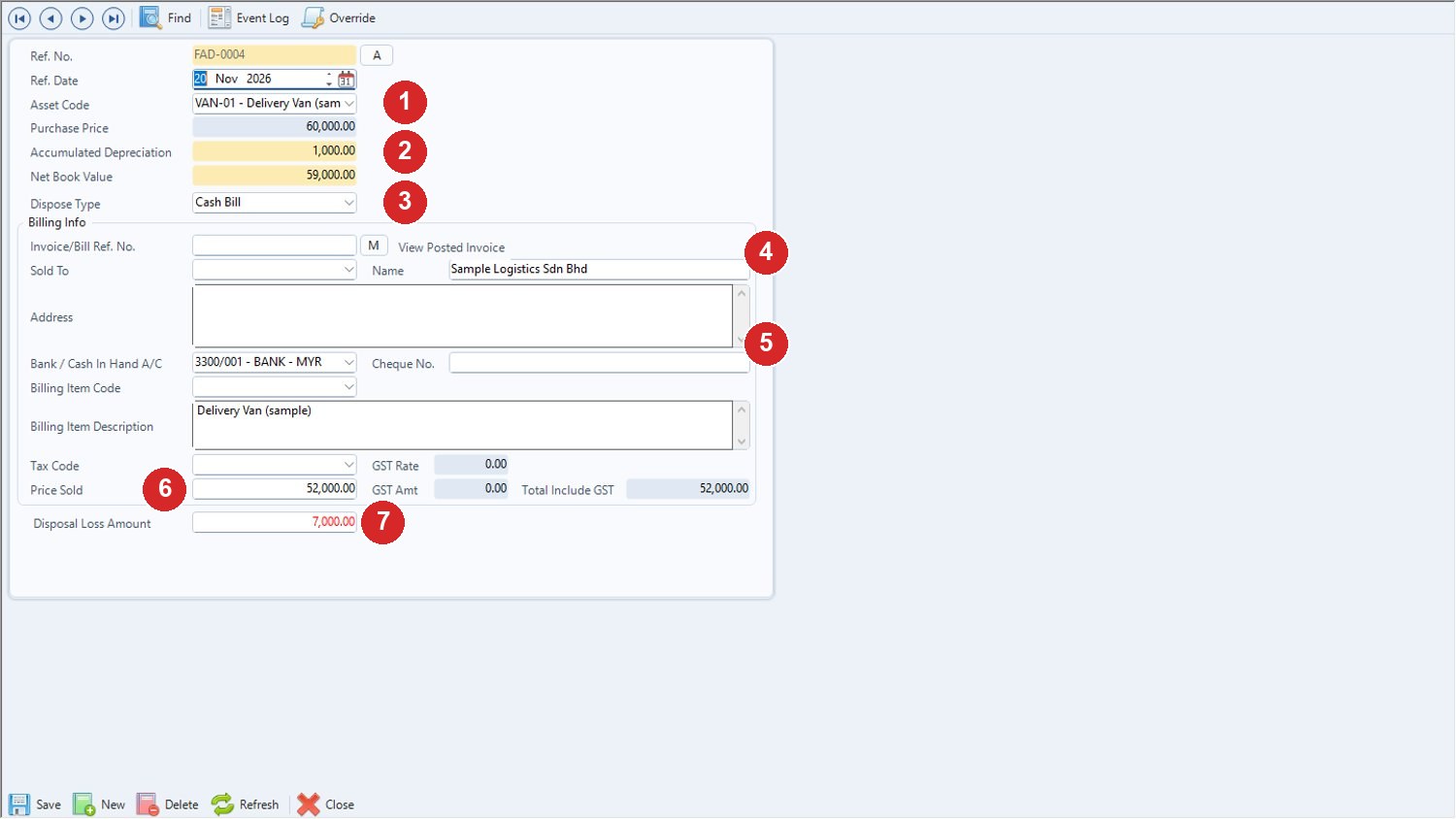
| Step | What to do |
|---|---|
| 1 | Asset Code: Purchase Price, Accumulated Depreciation and Net Book Value fill in. |
| 2 | Here 60,000.00 bought, 1,000.00 depreciated, net book value 59,000.00. |
| 3 | Dispose Type: Scrapped/Disposed, Cash Bill or Invoice. |
| 4 | For a sale: Sold To or Name, and Address. |
| 5 | Bank / Cash In Hand A/C and Cheque No. |
| 6 | Price Sold (here 52,000.00), with Tax Code if any. |
| 7 | The gain or loss (here Disposal Loss Amount 7,000.00). Save. |
Tips
- Once the schedule has been generated you cannot generate it again from the asset record.
- Assets already posted for a period do not appear in the posting list again until reversed.
- Charge Deem Supply is shown only for a disposal or scrap, not for a sale.
- Billing fields appear only when the dispose type is a sale.
- Net Book Value is purchase price less accumulated depreciation and is read-only.
Common problems
The message Scheduled depreciation already generated. Not allowed to change schedule now. appears.
The schedule has already been created and cannot be generated again here.
The schedule fails to generate.
Check that each financial year is 12 months and that the start year is valid.
The depreciation posting list is empty.
No depreciation is scheduled for the chosen period, or it is already posted.
I cannot post the depreciation.
Remove the rows marked invalid and make sure the Journal Ref No. is filled in.
The message Transaction Locked, Already Offset In Debtor Ledger appears on a disposal.
The sale invoice has been settled, so the record can no longer be changed.
The gain or loss looks wrong.
Check the asset’s purchase price and accumulated depreciation first.