
This guide shows how to change many general ledger accounts in one go, how to post recurring transactions, and how to split one bank entry into unpresented cheques for bank reconciliation.
Before you start
- Account batch edit: General Ledger > Utilities > Chart of Accounts Batch Edit.
- Recurring transactions: open a Journal, Petty Cash, Payment or Receipt entry that is not yet posted (and not a recurring transaction itself) and use the Load Recurring command. Define the recurring transactions beforehand; only those are listed.
- Cheque breakdown: Cash Management System > Transactions > Bank Reconciliation > GL Journal Entry Breakdown.
Steps
1. Open Chart of Accounts Batch Edit
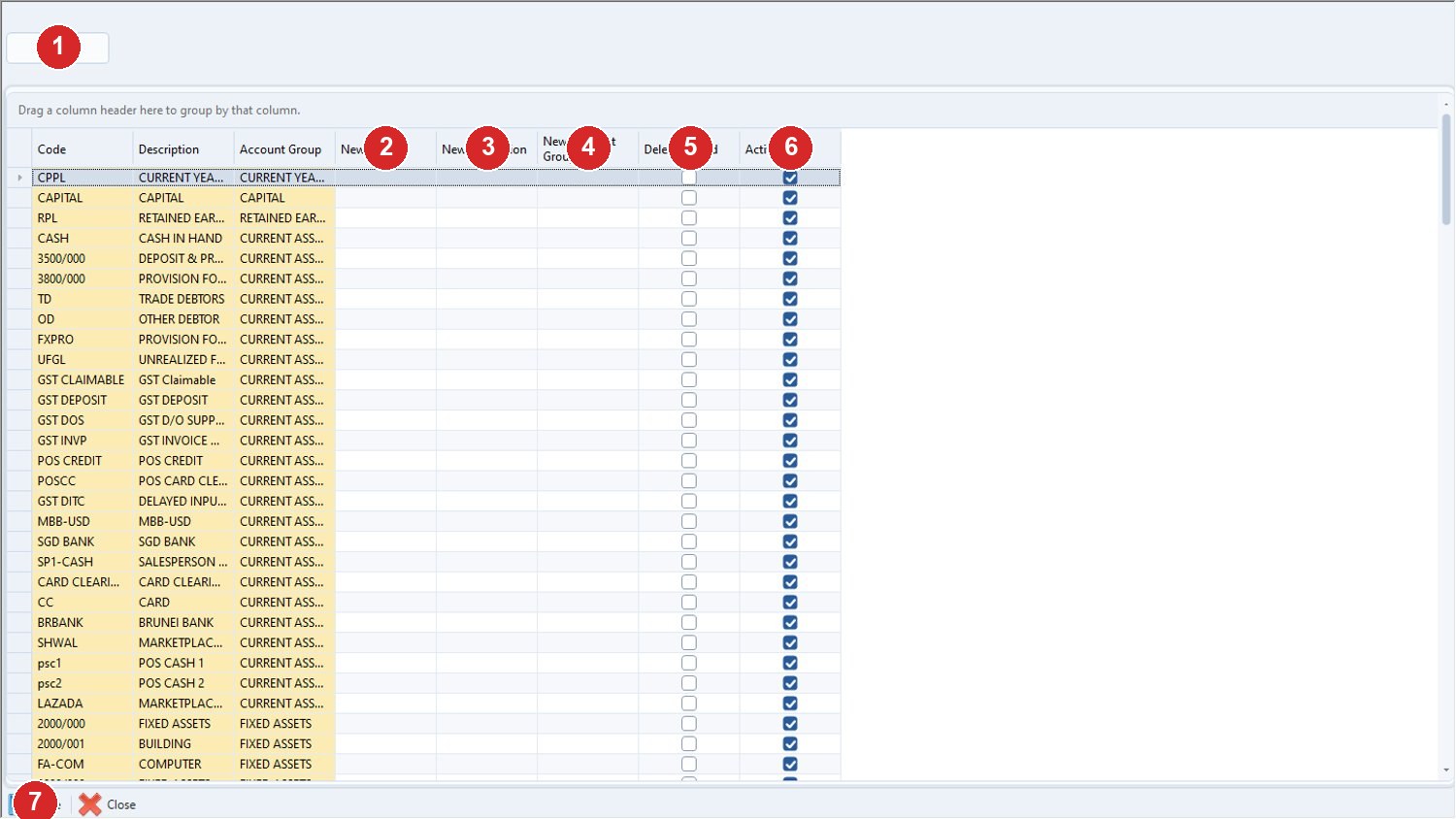
Go to General Ledger > Utilities > Chart of Accounts Batch Edit.
| Step | What to do |
|---|---|
| 1 | Refresh lists your accounts with Code, Description and Account Group. |
| 2 | New Code: type a new code, or leave empty to keep the old one. |
| 3 | NewDescription: a new description, or empty to keep it. |
| 4 | New Account Group: the group to move the account into. |
| 5 | Delete Record: tick to delete an unused account. |
| 6 | Active: untick to deactivate. |
| 7 | Save, then confirm the message Please TICK on the checkbox to confirm the changes. |
2. Load recurring transactions
On the Load Recurring window, set the Ref. Date (the financial period is chosen from it) and set the Ref. No. with the automatic reference number button next to it. Tick each recurring transaction you want to post; ticking a row shows its detail lines.
3. Adjust the amounts and post
If needed, change the debit or credit amount or the remark on the detail lines. Press Post Transaction, read the You are about to post message, answer Yes to Do you want to proceed?, and wait for Transaction(s) posted successfully.
4. Pick the entry to break down
On the GL Journal Entry Breakdown screen, click 1. Select Transaction To Breakdown and choose the original entry. The Information of Original Entry box shows its Date, Ref. No., Account, Cheque No., Description, Debit and Credit. The grid gets an extra line with the cheque number STATEMENT BALANCE.
5. Enter the unpresented cheques
Add one line per cheque with its date, cheque number and either a debit or a credit amount. You can also use Load From Excel with an .xlsx or .xls file that has the columns ChequeNo, Date, Debit and Credit.
6. Fill in the statement balance and save
The line under the grid reads Statement Balance = amount (Debit) or (Credit). It is the original amount less the cheque lines you entered. Type that amount as the debit or credit of the STATEMENT BALANCE grid line, then save.
Tips
- Only rows you actually changed are processed in the batch edit; accounts that could be saved are still saved if others fail.
- In Load Recurring, entering a debit clears the credit on that line, and entering a credit clears the debit. Negative numbers are turned into positive ones.
- In the breakdown, the total of the grid lines, including the STATEMENT BALANCE line, must equal the amount of the original entry.
- Excel rows with no debit and no credit amount are skipped.
Common problems
Nothing happens after I press Save in Batch Edit.
You probably did not change any row. Look for the message No changes made.
Some accounts were not changed in Batch Edit.
Read the error list. It shows each account code with the reason.
I pressed Refresh and lost my edits.
Refresh discards unsaved edits. Enter them again.
I cannot post recurring transactions.
Check that you ticked at least one row, the financial period is not empty, and the reference number is set to automatic. Choose a Ref. Date inside a defined financial period.
The message Breakdown amount does not tally with the original amount. appears.
The lines do not add up to the original debit minus credit. Correct the amounts.
Messages such as No date specified for one or more rows or No amount specified for one or more rows appear.
Every line needs a date and a debit or a credit amount.
Excel load brings nothing.
Check that the file has the column headings ChequeNo, Date, Debit and Credit and at least one row with an amount.