
This guide shows you how to add or change an account in your chart of accounts, set up departments and account groups, and understand the main settings on the account screen.
Before you start
- Set up your Account Groups and Departments first, so you can choose them on the account.
- Know the name or code of the account you want to add or change.
Steps
1. Open the account screen
From the menu, go to General Ledger > Masterfile > Chart of Accounts. You can also open Chart of Account and press F2 in the code field, then choose New to start a new account.
2. Fill in the account
Here 9O01/000 OFFICE RENTAL in group EXP – EXPENSES. If you have no Capital account, create a code such as CAPITAL for capital injections. To move an existing account to another part of the P&L, change its Account Group and save.
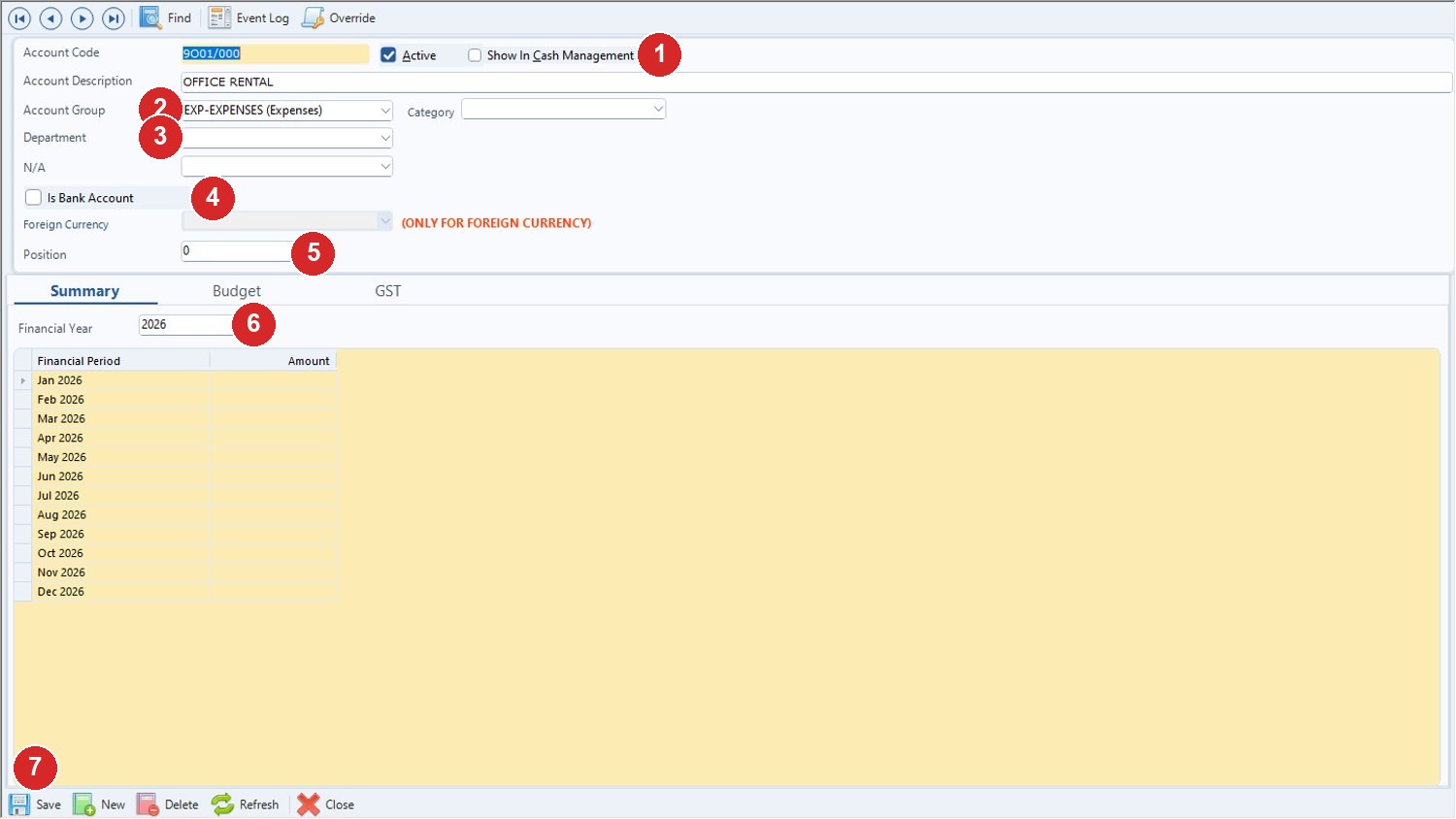
| Step | What to do |
|---|---|
| 1 | Account Code and Account Description; keep Active ticked while it is in use. Show In Cash Management lets cash screens pick it. |
| 2 | Account Group (required): the P&L and Balance Sheet follow the group, so pick the standard group where the account should appear. |
| 3 | Department, if you split reports by department or branch (set the codes up first). |
| 4 | Is Bank Account for a bank; then Foreign Currency only for a foreign-currency bank. |
| 5 | Position: a number from 0 to 9999. |
| 6 | Summary tab: pick a Financial Year to see the amount per period. |
| 7 | Click Save. |
3. Add a department (if needed)
Go to General Ledger > Masterfile > Departments. Make one department code for each branch or department you report on, then save.

| Step | What to do |
|---|---|
| 1 | Code (here SALES). Leave Active ticked. |
| 2 | Description. |
4. Add an account group (if needed)
Go to General Ledger > Masterfile > Account Group, then save.
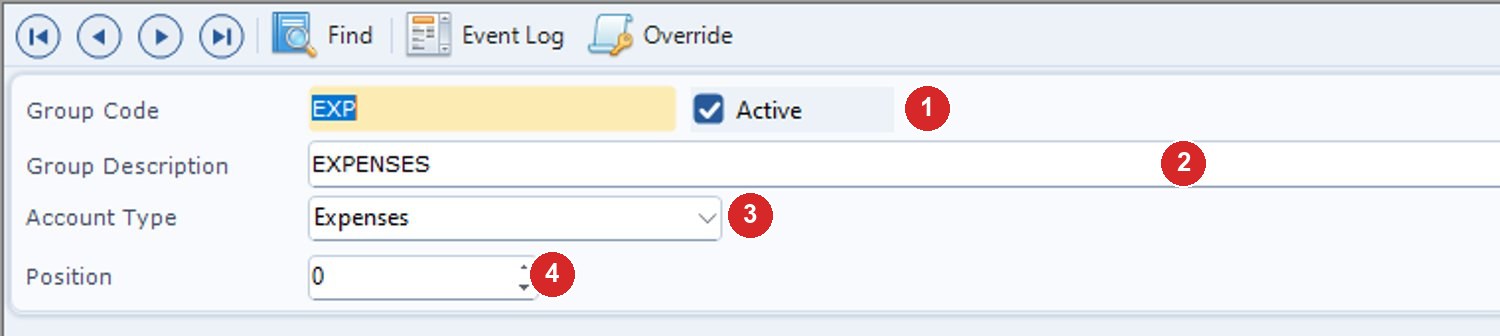
| Step | What to do |
|---|---|
| 1 | Code (here EXP). Leave Active ticked. |
| 2 | Description. |
| 3 | Account Type (here Expenses): where the group shows in the reports. |
| 4 | Position (0 to 9999): the order in the reports. |
5. Check an account’s movement
Go to Accounts > General Ledger > Query > Transaction Query, then choose the account. On the account screen you can also pick a Financial Year on the Summary, Stocks or Budget tab to see figures.
Tips
- The chart has only an Account Group (the heading) and an Account Code (the line). There are no sub-accounts under a code.
- Category is for the debtor and creditor side. Ignore it for normal accounts.
- Department is for multi-department or multi-location accounting.
- N/A links a fixed asset accumulated depreciation account. Position is the arrangement of the account.
- If an unwanted category such as Upkeep appears, change the account group to standard expenses.
- To report an account such as bank commission by branch, create a different Department code for each branch, as you do for bank accounts.
- To use an account for accounting entries only, create a Purchase Invoice. It will then show on the aging report.
- To use a foreign currency, tick Is Bank Account first.
- Untick Active on a department or group to stop it being offered while keeping the record.
- Some codes, for example an EIS account, are not in the software by default.
Common problems
A warning says the account code already exists.
The code is already used and the old account is not overwritten. Create a new code. If you want the same account under another department, answer yes to the question about creating multi department; the code, description and group are then locked.
The account will not save and shows [Code], [Description] or [Account Group] is required.
Fill in the missing field and save again.
The message says [Position] must be 0 to 9999.
Enter a whole number from 0 to 9999.
I cannot choose a Foreign Currency.
Tick Is Bank Account first.
A tab such as Summary or Stocks is missing.
These tabs depend on the account group type. Summary is hidden for stock-type accounts, and Stocks appears only for stock-type accounts.
A department or group does not appear in a list.
Check that Active is ticked on that record.
The Account Type list is empty when creating a group.
The account types must be set up first in your General Ledger setup.
F2 > New does not create the record, or you need to import a prepared chart from Excel.
Contact Synergy support. Have a screenshot of the screen ready, and for an import, your prepared Excel chart.
I want to use an account as an item.
Create a Purchase Invoice for accounting purposes. If you are unsure, contact Synergy support and tell them the purpose of the entry.