
This guide shows how to key in opening balances and retained earnings when you start using Synergy Acc2026 part-way through a year, and how to see them on the balance sheet.
Before you start
- Have your opening balances ready, with the debit and credit figures.
- Know the date or month you want to view on the balance sheet.
Steps
1. Open the Journal
Go to General Ledger > Transactions > Journal.
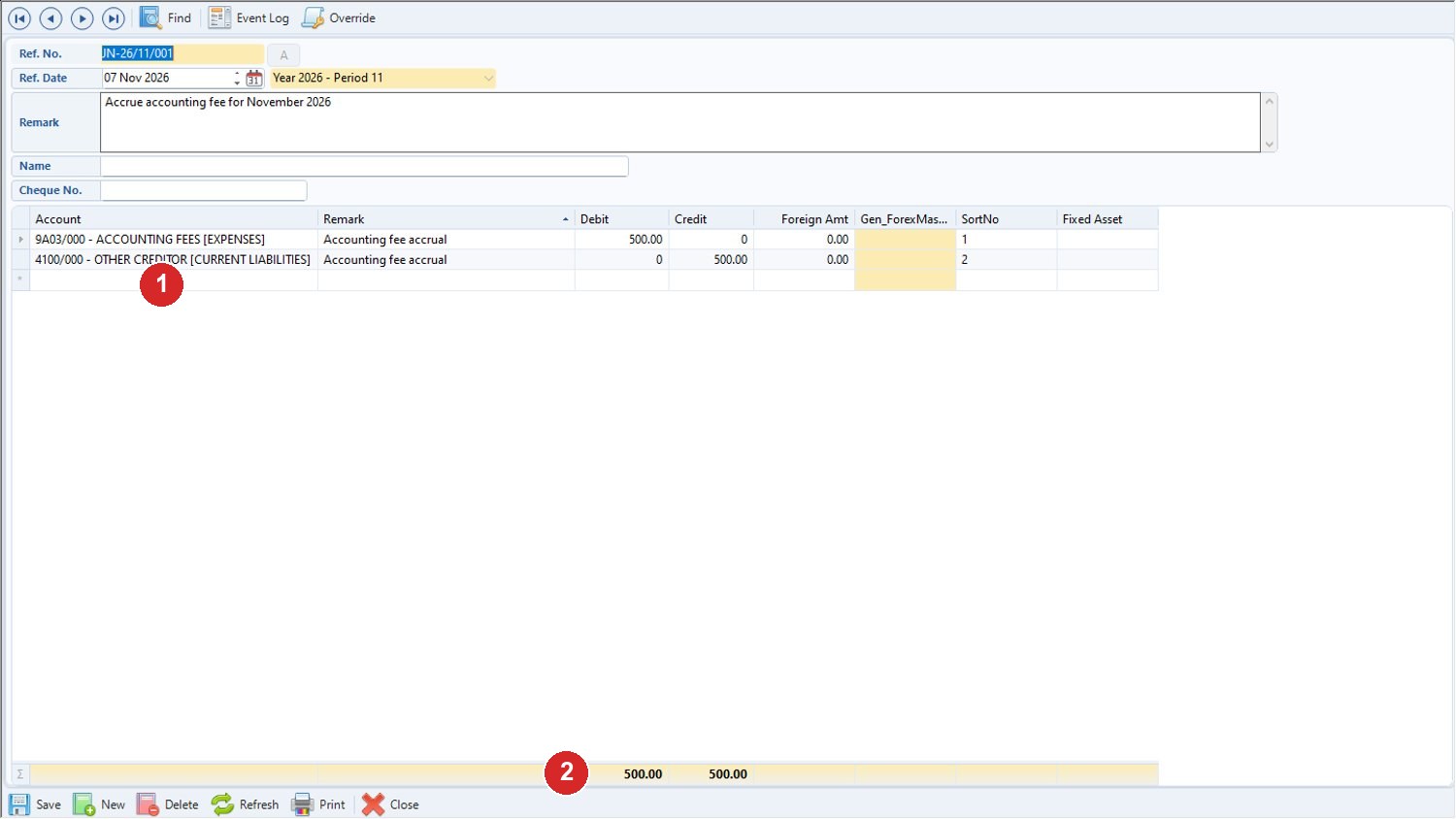
| Step | What to do |
|---|---|
| 1 | Key each opening balance as a line with a debit or a credit, the bank opening balance too. |
| 2 | Total Debit must equal total Credit before you save. |
2. Key in the opening balances
Enter each opening balance as a journal line with a debit and a credit. Do this for the bank opening balance too.
3. Do not use the standard Retained Earnings account
Do not post to the standard Retained Earnings account. The system works it out by itself and it cannot take transactions.
4. Set up a Retained Earning Adjustment account
Create a Retained Earning Adjustment account group. Then create an account under that group and use this account in your journal.
5. View the Balance Sheet
Open the Balance Sheet and choose 1 column. Set the date or month of the period you want to view.
6. Alternative: change the Financial Year
For the retained earnings opening, you can instead edit the Financial Year. Delete the old record and create a new one with Period 1 only. The Financial Year screen is at General Ledger > Masterfile > Financial/Fiscal Year Setup.
7. Set the year details when creating a new year
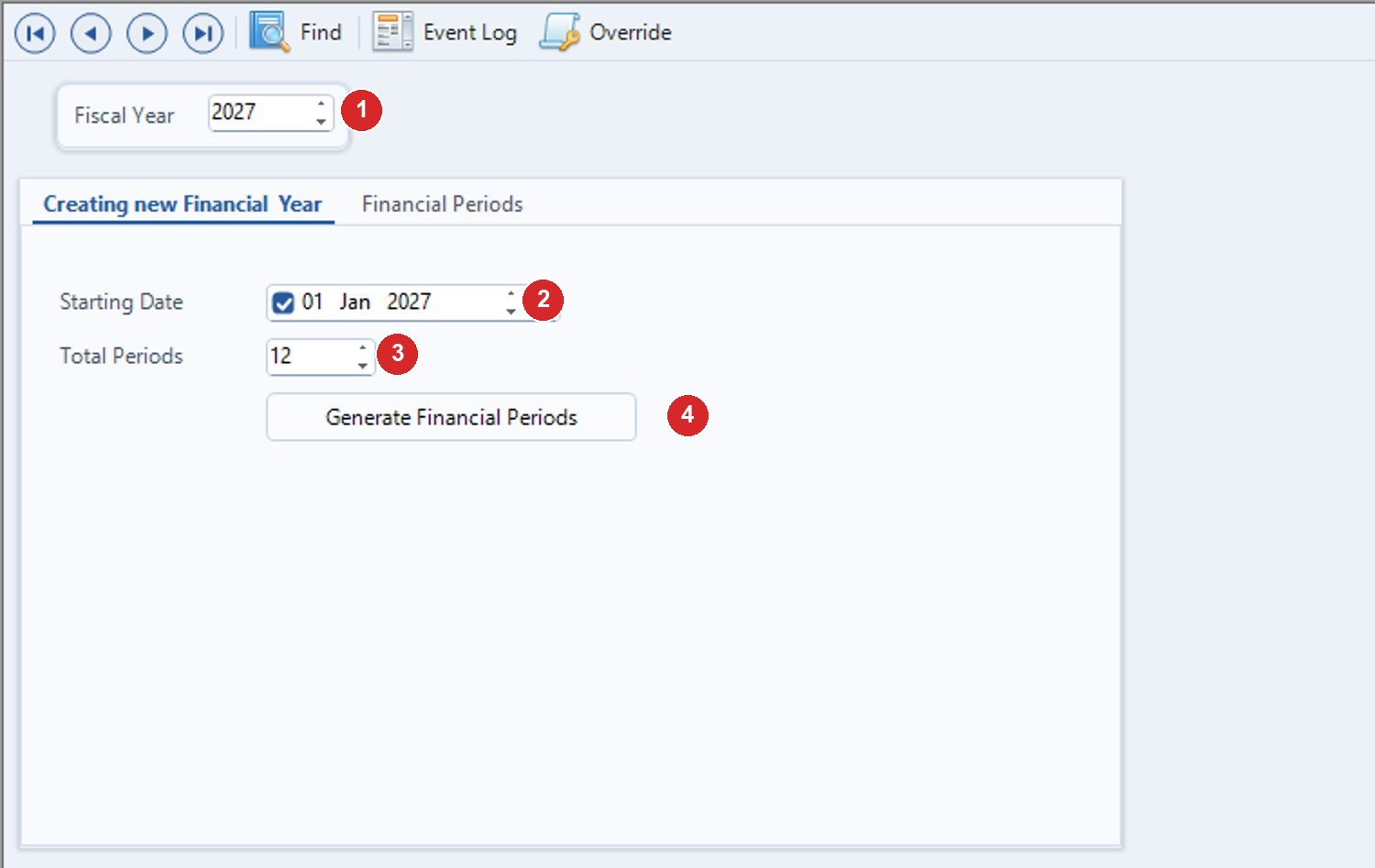
On the Creating new Financial Year tab, set the Fiscal Year, the Starting Date and the Total Periods.
| Step | What to do |
|---|---|
| 1 | Fiscal Year (here 2027). |
| 2 | Starting Date (here 01 Jan 2027). |
| 3 | Total Periods (here 12). |
| 4 | Generate Financial Periods. |
8. Generate and save the periods
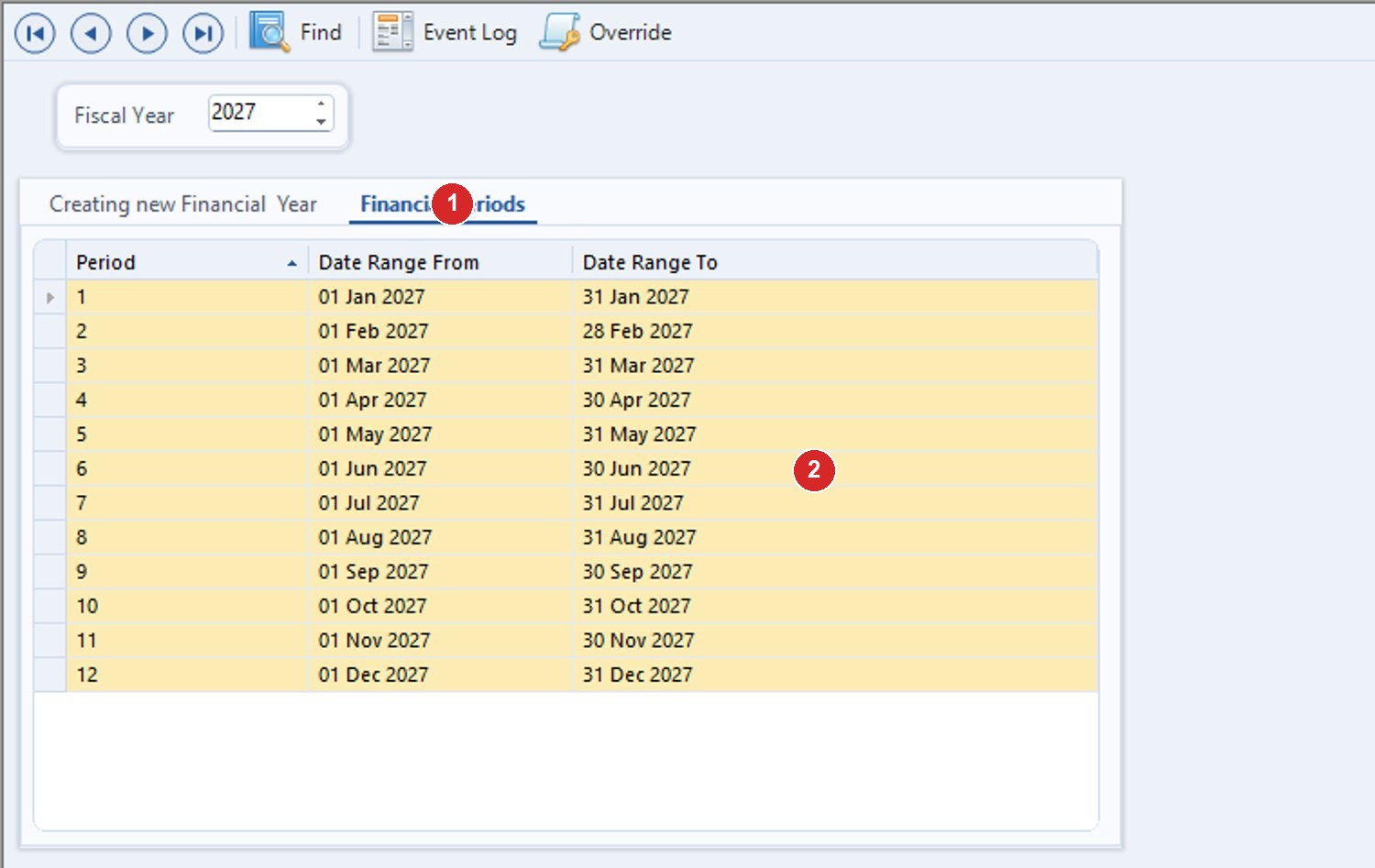
Press Generate Financial Periods and check the list on the Financial Periods tab. Then Save and answer Yes only if the details are right.
| Step | What to do |
|---|---|
| 1 | Financial Periods tab: one line per period (here January to December 2027). |
| 2 | Check the From and To dates, then Save and answer Yes only if they are right. |
Tips
- Months must be processed in order. You cannot skip months because brought-forward figures are needed.
- The number of periods cannot be changed after you save a new financial year, so check it before you answer Yes.
- If you change the Fiscal Year, the Starting Date jumps back to 1 January. Change the date after choosing the year if your year starts on another day.
- Retained earnings carries forward automatically at year end, and its category cannot be changed.
- To see last year’s balance, use Trial Balance Type 2. Set the 1st period to last year’s closing and the 2nd period to the period you need.
- Generate Financial Periods replaces any periods already listed.
Common problems
The retained earnings I keyed in does not show on the balance sheet.
Check that the journal was not posted to the standard Retained Earnings account, and that you used your Retained Earning Adjustment account. Also check the journal date and that the balance sheet is set to the right period.
I cannot save a new financial year.
You probably have not generated the periods. Press Generate Financial Periods first.
The period dates are wrong.
The Starting Date was probably left at 1 January. Change it and press Generate Financial Periods again.
It still does not work.
Contact Synergy support. Have your financial year setup and the journal number ready.