
This guide shows you how to key in petty cash out, do a bank reconciliation, record money paid out or received through the bank, and clear card or QR takings (POSCC) when they reach your bank.
Before you start
- Know whether the payee is a creditor, a debtor or a general expense (such as staff fuel and toll claims).
- Have your bank statement ready, with its Statement Balance, Statement Date and Cut Off Date, for the bank reconciliation.
- For card or QR takings, have the bank statement line showing the amount the bank really credited.
Steps
1. Open Petty Cash Payment
Go to Cash Management System > Transactions > Petty Cash > Petty Cash Payment.
2. Fill in the top of the screen
Go to Cash Management System > Transactions > Petty Cash > Petty Cash Payment. Here an electricity bill paid from petty cash.
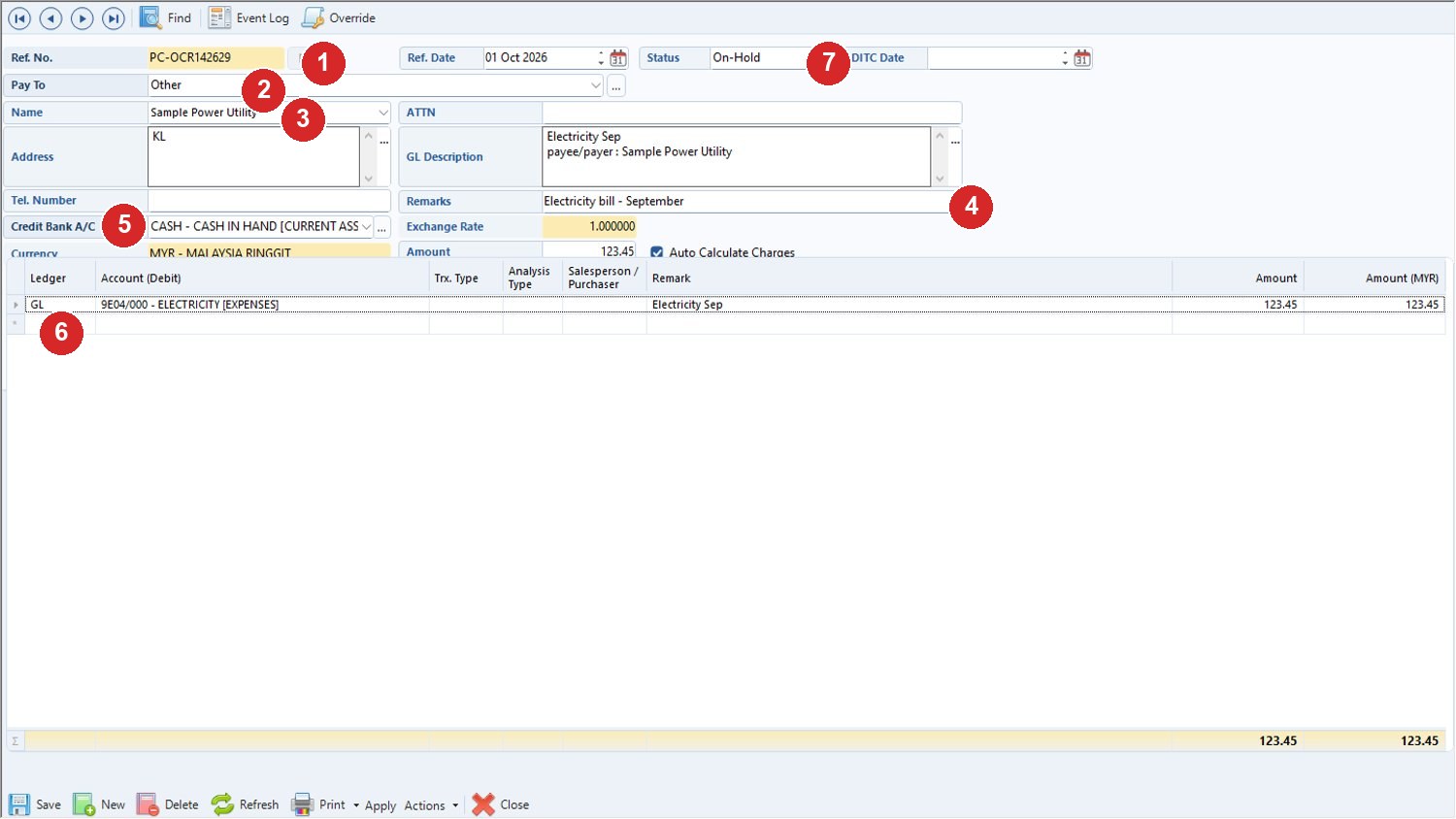
| Step | What to do |
|---|---|
| 1 | Ref. No. and Ref. Date. |
| 2 | Pay To: Creditor, Debtor or Other (here Other). |
| 3 | Name of the payee (here Sample Power Utility). |
| 4 | Remarks. |
| 5 | Credit Bank A/C: normally your petty cash or bank account (here CASH – CASH IN HAND). |
| 6 | Lines: Ledger GL with the expense account (here 9E04/000 ELECTRICITY 123.45); CL for a creditor, DL for a debtor. |
| 7 | Status: a posted entry cannot be edited; set it to On-Hold and save first. |
3. Choose the accounts
Debit an Expense account in the grid. In Credit Bank A/C, normally pick your petty cash or bank account. The screen will not stop you picking another account, so check it yourself. Then save.
4. Record money paid out of the bank
Go to Cash Management System > Transactions > Bank > Bank Payment. To pay a supplier invoice, use Bank Payment and apply the purchase invoice. For utility bills, use Bank Payment with Pay to Other.
5. Record money received
Go to Cash Management System > Transactions > Bank > Bank Receipt. All money received is keyed in here. If a customer pays by two cheques, key in each amount paid and apply it to the invoice. Then decide whether to refund or keep any excess. Journal is only for accounting adjustments.
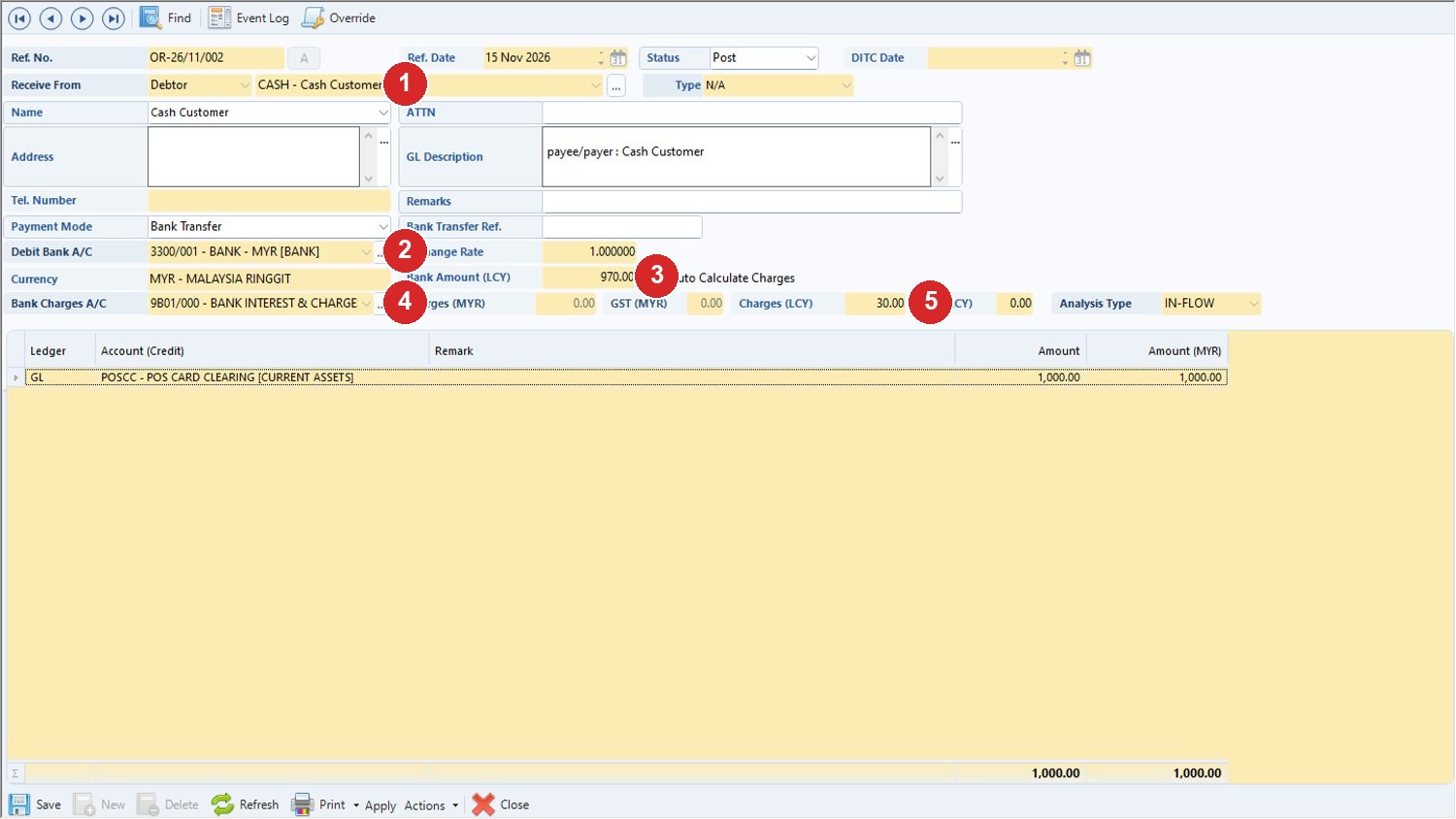
| Step | What to do |
|---|---|
| 1 | Received From (Debtor, Creditor or Other) and the payer (here CASH – Cash Customer). |
| 2 | Debit Bank A/C: the bank that received the money. |
| 3 | Bank Amount (LCY): what the bank really credited (here 970.00). |
| 4 | Bank Charges A/C: the charges account (here 9B01/000 BANK INTEREST & CHARGES). |
| 5 | Charges (LCY): the amount the bank deducted (here 30.00), so the line can clear the full 1,000.00. |
6. Open Bank Reconciliation
Go to Cash Management System > Transactions > Bank Reconciliation > Bank Reconciliation. Choose the Account To Reconcile, enter the Statement Balance, Statement Date and Cut Off Date, then click List.
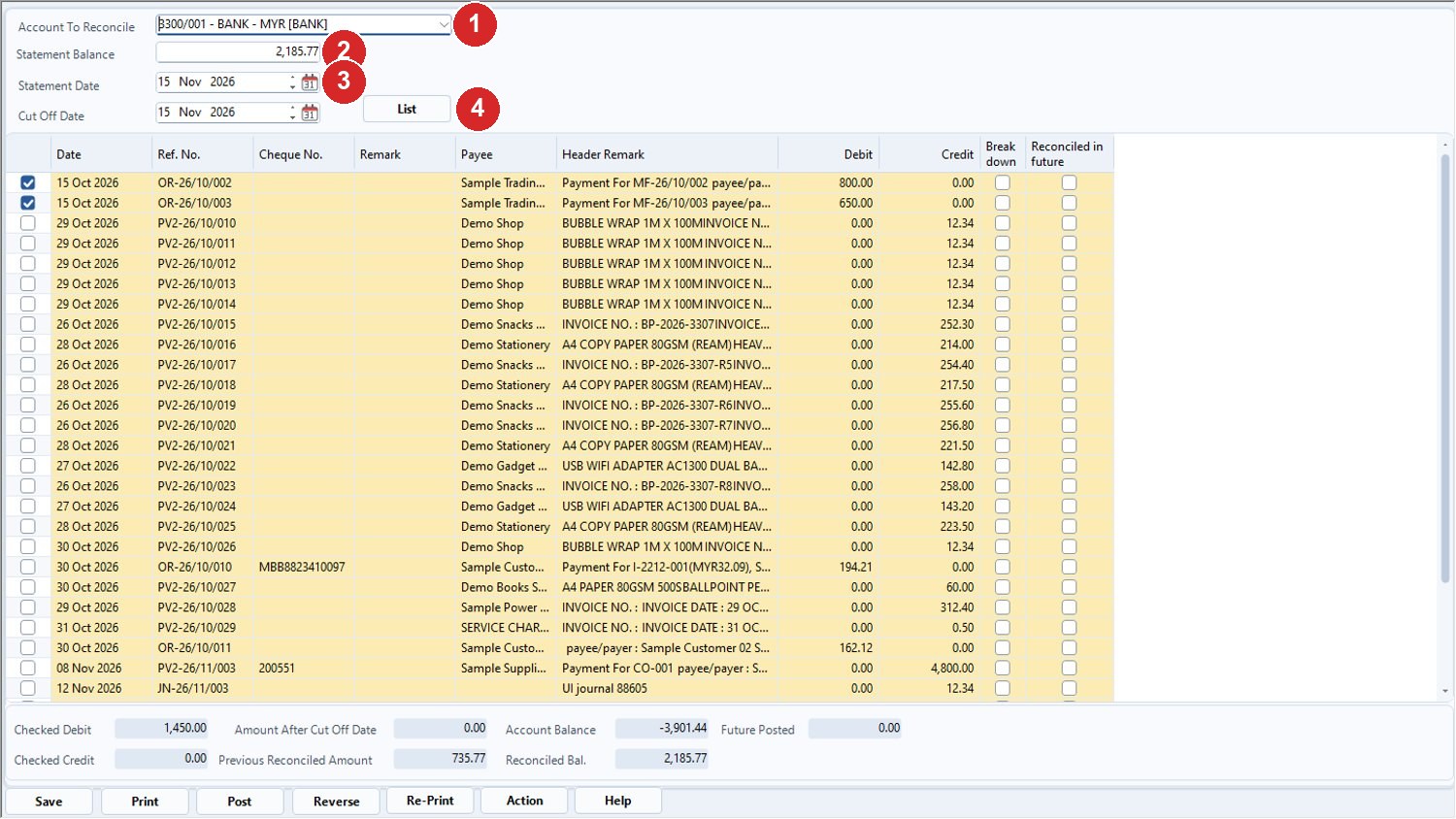
| Step | What to do |
|---|---|
| 1 | Account To Reconcile (here 3300/001 BANK – MYR). |
| 2 | Statement Balance from your bank statement. |
| 3 | Statement Date and Cut Off Date. |
| 4 | Click List. |
7. Tick the lines on your statement
Tick the lines that are on your bank statement. The Reconciled Bal. must equal the Statement Balance, otherwise posting is refused.
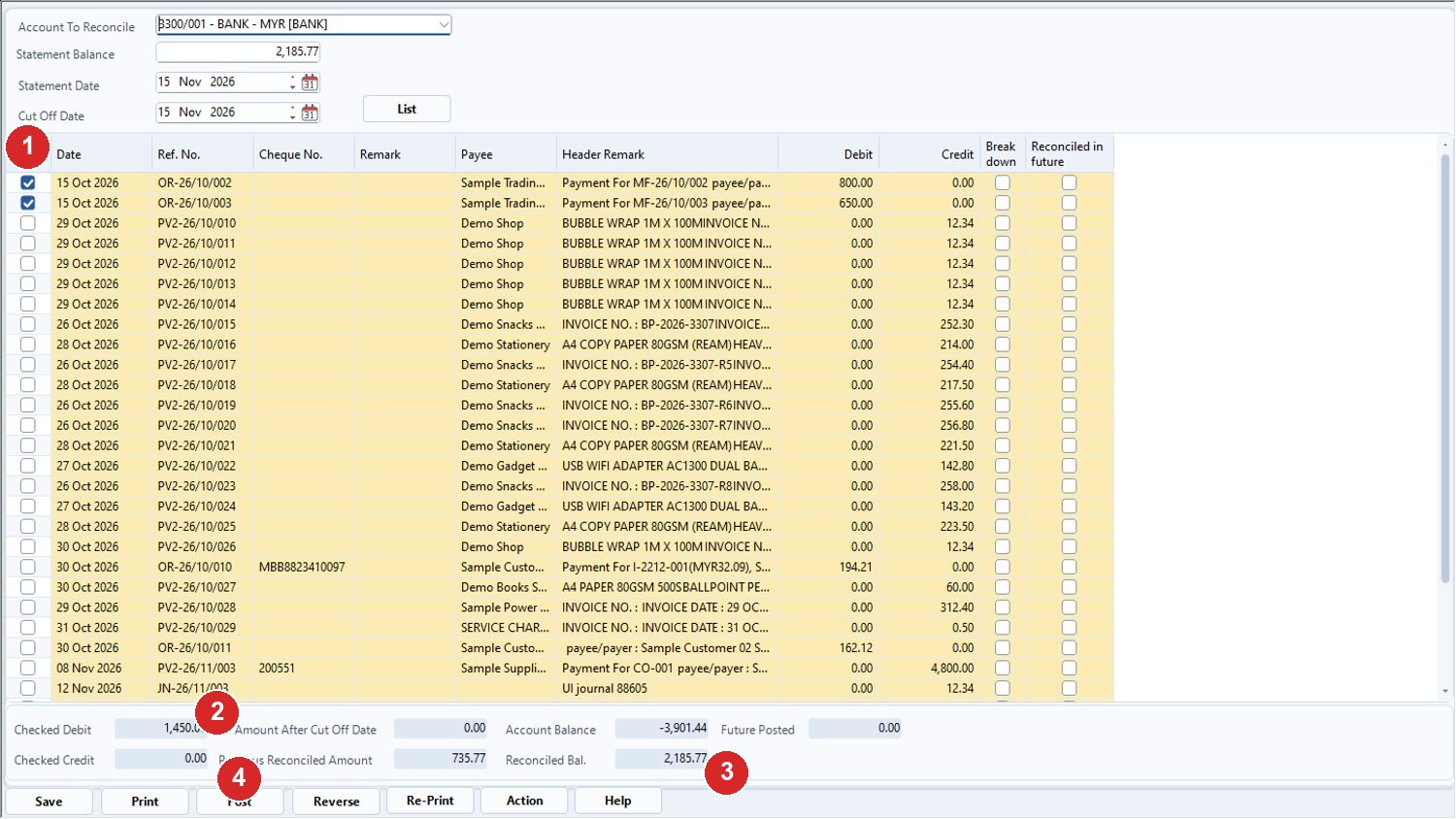
| Step | What to do |
|---|---|
| 1 | Tick the lines that are on your bank statement (here the two October receipts, 800.00 and 650.00). |
| 2 | Checked Debit and Checked Credit add up what you ticked. |
| 3 | Reconciled Bal. must equal the Statement Balance (here both 2,185.77), otherwise posting is refused. |
| 4 | Save, then Post when you are finished for the month. |
8. Save and Post
Click Save, then Post. If you are not finished, only click Save. Post when you are finished, before you continue next month.
9. Clear card or QR takings (POSCC)
When the card or QR transfer arrives in the bank, make a Bank Receipt. In the detail line choose the General Ledger type and the POSCC account. Check that this is the clearing account your card/QR sales were posted to. Do not use a sales or income account, or the same sales will be counted twice.
10. Key the amount the bank credited
Enter the amount the bank really credited. If the bank deducted card/QR charges, put the difference in a second line for the bank charges account so the POSCC balance clears to zero. Check the date is not in a locked period, then save.
Tips
- Entries cannot be deleted, only voided.
- A row shown in yellow is the one that can be affected by the status rule; colours can be changed under Main > System > Color Settings.
- The Journal screen is General Ledger > Transactions > Journal. If it shows no Add New Record button, enlarge or maximise the window.
- The General Ledger Petty Cash, Payment and Receipt entries are obsolete and hidden unless switched on in General Ledger > Settings > System Settings (Show / Hide tab). Use Cash Management instead.
- The General Ledger petty cash screen does not update the debtor or creditor ledger.
- To see the ledger of one debtor or creditor, open Debtor Ledger > Query > Transaction History (or Creditor Ledger > Query > Transaction History).
- General Ledger > Query > Transaction Query lists by Account, Ref. Date, Ref. No., Doc. Type and Remark.
- For bank payments and receipts, see Cash Management System > Reports > Transaction Listing > Bank Summary Statement. For totals with a balance, use the General Ledger report.
- On the petty cash report, the Grand total is brought forward plus receipts minus expenses, which is the petty cash still available.
- POSCC only has entries in months when card payments were used.
Common problems
I saved a record but it is not in the list.
Untick the date filters (Ref. Date and Date Created, each has a tick box) in the list options and click Refresh.
Cannot post the bank reconciliation.
Check that the Reconciled Bal. equals the Statement Balance. If they differ, posting is refused.
The Journal screen has no Add New Record button.
Enlarge or maximise the window.
I cannot click the date or amount box on a receipt or payment.
Enter the Ref. No. or choose the bank account first.
I cannot change the party type or the debtor/creditor.
The type cannot be changed once detail rows exist, and the debtor or creditor cannot be changed once invoices have been applied.
Some accounts (for example expenses) are missing from a report.
Your user ID may have limited report view rights. Check with the owner.
Still stuck.
Contact Synergy support and have the document number, date and a screenshot of the entry or bank statement line ready.