
This guide shows how to lock old general ledger periods, rename the Profit and Loss headings, combine account groups on a report, and pick the financial period for a report.
Before you start
- System settings: General Ledger > Settings > System Settings.
- Profit and Loss headings: on the options screen of General Ledger > Reports > Financial > P&L Accounts, click the Settings button.
- Account group consolidation: opened from the button for consolidating account groups on a report options screen, for example the Balance Sheet options.
- Account groups must already be created in the General Ledger Group screen.
Steps
1. Set the lock date
Go to General Ledger > Settings > System Settings. Transactions on or before the lock date cannot be added, changed or posted.
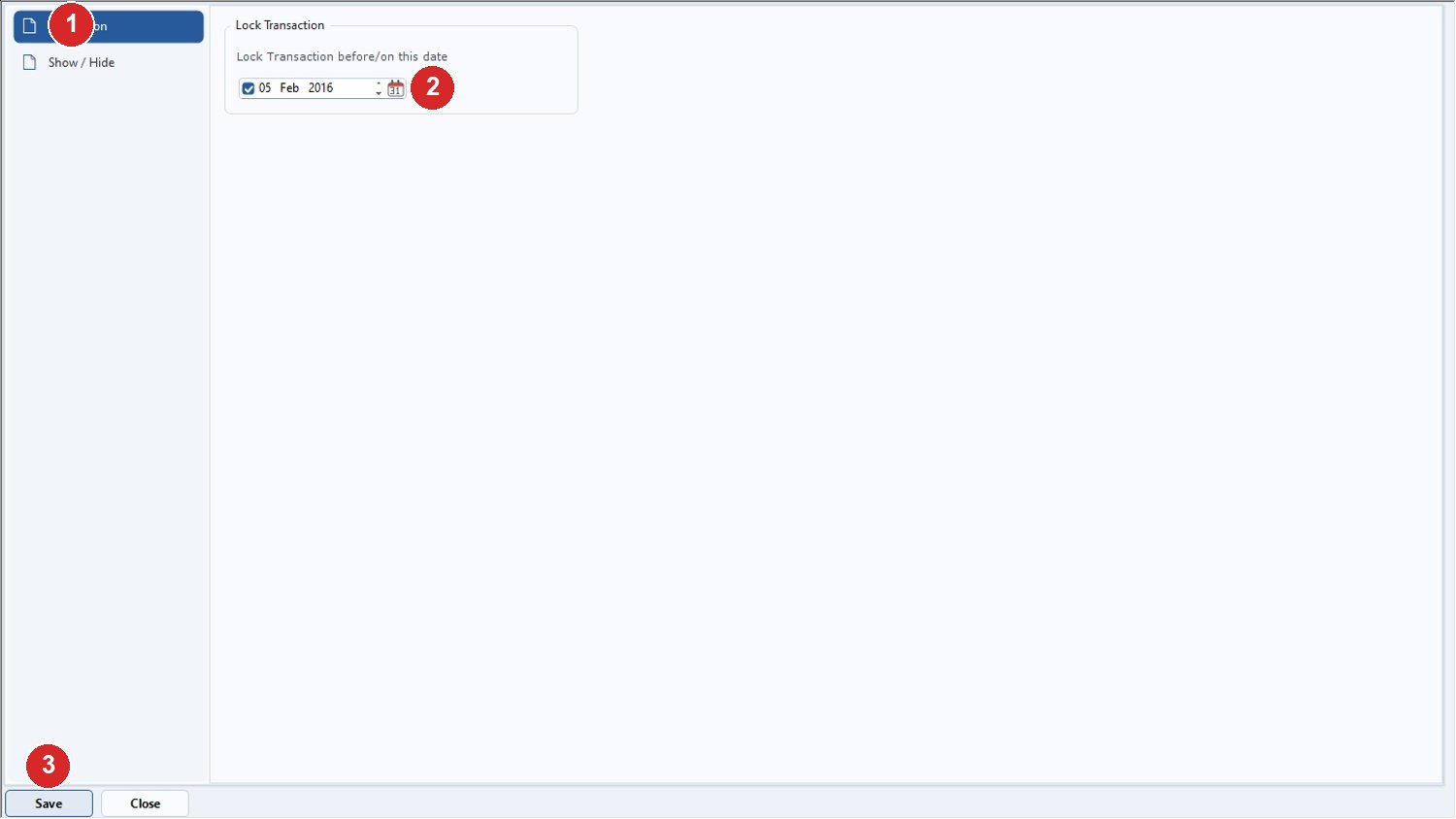
| Step | What to do |
|---|---|
| 1 | Integration tab. |
| 2 | Lock Transaction before/on this date: tick it and pick the date; untick to clear the lock. |
| 3 | Click Save. Setting Saved. appears for about two seconds. |
2. Show or hide the old payment, receipt and petty cash functions
On Show / Hide, tick or untick Show Payment / Receipt / Petty Cash Transaction. These functions are obsolete; the Cash Management Bank Payment and Bank Receipt should be used instead.
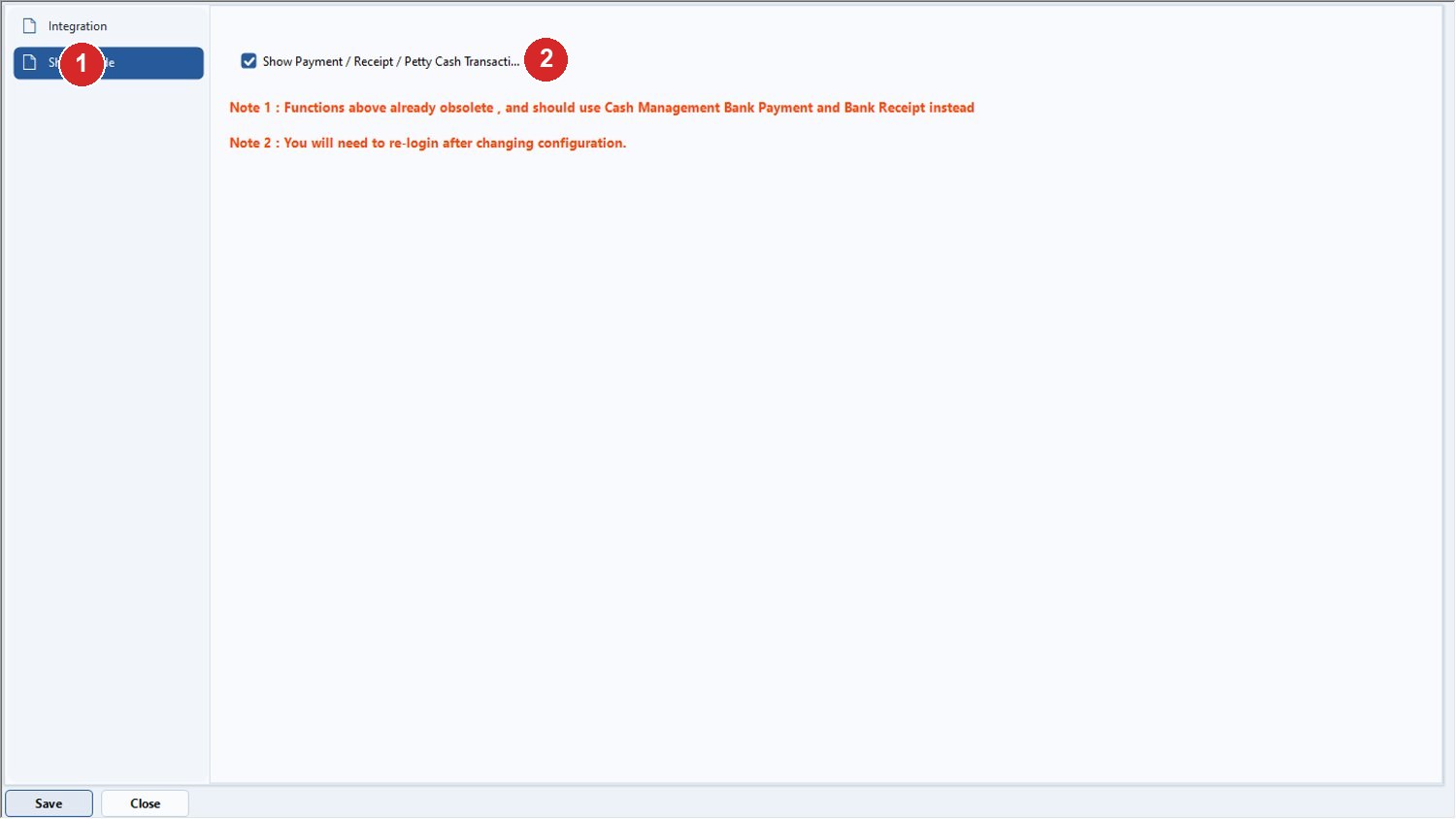
| Step | What to do |
|---|---|
| 1 | Show / Hide tab. |
| 2 | Show Payment / Receipt / Petty Cash Transaction. Save, then log in again. |
3. Save the settings
Click Save. The message Setting Saved. appears for about two seconds. Click Close to leave. If you changed the Show / Hide option, log in again.
4. Rename the Profit and Loss headings
On the P&L Accounts options screen, click Settings. Change the wording of any of the seven headings (REVENUE, LESS : COST OF GOODS SOLD, DIRECT OVERHEADS, EXPENSES, ADD : OTHER INCOME, OTHERS, Profit / (Loss)). Press OK to save or CANCEL to close without saving.
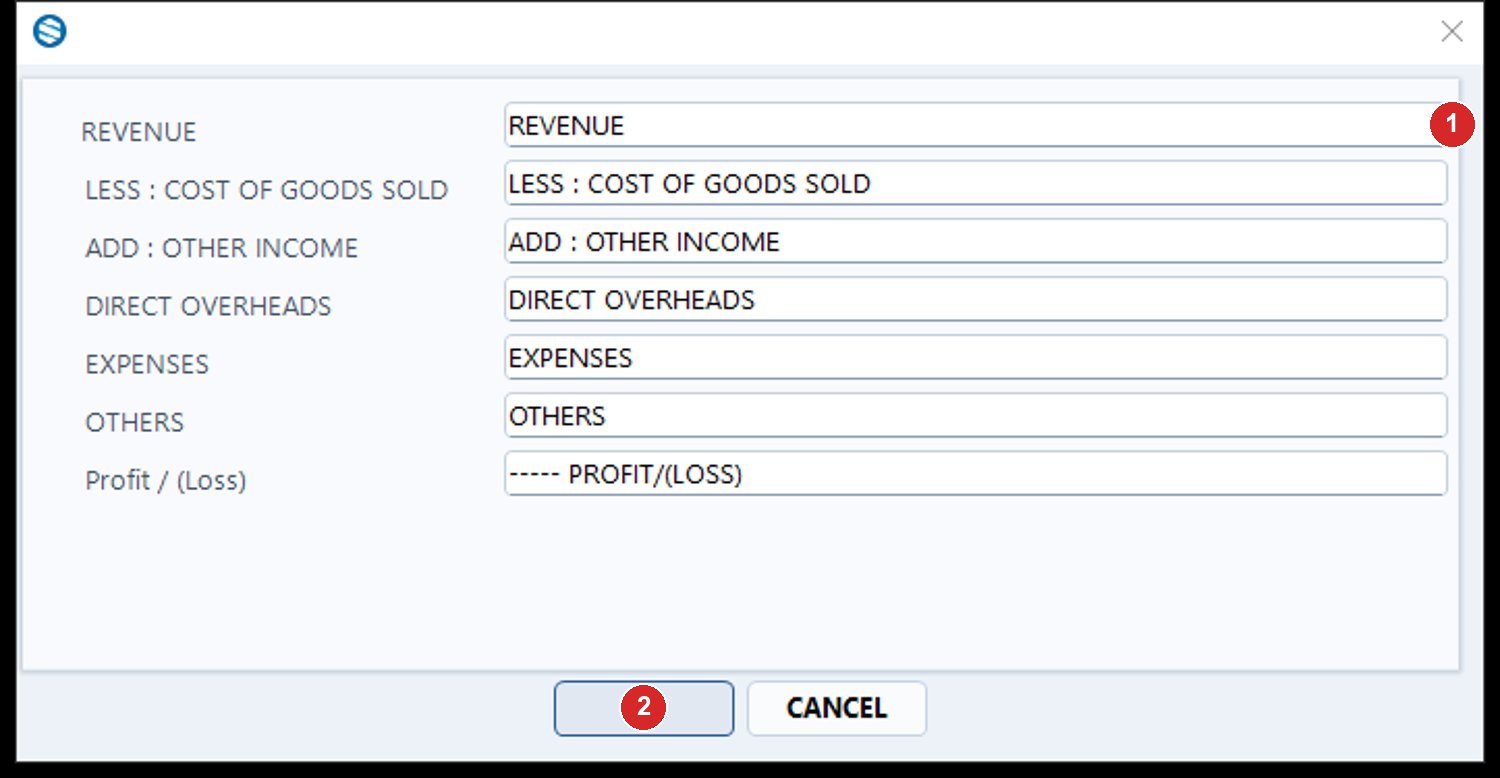
| Step | What to do |
|---|---|
| 1 | Type the wording for each of the seven headings (REVENUE, LESS : COST OF GOODS SOLD, ADD : OTHER INCOME, DIRECT OVERHEADS, EXPENSES, OTHERS, Profit / (Loss)). |
| 2 | Click OK. |
5. Combine account groups on a report
On the report options screen, open Account Group Consolidation. Tick the groups you want to combine. Ticking an account type, or the top heading Consolidate Group, ticks everything below it. Press OK to keep your choice or Cancel to leave without changing anything.
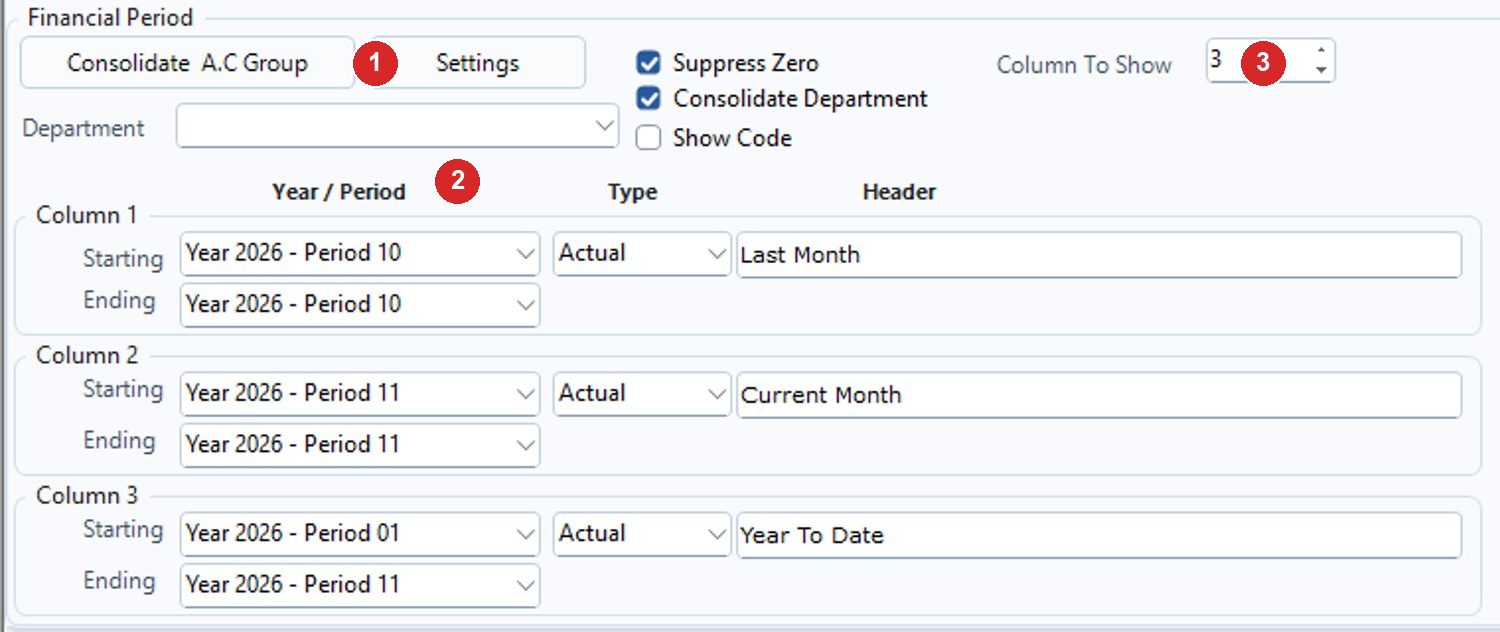
| Step | What to do |
|---|---|
| 1 | Consolidate A.C Group: tick the groups to combine on the report. |
| 2 | Column 1 to 3: Starting and Ending Year / Period, Type (Actual) and Header for each column (here Last Month, Current Month, Year To Date). |
| 3 | Column To Show, Suppress Zero, Consolidate Department and Show Code. |
6. Pick the financial period for a report
In report options that show a Financial Period box, pick the period in the drop-down and run the report. The period that contains the system date is chosen for you; a saved choice is loaded instead if you saved one before.
Tips
- The lock date is checked when entries are saved, including the original date of an entry you are editing. Ordinary users are refused with System Rules Violation. Administrators, and users with access to GL System Settings, can tick to proceed.
- The lock date is only stored if the tick next to it is on when you click Save.
- Close does not save. Click Save first.
- To return to the standard Profit and Loss wording, type the standard wording again.
- When you pick a period, the report title may change to Trial Balance As At followed by the period end date, whichever report you are running. Edit the title if the report is not a trial balance.
Common problems
An ordinary user cannot post or edit an entry for an old date.
Check the lock date on the Integration tab. Untick the box and save to remove the lock, or set an earlier date.
The payment, receipt or petty cash functions are missing.
Tick Show Payment / Receipt / Petty Cash Transaction on the Show / Hide tab, save, and log in again.
My Profit and Loss heading change does not show on the report.
You probably pressed CANCEL or closed the window. Open Settings again and press OK.
The message Unable to retrieve records appears in Account Group Consolidation and the window closes.
Try again. If it keeps happening, check that account groups exist and that the connection to the database is working.
My ticked groups did not apply.
You pressed Cancel or closed the window instead of OK.
The Financial Period box is empty when I open the options.
No period covers today’s date. Choose one manually, or check that financial periods have been set up for the year.
The message [Financial Period] is required appears.
Pick a period and run the report again.