
Use this guide if branch sales are missing at head office, stock is different between head office and a branch, or a branch cannot upload or download. Go through the checks below in order.
Before you start
- Know which branch and which dates are missing
- Note the exact error text shown on screen
- Have your branch licence number ready, and a photo of License Information if you can
Steps
1. Branch upload or download fails with an error or ‘timed out’
If it says ‘timed out’, just retry the upload or download. Restarting the software first can also help. Try the connection on a phone hotspot. If it works on the hotspot, the shop router or internet provider is the problem (check the internet subscription has not expired).
2. Check the shop network
Restart the router, then the PC, and wait 15 to 30 minutes. Set DNS on the network adapter to 8.8.8.8 and 8.8.4.4, and untick IPv6. Make sure antivirus or firewall is not blocking the software.
3. Check the web server setting
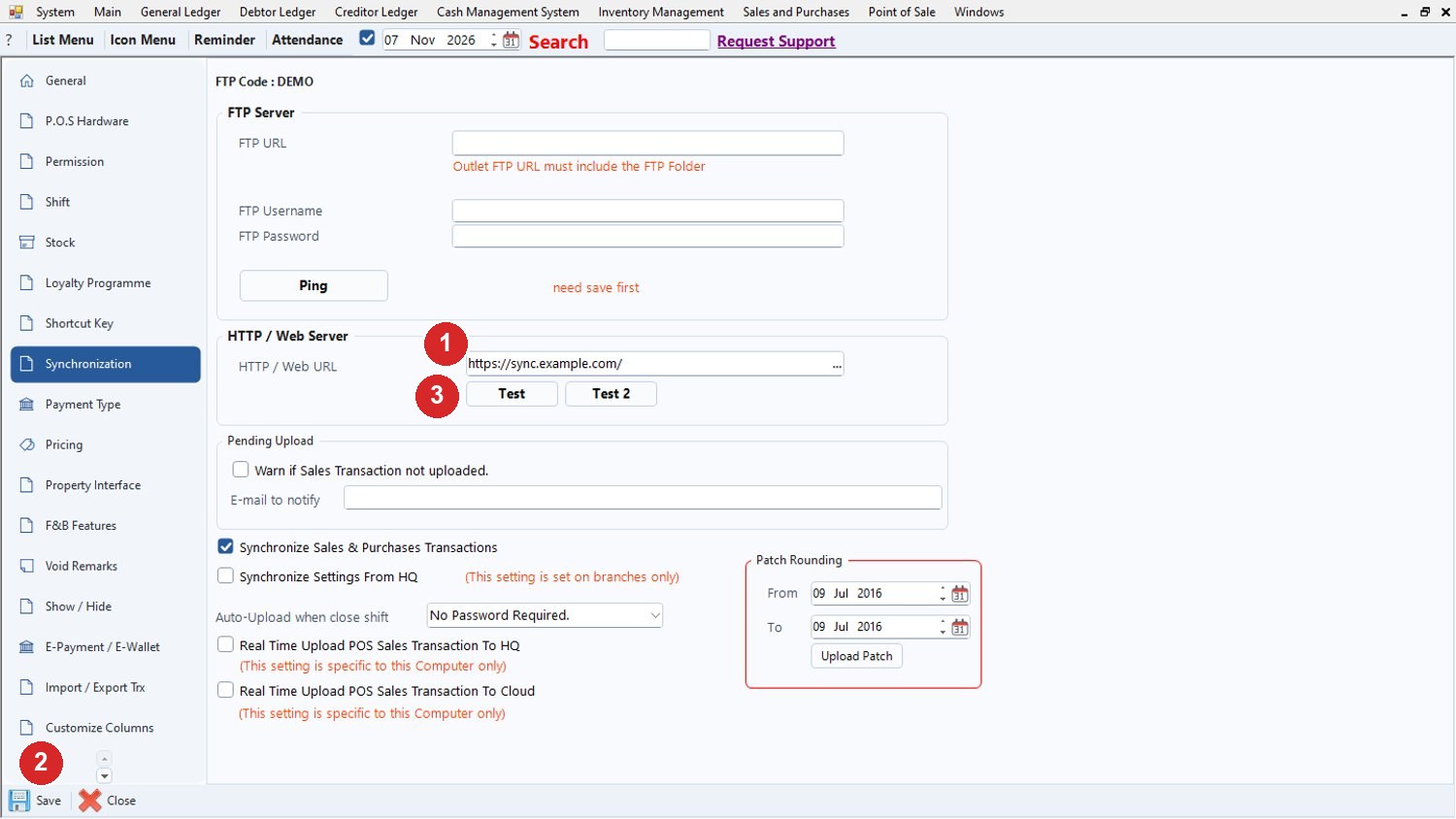
In Point of Sale Settings, open the Synchronization tab. If the browser shows an unsafe-site warning for the Synergy server, choose Details, then visit the site, and retry.
| Step | What to do |
|---|---|
| 1 | Make sure head office and all branches use the same web server in HTTP / Web URL. |
| 2 | Press Save first. |
| 3 | Then press Test. |
4. Branch says ‘failed to upload file’ or ‘server offline’
The branch licence or maintenance may have expired. Contact Synergy support to renew and re-enable it, then retry upload and download. Have the licence number and a photo of License Information ready.
5. All branches fail at the same time
Ask Synergy support whether the main web server has a known fault. If it does, support will guide you to switch to the alternative server on the head office main PC and on every branch main PC. After switching, head office uploads first, then each branch uploads and downloads. Anything uploaded before the switch must be uploaded again.
6. Find which sales days are missing
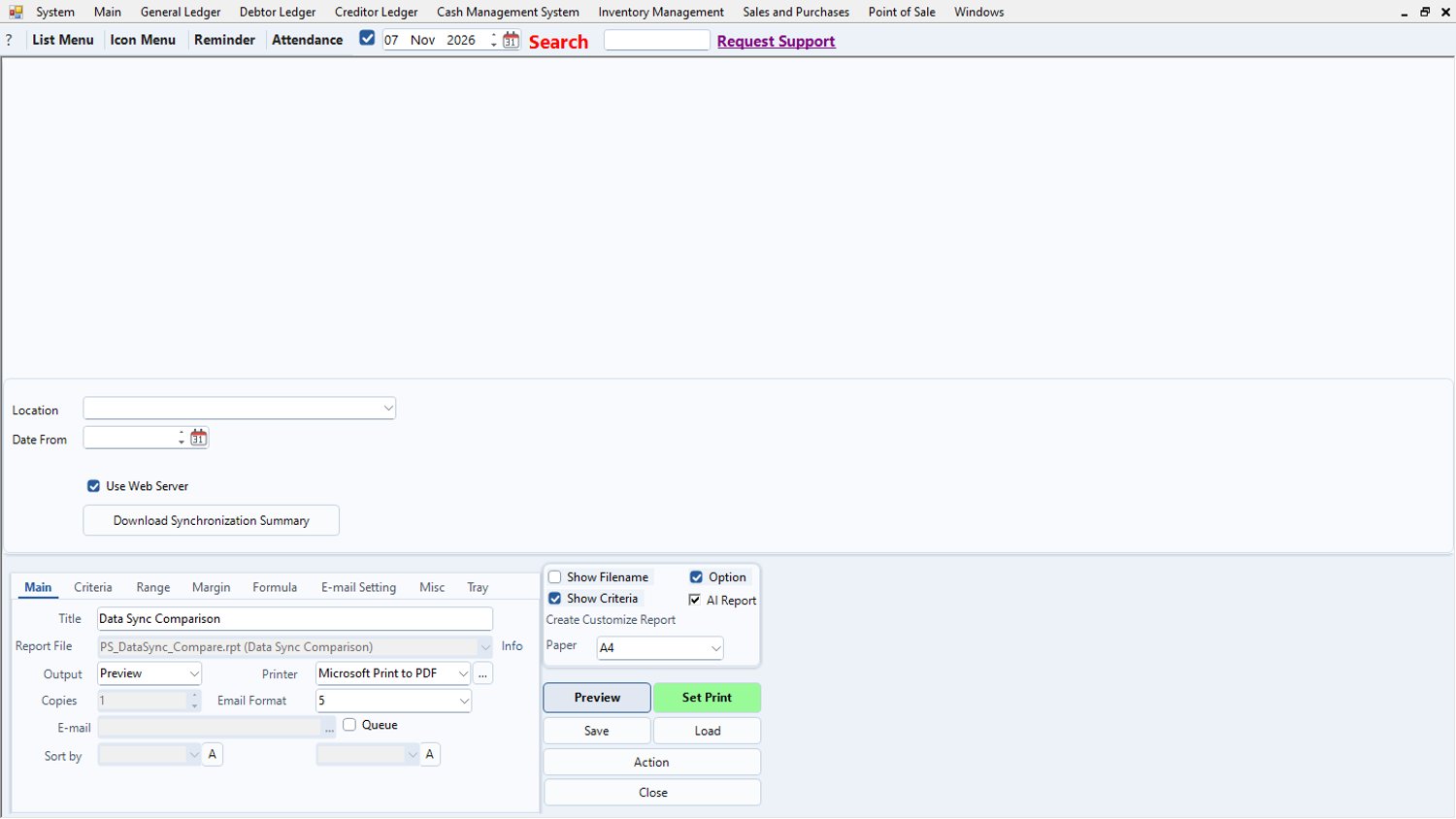
Go to POS > Reports > Management Reports > Data Sync Comparison. Choose the location and date, then preview it to find the missing days.
7. Upload the missing days from the branch
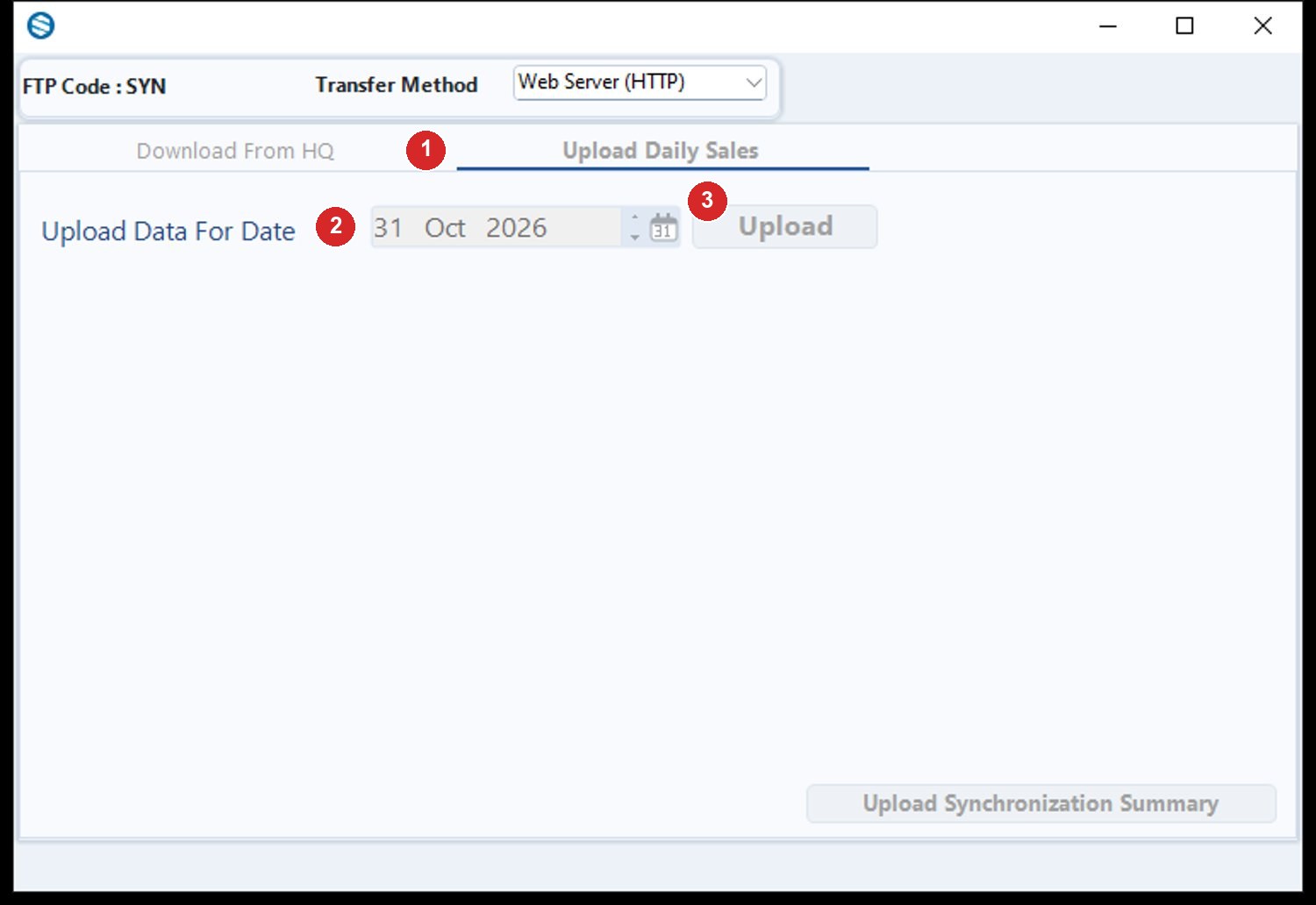
At the branch, go to POS > Transaction > Data Synchronization (POS). Upload day by day, not as one batch, and start several days earlier. Void any pending receipt at the branch first, then re-upload those dates.
| Step | What to do |
|---|---|
| 1 | Open the Upload Daily Sales tab. |
| 2 | Choose the date. |
| 3 | Click Upload. |
8. Download at head office
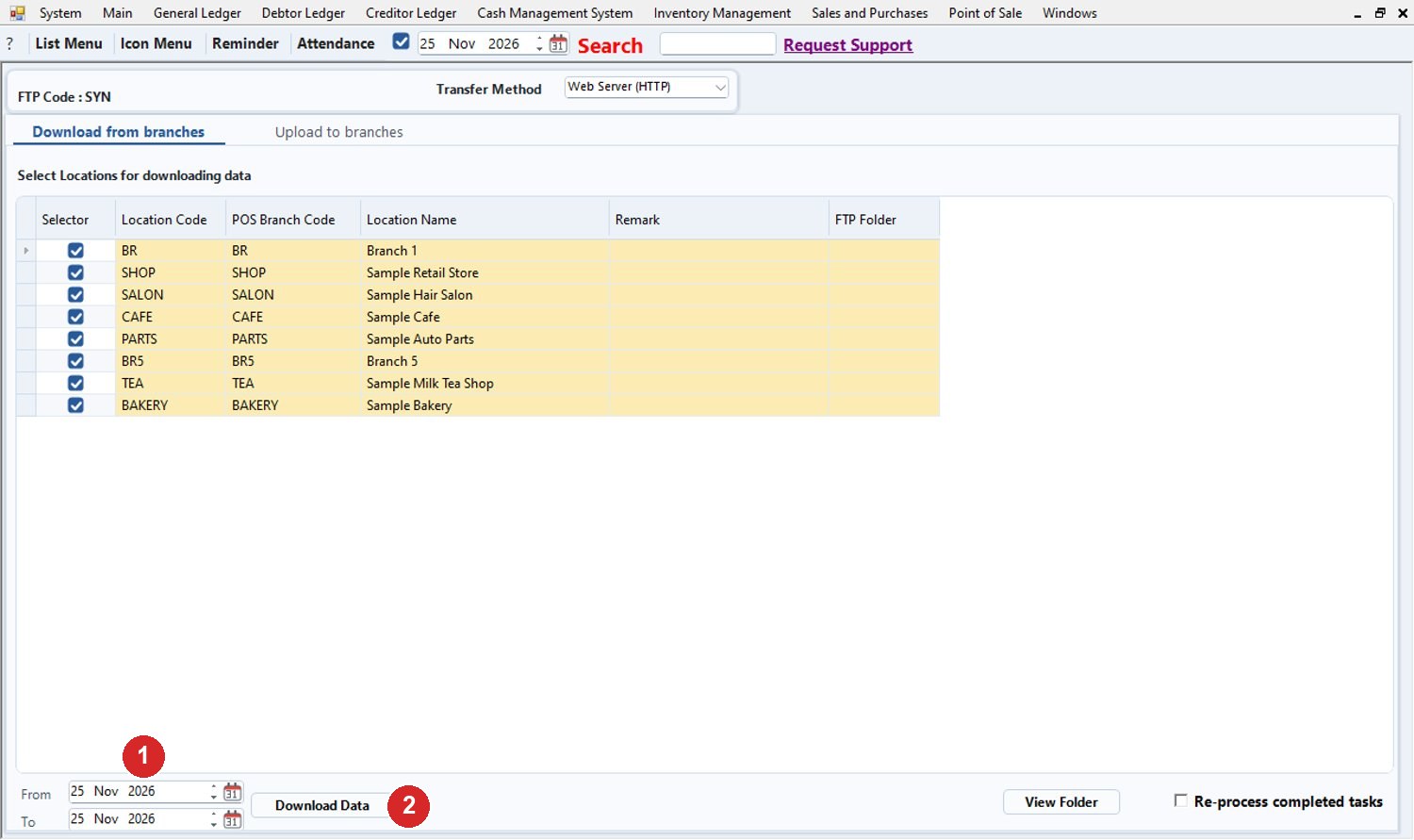
At head office, download the same dates by date range, then the latest date. Then do the posting to debtor, creditor and GL.
| Step | What to do |
|---|---|
| 1 | Set the From and To dates. |
| 2 | Click Download Data. |
9. Error ‘Applied Bill is deleted’
This means a credit settlement was uploaded without its original credit sale. Find that credit sale, upload it from the branch, then download again at head office.
10. Old or back-dated differences
Set the upload start date to 1-1-1900 and upload everything, then download on the other side.
11. Still different after syncing
Make sure head office and branch use the same web server. Delete all files in the ServerApp DataSync_Server and DataSync_Client folders on both sides. Set year 1900 at head office and sync again.
12. Error ‘error creating DataSync summary file’
At the branch, delete all files in ServerApp\DataSync_Client and upload again.
13. Stock still differs
Check that the active tick is correct for the items that do not match. Then do a stock take with Re-calculate ticked.
Tips
- Upload sales day by day, not as one batch.
- Do not sell or lose internet at the branch while uploading, as this can cause gaps.
- Windows 7 sub client PCs cannot download after switching to the alternative server. Do it on the branch main PC.
- After an alternative server switch, Synergy support will tell you when to switch back to the main server.
- Windows showing ‘IPv4 connectivity: no internet access’ confirms a network fault.
Common problems
Licence cannot be hashed or daily key cannot be requested
Retry the hash, or download the licence in Service Agent after the network steps above.
One counter can upload but cannot download
Go through the network checks: hotspot test, router and PC restart, DNS and IPv6 settings, and antivirus or firewall.
Head office was restored from an old backup, or the problem remains after all checks
Contact Synergy support. Have ready: remote access details for head office and the branch PCs, a recent backup of both databases, the licence number and a screenshot of the error.