
This guide shows how to load advance (special) item prices in bulk from an Excel or CSV file, and how to review them afterwards in batches.
Before you start
- An Excel (xlsx, xls) or CSV file with the required data
- A database backup, especially for a large price file
- An empty Error column in your file
Steps
1. Prepare the file
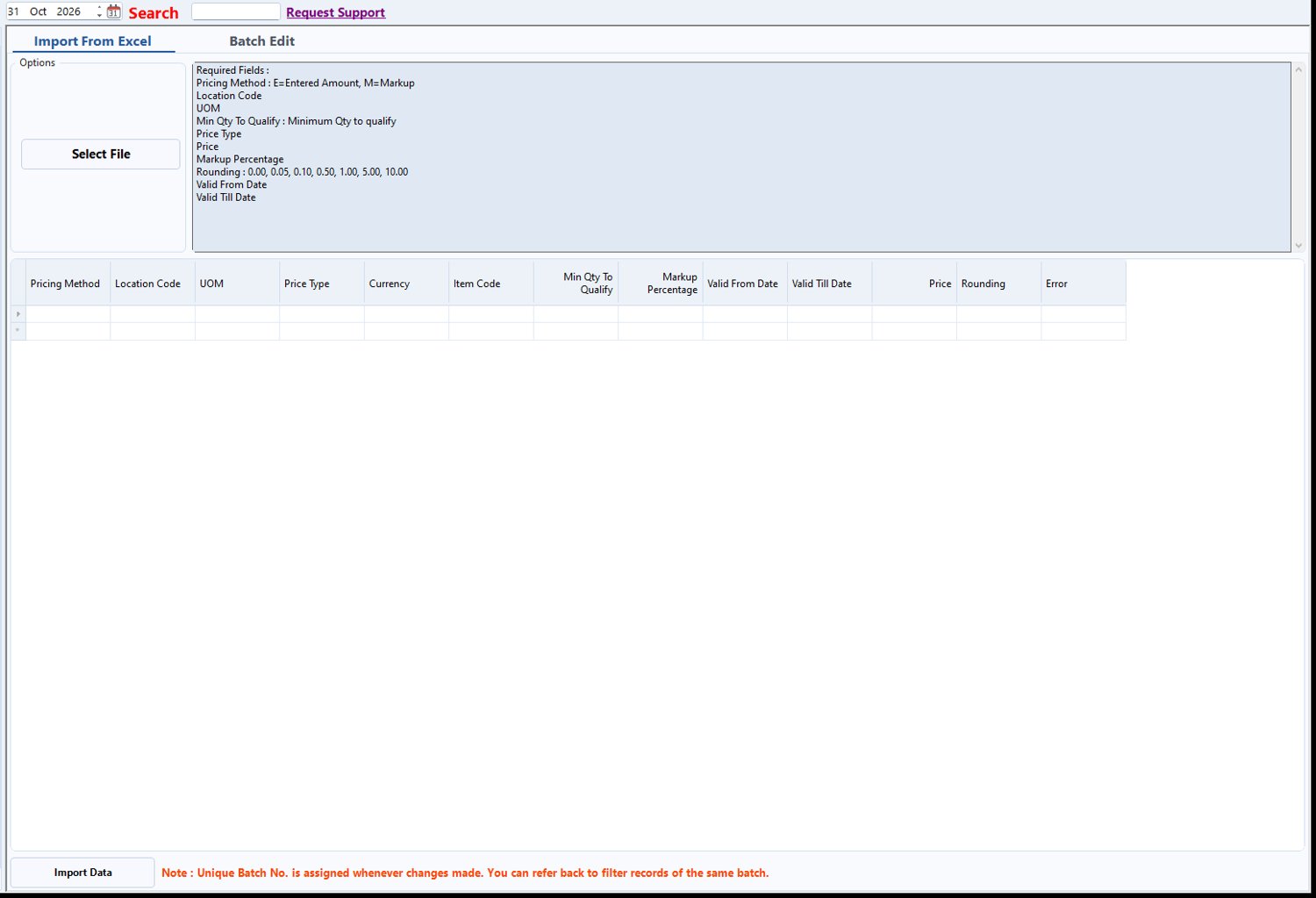
The file must contain: pricing method (E for entered amount, M for markup), location code, UOM, minimum quantity to qualify, price type, price, markup percentage, rounding (0.00, 0.05, 0.10, 0.50, 1.00, 5.00, 10.00), valid from date and valid till date. Leave the Error column empty.
2. Open the screen
Go to Inventory Management > Utilities > Advance Price Batch Edit/Import and open the Import From Excel tab.
3. Select the file
Under Options press Select File and choose your file. The rows load into the grid straight away.
4. Fix red rows
The system fills the Error column when a row has a problem. Read the message and correct that row in your file. Fix every red row, then select the corrected file again.
5. Import
Press Import Data only when no red rows are left, and answer Yes to Do you want to import the data?
6. Check the result
The message Data import completed. appears when the import has been processed. It appears even if some rows failed, so check the grid first.
7. Review or change prices in batches
Open Batch Edit. Enter Batch No. From and Batch No. To, then press List. Change the prices in the grid and press Save. Data Saved. confirms it.
Tips
- There is no undo button. Imported prices can only be changed or deleted afterwards in the batch list.
- A unique batch number is given whenever changes are made, so you can refer back to it.
- In Batch Edit, edited lines show in bold on a beige background, and lines marked for deletion show in white text on black.
- Spaces in the column headings are ignored, so Min Qty To Qualify and MinQtyToQualify are treated the same.
Common problems
Nothing appears after choosing the file
The file had no data rows, or could not be read.
Invalid code entered in the Batch Edit grid
The item code you typed does not exist. Use an existing item code.
The screen says the function is disabled
Importing does not work on a Demo/Trial copy.