
This guide shows how to import bank and petty cash receipts and payments from an Excel or CSV file, and how to delete a batch that was imported earlier.
Before you start
- The payment mode, flow type and transaction type codes set up in your company (the screen shows the valid ones)
- A database backup
- Transactions with no foreign currency and no SST
Steps
1. Open the import screen
Go to Cash Management System > Utilities > Transaction Import Utility (CM).
2. Choose the Doc Type
On the Import Transaction tab, choose a Doc Type: Bank Receipt, Bank Payment, Petty Cash Receipt or Petty Cash Payment. The grid headings change with the type.
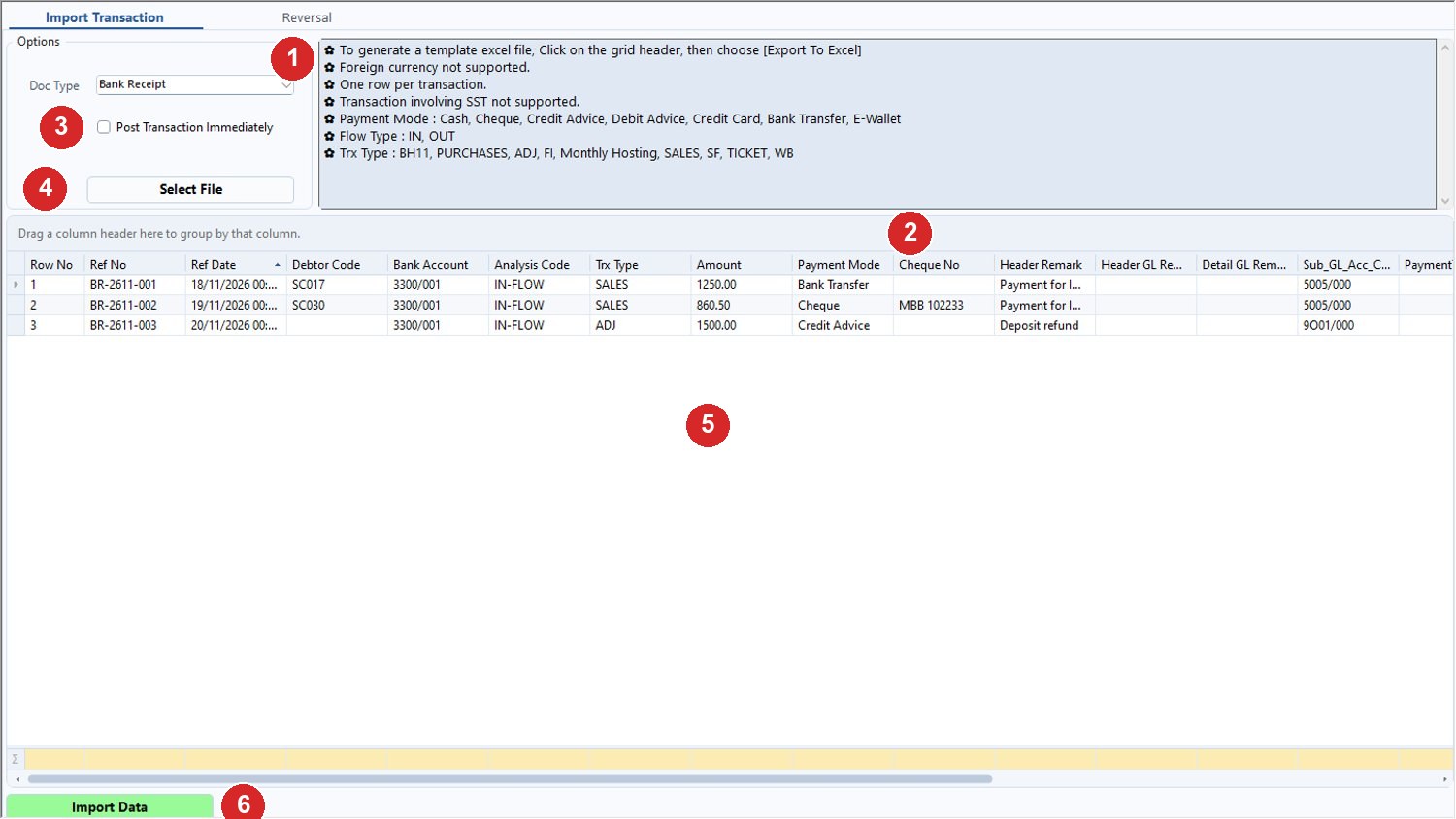
| Step | What to do |
|---|---|
| 1 | Doc Type: Bank Receipt, Bank Payment, Petty Cash Receipt or Petty Cash Payment. |
| 2 | Click a grid heading and choose Export To File for a template. |
| 3 | Post Transaction Immediately. |
| 4 | Select File (.xlsx, .xls or CSV). |
| 5 | The rows load here, one per transaction (codes as listed in the note). |
| 6 | Import Data. |
3. Get a template
Click a grid heading and choose Export To File (the note on the screen still says Export To Excel), then pick an Excel format. The grid starts with one blank line so the template can be exported.
4. Fill in the template
Use one row per transaction. Keep the template headings unchanged. Use the codes shown in the note on the tab.
5. Select the file
Click Select File and pick your Excel (.xlsx, .xls) or CSV file. The rows load into the grid.
6. Choose whether to post
Tick Post Transaction Immediately if you want the imported transactions posted straight away.
7. Import
Click Import Data and answer Yes to Do you want to import the data?
8. To delete an imported batch
Go to the Reversal tab and click Select transaction for reversal. Pick one transaction: the grid then shows all transactions from the same import batch. Click Delete Transaction, tick the check box in the confirmation window, then click OK (CANCEL abandons it).
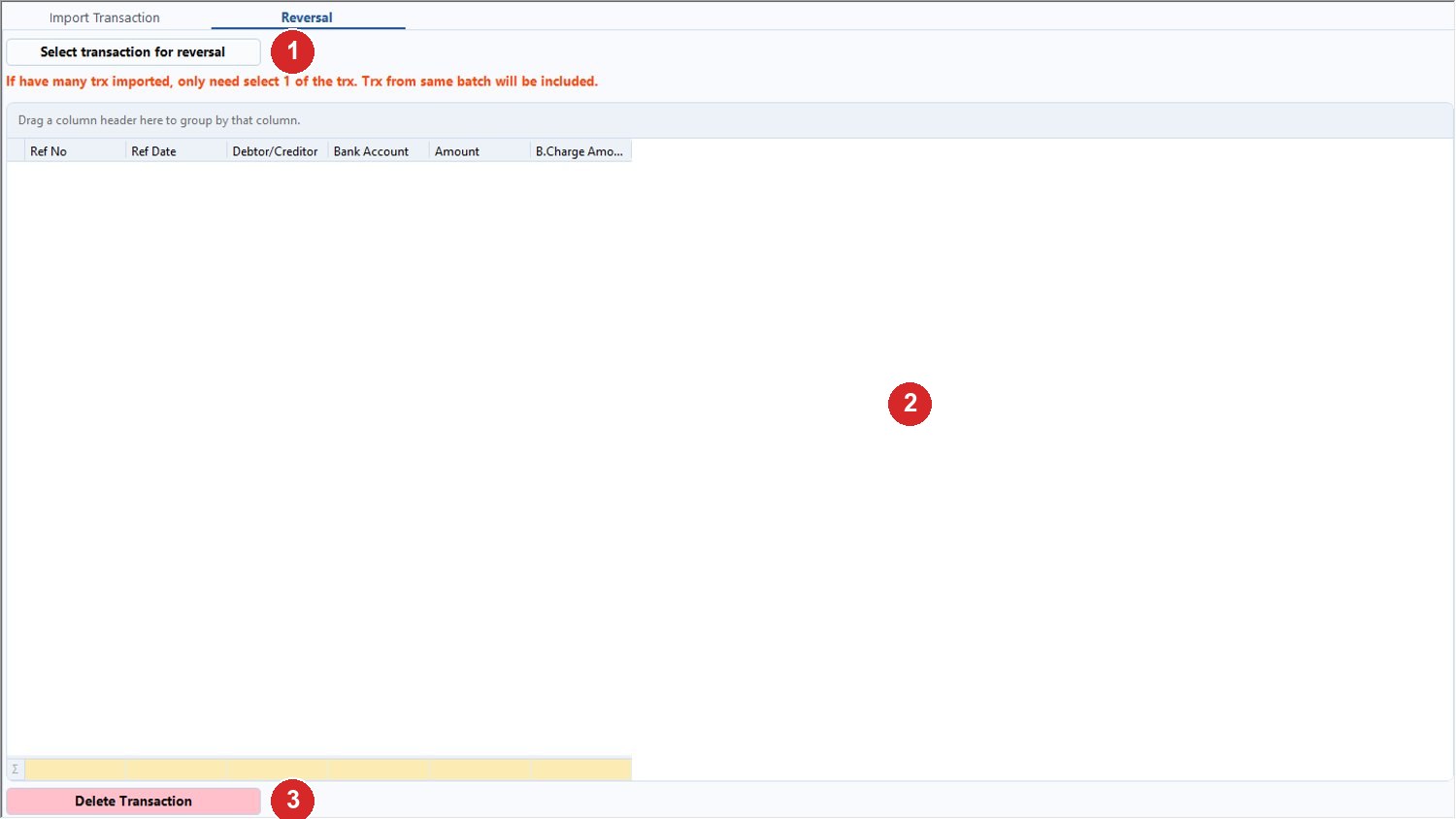
| Step | What to do |
|---|---|
| 1 | Select transaction for reversal: pick one; the whole batch is listed. |
| 2 | The transactions of that import batch. |
| 3 | Delete Transaction. |
Tips
- The tab’s note says: foreign currency is not supported, one row per transaction, and transactions involving SST are not supported.
- Reversal only finds transactions that were created by this import screen.
- Every time you pick a file, the grid is cleared first.
Common problems
Record imported … Failed to import … Error Message
Some rows failed. Read the Error Message and check that the codes in your file match the lists shown in the note.
Wrong headings in the grid
Check the Doc Type. Headings change between receipt and payment types.
Nothing loads after Select File
The file may be empty, or no file was chosen.
Failed delete
The result message lists each transaction that failed and why.