
This guide shows how to load opening balances of customer credit into the POS from an Excel or CSV file, for example when you move to a new database and want to keep customer credit records.
Before you start
- An Excel (xlsx, xls) or CSV file with the headings RefNo, RefDate, MemberCode, MemberName, Tel, Remark and BalanceAmt
- The Location the credit belongs to
Steps
1. Prepare the file
Export the unpaid credit list from the old database to Excel and set the headings the same as the Opening Balance import utility: RefNo, RefDate, MemberCode, MemberName, Tel, Remark and BalanceAmt.
2. Open the import utility
Go to Point of Sale > Utilities > Opening Balance Import Utility.
3. Choose the Location
Choose the Location. It starts with the current POS location if one is set.
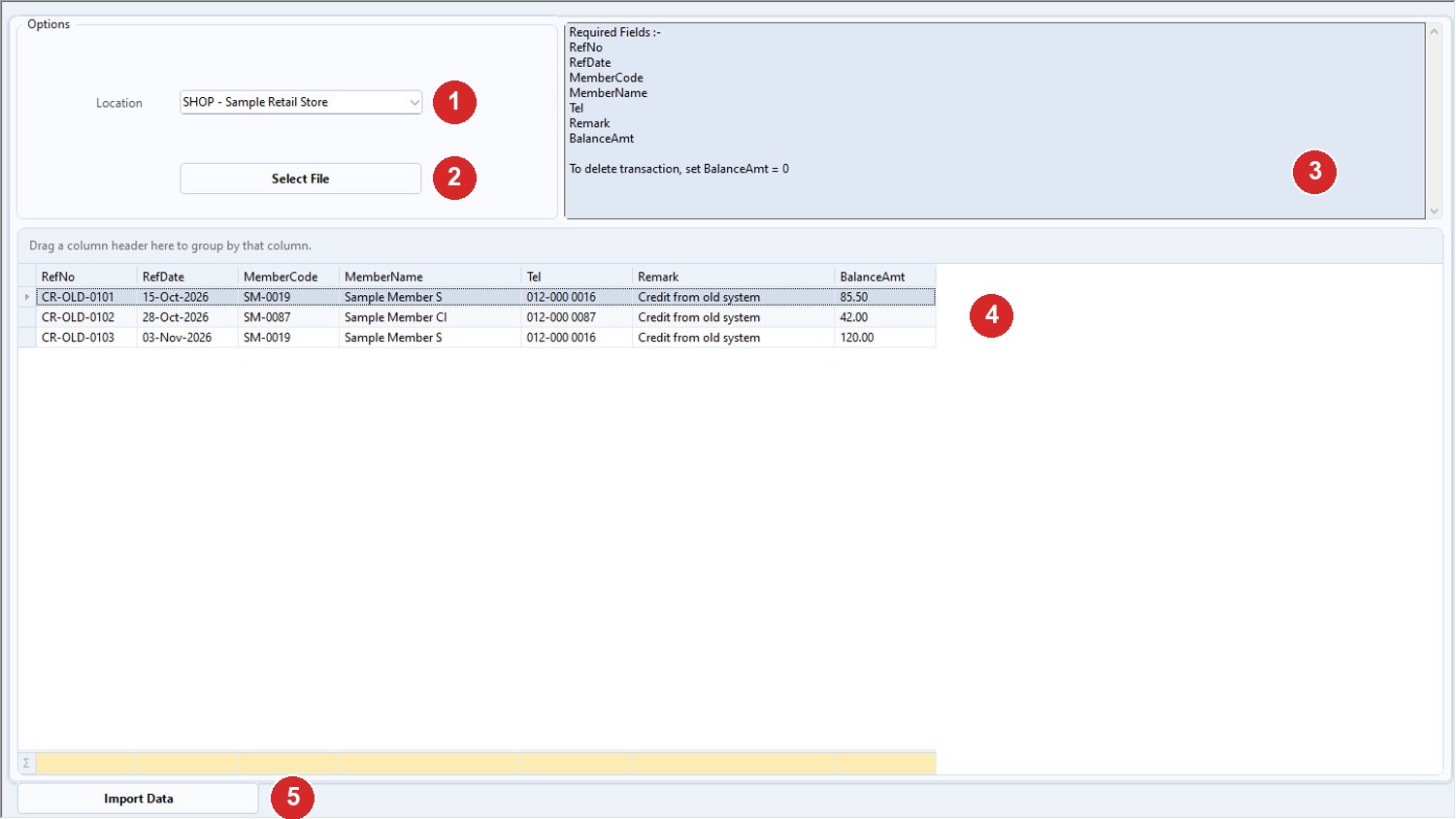
| Step | What to do |
|---|---|
| 1 | Location. |
| 2 | Select File. |
| 3 | Required fields; a row with BalanceAmt 0 deletes that transaction. |
| 4 | The rows from the file (here three sample credits). |
| 5 | Import Data. |
4. Select the file
Click Select File and pick your Excel or CSV file.
5. Check the rows
Check the rows in the list and delete any you do not want.
6. Import
Click Import Data and answer Yes to Do you want to import the data?
7. Read the result
A message tells you how many transactions were imported. If any failed, it also shows how many, with the reference number and reason for each.
Tips
- Each row becomes a credit record for a member at the chosen location.
- To remove a record, set its BalanceAmt to 0.
- Heading names are matched loosely: for example Ref No or Credit Ref No. is read as RefNo, Customer Name as the member name, MemberID as the member code and Unpaid Amount as the balance.
- Dates stored as Excel serial numbers are converted to normal dates.
- To add one record by hand instead, go to POS > Credit Opening Balance and add a new record (ref no, member, tel, amount owed).
Common problems
[Location] is required
Choose a Location before importing.
Rows missing after selecting the file
Rows with an empty reference number are dropped when the file is loaded.
Some rows fail
Read the reason listed for each reference number, fix the file and import again.