
This guide shows how to load a list of debtors (customers) or creditors (suppliers) from an Excel or CSV file. The rows are shown in a grid first so you can check them.
Before you start
- An Excel (.xlsx, .xls) or CSV file with a heading row and at least one data row
- A default Account Group in mind, or an Account Group column in the file
Steps
1. Open the import screen
For debtors go to Debtor Ledger > Utilities > Debtor Masterfile Import. For creditors go to Creditor Ledger > Utilities > Creditor Masterfile Import.
2. Choose the Account Group
Under Options, choose the Account Group to use as the default. One is filled in when the screen opens. It covers rows that have no Account Group of their own.
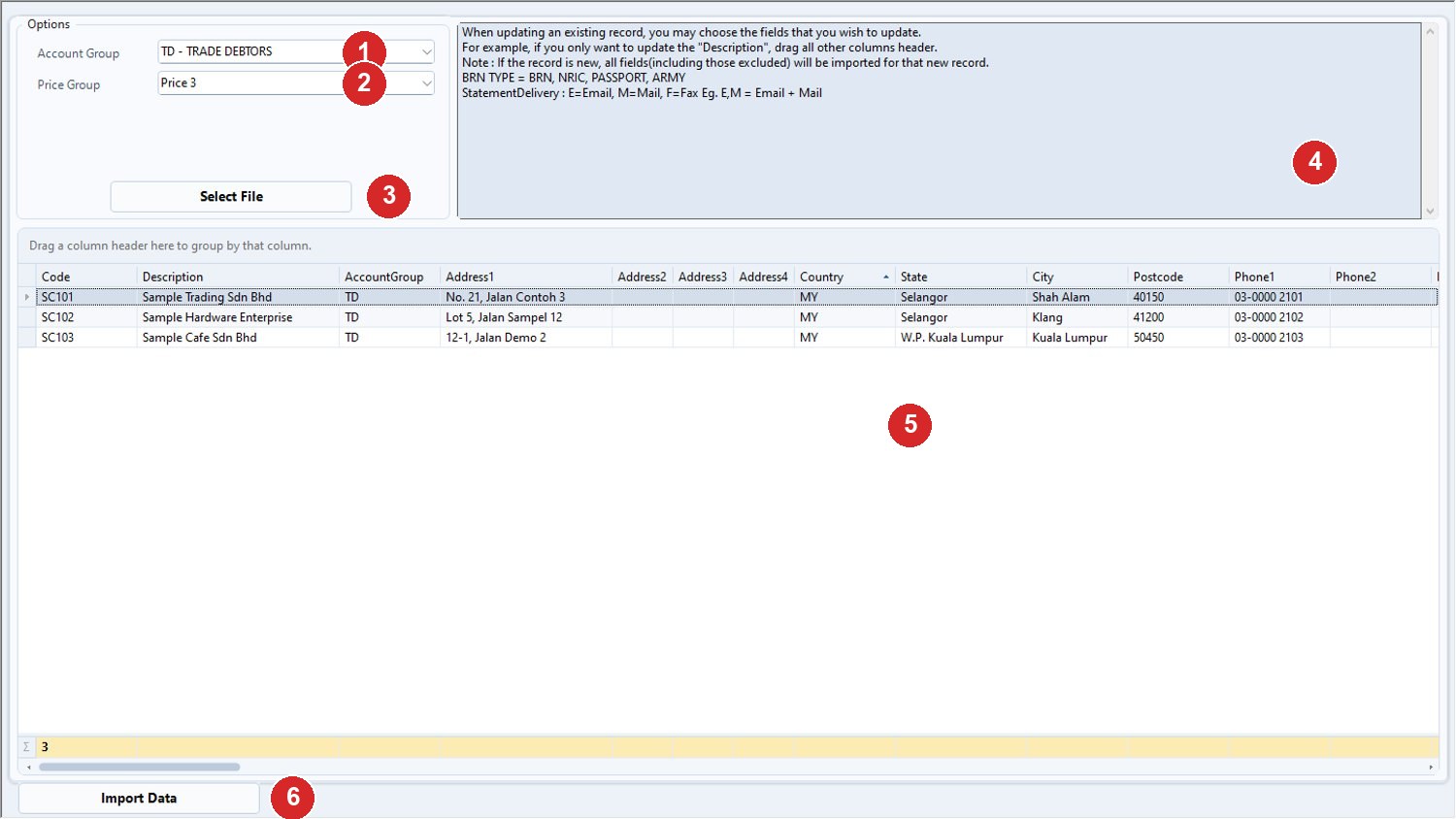
| Step | What to do |
|---|---|
| 1 | Account Group: the default for rows without one. |
| 2 | Price Group: the default price group. |
| 3 | Select File. |
| 4 | Note: to update only some fields of existing records, remove the other columns first. |
| 5 | The rows from the file (here three sample debtors). |
| 6 | Import Data. |
3. Select the file
Click Select File and pick your Excel or CSV file.
4. Check the grid
The rows load into the grid. Check them. You can delete rows from the grid before importing.
5. Import
Click Import Data. When asked Do you want to import the data?, click Yes.
6. Wait for the message
Wait for Data import completed.
Tips
- Headings the screen recognises: Debtor Code (Creditor Code for creditors), Debtor Name (Creditor Name), Address, Type Code, Type Description, Area Code, Area Description, Contact Person, Credit Term, Price Group and Statement Delivery. Other columns are Active, AccountGroup, Address2, Address3, Address4, Country, State, City and Postcode, typed exactly as shown with no spaces.
- BRN TYPE can be BRN, NRIC, PASSPORT or ARMY. StatementDelivery uses E = Email, M = Mail, F = Fax, and E,M means Email + Mail.
- Selecting a file always clears the grid first.
Common problems
Account Group is required because one or more rows have no Account Group
Choose a default Account Group under Options, or fill in the Account Group column in your file.
Columns come in empty or in the wrong place
The headings in your file do not match the names above. Use them exactly.
Nothing appears after picking a file
The file has no data rows. Check it has a heading row and at least one data row.
The screen says the function is disabled
Importing does not work on a Demo/Trial copy.