
This guide shows how to set up many General Ledger accounts at once from an Excel or CSV file, instead of typing them one by one.
Before you start
- An Excel (xlsx, xls) or CSV file whose first row holds the column headings
Steps
1. Prepare the file
The first row must hold these headings: Account Type Code, Account Code, Account Description, Department Code, Department Description, Group Code, Group Desc and Category.
2. Open the import utility
Go to General Ledger > Utilities > Chart of Accounts Import Utility.
3. Select the file
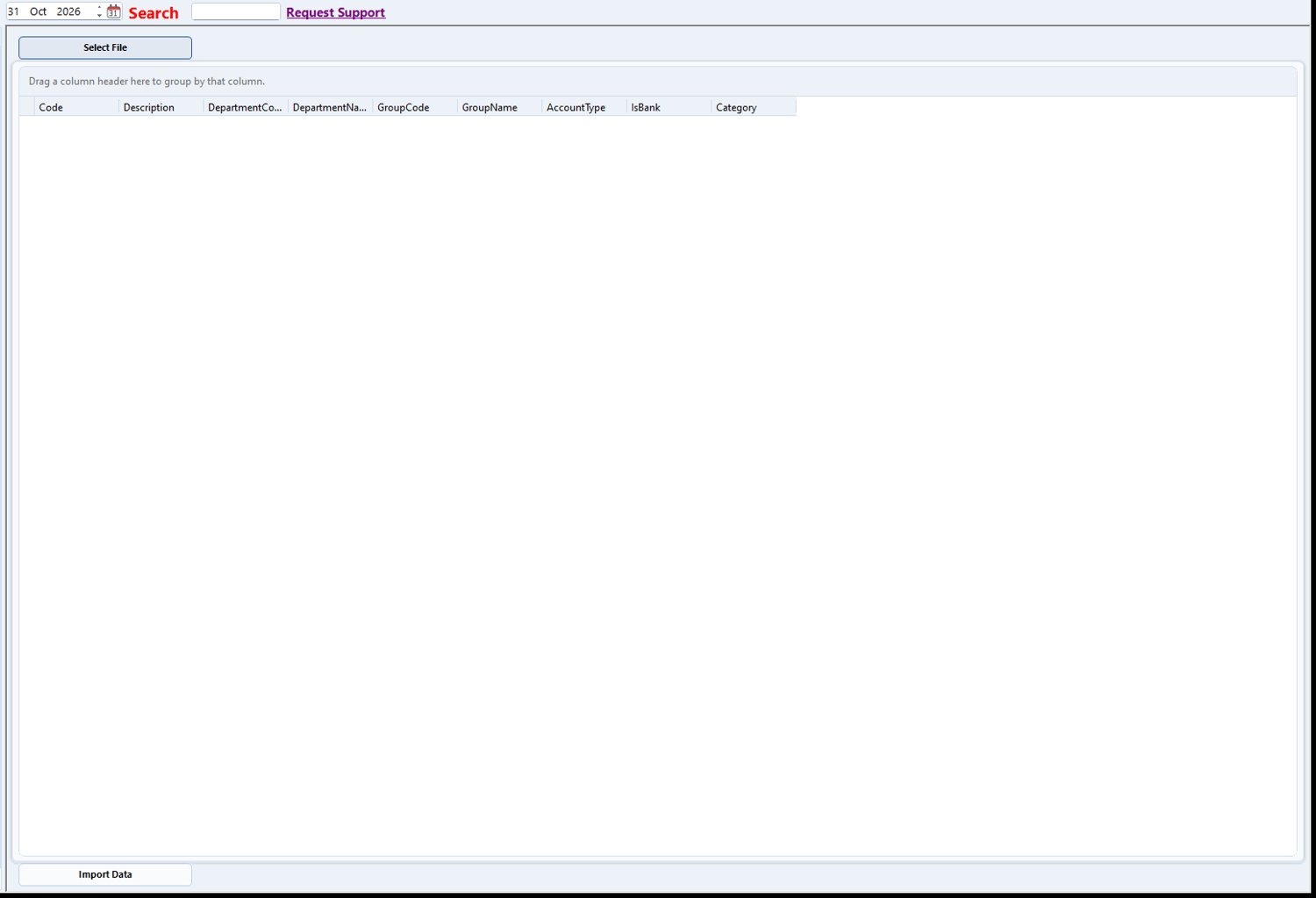
Press Select File and pick your file. The accounts appear in the grid so you can check them.
4. Import
When you are happy with the list, press Import Data and answer Yes to Do you want to import the data?
5. Wait for the message
Wait for Data import completed.
Tips
- If you pick a new file, the rows already in the grid are cleared first.
Common problems
The grid stays empty after choosing a file
The file may be empty or unreadable.
Columns look blank
The headings in your file do not match the names listed in this guide.