
This guide shows how to import journal transactions from an Excel or CSV file, and how to reverse a batch that was imported earlier.
Before you start
- An Excel (xlsx, xls) or CSV file with the required headings
- A database backup
Steps
1. Prepare the file
Your file needs these headings: Ref. No., Date, Code (the General Ledger account code), Debit, Credit, Cheque No, Payee, Header Remark and Detail Remark. Type Payee exactly. HeaderRemark and DetailRemark are also accepted.
2. Open the import utility
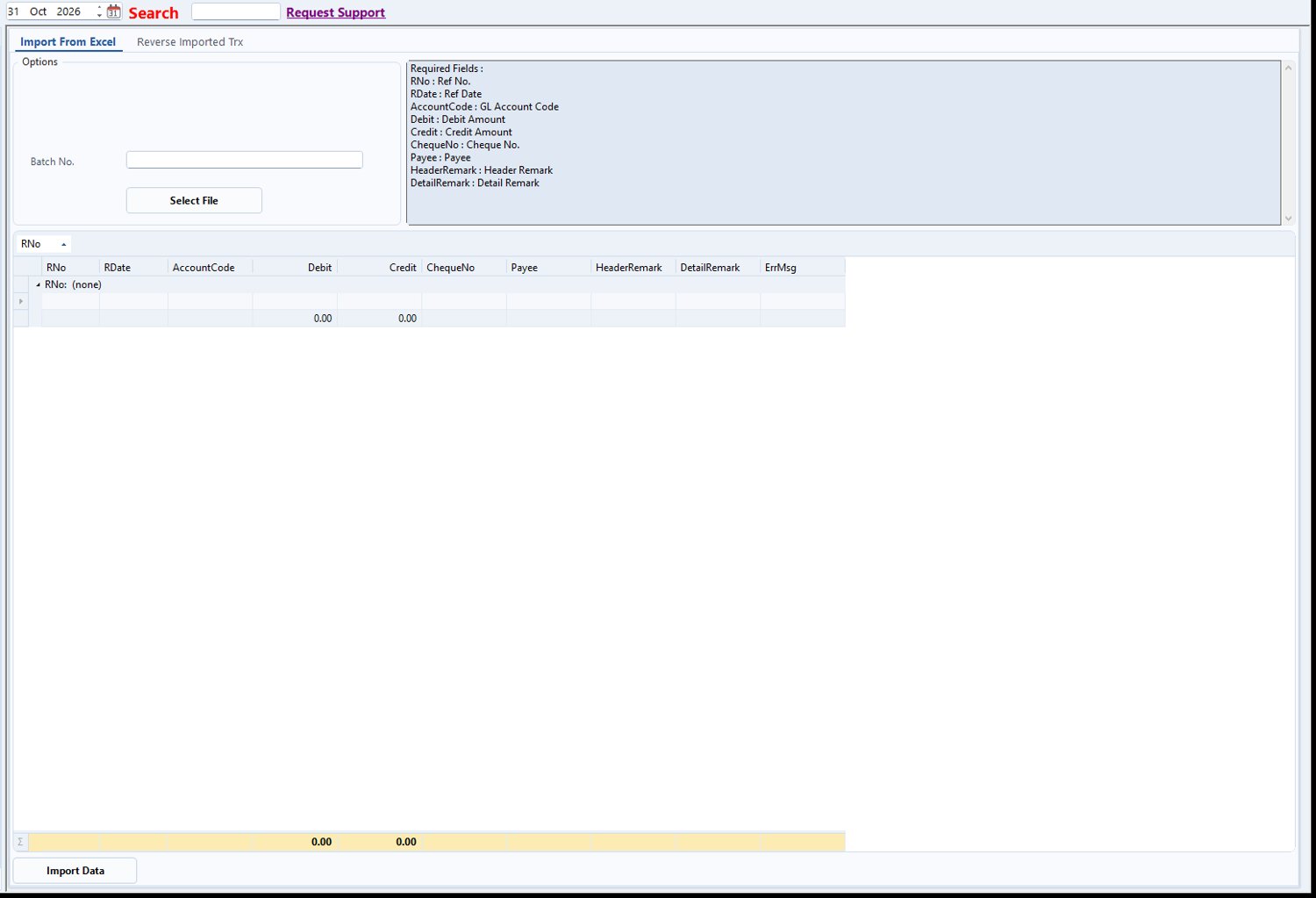
Go to General Ledger > Utilities > Transaction Batch Import Utility and open the Import From Excel tab. The box Required data lists the fields your file needs.
3. Select the file
Under Options press Select File and pick your file. The program checks it and shows the rows in the grid. Rows with a problem are red with a message in the error column.
4. Correct any red rows
Correct the file and select it again until no red rows are left.
5. Import
Press Import Data and answer Yes to Do you want to import the data? The message Data import completed. appears when it is done.
6. To reverse a batch: find it
Open the Reverse Imported Trx tab. Choose the Date Added, which is the day the transactions were imported. You can type a Batch No. to narrow the list. Press List.
7. To reverse a batch: remove it
Check the list carefully, then press Reverse and answer Yes to Reverse selected transaction? Done. appears. Press List again to see what is left.
Tips
- The Batch No. on the Import From Excel tab is passed to the import so the transactions can be traced as one batch.
- Reversing removes ALL the transactions in the list, whatever their tick boxes show.
Common problems
Red rows after selecting a file
Read the error column, correct the file and select it again.
No transaction to reverse
The list is empty. Press List first, or change the date or batch number so it matches what was imported.