
There is no Rename button on the Item Masterfile. To change item codes, use the Item Masterfile Import Utility with a file that has the old Code and a New Code. Only the code changes. Documents link to the item by its ID, so old documents show the new code.
Before you start
- Take a backup first.
- The Code of an existing item is read-only in the Item Masterfile unless you use Override, so use the import for renaming.
- The import utility is not available in the Demo/Trial version.
Steps
1. Prepare the file
Make an Excel file with a Code column (the current item code) and a New Code column (the code you want). Keep only these two columns. Every Code must already exist, and every New Code must not exist yet.
2. Open the import utility
From the menu, go to Inventory Management > Utilities > Item Masterfile Import Utility. Stay on the Import Items tab.
3. Select the file and set the options
Choose the file and check the grid shows your Code and New Code values. Then set the options.
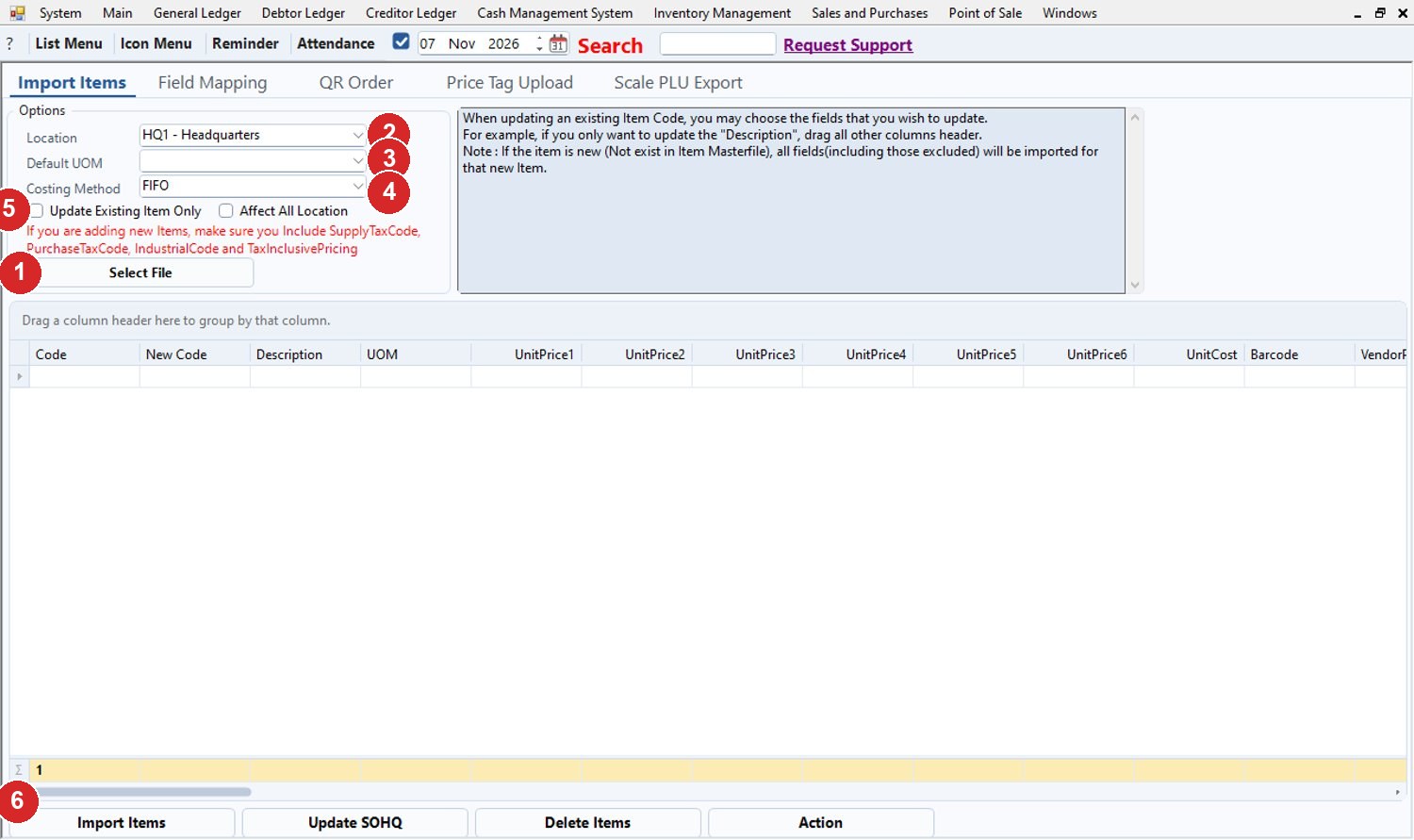
| Step | What to do |
|---|---|
| 1 | Click Select File and choose your Excel file. |
| 2 | Choose the Location. |
| 3 | Choose a Default UOM if your file has no UOM column. |
| 4 | Choose the Costing Method (Location and Costing Method are required). |
| 5 | Tick Update Existing Item Only so that no new item is created. |
| 6 | Click Import Items. |
4. Import
Click Import Items and confirm. A row with a New Code only updates the existing item; it never creates one.
Tips
- The screen note says you can drag a column header off the grid to leave that field out of the update. Do this for every column except Code and New Code.
- Do not rename matrix items.
- After the import, open a few old documents to check they show the new code.
- If a branch cannot import, tick Update Existing Item Only (a branch cannot add items).
Common problems
It stops with ‘New Code [x] already exists.’
Both the old and the new code exist as items. Choose a New Code that is not used yet.
A new item appeared instead of a rename.
The row had no match in Code. Check the spelling of Code, and tick Update Existing Item Only next time.
The import button does nothing or is not allowed.
The Demo/Trial version does not allow the import. Use the full licence.