
This guide is for the person who looks after the shop’s computers. It lists the network and shared-folder checks to make, in order, when a client PC cannot reach the main PC. It also says which jobs belong to Synergy support.
Before you start
- Know which PC is the main PC. It has the ServerApp folder and shows the yellow Synergy icon. Client PCs show the blue icon.
- The exact error text from the client PC.
- Whether the PC name, the router, the network or Windows changed recently.
- The name of the antivirus used on each PC.
Steps
1. Switch on the main PC and keep it awake
Client PCs depend on the main PC. Make sure it is on and does not go to sleep, and that each client PC can ping it.
2. Put both PCs on the same network
Check that the client PC and the main PC use the same Wi-Fi name, for example both on the 5G name.
3. Restart in order
Restart the client PC first, then the main PC.
4. Restart the router
If it still fails, switch the router off for 5 to 15 minutes and then on. A mesh router can isolate one client PC from the main PC. Restart the PCs afterwards.
5. Use the right icon
Client PCs must open the system with the Client (blue) icon. The main PC must never be opened with the Client icon. If a version-mismatch login screen appears on a client PC, cancel it and open the system with the Client icon.
6. Check the PC names
If the PC answers a ping but the shared folder will not open, check the Windows credential used and make sure no two PCs have the same name. A client PC name must be different from the main PC name.
7. Check the ServerApp sharing
On the main PC, make sure the ServerApp folder is shared and that its sharing and security permissions are set. Then on the client PC open Database Connection Setup and check that the Report Path points to that shared folder.
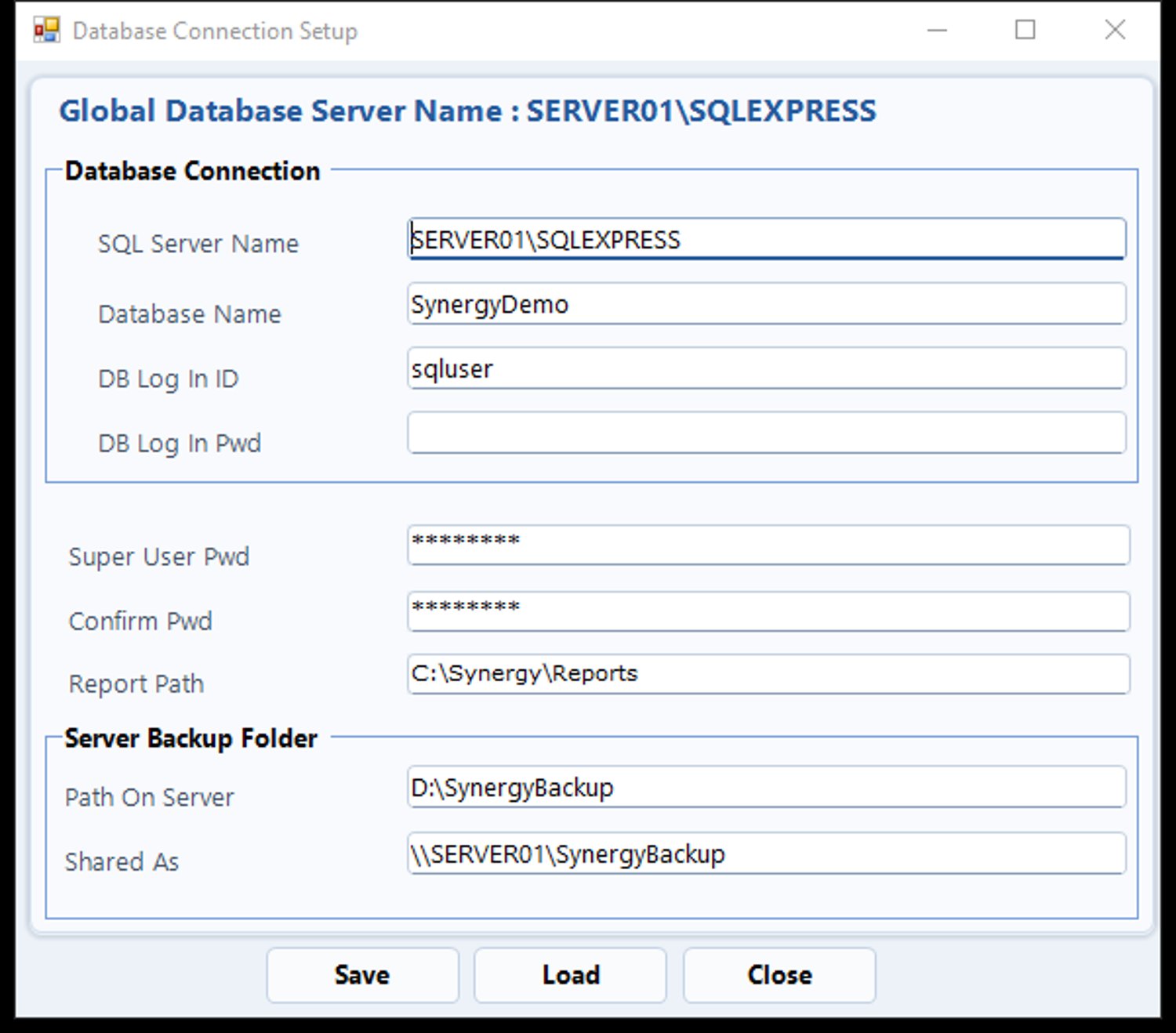
8. Check the antivirus and firewall
If the internet works but Synergy cannot connect, add an exclusion for the software in the antivirus on every affected PC. If the antivirus removed a file, allow it and tick that it should not prompt. Reopen the software and log in.
9. Two PCs joined by a LAN cable
Use static IP addresses in a different range from the Wi-Fi, with no gateway, and plug into the LAN ports of the router, not the WAN port. On Windows 11 a setting called SMB signing may also need changing. Ask Synergy support for this.
10. Leave these to Synergy support
If the main PC name or IP address changed, the connection setting on each client PC must be set again, and you answer Yes to the prompt. If the ServerApp folder shows only some files, it must be recreated and shared again. Contact Synergy support for both.
Tips
- Client PCs do not keep the database. It lives on the main PC.
- Do not copy the main PC’s disk onto a client PC. A client PC copied this way cannot reach the shared folder on Windows 11. Back up the needed files, format the client PC and install the client software again.
- If a client PC fails only now and then and a retry works, ask Synergy support to check the internet stability.
- A far client PC connecting to another branch’s main PC over ZeroTier is not recommended. It can be unstable, slow or hang.
Common problems
The software asks to map a drive, or the ServerApp folder shows only some files.
Contact Synergy support. They need the remote access details of the main PC and the client PC, and both PCs must be switched on. Antivirus may be the cause.
Network Connection Problem: Your computer is unable to connect to the main PC (Server).
Click Open Network Folder, which often refreshes the connection, then Close and try again. Check that the main PC is on and the cable or Wi-Fi works. If several users see it at once, the problem is most likely on the main PC.
Reports do not open on one PC.
See the guide Synergy Acc2026 – Reports Will Not Open on a PC.
The whole shop cannot open the system.
See the guide Synergy Acc2026 – Main PC Off, Frozen or Will Not Start, and the guide Synergy Acc2026 – IT: Checking the Database and Services After a Power Cut.