
This guide shows how to record an item’s barcode, your supplier’s part number and any other codes the item is known by, using the Alternative Item Codes tab.
Before you start
- Have the barcode, the supplier’s part number and the other codes ready.
Steps
1. Open the item
From the menu, go to Inventory Management > Masterfile > Item and open the item.
2. Go to the Alternative Item Codes tab
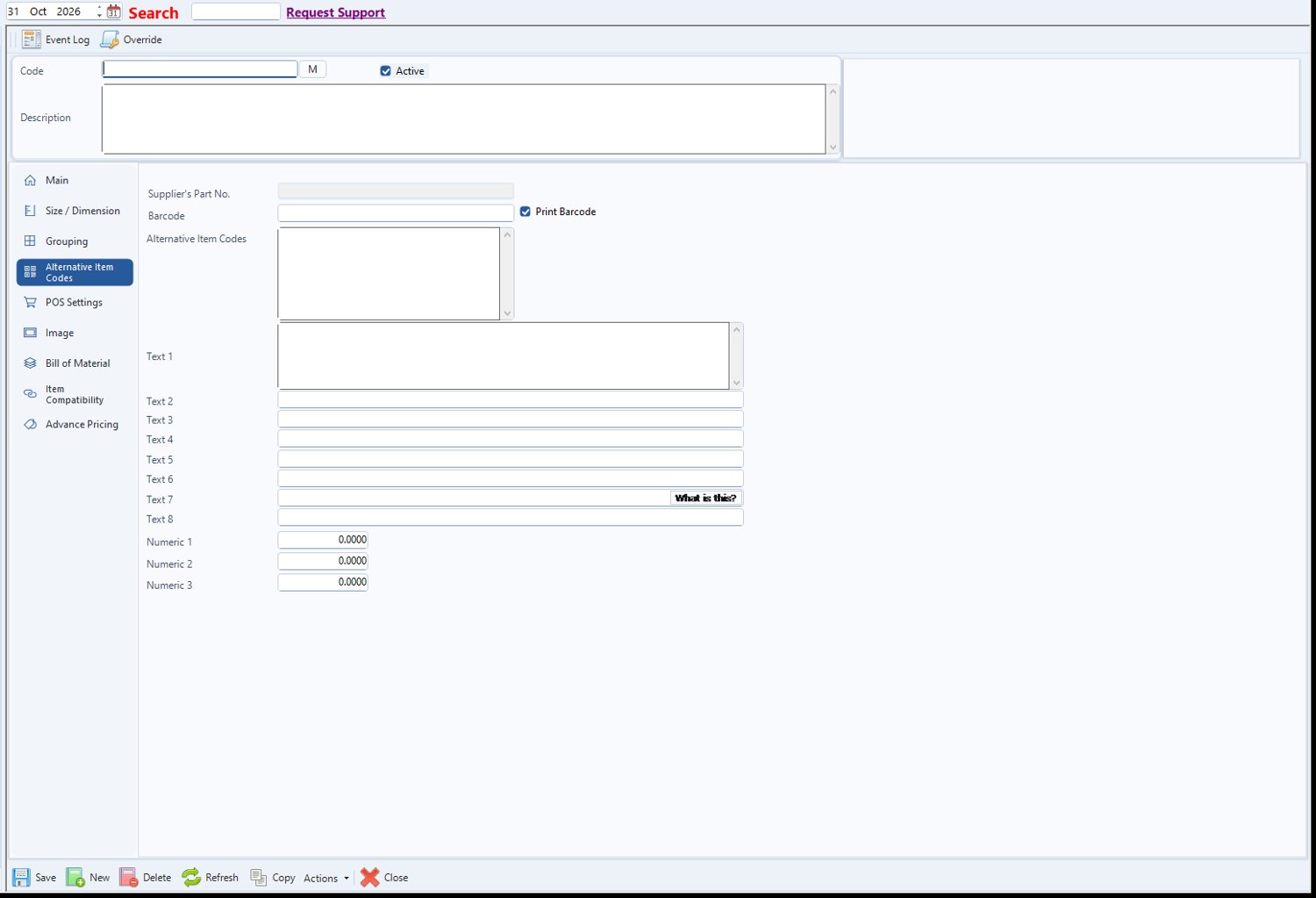
Click the Alternative Item Codes tab.
3. Enter the part number and barcode
Type the Supplier’s Part No. and the Barcode if the item has them.
4. Add other codes
Add any other codes the item is known by in the Alternative Item Codes list.
5. Allow barcode printing
Tick Print Barcode if the barcode should be printed for this item.
6. Fill in the extra fields if you use them
Fill in Remark 1 to Remark 8 and Numeric 1 to Numeric 3 if your company uses them. Then click Save on the Item screen.
Tips
- Whether the Barcode follows the item code is controlled by a system setting for items.
- Remark 1 to Remark 8 are text fields and Numeric 1 to Numeric 3 are number fields with four decimals. Your company may rename them.
- Extra barcodes for a larger unit (for example a box) can also be entered in the UOM grid on the Main tab, in the Barcode column.
- Do this at head office. Changes made to an item at a branch do not synchronize back to head office.
Common problems
The barcode changes by itself or always equals the item code.
A system setting makes the barcode follow the item code. Ask your administrator to check the item settings.