
This guide shows how to list the sub items that make up an item on the Bill of Material tab, and what the program checks when you save.
Before you start
- Choose the right Item Type on the Main tab first. A bill of material is only for Stock Item, Package Item, UOM Conversion and Treatment Package types.
- The Bill of Material tab is not shown on installations that do not have the stock module.
- A Package Item needs at least one sub item. A UOM Conversion item needs exactly one.
Steps
1. Open the item
From the menu, go to Inventory Management > Masterfile > Item and open the item, or click New to make a new one.
2. Check the item type
On the Main tab, make sure the Item Type is the one you want (for example Package Item or UOM Conversion).
3. Go to the Bill of Material tab
Click the Bill of Material tab.
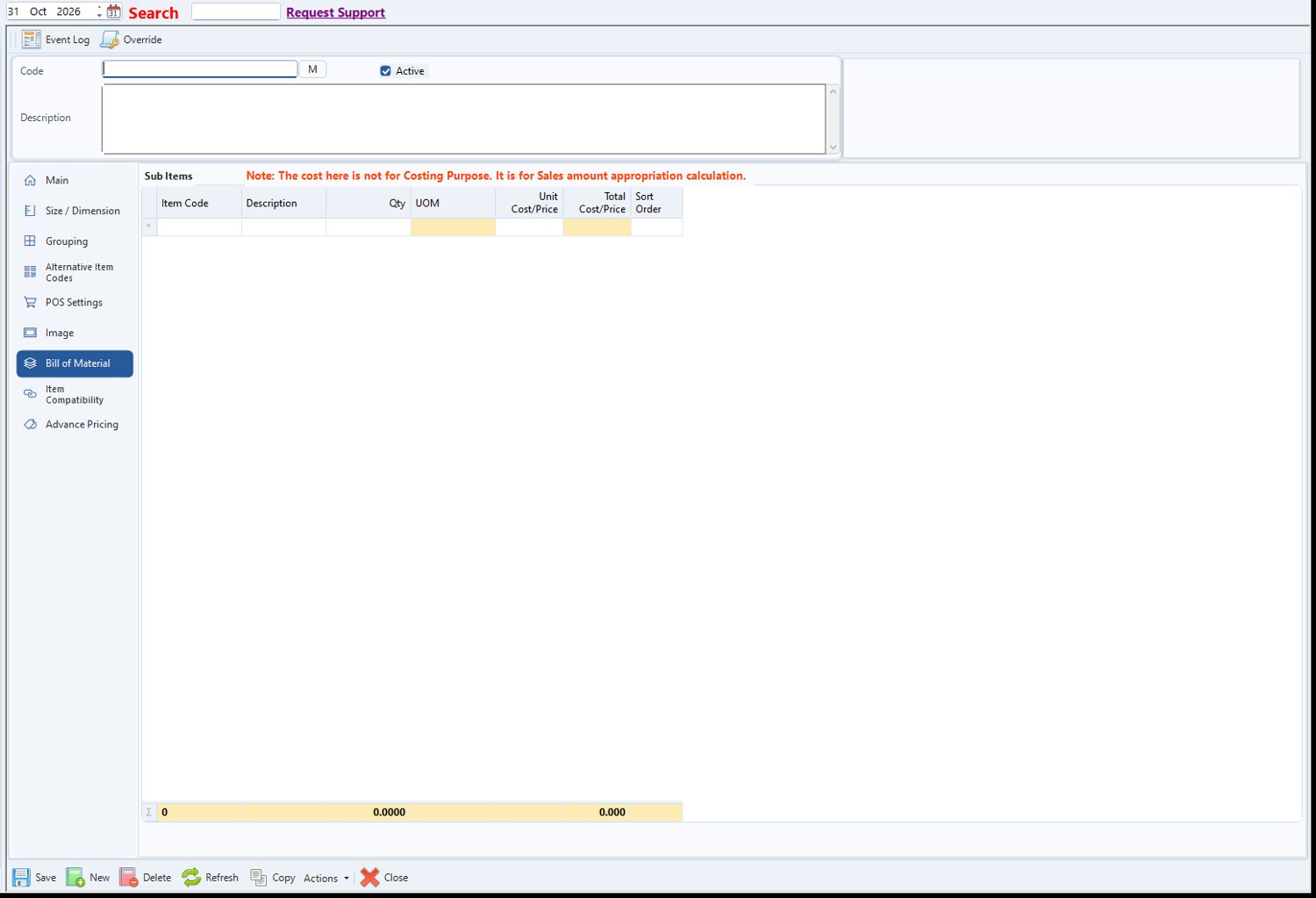
4. Add the sub items
Add, review or change the lines under Sub Items. For a Package Item or UOM Conversion item, every sub item must have a cost.
5. Save the item
Click Save on the Item screen and read any message that appears.
Tips
- The tab carries a note: The cost here is not for Costing Purpose. It is for Sales amount appropriation calculation. So it will not match your stock costing.
- Do this at head office. Changes made to an item at a branch do not synchronize back to head office.
Common problems
[UOM Conversion Item] must have ONE (Not more & Not Less) Bill of Material Item.
Leave exactly one sub item on the item.
[Package Item] must have at least one item defined in Bill of Material. (or the same for [Treatment Package])
Add at least one sub item.
No Cost/Price defined for following B.O.M item, followed by a list of items.
For Package Item and UOM Conversion types, every sub item needs a cost. Add the cost to the items listed.
[Bill of Material] is only for [Stock Item], [Package Item], [UOM Conversion] and [Treatment Package] Types.
Change the item type, or remove the sub items.