
This guide shows how to add a new item in the Item Masterfile and fill in its Main tab: item type, costing method, tax groups, cost and price, units of measure and e-invoice details.
Before you start
- Create and change items at head office. An item created at a branch does not synchronize to head office.
- If you want to bring in many items at once, use the Item Masterfile Import Utility instead.
Steps
1. Open the Item screen
From the menu, go to Inventory Management > Masterfile > Item.
2. Fill in the Main tab
Type the item Code (required: if it is empty you see [Item Code] is required.) and the Description, and keep Active ticked. Here OIL-500, Cooking Oil 500ml Bottle.
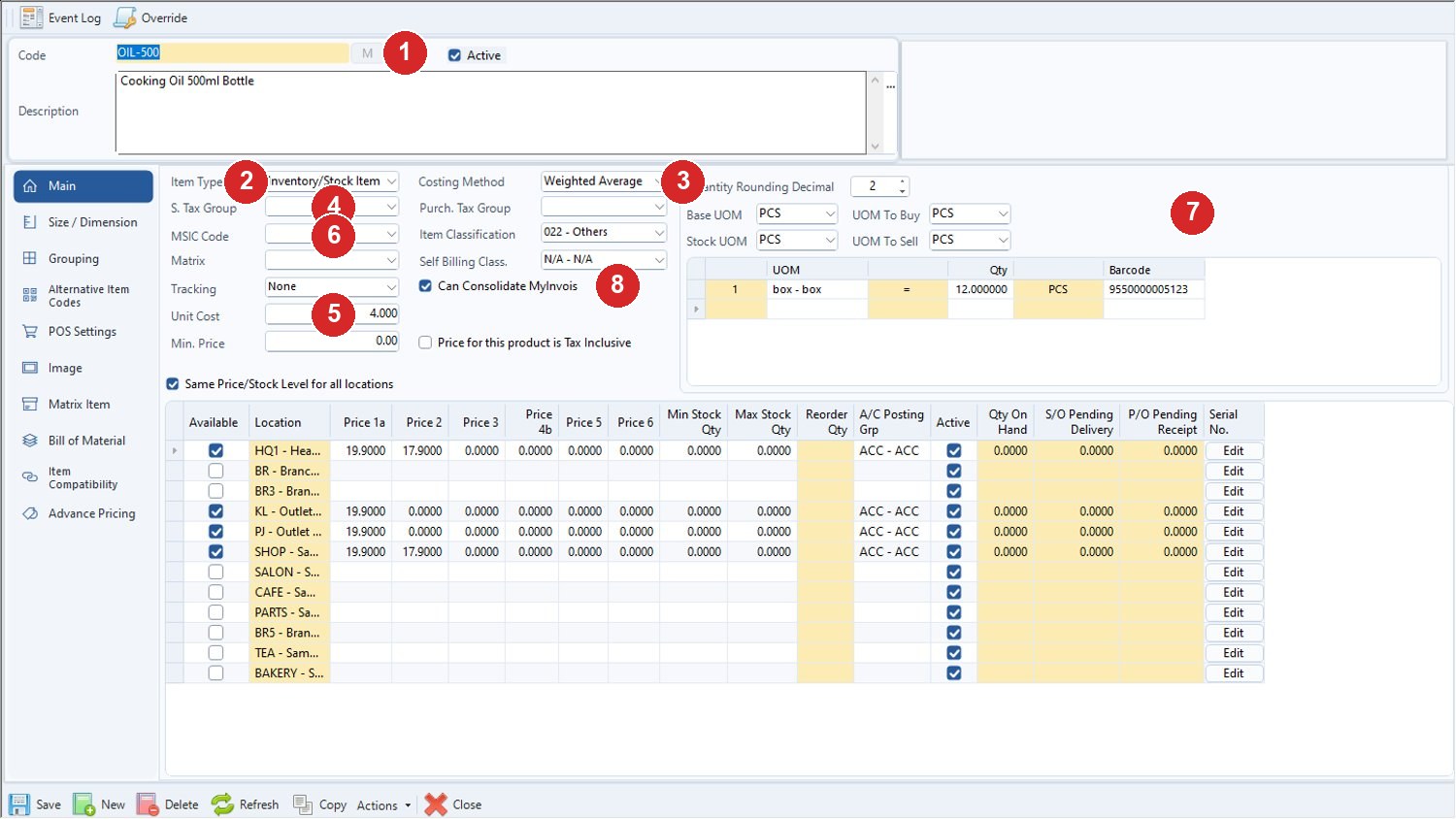
| Step | What to do |
|---|---|
| 1 | Code (M = type your own) and Active. |
| 2 | Item Type (here Inventory/Stock Item). |
| 3 | Costing Method (here Weighted Average). |
| 4 | S. Tax Group (sales) and Purch. Tax Group (purchases). Tick Price for this product is Tax Inclusive if your selling price already includes tax. |
| 5 | Tracking, Unit Cost and Min. Price. Last Cost is for information only. |
| 6 | MSIC Code, Item Classification (here 022 – Others) and Self Billing Class. |
| 7 | Base UOM, Stock UOM, UOM To Buy, UOM To Sell and Quantity Rounding Decimal; extra units and their barcodes in the grid (here 1 box = 12 PCS). |
| 8 | Can Consolidate MyInvois: untick only if this item must not be consolidated in e-invoices. |
3. Save the item
Fill in the other tabs if you need them, then click Save.
Tips
- Same Price/Stock Level for all locations: tick it to use one price and stock level for every location instead of one per location.
- Unit Cost and Min. Price are hidden from users who are not allowed to view costs or minimum prices.
- If the selling price of a location is lower than the cost, you see Price below cost. Depending on your company setting you either confirm, or a supervisor must approve (Overrride Price Below Cost).
- A demo or trial copy of the program allows only a limited number of items.
Common problems
Cannot untick Can Consolidate MyInvois; the message says the Has Trx/Items which not allowed to be consolidated setting is disabled.
Switch on that setting in the E-Invoice Settings first, then untick the box on the item.
A message says Items should be created at HQ.
You are at a branch. Items made at a branch do not synchronize to head office. Create the item at head office instead, or continue only if you accept this.
Editing an item shows Only HQ can update item.
Changes made at a branch stay at the branch and are not sent back to head office. Change the item at head office.