
This guide shows how to narrow the Item List with the Item Filters panel, clear the filters, and export the list to a CSV file.
Before you start
- To export you need permission to export data. Without it you see You don’t have permission to export data.
Steps
1. Open the Item List
Open the Item List. The Item Filters panel is at the top.
2. Set the filters
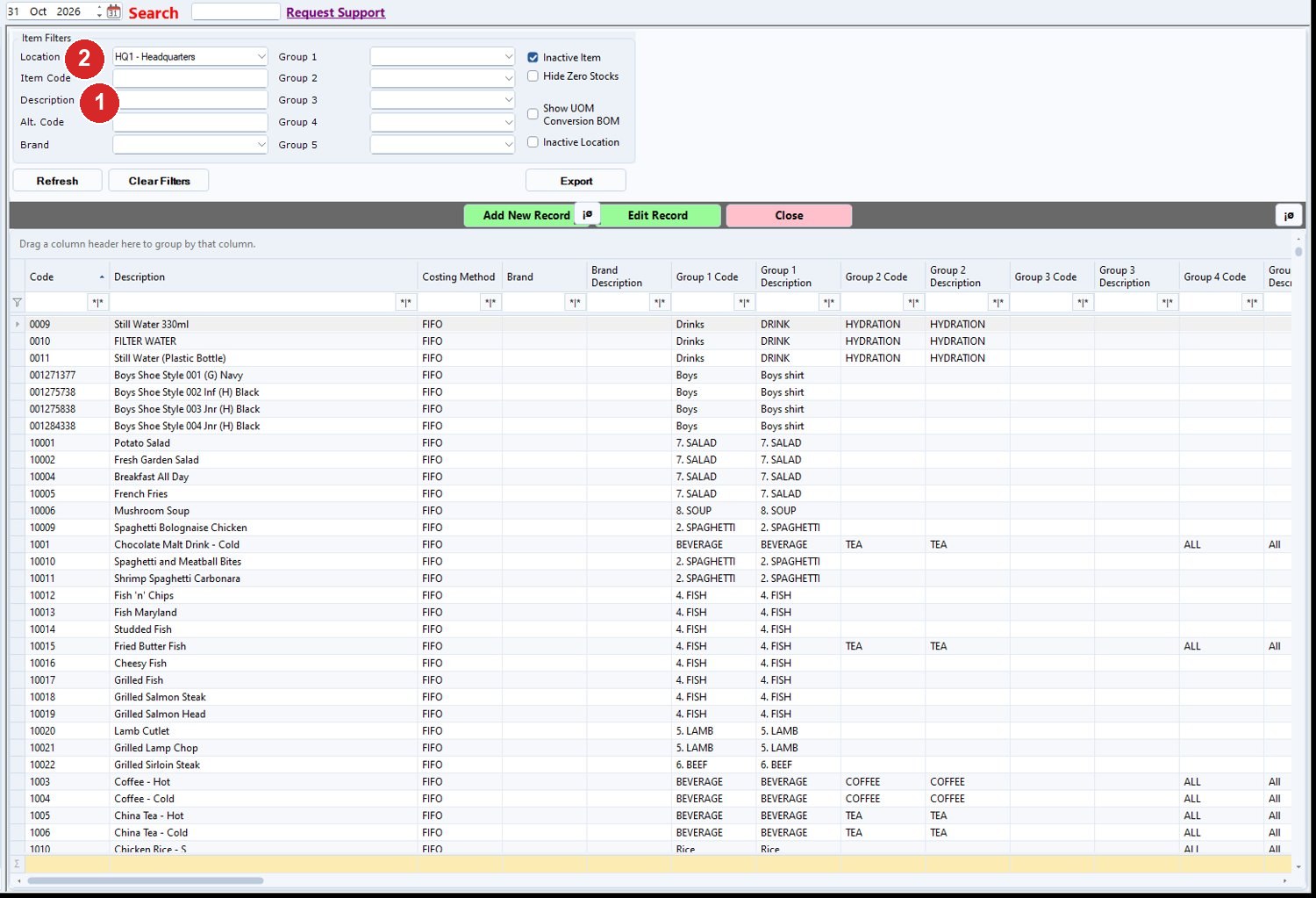
Narrow the list with the Item Filters panel.
| Step | What to do |
|---|---|
| 1 | Fill in what you know: Item Code, Alt. Code, Description, Brand and Group 1 to Group 5. |
| 2 | Choose a Location to show the stock of that location. |
3. Choose the tick boxes
Tick Inactive Item to include inactive items, Hide Zero Stocks to leave out items with no stock, Show UOM Conversion BOM to show unit-of-measure conversion items, and Inactive Location to include inactive locations.
4. Refresh the list
Click Refresh. The list updates and the program remembers your choice of location, inactive items, inactive locations and hide zero stocks for next time.
5. Clear the filters
Click Clear Filters to start again. It clears Item Code, Alt. Code, Description, Brand, the groups and the compatibility boxes, and refreshes the list at once. Location and the tick boxes stay as they are.
6. Export the list
Click Export, then choose Export Item List. The rows now shown are written to a CSV file and the folder of the file opens.
7. Change what is exported (optional)
In the same Export list, choose Define Export Fields (field names separated by commas), Define Export Path (the folder) or Change Default Export Filename. Answer Yes when asked to save your choice.
Tips
- For a numeric field add :N2 to the field name when you define the export fields. For a date field add :D.
- Until you save your own file name, the file is called Export Data followed by today’s date (yyyymmdd) and .csv, and it goes in the folder where the program is installed.
- In some setups the Location box is locked and cannot be changed.
- Item search matches from the start of the word. For part of a word, click the … button or press F1.
Common problems
An item I expect is missing from the list.
Check Inactive Item, Hide Zero Stocks and Location, and clear any filter that is still filled in.
Export shows You don’t have permission to export data.
Ask your administrator to give you permission to export data.