
This guide shows you how to add an item or service, set up box and pcs units, and add or change many items at once with an Excel file. It also covers exporting your item list and fixing common item search problems.
Before you start
- Do this at head office. Creating or changing items at a branch causes sync problems, and branch changes do not synchronize back to head office.
- For an Excel import, have your Excel file ready with the Code and Description columns.
- Take a database backup before you import a file that has a Description column.
Steps
1. Add your units of measure
Open Inventory Management > Masterfile > Sub-Masterfile > Unit of Measurement. Add each unit you need (for example pcs and box) and save.
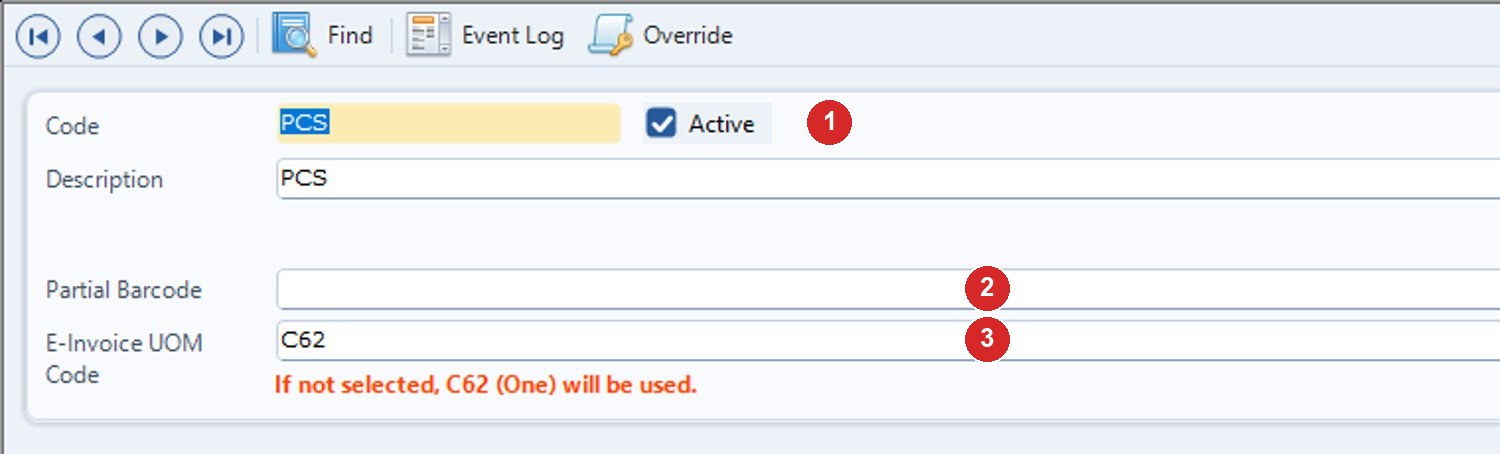
| Step | What to do |
|---|---|
| 1 | Code and Description. |
| 2 | Partial Barcode if your scale or barcodes use it. |
| 3 | E-Invoice UOM Code (if not selected, C62 (One) is used). |
2. Open the Item screen
Open Inventory Management > Masterfile > Item, then click Add New Record.
3. Set up the item and its units
For a service, set Item Type to Non-Stock / Service Item. Extra barcodes can also go in the Alternative Item Codes tab. Click Save.
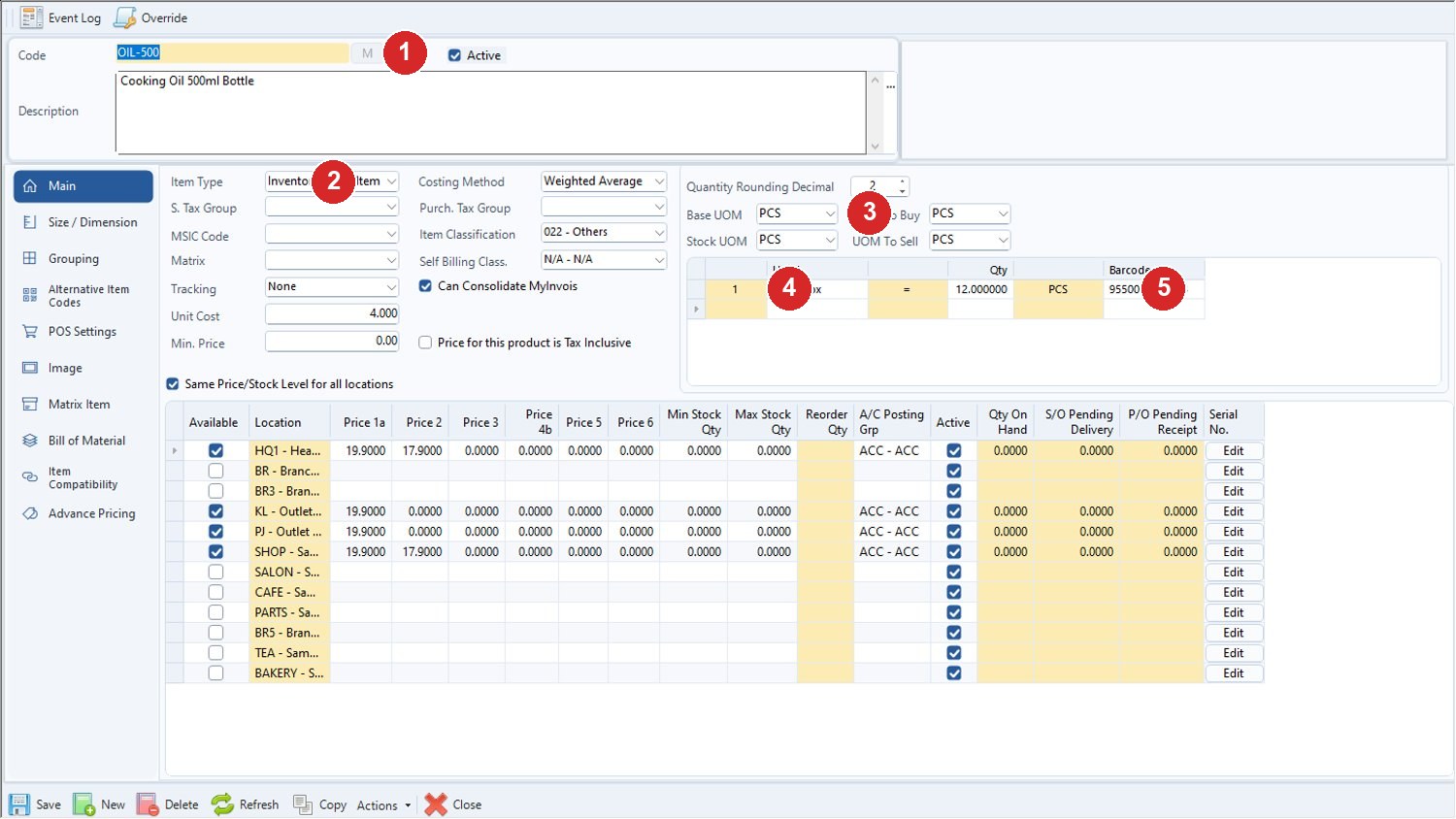
| Step | What to do |
|---|---|
| 1 | Code and Description. |
| 2 | Item Type. |
| 3 | Base UOM: the smallest unit (here PCS). A stock item also needs Stock UOM, UOM To Buy and UOM To Sell. |
| 4 | In the UOM grid, the larger unit and in Qty the number of base units (here 1 box = 12 PCS). |
| 5 | Barcode of the larger unit. |
4. Export your items (optional)
In the item list, click a column header (for example Description), choose Export To File, then Grid Row To Excel. Filter or search first if you only want some items. The exported columns are not the same as the import file, so adjust the headings before you import again.
5. Prepare the import file
In Excel, keep the Code and Description columns. In the Active column put Y (or leave blank) for an active item and N to deactivate it. In InventoryType use IV for an inventory item, UOM for a UOM conversion item and SV for a non-stock / service item. The POS Separate Row column takes Y or N. For new items, also fill in SupplyTaxCode and PurchaseTaxCode. Use the exact header names shown on the import screen.
6. Import the items
Open Inventory Management > Utilities > Item Masterfile Import Utility, Import Items tab. Here three grocery items are ready to import.
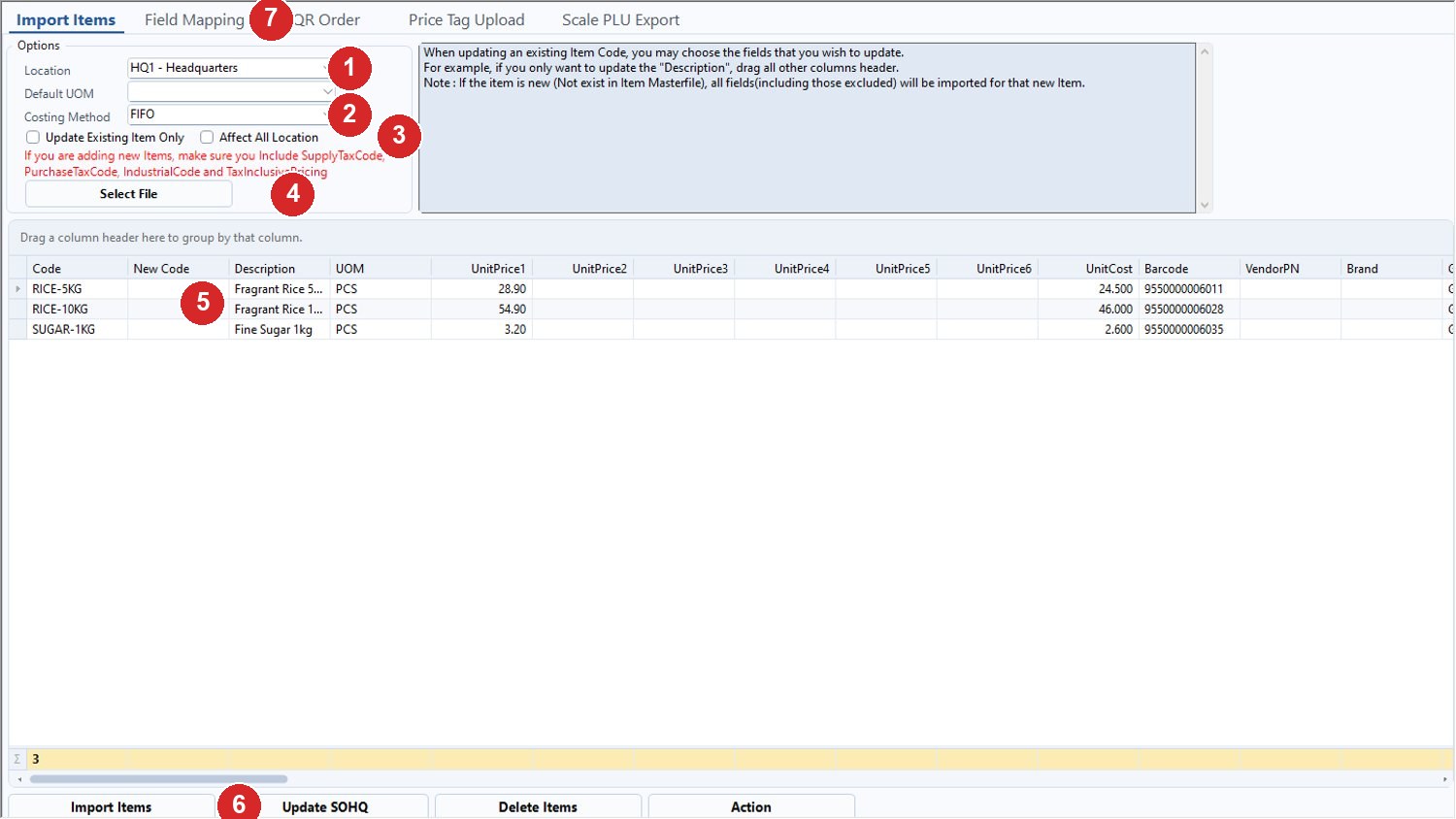
| Step | What to do |
|---|---|
| 1 | Location, and Default UOM if the file has none. |
| 2 | Costing Method for new items. |
| 3 | Update Existing Item Only, and Affect All Location, as needed. |
| 4 | Click Select File and choose your Excel file. |
| 5 | Check the rows shown. To update only some fields of existing items, drag the other column headers away. |
| 6 | Click Import Items and answer Yes to Do you want to import the data? |
| 7 | If your file uses different column names, set them on the Field Mapping tab first. |
Tips
- Items that have transactions cannot be deleted, only made inactive. Inactive items can no longer be sold.
- To deactivate many items at once, set the Active column to N in the import file and import it.
- Importing a file with a Description column replaces the description of every existing item with the same Code, even with blank if the cell is empty. Fill in the Description on every row.
- Tick Update Existing Item Only if you only want to change existing items and not create new ones.
- To sell an item without a fixed price, import it with the price empty or 0. The POS then asks for the price when the item is chosen.
- UOM cannot be imported alone, only together with items, and the UOM must exist first.
- There is no department setting. Create Groups, link each item to a group, and filter reports by group.
- Stock list per location: open Item List (Custom Data), choose the location, click Preview, then Export. The SOHQ column is the stock on hand. To hide zero stock, use the criteria SOHQ Not Equal 0.
- Single barcode label: open Barcode printing entry, click Add New Record, enter the item code and quantity, click Save, then Print barcode.
- For a package or set item that cannot be selected, or for price changes after a price increase, contact Synergy support. Have your Excel file and a screenshot of any error ready.
Common problems
I imported items from Excel but they do not show.
Check that the Active column holds exactly Y or N (one customer had a unit name there). Also check that you loaded the file and clicked Import Items, and that the header names match the import screen.
Item search does not find part of a description.
Search matches from the start of the word. For a partial word, click the … button or press F1. Search follows the item code, not the item name.
Typing an item code pops up many similar items.
Type the complete item code (for example LTYRM2.00 and LTYRM2.50 both list when the code is partial).
The stock quantity column is gone from the item list.
Click any column header, choose Enable Grid Editing, then drag the Stock quantity column to the front.
Active items do not show in the list.
Tick the inactive-items tick box in the list filter.
Records disappeared from a list.
Clear the Ref No filter and leave it empty.
I get a warning about creating or editing items at a branch.
Items should be created and changed at head office. If you continue at a branch, the changes stay at the branch and do not sync to head office.
A package or set item cannot be selected.
Contact Synergy support. They need to switch on a setting before Package Items appear in Sales and Purchases invoices.