
This guide helps you work out what to do when your licence stops working, shows an expired message, or when you need to change your company name, add a database, or move to a branch or network licence. Some of these steps can only be done by Synergy support or admin, so the guide tells you what to have ready.
Before you start
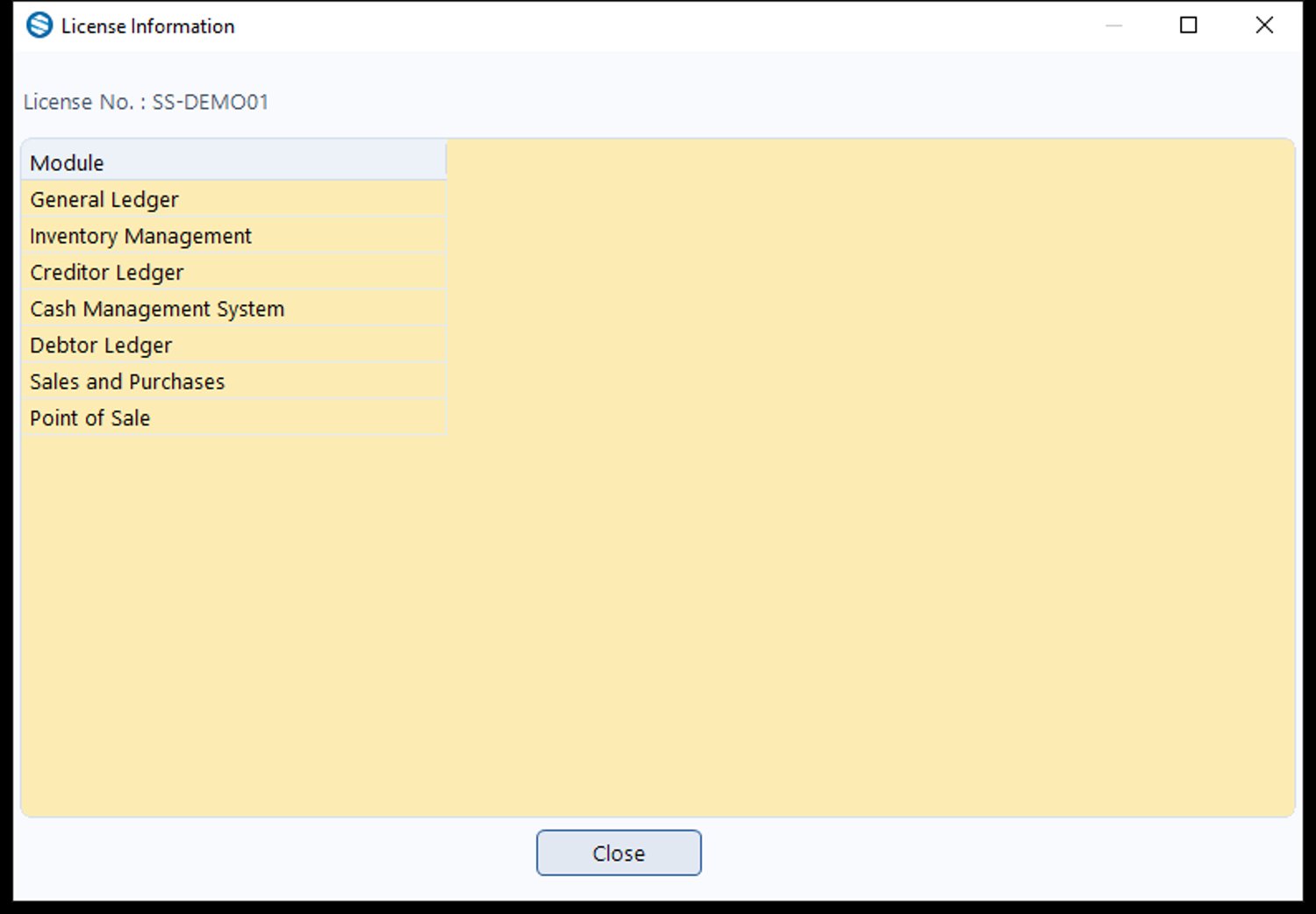
- Your licence number (go to System > License Information to see it).
- A screenshot of the message on your screen.
- Whether the PC is an HQ, a branch or a standalone licence.
- What changed on the PC: format, SSD, RAM, new PC or computer name.
- For renewals: your company name for the quotation and your proof of payment.
- For company name changes: a letter on letterhead with the company stamp and director signature, carrying your licence number, plus the SSM documents with the director page.
Steps
1. Check what the message says
Click System > License Information and note your licence number and the expiry shown. Send the licence number to Synergy support.
2. Message says contract or licence expired
This means your self-update and e-invoice maintenance contract has ended. It also blocks branch upload and download. Contact Synergy admin for a renewal quotation, pay it, and send the proof of payment to admin. Support will then reactivate your licence.
3. Many counters or branches affected
HQ must renew first. After that, retry upload, download or e-invoice submission on each counter.
4. Still says expired after payment
Close and reopen the software, then check License Information again. If it still says expired, ask Synergy support to check your licence number. Have ready your licence number, proof of payment, which PCs are affected and a screenshot.
5. List Pending button cannot be clicked and shows expired
Select all, click List again, then close and reopen the software. If the button is still disabled, report it to Synergy support.
6. Licence stopped after a PC format or hardware change
If the PC was formatted, or the SSD, RAM, power supply or PC was changed, the licence needs a re-hash. Contact Synergy support and tell them what changed. Support will re-hash and upload the licence. Once they have uploaded it, download the licence on the PC and hash it.
7. HQ computer name was changed
Change the computer name back to the name on the licence, then ask support to re-hash. If the name stays changed, all branch licences must be re-uploaded.
8. Need to change the company name or a database name
Send your letter and SSM documents to Synergy admin. Admin approves and issues the licence once documents and payment are in order, and support then uploads it. Adding a database under the old company name does not need a letter, but renaming a database does.
9. After the new licence is uploaded
On the client side, increase the update version so the new licence is received.
10. Converting to a branch licence
This needs the letter and SSM documents, and old data must be cleared. Only an HQ licence has Accounting, so a branch licence has none. After the branch licence is uploaded, the HQ licence must be uploaded too.
11. Standalone to network, or more client PCs
Admin issues a quotation. After you pay, admin uploads the new licence.
Tips
- Your licence is tied to the hardware and the computer name, so tell support before changing either.
- Service Agent showing ‘windows service terminated’ after a PC change also means a re-hash is needed.
- Only Synergy support or admin can upload, renew or approve a licence. You cannot do it alone.
- The latest licence upload overrides earlier ones, so never upload an older licence over a newer one.
- Before converting to a branch licence, be sure you are happy to clear old data and lose Accounting.
- Adding a network licence may wait until the next working day.
- If you restore HQ from an old backup, the branch may need to upload its sales again.
Common problems
PC was formatted and the licence disappeared
Contact Synergy support for a licence re-hash. Once they upload it, download the licence on the PC and hash it.
Hardware changed message after changing SSD, RAM or PC
Ask Synergy support for a re-hash and tell them what changed. Send a screenshot and your licence number.
POS is stuck at payment after changing the PC
The licence is likely tied to the old hardware. Ask Synergy support for a re-hash.
Wrong licence type appeared after restoring from an old backup
Contact Synergy support. They can upload the correct licence for you.
Renewal is paid but the software still says expired
Close and reopen the software, check License Information, then ask support to check your licence number. A remote session on the main PC has fixed this in the past.
Cannot upload sales on many counters
Make sure HQ has been renewed first, then retry on each counter.
New licence uploaded but I do not see the change
Increase the update version on the client side.
Need to work under the new company name before the new licence arrives
Ask Synergy support. They may be able to temporarily revert to the old company and database names.