
If a list seems to be missing documents, the order keeps changing, or you want to change the columns, the cause is usually a filter or sort that is still switched on. Follow these steps to check and fix it.
Before you start
- Note which list you are looking at and which date range or Ref Date is shown at the top.
- Check whether any column header shows a sort.
- If a document is still missing after these steps, have a screenshot of the list (with its filters) and the document number ready.
Steps
1. Widen the date range
Look at the date range or lock at the top of the list. For example, it may only go up to the end of last month. Widen it to include the documents you need.
2. Turn off the Ref Date filter
If a Ref Date filter is on, untick it.
3. Clear the Ref No filter
If records vanish from a list, clear the Ref No filter and leave it empty.
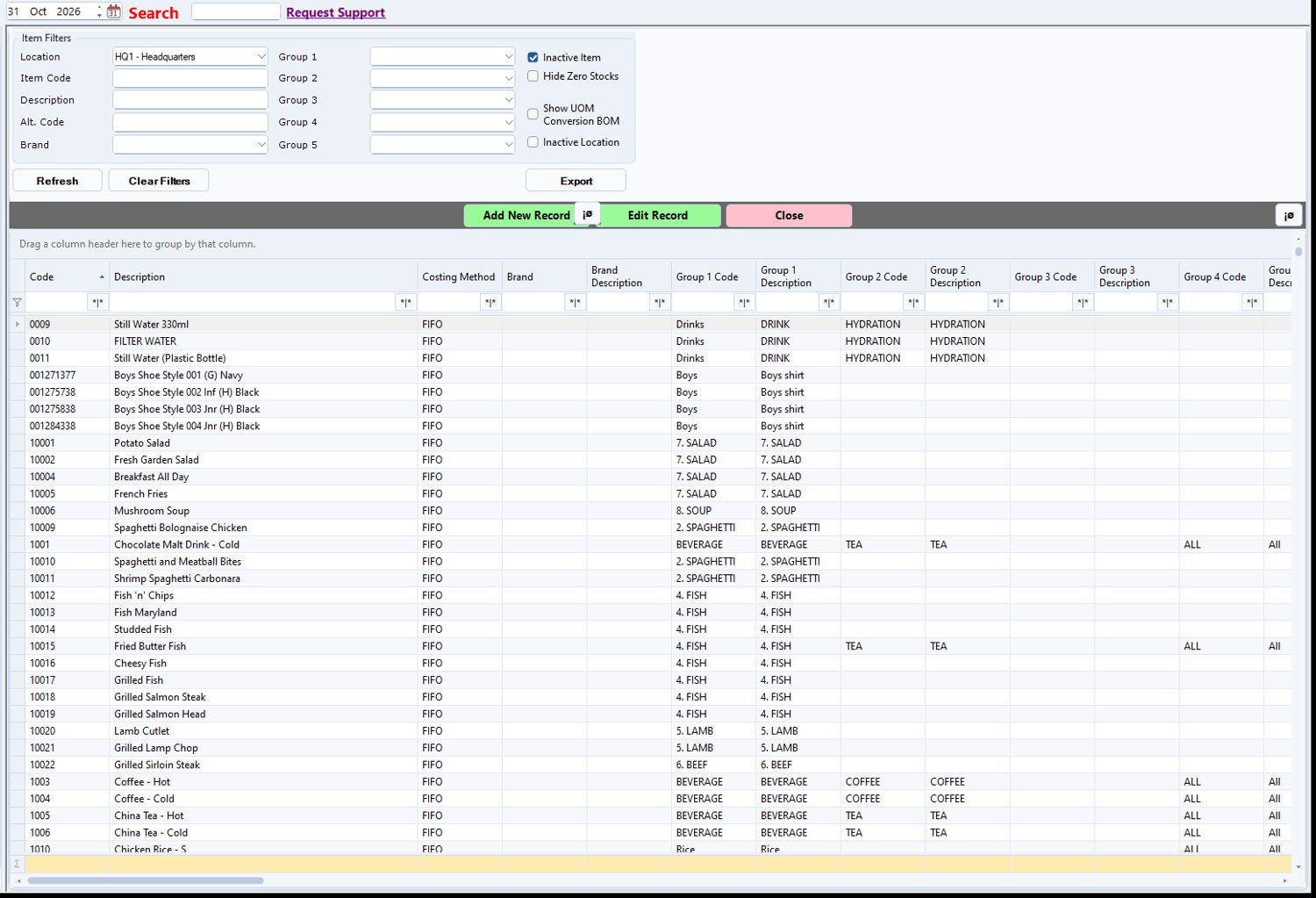
4. Show inactive items
If active or inactive items are not showing in an item list, tick the inactive-items tick box in the list filter.
5. Stop the order from jumping
Check whether any column has Sort active. Then click Clear all sorting. You can ignore the Consolidate Reminder.
6. Move or restore a column
Click any column header and choose Enable grid editing. Then drag the column to where you want it. For a missing Stock quantity column, drag it back to the front.
7. Or use the Action menu to move columns
Another way is to click Action > Enable Edit Splitter, then drag the columns.
8. Make the text larger
The software follows Windows scaling. Increase the size in Windows Display settings.
9. Check the 7000 record limit
A record listing shows at most 7000 transactions. Filter the date range so fewer records are loaded.
Tips
- Filters and sorts stay on silently, so data can look missing when it is not.
- A record listing is limited to 7000 transactions. Showing more records is possible, but loading becomes slower.
- Item search matches from the start of the word. For a partial word, click the … button or press F1.
- Item search follows item code, not item name. Type the complete item code to avoid the pop-up of similar items.
- If a new invoice is not found in Find, untick the Date filter in the Find screen and search again.
Common problems
My latest invoice is not in the list.
Widen the date range at the top of the list and untick any Ref Date filter.
The list shows nothing or a wrong result.
Check the date range, the Ref Date filter and the Ref No filter. Clear or widen them.
The stock column is gone from the item list.
Click any column header, choose Enable Grid Editing, then drag the Stock quantity column to the front.
A new invoice does not appear when I click Find.
Untick the Date filter in the Find screen and search again.
The document is still missing after widening the filters.
Contact Synergy support. Have a screenshot of the list with its filters and the document number ready.