
This guide shows you how to sign in to Synergy Accounting and pick the right company. It also covers what to do if you cannot sign in.
Before you start
- Your user ID and password.
- The Admin/Super-User password, only if you want to use the setup, restore or upgrade tools in the sign-in menu.
Steps
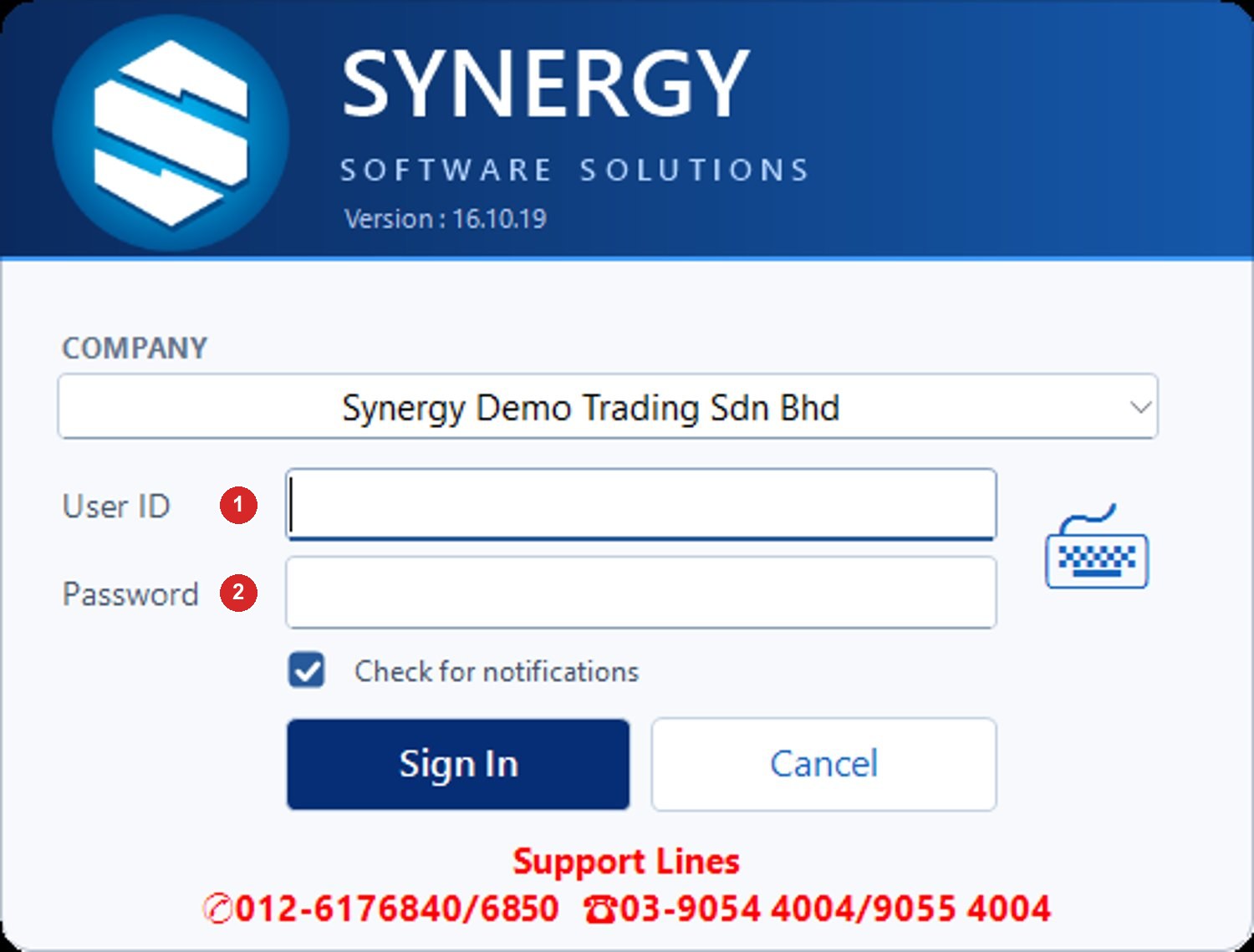
1. Enter your user ID
Use the user ID and password boxes on the sign-in screen.
| Step | What to do |
|---|---|
| 1 | Type your user ID in the user ID box. |
| 2 | Press Enter to move to the password box. |
2. Enter your password
Type your password. If a Caps Lock warning appears, turn Caps Lock off and retype.
3. Open the company list
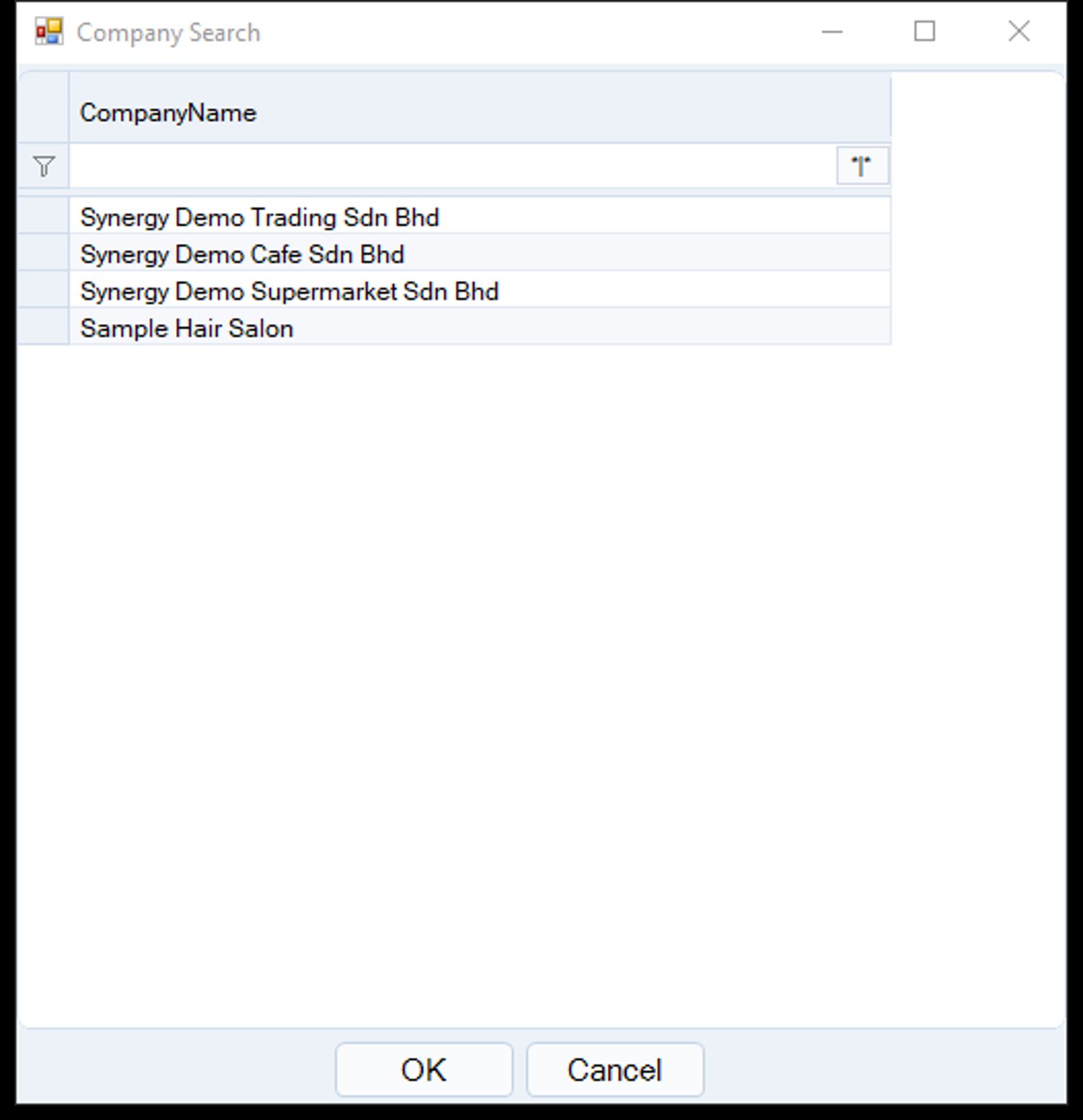
If more than one company is available, click the Company label. The Company Search list opens.
4. Find your company
Type in the filter row at the top of the list to narrow it down.
5. Select the company
Click the company row you want. Do this before clicking OK, otherwise the first company in the list may be used.
6. Confirm the company
Click OK. You can also double-click the company, or press Enter while the company is highlighted. The company now shows in the Company box.
7. Sign in
Click Sign In. Pressing Enter in the password box also signs you in, if both the user ID and password are filled in.
8. Leave without signing in
If you change your mind, click Cancel.
Tips
- The sign-in window has no title bar. To move it, drag the blue band at the top.
- Clicking the keypad label widens or narrows the window to show or hide an on-screen keypad.
- Clicking the version link asks ‘Do you want to check for update?’. Click Yes to check for a newer version. You need an internet connection, and updates go through the Synergy Service Agent.
- Setup and restore in the sign-in menu need the Admin/Super-User password typed in the password box first. A single-PC, single-user licence does not need it.
- If your rental licence has 3 days or fewer left, a reminder with the expiry date appears.
- The Software License Agreement can be read under System > Software License Agreement. It is for reading only; OK just closes it.
- If you have no admin ID and password, first ask the previous admin or the owner. If no user ID has been set up yet, just click OK to log in. Once in, go to Main > Application Security > User, select admin and change the ID and password straight away.
- Each branch PC has its own user setup. The branch admin ID cannot be controlled from head office.
Common problems
Invalid Username/password entered.
The user ID or password is wrong. Check them and try again.
User account is expired.
This account can no longer sign in.
I clicked OK in the company list but got the first company.
The cursor was still in the filter row. Click the company row first, then click OK.
Pressing Enter does nothing in the company list.
Enter is ignored while the cursor is in the filter row. Click a company first, or click OK.
My company is missing from the list.
Clear the filter row. A typed filter hides companies that do not match.
Admin/Super-User Password is required, or setup or restore is refused.
Type the Admin/Super-User password in the password box, then try the setup, restore or upgrade again.
You have to set up the Database Connection first.
No database setup exists yet. Use the setup option in the sign-in menu, which opens when you click the Synergy logo.
Update check fails, or the message says Internet connection not detected.
Check that the PC is connected to the internet and try again.
Unable to access folder…
The program cannot reach the server folder named in the message. Contact Synergy support and have the full message ready.
Remote users cannot connect, or the message says the user limit is exceeded.
One remote licence allows one remote user at a time, so others must log out first. For more users at once, add user licences by quotation through sales. For remote login, use the remote user ID; the password is the same as the user ID. Tick Remember me before clicking OK. If the limit still shows wrongly, contact Synergy support and have the remote access IDs for the main PC and the client PC ready.
Locked out of the admin login.
Contact Synergy support. Have the owner’s confirmation and the PC ready. An admin letter may be needed.