
Use this checklist at month end to make sure your e-invoices, bank reconciliation, stock take, debtor aging and backup are all done. Tick off each item as you go.
Before you start
- Make sure all sales invoices for the month are posted. An unposted invoice stays out of the e-invoice lists.
- Use the main PC for e-invoice submission.
- Have your bank statement ready for the bank reconciliation.
Steps
1. Post your sales invoices
Post all sales invoices for the month first, so they appear in the e-invoice lists.
2. Open the e-invoice screen
Go to Main > MyInvois / E-Invoice > MyInvois / E-Invoice Submission. Remember: the consolidated e-invoice for a month is done after that month ends, within the first 7 days of the next month (for example, July sales are posted in August).
3. List pending documents in Step 1
On Step 1 – Posting, choose the Submission Month / Year, set Submission Type to ALL, then click List Pending Documents.
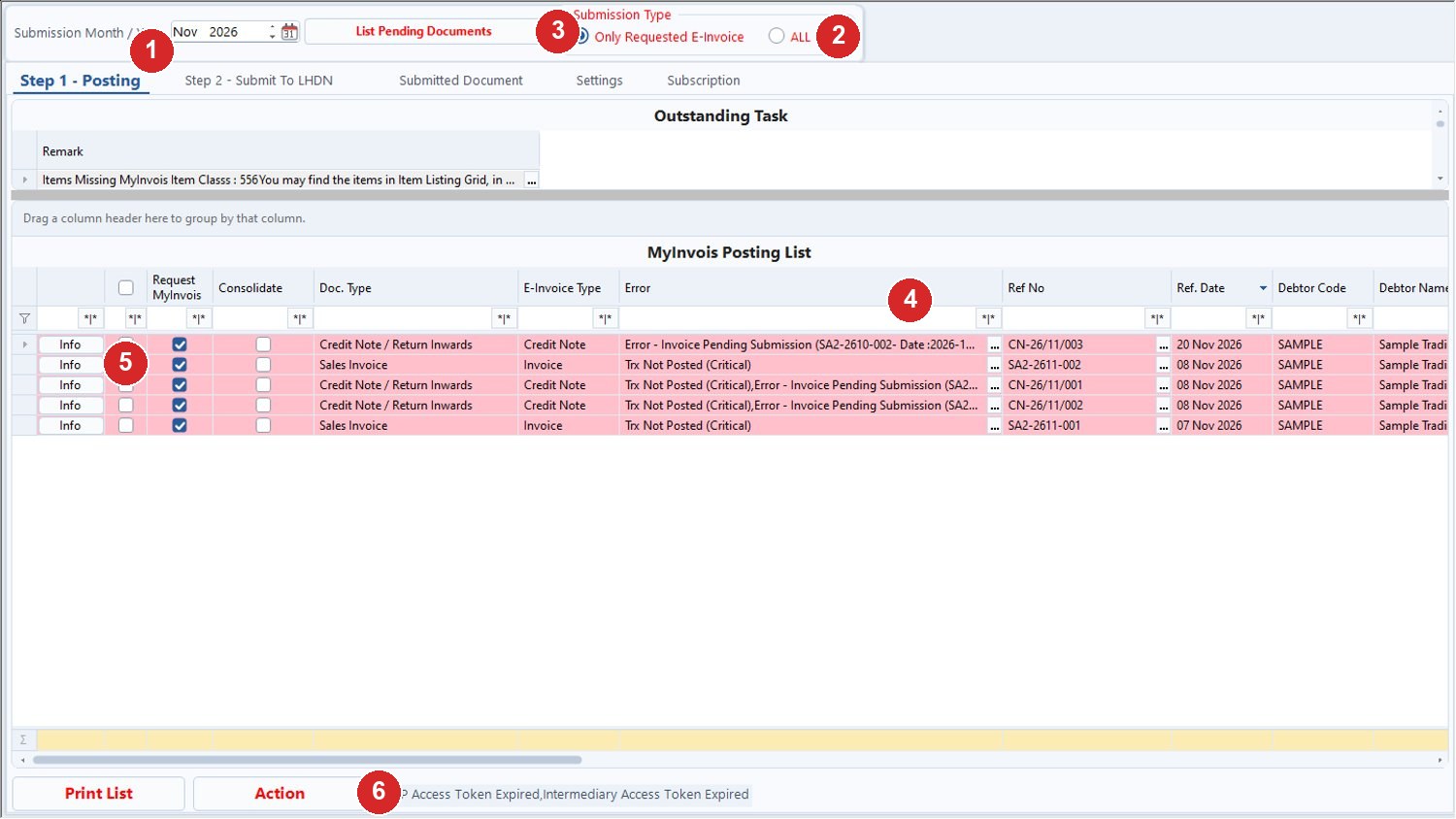
| Step | What to do |
|---|---|
| 1 | Submission Month / Year. |
| 2 | Submission Type: ALL or Only Requested E-Invoice. |
| 3 | Click List Pending Documents. Outstanding Task at the top lists data to fix first (here items missing a MyInvois item class). |
| 4 | Error column: what is wrong with each document (pink rows), for example Trx Not Posted (Critical). |
| 5 | Tick the documents to post. |
| 6 | Action: post the selected documents (or post and submit in one go). |
4. Fix any bills that cannot be consolidated
Check the Error column. For a bill flagged Request MyInvois that must be consolidated, click Info at the left of the row, untick Request E-Invoice in the Update Information window, then click Save and try again.
5. Post the consolidated e-invoice
Click Action and choose Post Consolidated E-Invoice. For bills your customer requested, use Post Selected Requested E-Invoice. Do not submit supplier documents, and do not tick a credit note for an invoice that was never submitted.
6. Submit to LHDN in Step 2
Go to Step 2 – Submit To LHDN and click List Posted Documents. Tick the documents, click Action > Submit Selected Documents, and confirm when asked.
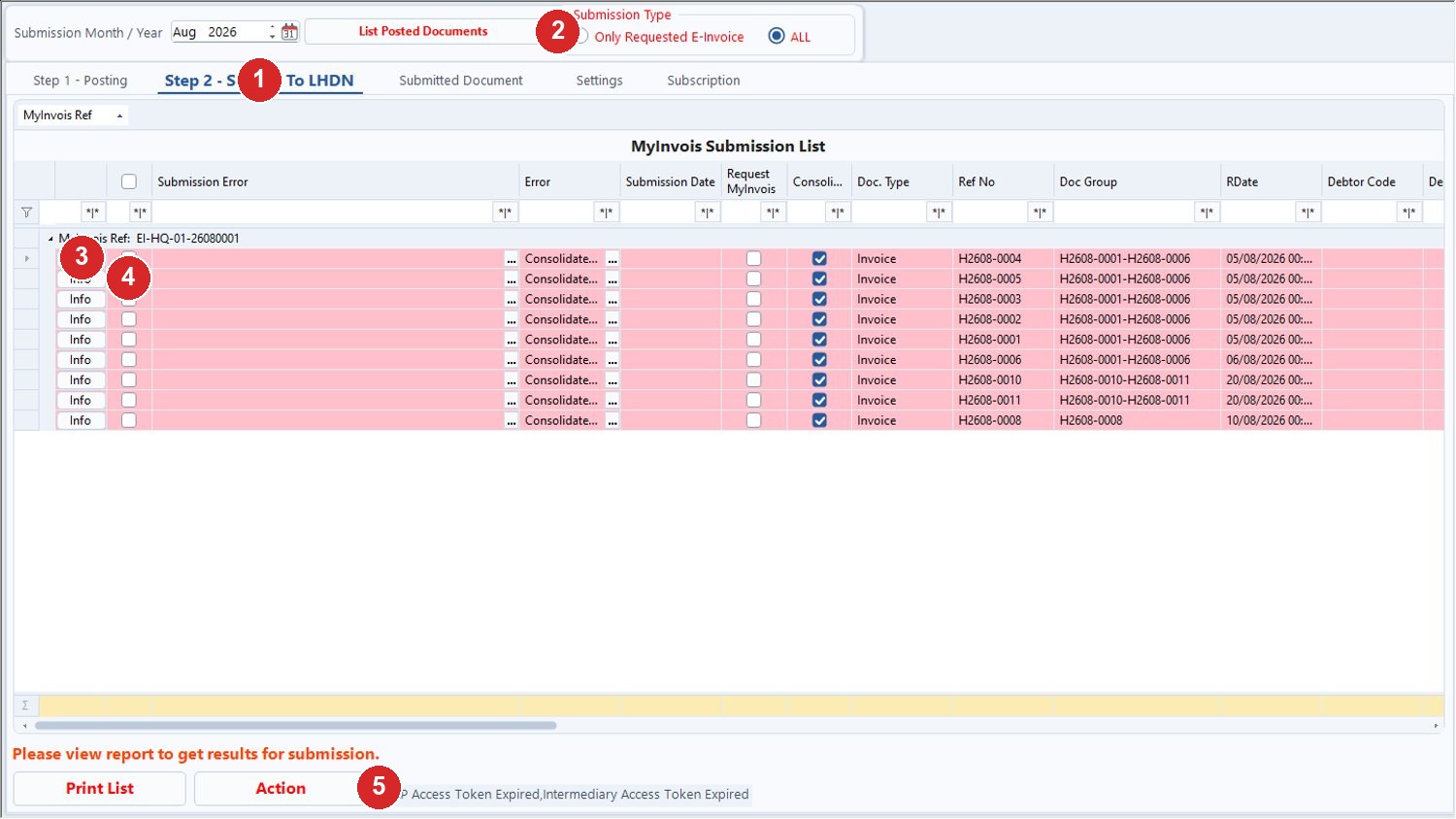
| Step | What to do |
|---|---|
| 1 | Step 2 – Submit To LHDN tab. |
| 2 | Click List Posted Documents. Consolidated bills are grouped under their MyInvois Ref (here EI-HQ-01-26080001). |
| 3 | Info opens the document’s buyer details to read or fix. |
| 4 | Tick the documents to send. |
| 5 | Action > Submit Selected Documents (Reverse Posting is also here). |
7. Confirm all e-invoices are submitted
With Submission Type set to ALL, check that the Step 1 list and the Step 2 list are both empty. Then open Submitted Document and check every row shows Status Valid. If the consolidated is already submitted and Valid, ignore the Consolidate Reminder.
8. Check the lock date
Go to General Ledger > Settings > System Settings > Integration tab, Lock Transaction group. Check the lock date, because it blocks transactions on or before that date. Untick or change it if you still need to key in transactions.
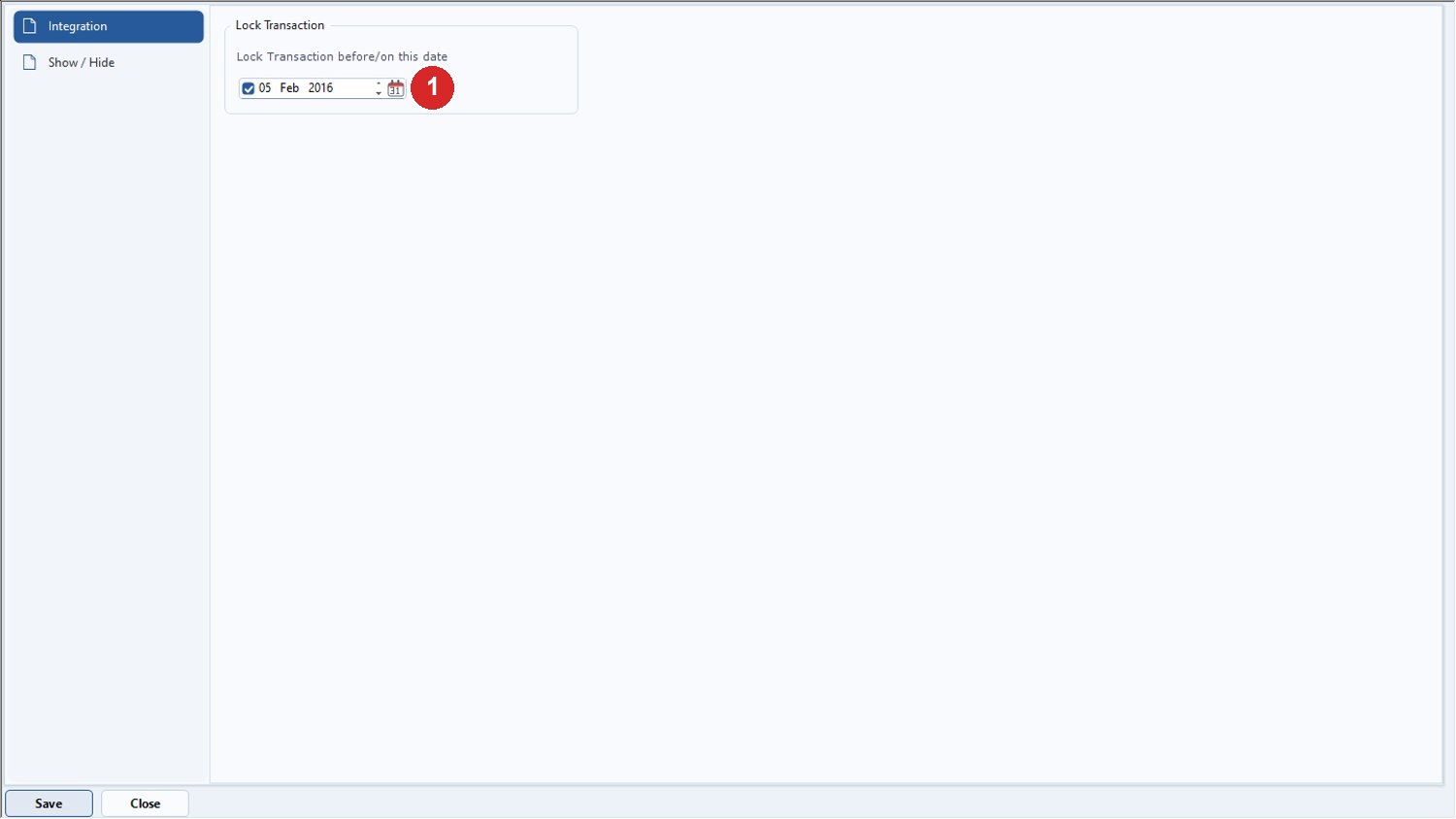
| Step | What to do |
|---|---|
| 1 | Lock Transaction before/on this date: check the date. |
9. Start the bank reconciliation
Go to Cash Management System > Transactions > Bank Reconciliation > Bank Reconciliation. Choose the Account To Reconcile, enter the Statement Balance, Statement Date and Cut Off Date, then click List.
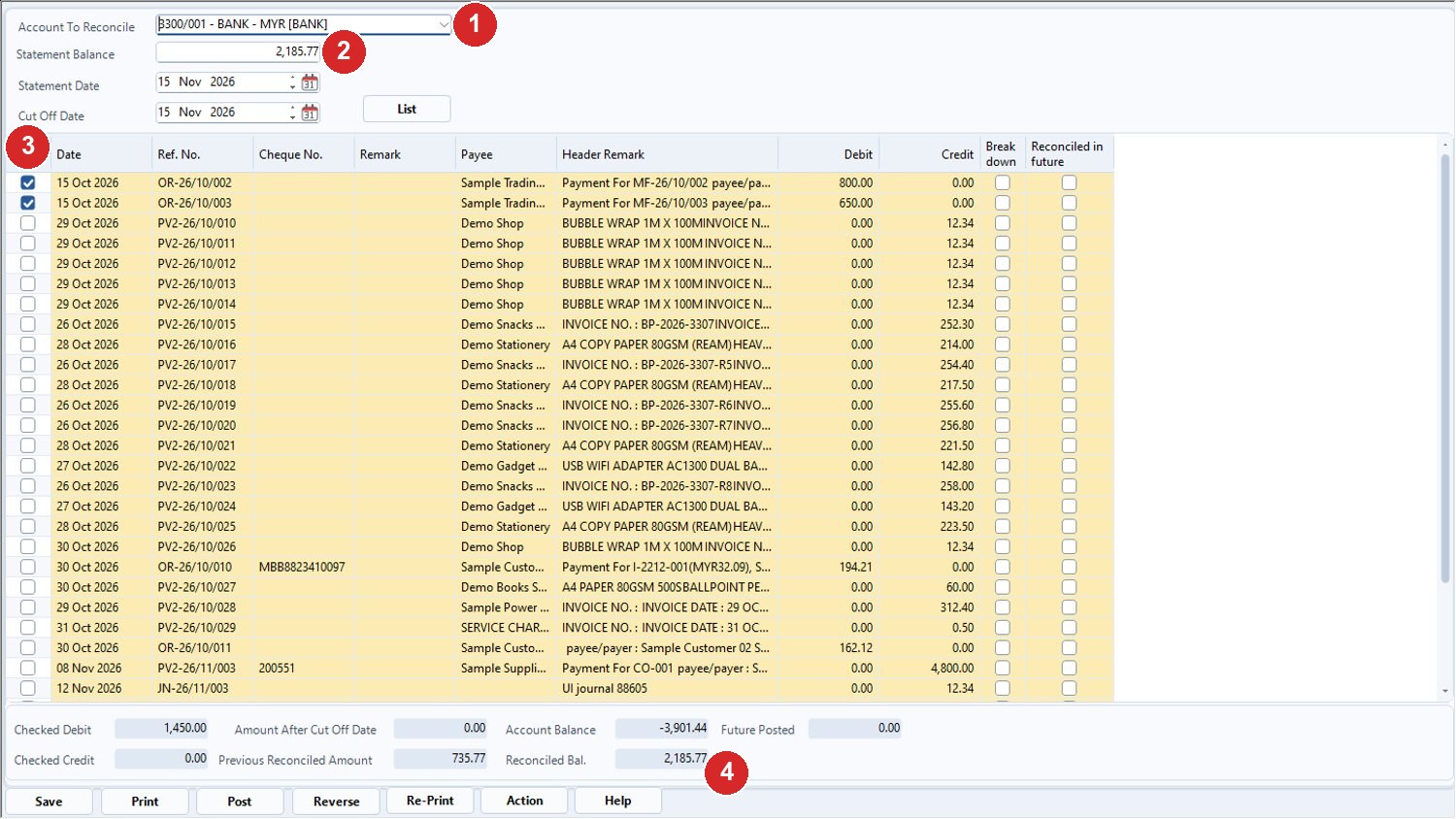
| Step | What to do |
|---|---|
| 1 | Account To Reconcile. |
| 2 | Statement Balance. |
| 3 | Tick the lines on your bank statement. |
| 4 | Reconciled Bal. must equal the Statement Balance. |
10. Save and post the bank reconciliation
Click Save, then Post. If you are not finished, only click Save and come back later. Post it before you continue with the next month.
11. Answer the lock question carefully
After you post, the program asks whether to lock the GL transaction entry date. Choose Do not lock unless you are sure that month is closed.
12. Print stock listings before the stock take
Print the Stock Balance Listing for the current quantity. Print the Stock Value Listing for cost (it gives the cost after Inventory Cost Posting). If you have not done Inventory Cost Posting, use the Stock Movement Summary instead.
13. Do the stock take and check the comparison
Open Inventory Management > Transactions > Stocks > Stock Take. Click the arrow next to Print and choose Comparison By Stock to see the difference between counted and system stock.
14. Post the stock take
Click Post, tick the checkbox shown and click OK.
15. Send the stock take to branches
At head office, open Point of Sale > Transaction > Data Synchronization (HQ), go to the Upload to branches tab and click Upload Data. At each branch, open Point of Sale > Transaction > Data Synchronization (POS), go to the Download From HQ tab and click Download.
16. Run Inventory Cost Posting
Open Inventory Management > Transactions > Stocks > Inventory Cost Posting, choose the Doc. Type and Ref. Date range, and click List. Tick the transactions, click Post selected transaction, then run the Stock Value Listing.
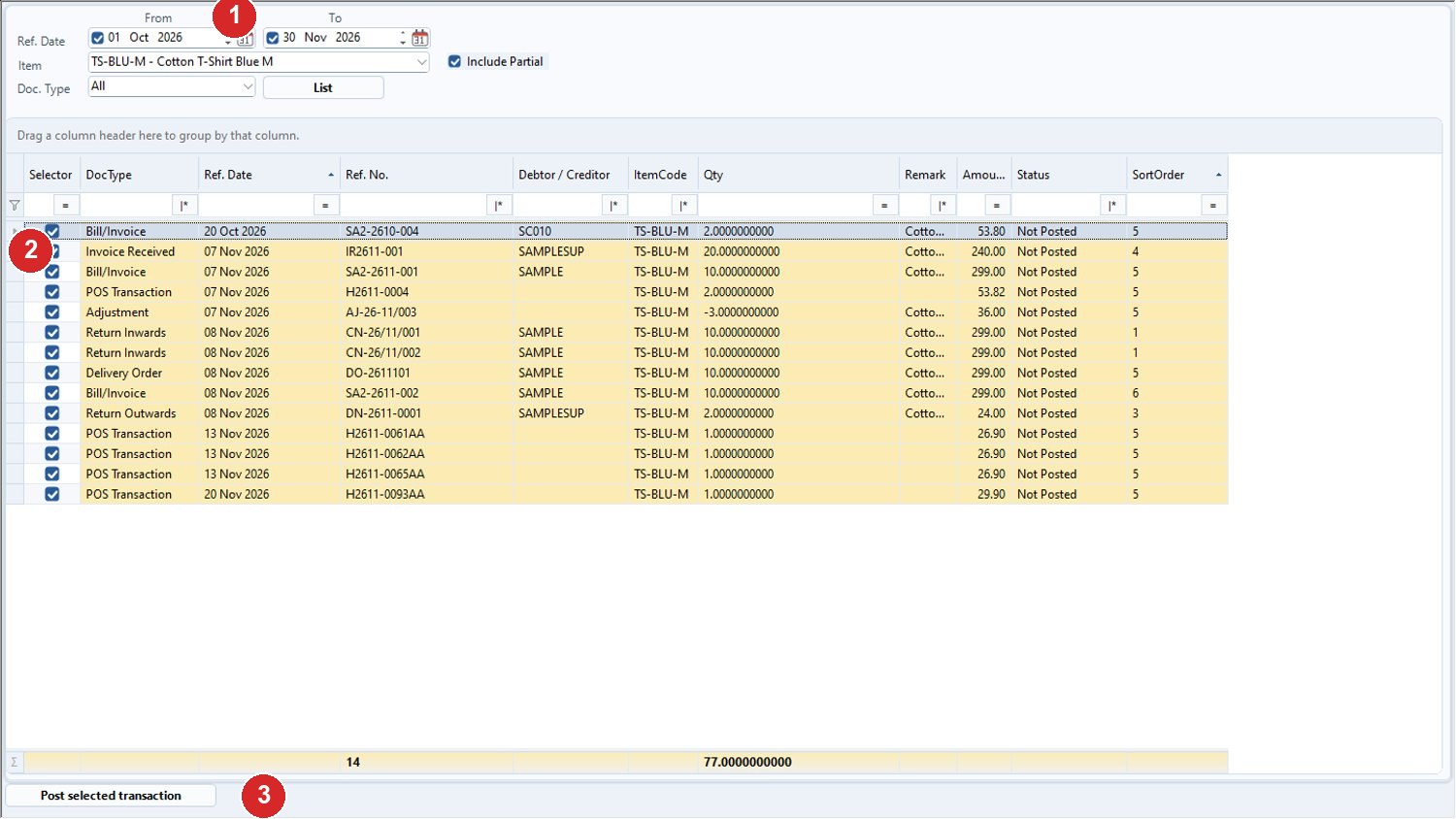
| Step | What to do |
|---|---|
| 1 | Ref. Date range (tick From), Doc. Type, then List. |
| 2 | Every listed transaction comes ticked. |
| 3 | Post selected transaction. |
17. Print the debtor aging
Go to Account > Debtor Ledger > Report > Aging. Pick the month-end date and preview.
18. Check the backup
Open the SynSoft folder > Autobackup folder and check there is a recent backup file named by date. Keep the most recent week on the main PC, plus a copy on a pendrive or external disk.
Tips
- A month already submitted as consolidated cannot be changed. If a customer needs an individual e-invoice, mark the invoice as Requested and submit it within the same month.
- Posting a consolidated e-invoice before month-end is refused unless Allow Post Consolidated E-Invoice before month-end. is ticked on the Settings tab.
- Walk-in customers without a TIN need no e-invoice fields. Entering the general TIN is optional.
- A token-expired message during submission is harmless if the lists end up empty and the documents are Valid.
- Consolidated and requested e-invoices are separate runs, so check both.
- A lock stops anyone from adding or changing transactions on or before the lock date.
- Stock value does not include adjustments that have not yet been cost-posted.
- If the debtor aging differs from the balance sheet, remember aging is based on invoices and knock-offs.
- If the C drive is full, the auto backup may not have run. Delete old auto-backup files to make more space.
- Back up your database before the PC is upgraded.
Common problems
The 7 days have passed and the consolidated e-invoice is not submitted yet.
On the Settings tab, Others sub-tab, tick Allow Submit Consolidated E-Invoice after 7 days. The program warns that LHDN does not allow this and may penalise, so get LHDN permission first.
A bill cannot be submitted as consolidated.
It is flagged Request MyInvois. Click Info at the left of the row, untick Request E-Invoice, click Save and try again.
Step 2 is empty.
An empty list means everything has been submitted. Check Submitted Document to confirm all rows show Valid, and make sure the invoice was posted.
A document shows posted but not submitted on a new PC.
Check the MyInvois portal. If it is already submitted there, ignore the message.
Items cannot be ticked in the bank reconciliation, or a receipt cannot be deleted.
A later month was already reconciled. Reverse the bank reconciliation for the later months of that bank account, then redo it month by month. If the receipt’s own month is not in the list, find the month whose reconciliation contains it (it may be the next month) and reverse that one.
Posting the bank reconciliation is refused.
Make sure the Reconciled Bal. equals the Statement Balance. A partly finished reconciliation cannot be posted, so just Save it.
A message says transactions are locked.
Check the lock date in General Ledger > Settings > System Settings > Integration tab, Lock Transaction group, then untick or change it.
The message says there is no financial year.
Create the fiscal year following the manual, using the company’s actual financial year dates (confirm with the company secretary).
A posted stock take cannot be changed.
A posted stock take is read-only. Click Unpost to change it.
Quantities cannot be keyed in stock documents.
Check that Data Sync. is Ready to synchronize and not Do not synchronize.
Still stuck on an e-invoice, backup or stock problem.
Contact Synergy support. Have the month, the document number, the exact error text and a screenshot of the screen ready.