
This guide shows how to key in money paid out of the bank to a supplier, and how to print one payment order that lists all invoices. The example pays Sample Supplies Sdn Bhd 330.00 by bank transfer for bill IR2611-001.
Before you start
- Have the supplier’s invoice already keyed in (see Tips for how to add a supplier and key in a purchase invoice).
- Know the amount paid and which bank account it came from.
Steps
1. Open Bank Payment
Go to Cash Management System > Transactions > Bank > Bank Payment and click Add New Record.
2. Choose who you are paying
Fill in the payment. The date box does not take focus until a reference number exists, and the amount box does not accept typing until a bank account is chosen.
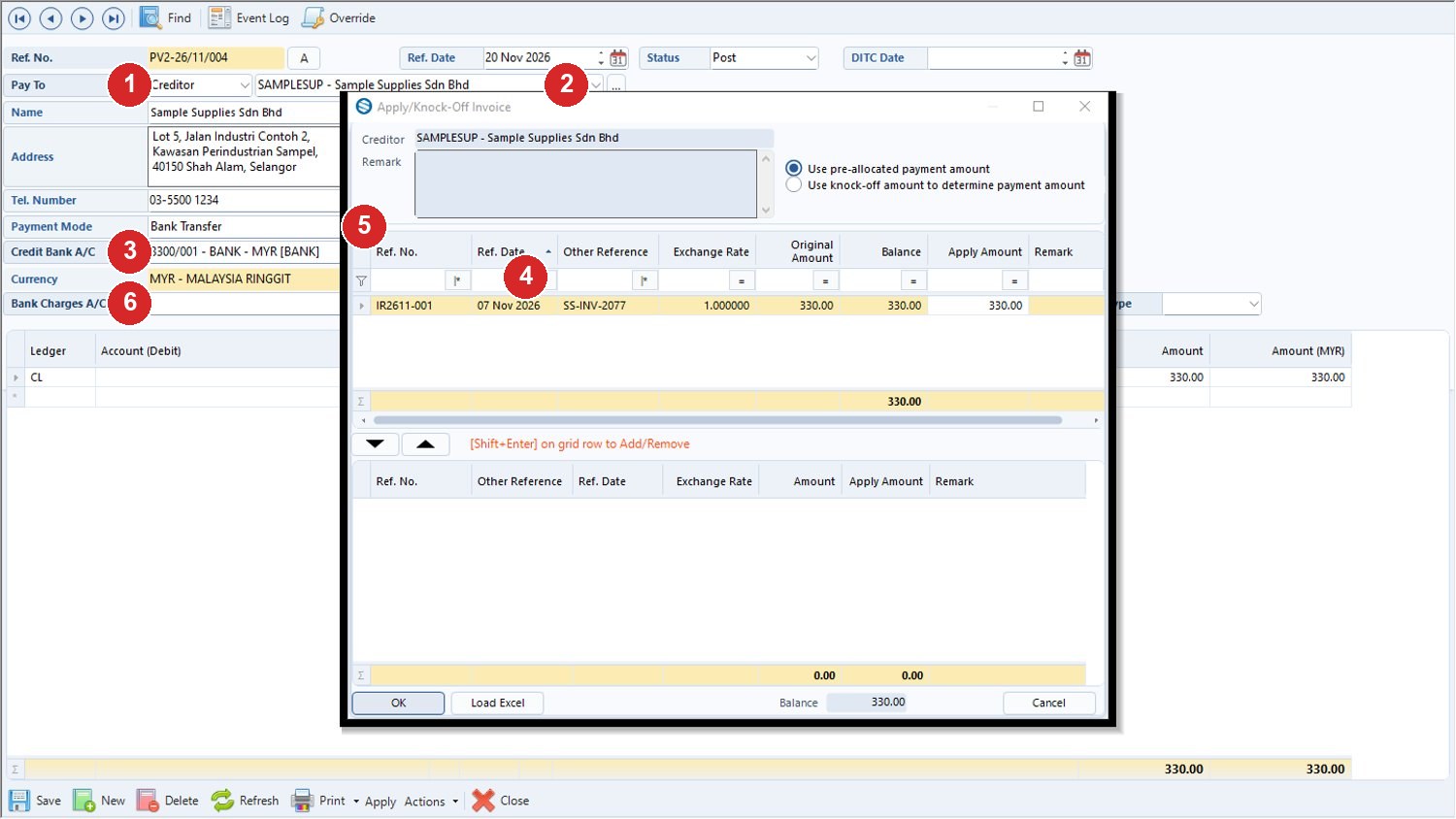
| Step | What to do |
|---|---|
| 1 | Pay To: Creditor. |
| 2 | The supplier (here SAMPLESUP). Address and phone fill in by themselves. |
| 3 | Credit Bank A/C: the bank account the money is paid from. |
| 4 | Bank Amount (LCY): the amount paid (here 330.00). |
| 5 | Payment Mode; a reference box to suit it appears (Cheque No. or Bank Transfer Ref.). |
| 6 | Bank Charges A/C and Charges (LCY) if the bank charged a fee, or tick Auto Calculate Charges. |
3. Check Ref. No. and Ref. Date
Confirm the Ref. No. and Ref. Date. The date box will not take focus until a reference number exists.
4. Pick the bank account
Choose the bank account in Credit Bank A/C. The amount box will not accept typing until a bank account is chosen.
5. Enter the amount
Type the amount paid in Bank Amount (LCY).
6. Choose the Payment Mode
Pick the Payment Mode. A reference box then appears to suit it, for example Cheque No. or Bank Transfer Ref. Fill it in.
7. Add bank charges if any
If the bank charged a fee, tick Auto Calculate Charges, or fill in Bank Charges A/C, Charges (LCY) and GST (LCY).
8. Apply the invoice
Set Status to Post, then click Apply in the toolbar at the bottom and knock off the supplier invoice.
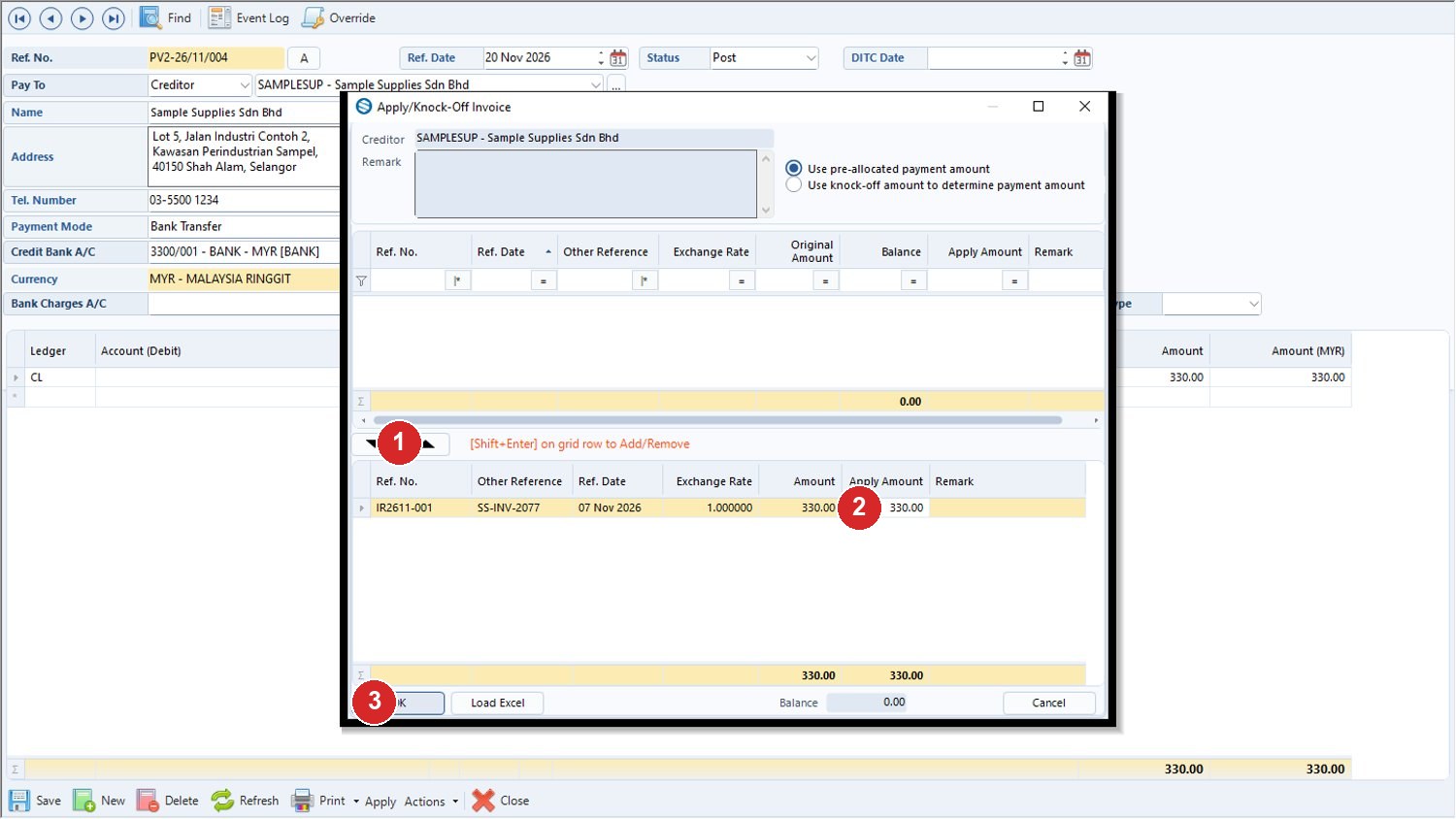
| Step | What to do |
|---|---|
| 1 | Move the supplier invoice down with the arrow (or Shift+Enter). |
| 2 | Apply Amount (here 330.00 for IR2611-001, the supplier’s SS-INV-2077). |
| 3 | Balance shows 0.00; click OK. |
9. Save
Click Save. The program checks the entry and shows a message if something is missing.
10. Print one payment order for all invoices
In the payment screen, press Pay All on the right and click OK. Then choose Action > Print Payment Order. One bill listing all the invoices is printed, which you can share.
11. Pay utility bills
For utility bills, use Bank Payment with Pay to Other. See the Accounting manual, page 68.
Tips
- Bank Payment is used for money going out of the bank.
- For paying a supplier invoice, the manual pages 63-65 cover Bank Payment and Apply Purchase Invoice.
- Pay All and Print Payment Order give one combined bill. If you want each invoice printed separately, do not use this.
- Once detail rows exist, you cannot change the party type. Once invoices have been applied, you cannot change the creditor.
- To add a supplier, go to Creditor Ledger > Masterfile > Creditor and click Add New Record. To key in a stock purchase, use Sales and Purchases > Transactions > Purchase Process > Invoice Received.
- A payment voucher that is too large for A4 can be changed to A5 paper.
Common problems
I cannot click the date or amount box.
Enter the Ref. No. first, or choose the bank account first.
I cannot change the party type.
Detail rows already exist, so the type is locked.
I cannot change the creditor.
Invoices have already been applied to this payment.
I get the message: No details entered.
Add at least one row to the detail grid.
I get a message that the amount does not tally.
The detail rows and the bank amount differ. Make them the same.
I need help and nothing above works.
Contact Synergy support. Have a screenshot of the payment screen, or of the bank statement lines you want to key in, ready.