
Instead of typing the pay and deduction codes one by one, you can load them in bulk from an Excel or CSV file. This guide shows how, and how to clean out codes nothing uses.
Before you start
- Importing is not allowed on a demo or trial licence.
- You need an internet connection if you want to download the sample file.
- Copy the exact column headings from the sample file, for example Subject PCB, Subject EPF, Subject SOCSO, Subject EIS, Subject HRDF, Additional Remuneration, Active and Category.
Steps
1. Open the screen
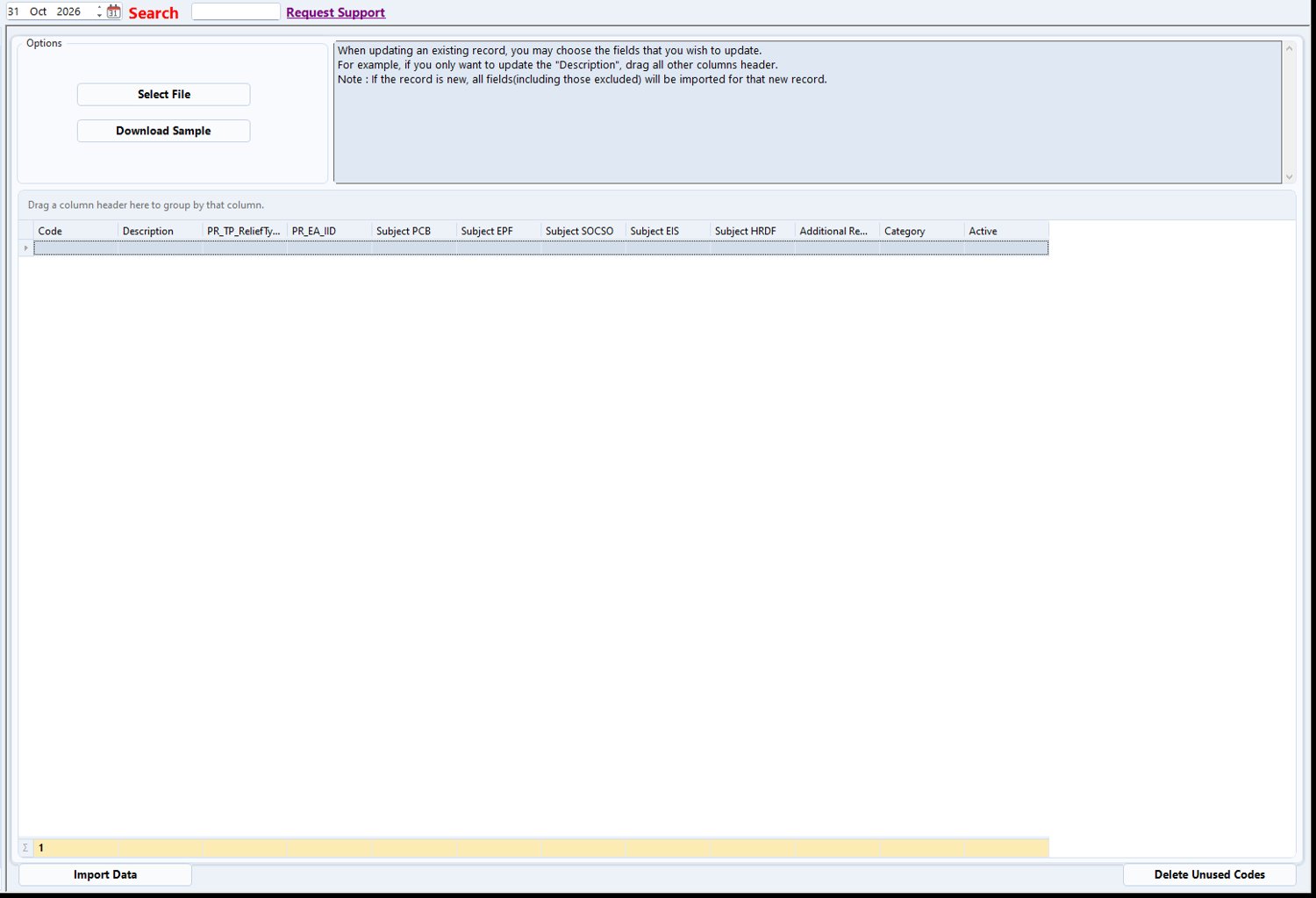
Go to Main > Payroll Assistant > Others > Transaction Type Import (Payroll).
2. Get the sample file
Click Download Sample. The sample is loaded into the grid straight away so you can see the columns you need.
3. Or choose your own file
Click Select File under Options and pick your Excel (xls, xlsx) or CSV file. The rows replace whatever was in the grid.
4. Check the rows
Look at the rows in the grid. You can remove the rows you do not want to import.
5. Import
Click Import Data and answer Yes to ‘Do you want to import the data?’.
6. Update only some fields of an existing code
If a code already exists, drag the column headers of the fields you do NOT want to update off the grid before you click Import Data. For example, to update only the Description, drag all other headers off. A new code is imported with all its fields.
7. Read the result
‘Data import completed.’ means every row went in. Any other message gives the reason a row did not.
8. Remove unused codes (optional)
Click Delete Unused Codes to remove every transaction type that no payroll item uses. Type the 4-digit code shown in the Confirmation box, then click OK.
Tips
- Delete Unused Codes is permanent. Use it only when you are sure the codes are not needed.
Common problems
‘This function is disabled for Demo/Trial version.’
Importing is not available on a demo or trial licence.
‘File not found.’ after clicking Download Sample.
The sample could not be downloaded. Check the internet connection and try again.
The import does nothing or the rows fail.
Make sure the grid has rows, and compare your column headings with the sample file. They must be spelled exactly as in the sample.