
Use this guide when payroll gives you a result that looks wrong: all salaries show 0, EPF or SOCSO does not match the portal, a staff member is not meant to pay EPF, the CP8D form shows zero, a part-month worker gets the full salary, or SOCSO shows 0 for a staff member who turned 60. Work through the checks in order.
Before you start
- Know the salary month and the employee you are checking.
- Remember to run Calculate Payroll again after every change below.
Steps
1. All salaries show 0 after calculating
In Payroll Processing, the processing date and month must match the salary month.
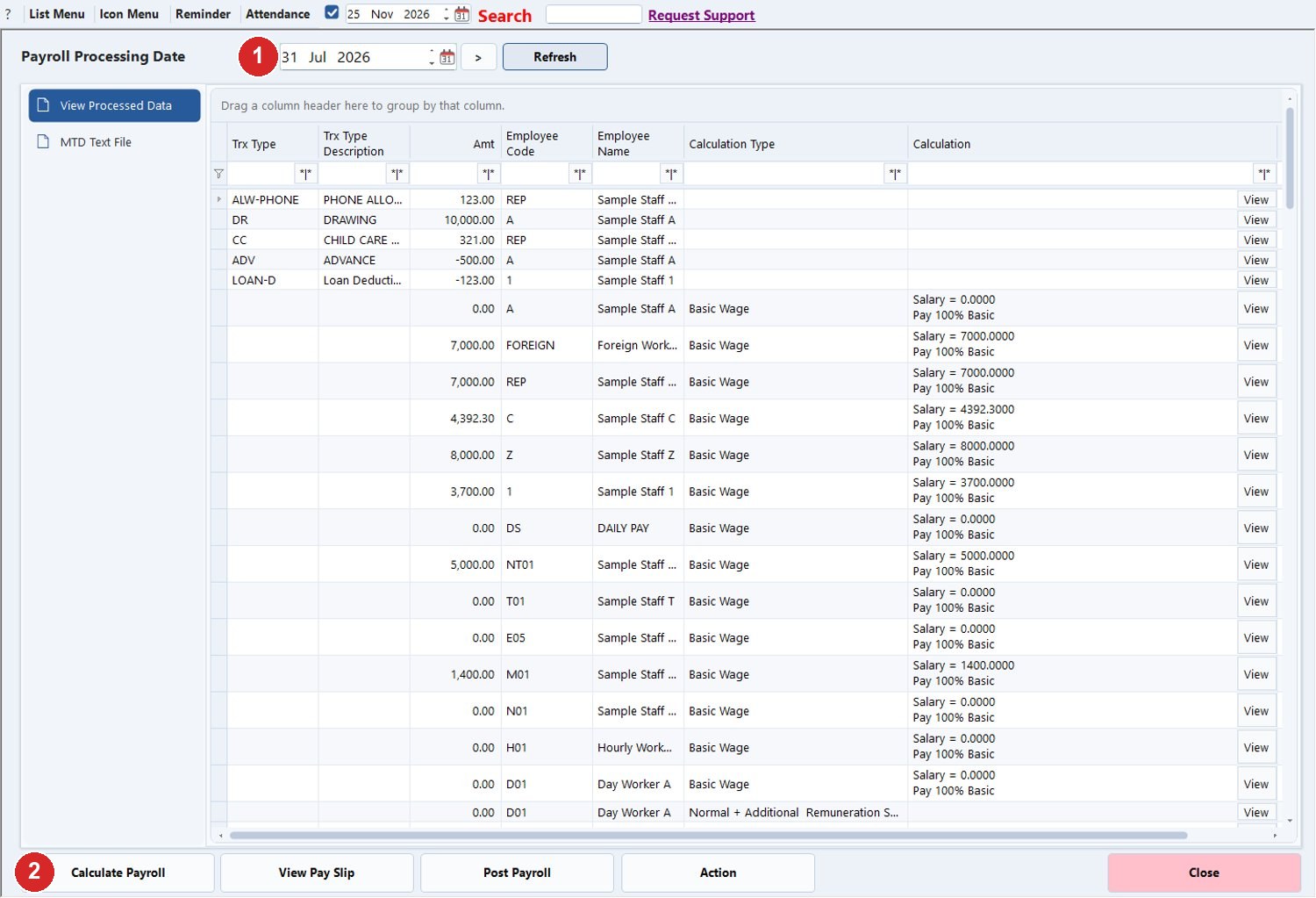
| Step | What to do |
|---|---|
| 1 | Check that the processing date and month match the salary month. If they are wrong, change them and save. |
| 2 | Run Payroll Processing > Calculate Payroll again. |
2. EPF (or SOCSO) is lower than the portal
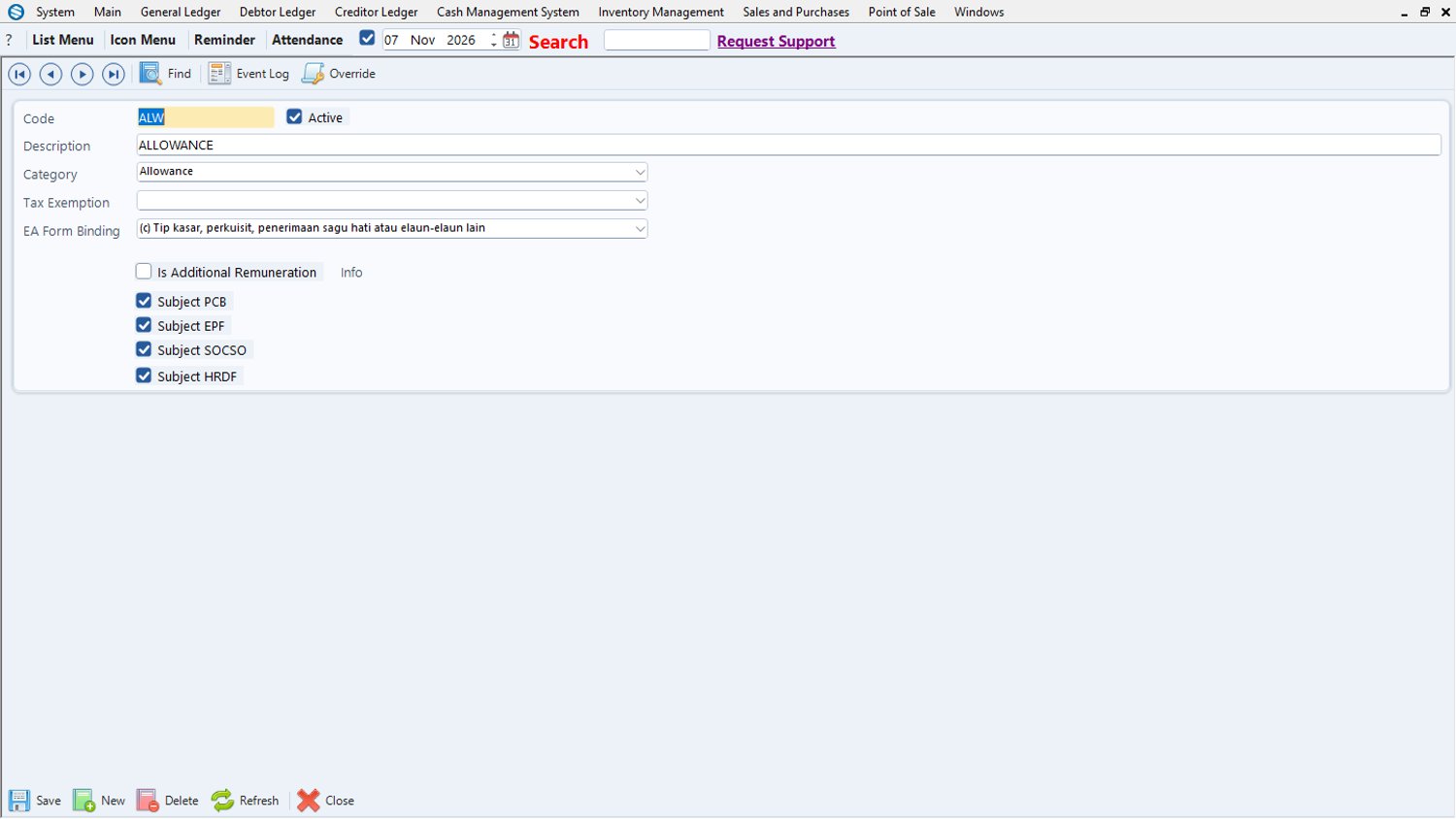
Open Main > Payroll Assistant > Others > Transaction Type (Payroll). Check that Subject EPF is ticked on the transaction type being paid, for example the daily salary type. Tick Subject SOCSO as well if it applies. Save, then calculate payroll again.
3. Redo a month that was calculated wrongly
In Payroll Processing, double-click the month to reverse it. Then run Payroll Processing > Calculate Payroll again.
4. Make a staff member not subject to EPF
Create a new Transaction Type with Subject EPF unticked. Edit the staff member’s payroll transaction to use this new type. Then go to Payroll Processing > Calculate Payroll again.
5. CP8D shows zero
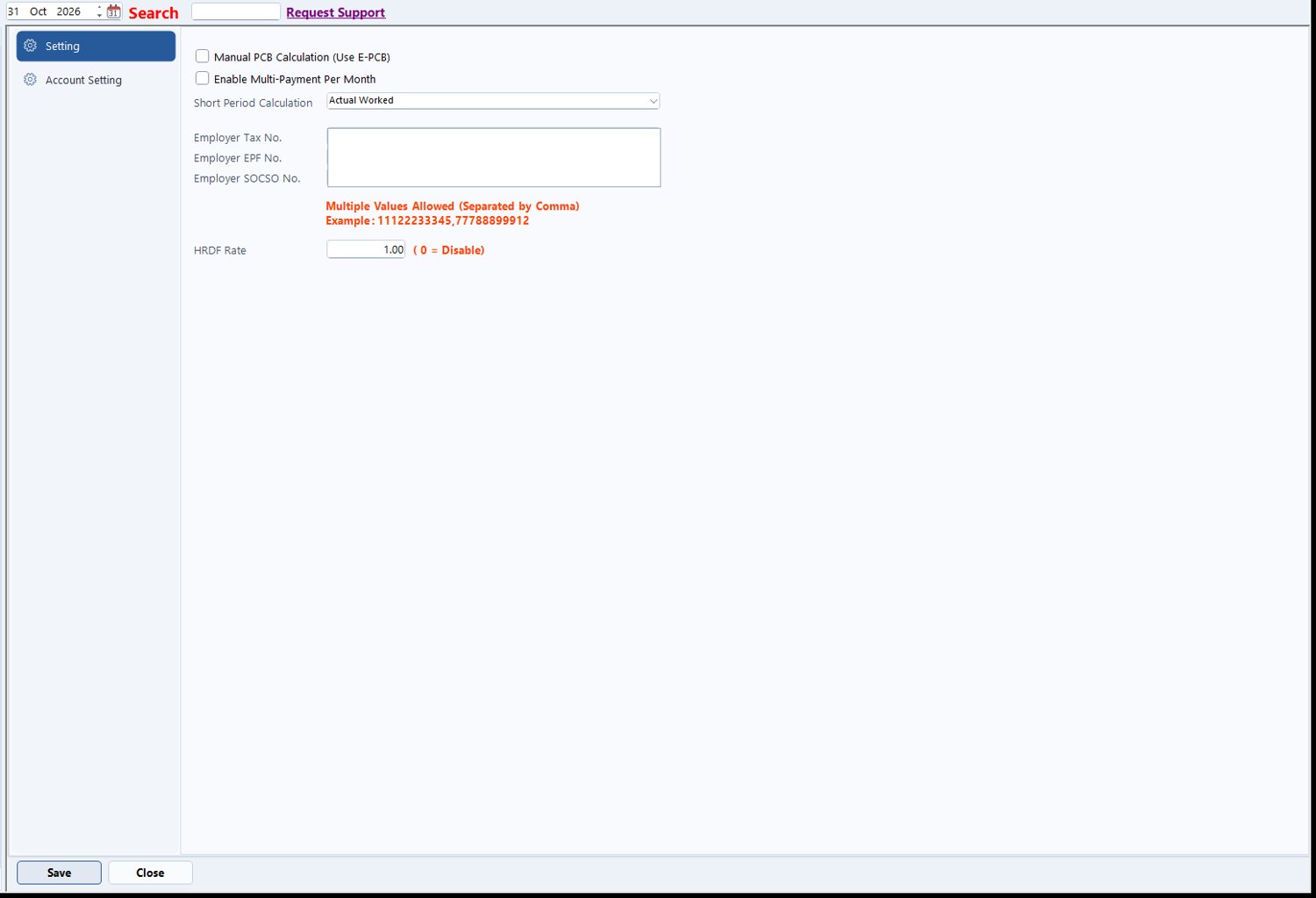
Open Main > Payroll Assistant > Others > System Settings (Payroll), fill in the employer tax number and save. Make sure every employee has a Tax No. in the employee record. On the Transaction Type (Payroll) each employee uses, make sure Subject PCB is ticked, then save and generate CP8D again. CP8D lists only employees who have PCB and the required tax numbers.
6. A part-month or daily wage worker gets the full salary
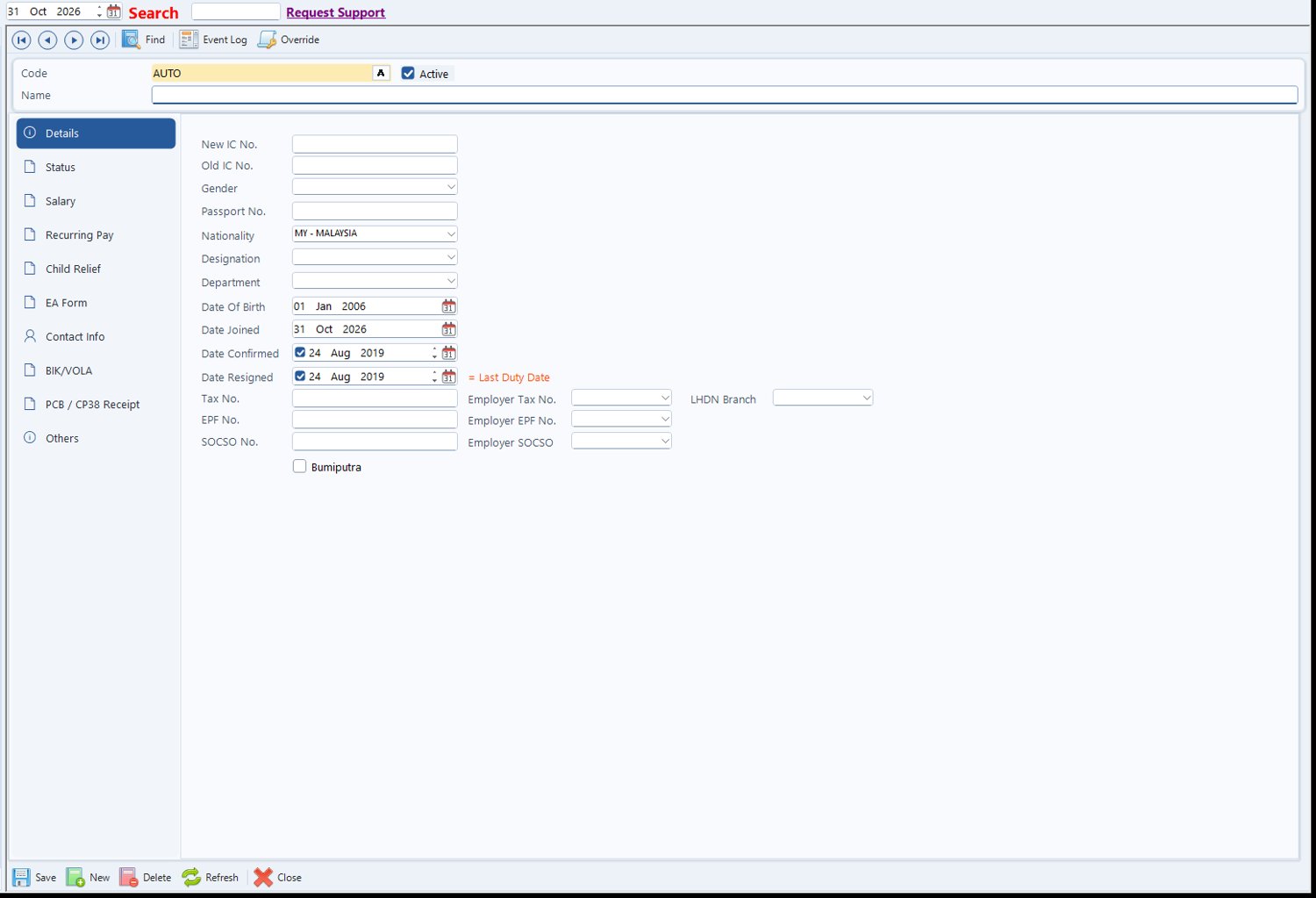
Fill in the staff member’s resign or last working date in the employee record, then run Calculate Payroll. The amount stops at that date.
7. SOCSO shows 0 for a staff member aged 60
For staff aged 60, only the employer contributes SOCSO. Add a new row for the employee from the correct start date. Keep the earlier row as Category 1 and set the new row to Category 2. Then calculate payroll again. Ask Synergy support for the correct start date.
8. Record the EPF and SOCSO payments
Go to Bank Payment, choose the EPF or SOCSO expense account and the payee, then save it like any other expense.
Tips
- A common cause is a processing date in the wrong month, or a transaction type that is not subject to EPF.
- Another common cause is a missed step, such as calculating again or filling in the resign date.
- Some payroll and CP8D fixes came with a software update. Make sure you are on the latest version.
Common problems
The figures are still wrong after following the checks.
Contact Synergy support. Have ready the employee, the month, and a screenshot of the payroll screen.
CP8D still shows zero.
Check again that the tax numbers and Subject PCB are filled in, and that you are on the latest version. If it is still zero, contact Synergy support.
I am not sure of the SOCSO start date for a staff member who turned 60.
Ask Synergy support for the correct start date before adding the new row.