
This guide shows you how to enter extra pay or deductions for the month, calculate payroll, check the result, post it, and export the statutory files and journal.
Before you start
- Staff records, salary types and transaction types are already set up.
- The previous month must be posted before you calculate a later one.
Steps
1. Open Payroll Transaction (if you have extra items)
Go to Main > Payroll Assistant > Payroll Transaction. Type the Ref No. and set Pay On, the pay date. It defaults to the last day of the month.
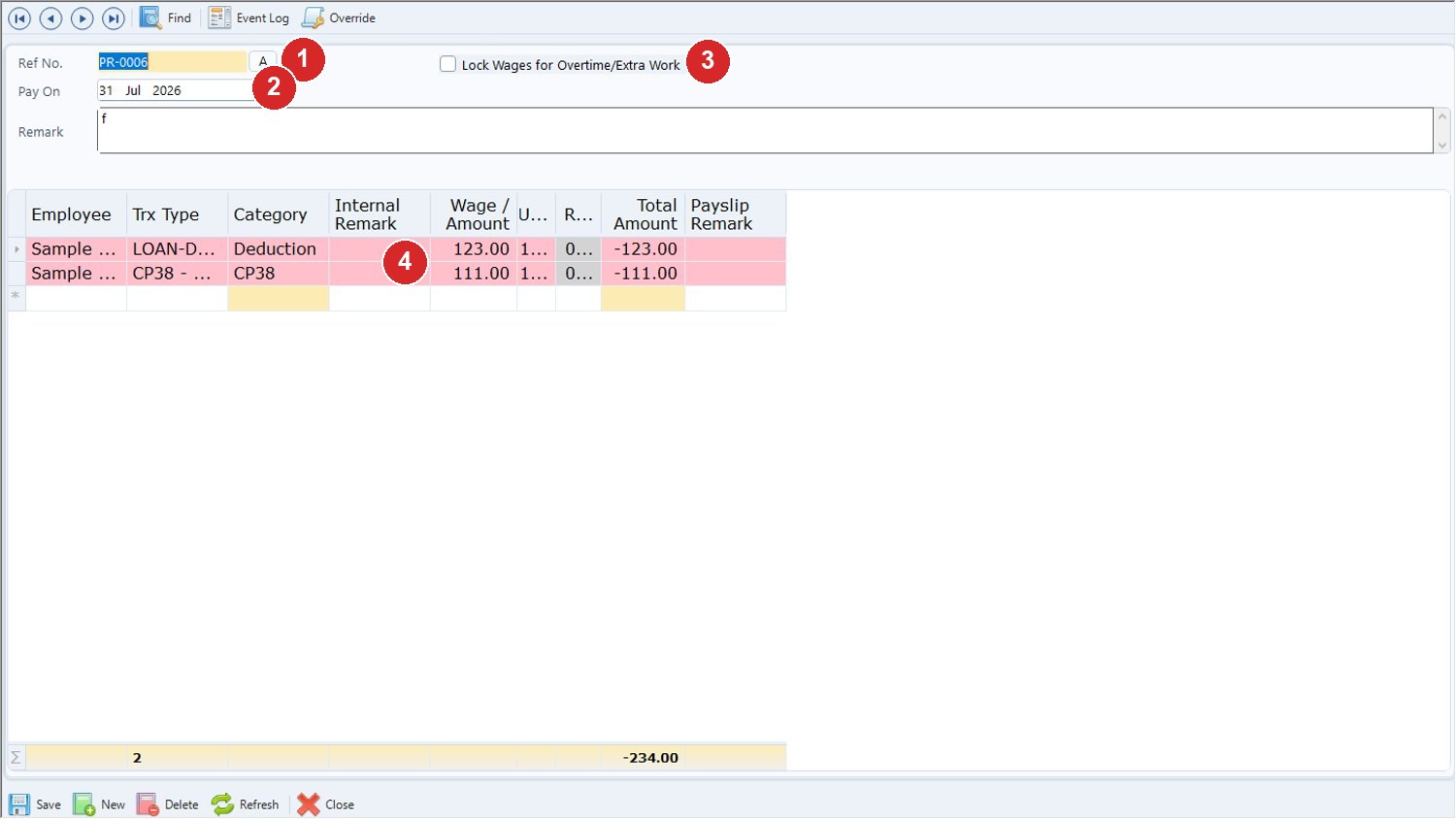
| Step | What to do |
|---|---|
| 1 | Ref No. |
| 2 | Pay On: the pay date. |
| 3 | Lock Wages for Overtime/E… |
| 4 | One line per item: Employee, Trx Type, Wage / Amount, Unit and Remark. |
2. Add the lines and save
In the grid, add a line for each item. Choose the Employee and Trx Type, then enter the Wage / Amount, Unit and Rate as the type needs. Total Amount is worked out for you. Click Save.
3. Open Payroll Processing
Go to Main > Payroll Assistant > Payroll Processing.
4. Choose the Payroll Processing Date
Set the Payroll Processing Date.
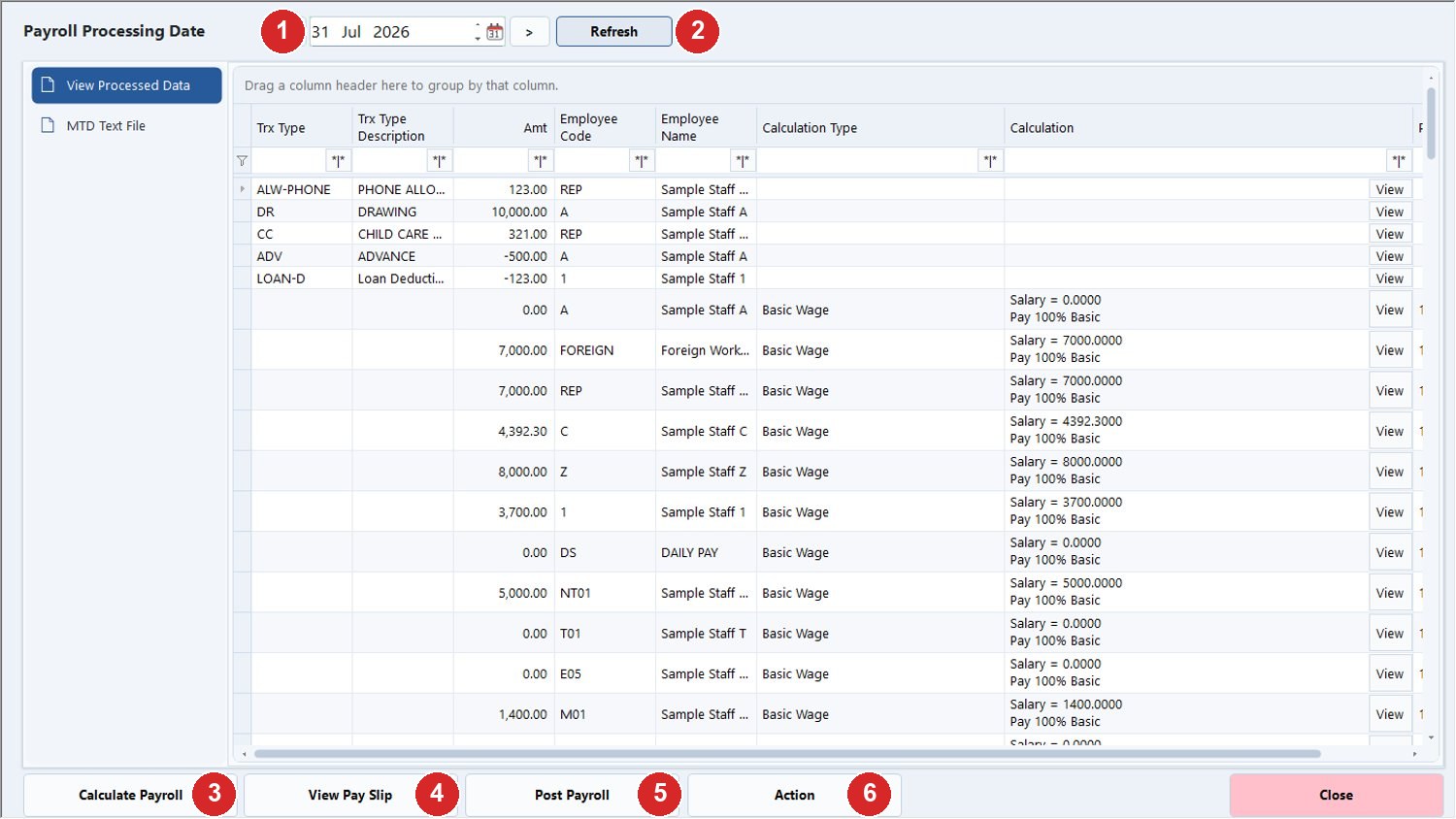
| Step | What to do |
|---|---|
| 1 | Payroll Processing Date (< and > move one month). |
| 2 | Refresh. |
| 3 | Calculate Payroll: every active employee and transaction type is included. |
| 4 | View Pay Slip. |
| 5 | Post Payroll. |
| 6 | Action: reverse, clear pending, exports. |
5. Calculate Payroll
Click Calculate Payroll. The View Processed Data tab shows the result. Click View Pay Slip to open a pay slip.
6. Check for errors
Read any errors shown and fix them. If the result is wrong, change the cause and calculate again.
7. Post Payroll
When the result is right, click Post Payroll and confirm the question “Do you want to post the Payroll?”. The Posted label shows the posted months.
8. Export and follow up
Use Action to reverse a payroll, clear pending, or export the tax (PCB) data, EPF data, SOCSO data, the CP39 and the journal.
Tips
- Pay On defaults to the last day of the month. If you pick another date, you are asked to confirm it is intended for multiple payment.
- In the Internal Remark of some lines a tip appears: for unpaid leave type 2D for 2 days or 3H for 3 hours; for overtime type for example 90M to get 1.5 hours.
- Payslip remarks are cut to 100 characters.
- The Rate cell is greyed unless the transaction type relates to overtime or extra work.
- If Lock Wages for Overtime/Extra Work is ticked, you cannot edit the Wage / Amount on overtime and extra-work lines.
- An empty IC is allowed in the exports when a passport number exists.
Common problems
It says You have changed the Processing Date, Please click Refresh.
Click Refresh.
It says the Process Date was already processed.
Choose a date that has not been processed.
It says Payroll calculation for the month has not been posted yet.
Either reverse that calculation to abandon it, or post it first.
It says the Process Date is not the last day of the month.
If you did not mean multiple payment, change the date to the last day of the month.
It says No data to post or there are errors in the calculation, so posting is not allowed.
Calculate payroll first, and fix the errors shown before posting.
An export stops with a message about a missing or invalid number, such as Tax No. (10 digits for employer, 11 digits for employee), EPF No., IC No., SOCSO No., Employer No. or Company Reg. No.
Fix the employee or company record and export again.
The journal export says Account Binding Missing.
A payroll item has no account. Set the account in Main > Payroll Assistant > Others > System Settings (Payroll) > Account Setting.
Saving a transaction says No details entered, or Total Amount is required.
Add at least one line, and make sure every line has an employee, a transaction type and a non-zero amount.