
This guide shows you how to create the payroll record of one employee, with personal and statutory details, marital status, salary, recurring pay, child relief and benefits in kind.
Before you start
- Have the employee’s IC or passport number, date of birth, date joined, and EPF, SOCSO and tax numbers ready.
- Know the employee’s marital status and wages.
Steps
1. Open the employee screen
Go to Main > Payroll Assistant > Employee.
2. Enter the Code and Name
Type the staff Code and Name. If the system is set to generate codes automatically, the code is filled in when you leave the Name box. Leave Active ticked.
3. Fill in the Details tab
On the Details tab, fill in the staff details. When you type a 12-digit New IC No., the system removes the dashes and fills in Date Of Birth and Gender. SOCSO No. is also filled with the IC.
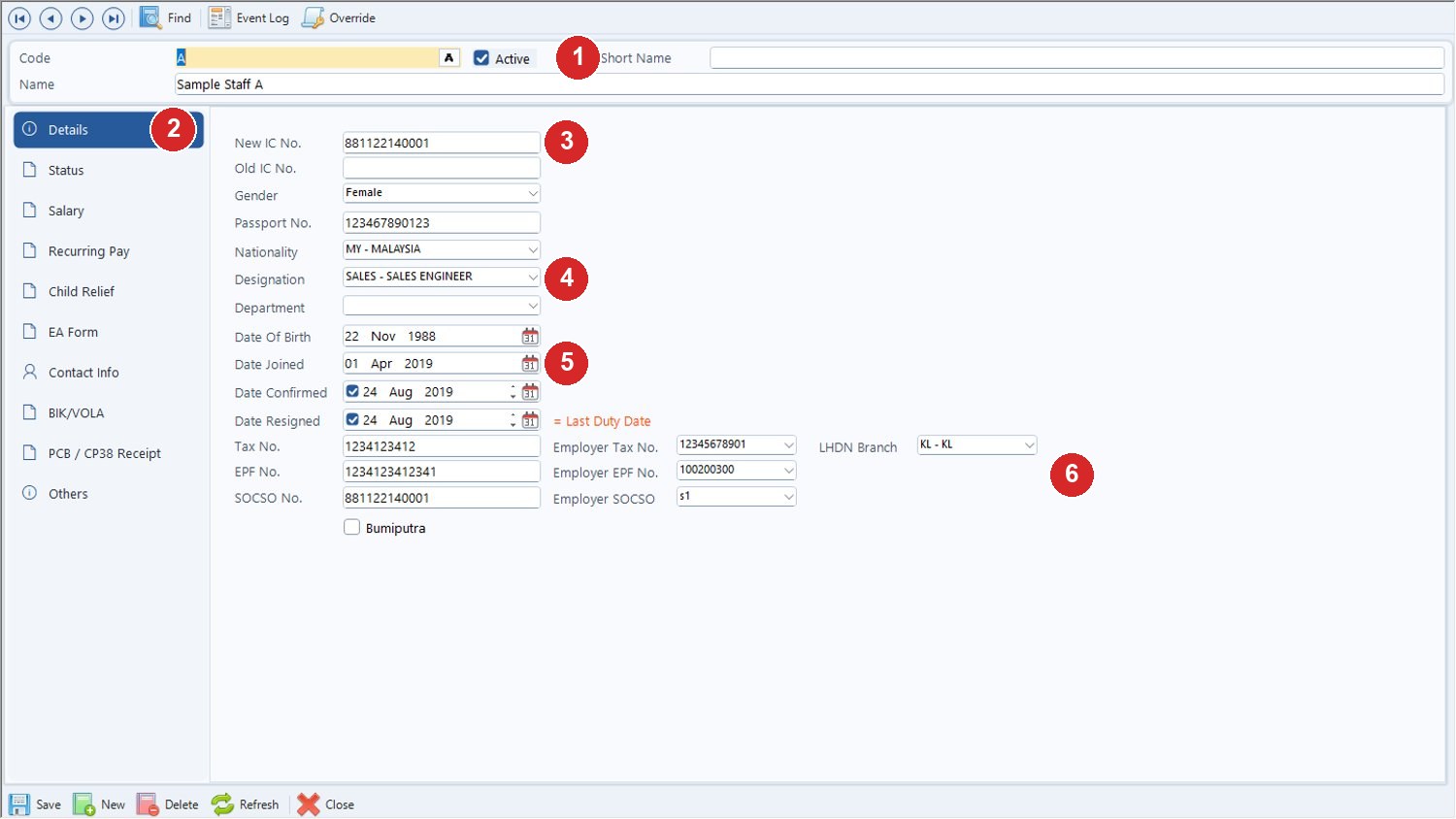
| Step | What to do |
|---|---|
| 1 | Code and Name (here Sample Staff A); Active. |
| 2 | Details tab. |
| 3 | New IC No., Old IC No., Passport No. and Nationality. |
| 4 | Designation and Department. |
| 5 | Date Of Birth, Date Joined, Date Confirmed and Date Resigned. |
| 6 | Tax No., EPF No., SOCSO No., the Employer Tax / EPF / SOCSO numbers and LHDN Branch. |
4. Check the employer numbers
The Employer Tax No., Employer SOCSO and Employer EPF No. boxes are filled with the first entry of the list once you enter the staff’s own number, if they are empty. Check they are correct.
5. Add the marital Status
On the Status tab, add a row with a valid-from date and a marital status. A new record already has one Status row dated Date Joined.
6. Add the Salary
On the Salary tab, add a salary row and fill in the bank details. A new record already has one Salary row dated Date Joined. When you enter the monthly wage, the daily and hourly wage are filled in for you from the Salary Type.
7. Add recurring pay, child relief and benefits
If they apply, add rows on these tabs.
8. Save the record
Click Save. If the code was already taken, a new code is generated and you are asked to save again.
Tips
- While there is only one Status row and one Salary row, changing Date Joined also changes their valid-from date.
- When you save, Recurring Pay and BIK/VOLA rows are adjusted so that the valid-from date is the first day of its month and the valid-to date is the last day of its month.
- For single or divorced status, spouse-not-working and disabled-spouse are switched off automatically.
- On a Child Relief row, the eligible rate becomes 100 if you enter more than 50, otherwise 50.
- Fill in Date Resigned when a staff member leaves, so pay stops at that date.
- Other tabs hold contact details, previous employer, the annual EA form information, PCB/CP38 receipts, a payslip message and a remark.
Common problems
I cannot save the record.
Check that every Status and Salary row has a valid-from date, every BIK/VOLA row has a BIK that is not repeated, every Recurring Pay row has a Trx Type, and every child row is complete.
It says New Code generated, please try and save again.
The code you had was already taken. Click Save once more to keep the new code.
It says Invalid Employer Tax No entered.
Check the employer tax number in Main > Payroll Assistant > Others > System Settings (Payroll).
It says Invalid Employment Status.
Choose a valid Employment Status on the Salary tab.