
After you calculate a month’s payroll, Payroll Processing can produce the monthly files for tax (PCB), EPF, SOCSO and EIS, show the CP39 form, and export the payroll journal. This guide shows where each one is and what to fix when an export stops.
Before you start
- The month’s payroll is calculated and checked in Payroll Processing (see the guide Synergy Acc2026 – Payroll: Process the Month and Post).
- The Employer Tax No., Employer EPF No. and Employer SOCSO No. are filled in under Main > Payroll Assistant > Others > System Settings (Payroll).
- Each employee record has the Tax No., EPF No., SOCSO No. and New IC No. (or Passport No.) filled in.
Steps
1. Open Payroll Processing
Go to Main > Payroll Assistant > Payroll Processing. Choose the Payroll Processing Date of the month you want.
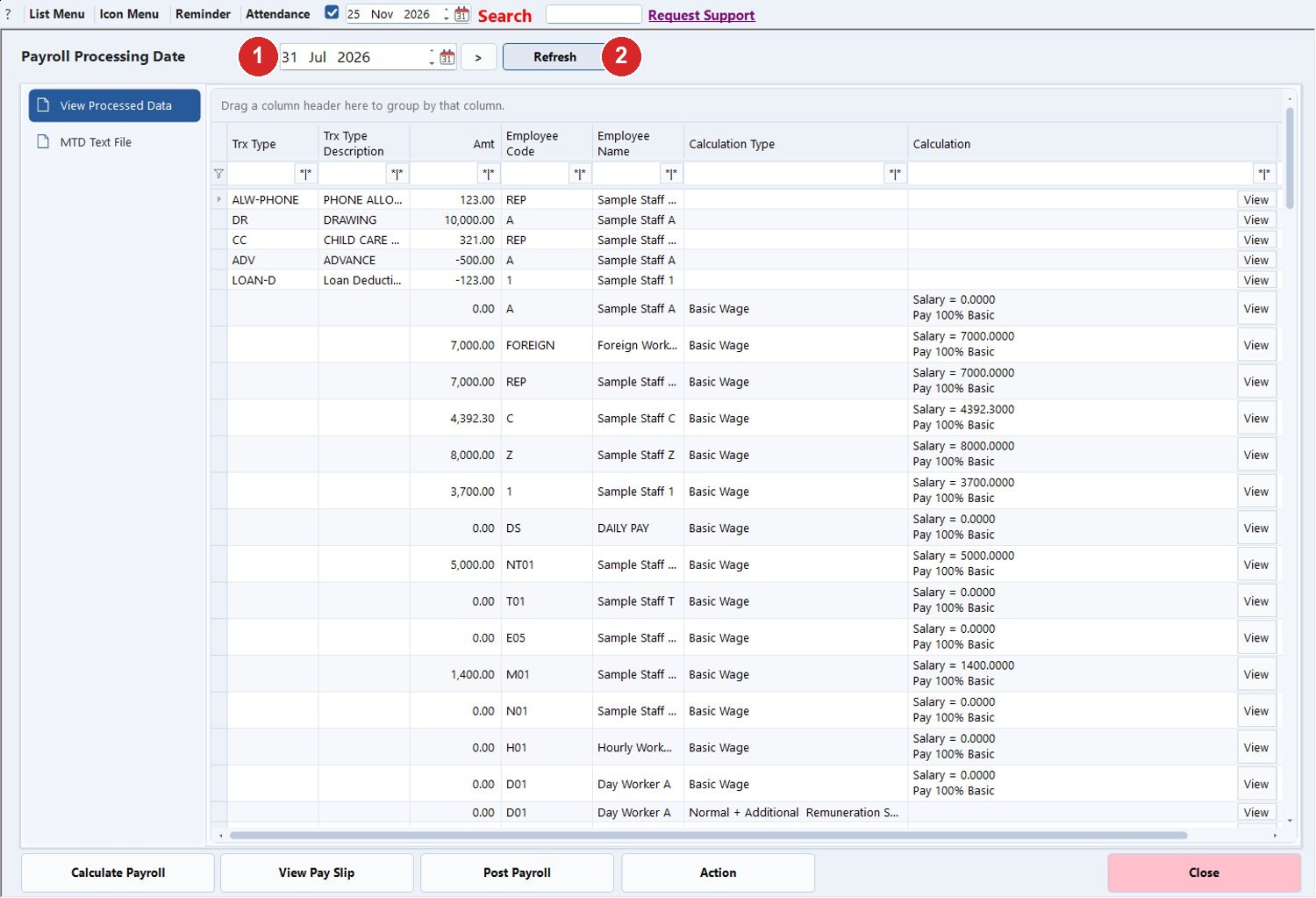
| Step | What to do |
|---|---|
| 1 | Pick the date, using < and > if needed. |
| 2 | Click Refresh. |
2. Open the Action list
Click Action. The list offers: Clear Non-Posted Calculation, Reverse Posted Payroll, Export MTD File Data (PCB E-Data), Export EPF/SOCSO/EIS File Data, Export Journal Double-Entry and View CP39 Form.
3. Export the tax (PCB) file
Click Export MTD File Data (PCB E-Data). The file is a text file named with the 10-digit employer tax number, the month and the year (for example 012345678905_2026.txt). The Employer Tax No. must be 10 digits. If you entered more than one number in System Settings (Payroll), the first one is used.
4. Export the EPF, SOCSO and EIS files
Click Export EPF/SOCSO/EIS File Data. The program writes EPF File Data (year-month).csv, and text files for SOCSO, EIS, Combined SOCSO-EIS and Combined SOCSO-EIS-SKBBK, each with the year and month in the file name.
5. Read any warnings
If the program lists problems, fix the employee or company record they point to and export again. If it shows warnings and asks whether to continue, read them before you agree.
6. Find the file
After a successful export the folder that holds the file opens. Upload or send the file to the agency as you normally do.
7. View the CP39 form
Click Action > View CP39 Form. It opens the CP39 report (Penyata Potongan Cukai) for the month and year of the processing date.
8. Export the journal
Click Action > Export Journal Double-Entry. The program writes a Journal-year-month.csv file with the debit and credit lines of the payroll.
9. Record the payments
To record paying EPF and SOCSO, go to Bank Payment, choose the EPF or SOCSO expense account and the payee, and save it like any other expense.
Tips
- The tab MTD Text File on Payroll Processing has a Filter Employee box that is used when the tax file is made.
- Under Main > Payroll Assistant > Report you also find Payslip, Payslip Summary, Payroll Summary, E-PCB Info and PCB Calculation.
- An empty IC No. is allowed in the exports when the employee has a Passport No.
- Payroll calculates EPF and SOCSO for you, but each worker must first be given the SOCSO rate in the staff record.
Common problems
Invalid Employer Tax No. Tax No should be 10 digit long.
Correct the Employer Tax No. in System Settings (Payroll) and export again.
Employee Tax no should be 11 digit long.
Correct the Tax No. in that employee record and export again.
A message names a missing EPF No., IC No., SOCSO No., Employer No., Company Reg. No. or Country Code.
Fill in the missing number in the employee record or the company record and export again.
Account Binding Missing for …
A payroll item has no ledger account. Set it in Main > Payroll Assistant > Others > System Settings (Payroll) > Account Setting.
No record found.
There is nothing to export for that month. Check the processing date and that payroll was calculated.
Failed to write file …
The file could not be saved. Close the file if it is open in another program and export again.
EPF or SOCSO is lower than the portal
See the guide Synergy Acc2026 – Payroll: Salaries Show 0, EPF/SOCSO Figures, Part-Month Pay, Staff Over 60.