
This guide shows you how to record an employee’s tax relief and deduction declaration on the TP1 or TP3 form. There is one form per employee.
Before you start
- Have the employee’s signed declaration with the relief items and amounts.
- For TP1, know the month the form applies to.
Steps
1. Open the form
Go to Main > Payroll Assistant > TP1 Form (it has a Month) or Main > Payroll Assistant > TP3 Form (no Month).
2. Choose the Employee
Select the staff member the declaration belongs to.
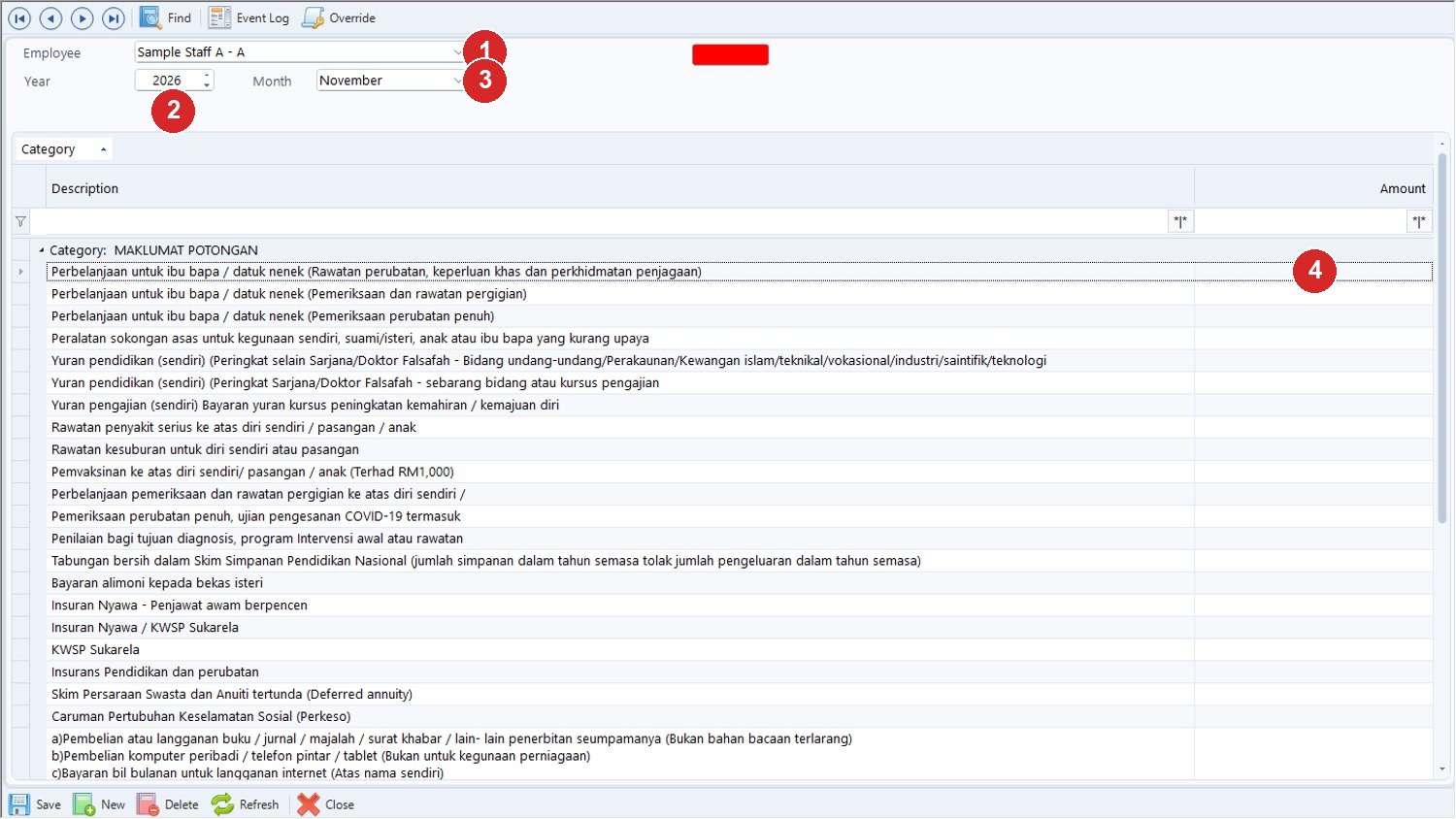
| Step | What to do |
|---|---|
| 1 | Employee (here Sample Staff A). |
| 2 | Year. |
| 3 | Month (TP1 only). |
| 4 | Relief items by category, with the Amount column. |
3. Choose the Month (TP1 only)
On the TP1 form, choose the Month the form applies to. The Month is not shown on the TP3 form.
4. Enter the Year
Type the Year of the declaration. It starts as the current system year.
5. Add the relief items
The grid already lists every relief item by category. Type the Amount on each item that applies. Use the filter row to find an item.
6. Save the form
Click Save.
Tips
- Amounts are shown to two decimals.
- The parents’ medical expenses and parents’ relief amounts are totalled across all TP1 and TP3 forms of the same employee and year, not only the form you are on.
- If both are claimed in the same year, a warning shows the amounts recorded on the other forms and asks for a 4-digit confirmation code. Type the code to save anyway, or press Cancel to go back and correct the amounts.
Common problems
I cannot save the TP1 form.
The Month is blank. Choose a Month and save again.
It says Employee is required.
Choose an employee on the form.
The warning that parents’ medical expenses cannot be used together with parents’ relief appears, but this form only has one of them.
Another TP1 or TP3 form for the same employee and year has the other one. Check the amounts shown in the warning and correct whichever form is wrong.