
This guide shows you how to set up a salary type (how daily and hourly pay are worked out and when pay is paid) and a payroll transaction type (an allowance, bonus or deduction code and which EPF, SOCSO and tax items it counts for).
Before you start
- Know the pay frequency and the weekly rest day and off day for the staff.
- Know which statutory items (PCB, EPF, SOCSO, EIS, HRDF) each type of pay should count towards.
Steps
1. Open Salary Type
Go to Main > Payroll Assistant > Others > Salary Type.
2. Enter the Code, Description and Pay Frequency
Type a Code and Description, then choose the Pay Frequency. All three are required. Leave Active ticked.
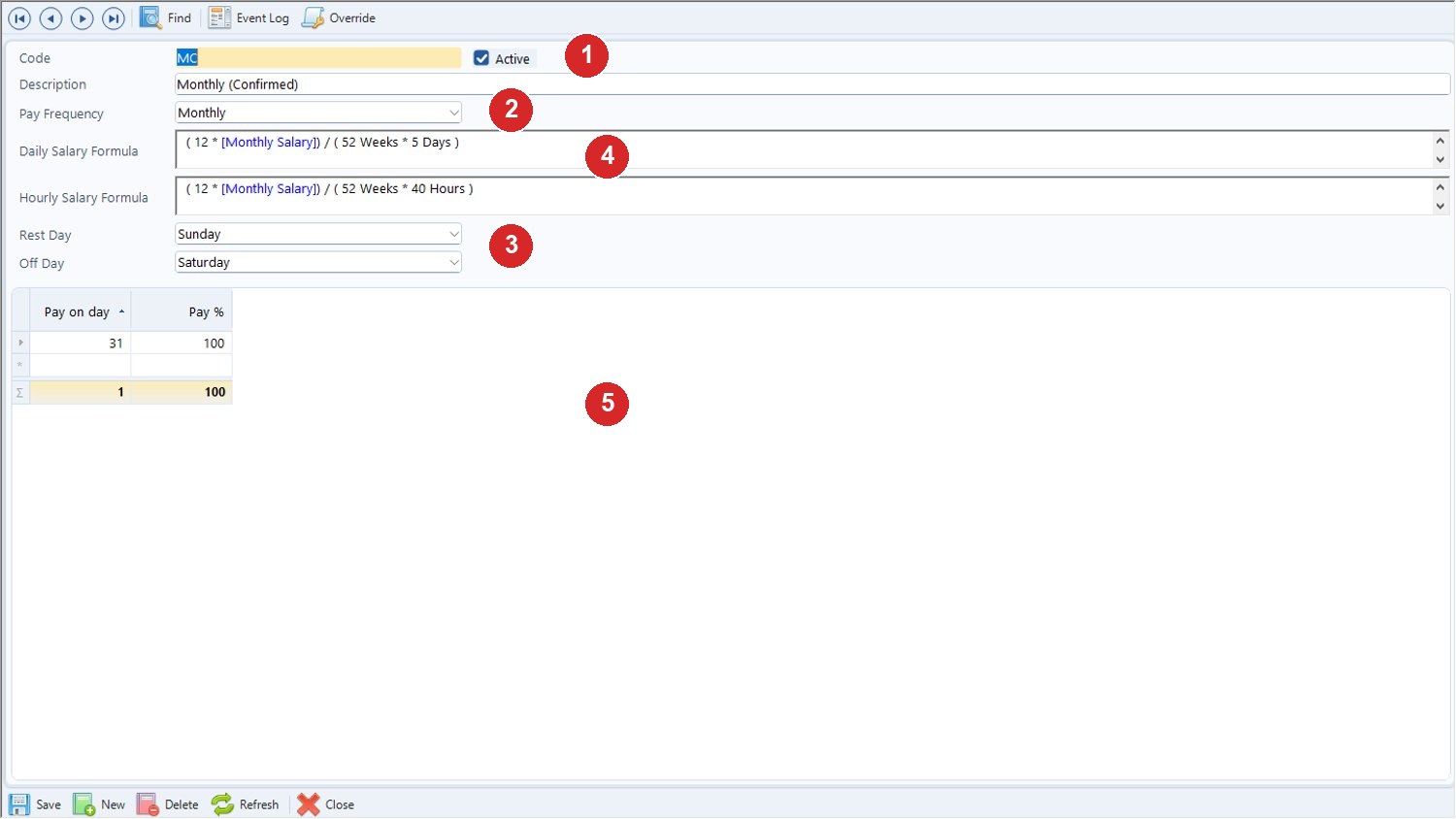
| Step | What to do |
|---|---|
| 1 | Code (here MC) and Description (Monthly (Confirmed)); Active. |
| 2 | Pay Frequency (required). |
| 3 | Rest Day and Off Day. |
| 4 | Daily and hourly salary formulas. |
| 5 | Payment rows: Pay % and Pay on day. |
3. Choose the Rest Day and Off Day
Pick a day of the week for each.
4. Check the salary formulas
A new scheme starts with the Daily Salary Formula as 12 times the monthly salary divided by 52 weeks times 5 days, and the Hourly Salary Formula as 12 times the monthly salary divided by 52 weeks times 40 hours. Right-click inside a formula box to insert the Monthly Salary field, which appears in blue. You can change the numbers and operators around it.
5. Add the payment rows and save
In the grid, add a row for each payment with the Pay % and the Pay on day. The Pay % of all rows must add up to 100, and at least one row must have Pay on day 31. Then save.
6. Open Transaction Type (Payroll)
Go to Main > Payroll Assistant > Others > Transaction Type (Payroll).
7. Enter the Code, Description and Category
Type a Code and Description and choose the Category. All three are required. The Category you choose can switch other boxes on or off.
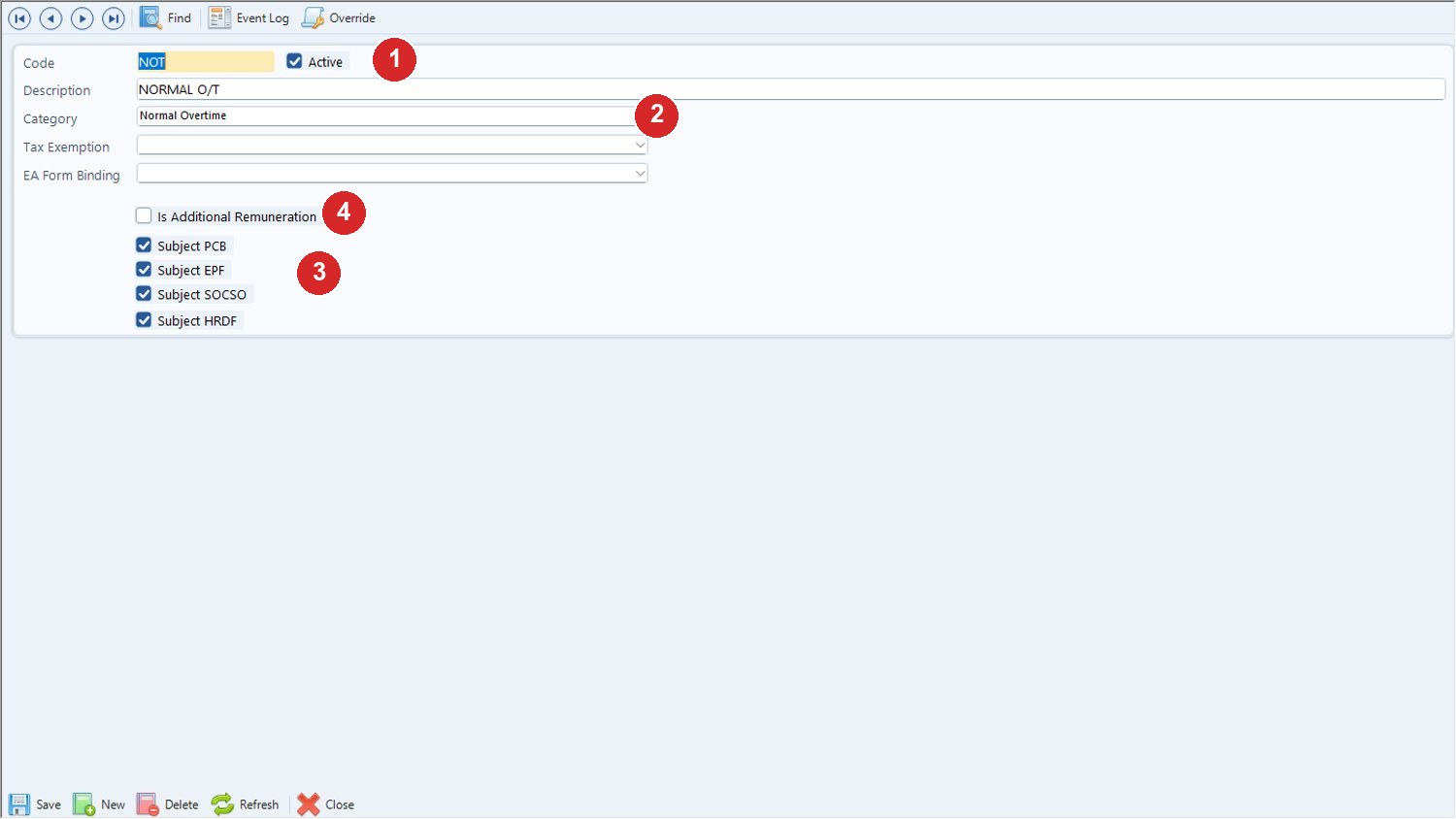
| Step | What to do |
|---|---|
| 1 | Code (here NOT) and Description (NORMAL O/T); Active. |
| 2 | Category (here Normal Overtime). |
| 3 | Subject PCB, EPF, SOCSO and HRDF. |
| 4 | Is Additional Remuneration (Info shows examples). |
8. Tick the Subject boxes
Tick each of Subject PCB, Subject EPF, Subject SOCSO and Subject HRDF that this type should be added to when payroll is calculated. All are off for a new type.
9. Set the extra options and save
Tick Is Additional Remuneration for pay that is not paid every month, such as a bonus. Click Info to see examples. Set Tax Exemption and EA Form Binding if they apply. Leave Active ticked and save.
Tips
- A staff member’s record is linked to a salary type on the Salary tab.
- If you choose a Tax Exemption, Is Additional Remuneration is cleared and locked off, and Subject PCB is locked, because exempted allowances are treated as normal pay.
- For the reimbursement category, all the Subject boxes and Is Additional Remuneration are cleared and locked.
- Some categories fix the answer for Is Additional Remuneration.
- Payroll processing and the payroll transaction entry use these types. Only active types are offered there.
Common problems
Salary Type will not save and says Total Pay % must be 100%.
Add or adjust the rows in the grid until the Pay % add up to exactly 100.
Salary Type will not save and says Last Pay Day must be 31.
Make sure at least one row has a Pay on day of 31.
A formula shows black text instead of the blue field.
Write the field name in square brackets exactly as inserted from the right-click menu, which adds it at the end of the formula.
I cannot tick a Subject box.
The category is reimbursement, or a Tax Exemption is chosen (this locks Subject PCB).
I cannot change Is Additional Remuneration.
The category or the Tax Exemption setting fixes it.
A transaction type is missing from the payroll entry lists.
Check that Active is ticked on that type.