
At year end the CP8D report lists each employee’s income, relief and tax deductions for the year. Synergy checks the figures and writes a text file to upload to LHDN, plus an Excel file that you use only to double-check.
Before you start
- The payroll months of the year are calculated.
- The Employer Tax No. is filled in under Main > Payroll Assistant > Others > System Settings (Payroll).
- Each employee has an 11-digit Tax No., a 12-digit New IC No., a marital status and an Employment Status in the employee record.
- On the Transaction Type (Payroll) that each employee uses, Subject PCB is ticked. CP8D lists only employees who have PCB and the required tax numbers.
Steps
1. Open the CP8D report
Go to Main > Payroll Assistant > Report > Forms > CP8D.
2. Choose the Year
Choose the Year in the options. If you leave it empty the program says Year not specified.
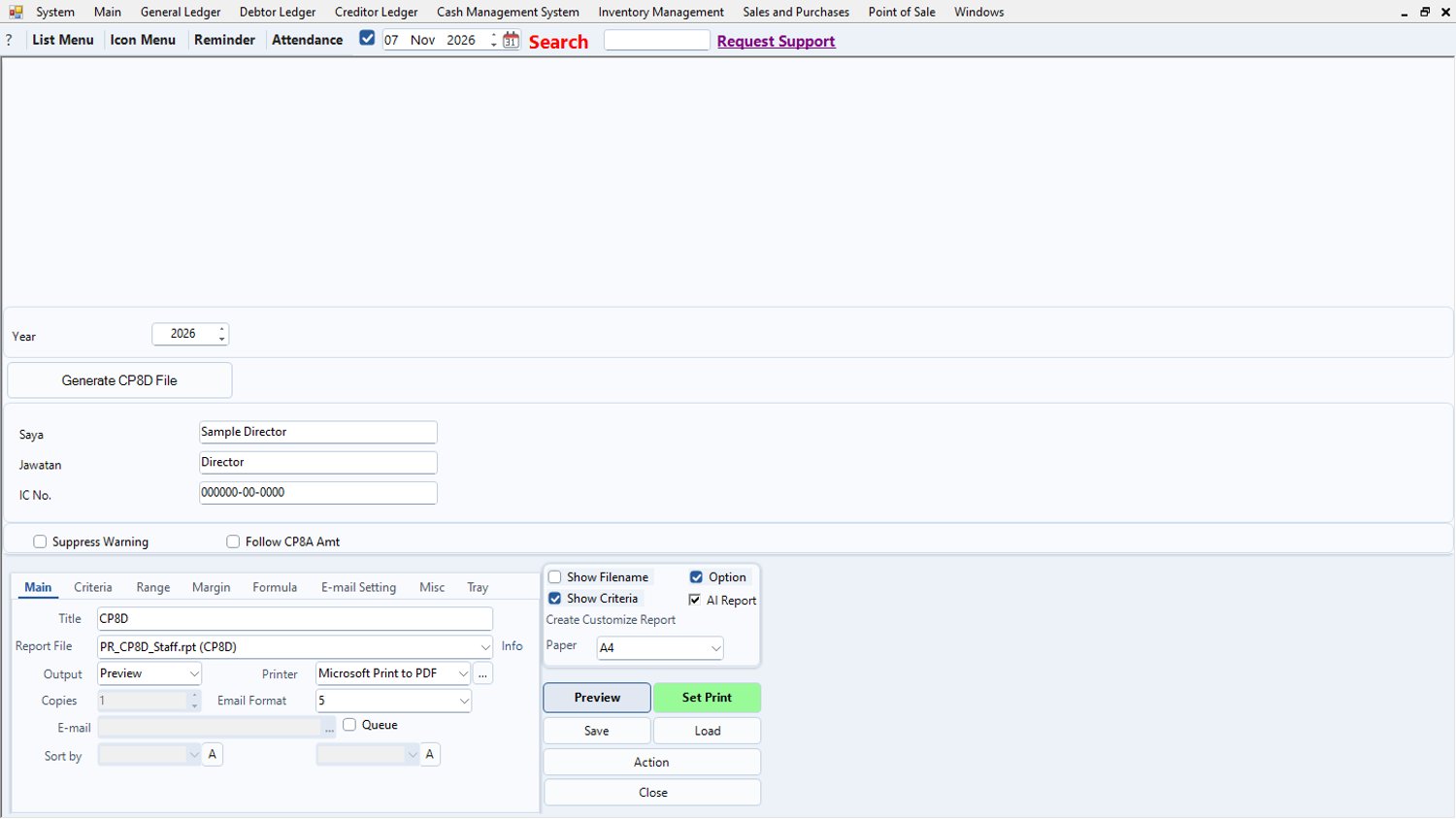
3. Generate the file
Click Generate CP8D File. If the Employer Tax No. is empty, the program says it is not entered in Payroll System Settings. Fill it in and try again.
4. Check the preview
A preview of the figures opens. It tells you which two files will be made. Compare the figures with your Payroll Summary before you go on.
5. Read the warnings
The program checks every employee. A warning names the employee and the problem, for example [Tax No] should be 11 digit, [IC No] should be 12 digit, [Category] cannot be determined (marital status not specified), [Employment Status] cannot be determined, or the taxable income in CP8A does not match the Payroll Summary. Correct the employee record, or the payroll, and generate again.
6. Click Proceed
When the figures are right, click Proceed. If warnings were found, you are asked to confirm before the files are made.
7. Take the right file
The program writes two files. The text file named P + employer tax number + _ + year is the file to upload to LHDN. The Excel file named CP8D – year For Checking Only (Do not upload this file) is only for you to check the figures. The folder with the files opens.
Tips
- If an employee has no Date Resigned, the file uses the date the employee reaches age 55, worked out from the Date Of Birth. Fill in the real date if it is different.
- The file marks the tax as paid by the employer when the employer paid all of an employee’s PCB and the employee paid none.
- The program says No staff with PCB amount when there is nothing to write.
- The EA form (CP8A) for each employee is a separate step. See the guide Synergy Acc2026 – Payroll Year-End: Send the EA Form (CP8A) to Employees.
Common problems
CP8D shows zero.
Check the Employer Tax No. in System Settings (Payroll), the Tax No. in every employee record and that Subject PCB is ticked on the transaction types. Make sure you are on the latest version, then generate again. If it is still zero, contact Synergy support.
An employee is missing from CP8D.
Only employees with PCB and the required tax numbers are listed. Check the employee’s Tax No. and Subject PCB.
The taxable income does not match the Payroll Summary.
Open the Payroll Summary for the year and compare it with the employee’s payroll and EA Form figures. Fix the cause and generate again.
Year not specified.
Choose the Year in the report options and click Generate CP8D File again.
The figures are still wrong after these checks.
Contact Synergy support. Have ready the year, the employee and a screenshot of the preview.