
The EA form (CP8A) shows one employee’s pay, benefits and deductions for the year. Synergy can e-mail each employee their own form, or export the forms as files. The same screen style is used for monthly payslips.
Before you start
- Payroll for the year is calculated.
- Each employee who should receive the form by e-mail has an E-mail address in the employee record (Contact Info tab).
- To e-mail, a sender e-mail account is set up. The screen shows Send From Account when it is, and [Sender E-mail Account] not configured when it is not.
- Any extra EA figures (benefits in kind, living accommodation and other items) are entered on the EA Form tab and the BIK/VOLA tab of the employee record.
Steps
1. Open the EA form
Go to Main > Payroll Assistant > Report > Forms > CP8A (EA).
2. Choose the Year
Choose the Year in the report options. The program says Year not specified if it is empty.
3. Choose E-mail or Export
In the box with the options Email and Export, choose Email to send the forms by e-mail, or Export to make the files without sending.
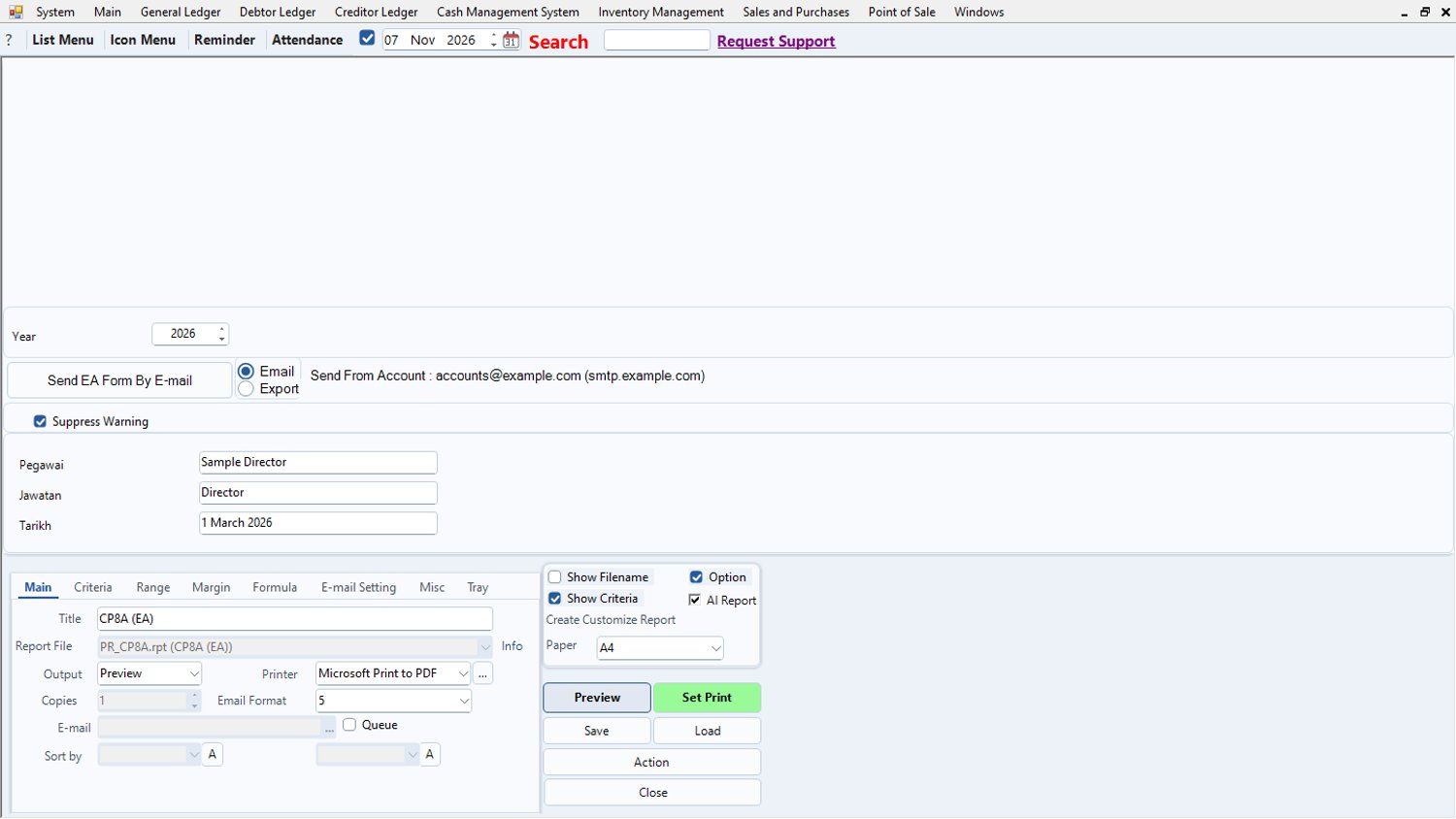
4. Click Send EA Form By E-mail
Click the button Send EA Form By E-mail. A list of employees opens, with a tick box for each.
5. Choose the employees
Only employees with payroll activity in that year are listed. When you choose Email, employees without an e-mail address are not listed. Untick anyone who should not receive the form. Click the CC/BCC button if you want a copy sent to another address.
6. Confirm
Click OK. Progress shows Exporting file for Staff followed by the staff code. When it finishes you see Emails have been sent to the queue.
7. Check the delivery
The message means the e-mails are queued, not that they have arrived. Ask an employee to confirm, or check the e-mail account that sends them.
Tips
- To send monthly payslips instead, open Main > Payroll Assistant > Report > Payslip and click Generate Payslip By E-mail. Date From and Date To must be in the same month, or the program says they must be the same month.
- The EA form is a report, so you can also preview or print it from the same screen.
- Employees who have no e-mail address can still get their form if you choose Export and hand it over.
- The yearly tax file for LHDN is a different step. See the guide Synergy Acc2026 – Payroll Year-End: Generate the CP8D File.
Common problems
Year not specified.
Choose the Year in the report options and click the button again.
An employee is not in the list.
The employee had no payroll in that year, or has no e-mail address while Email is chosen. Add the e-mail address on the Contact Info tab, or choose Export.
[Sender E-mail Account] not configured.
No sender e-mail account is set up. Set one up before sending.
The EA figures look wrong.
Check the employee’s EA Form and BIK/VOLA tabs and the payroll of the year, correct them, and send the form again.