
If a document or receipt prints on the wrong printer, looks too small, is cut off or overlaps, go through these checks in order. Some fixes need Synergy support, and we say so where that applies.
Before you start
- Note which document it is (invoice, delivery order, quotation, statement of account or report).
- Note the printer model and paper width (58mm, 80mm or A4).
- Note which layout number is selected before you Preview.
- Take a photo or screenshot of the printout.
- Note the exact error text, if any.
Steps
1. Is the printer correct and online?
In the print options window of the document (here Sales Order SO-26/10/002, opened with Print), choose the correct printer and check that it is online. Then print again.
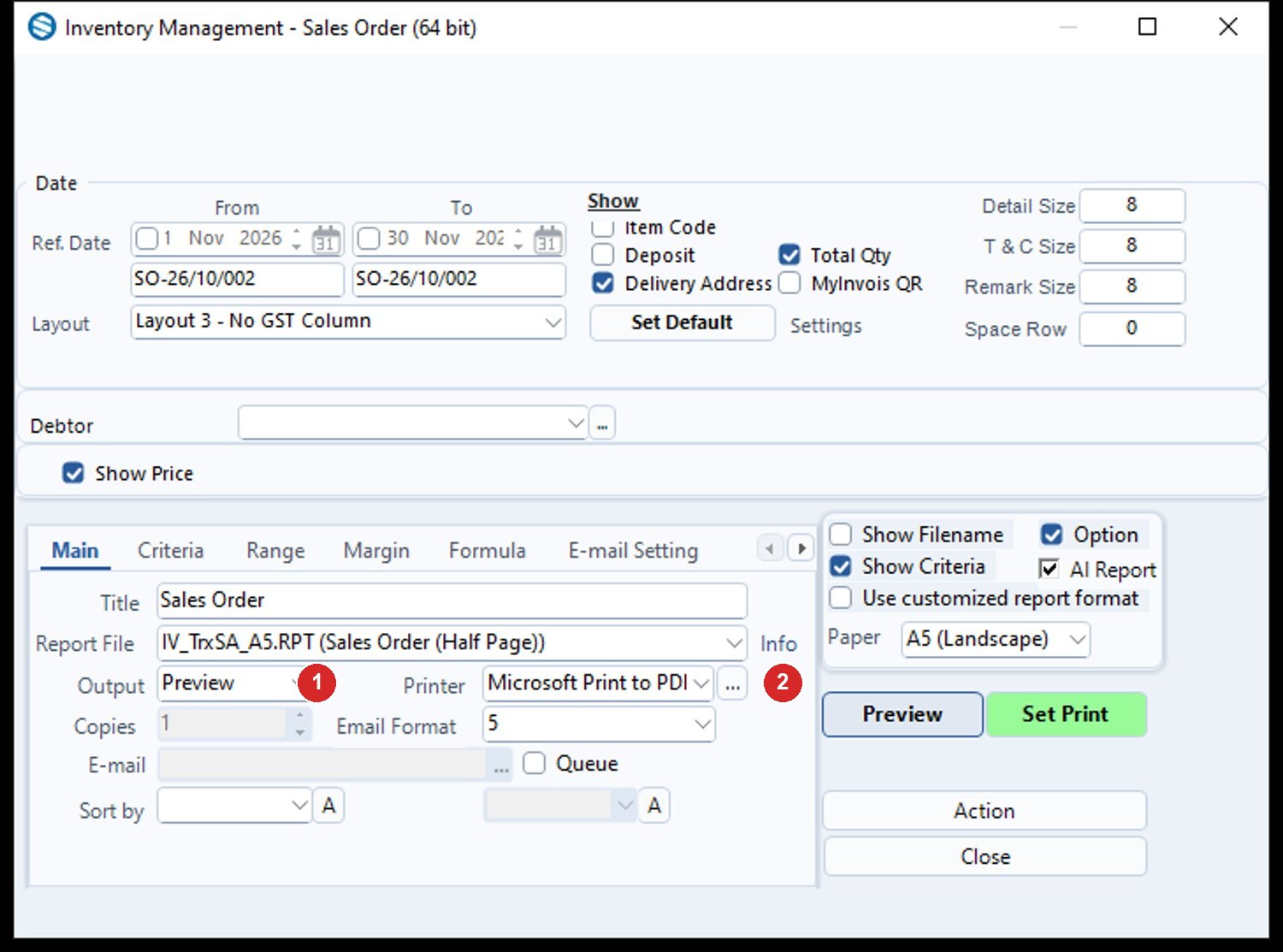
| Step | What to do |
|---|---|
| 1 | Output: Preview to look first, or Printer to print straight away. |
| 2 | Printer: choose the correct printer (for example the 80mm receipt printer); the … button opens the Windows printer settings. |
2. Does the report file match the paper?
Choose the report file that matches your paper (58mm, 80mm or A4) before printing. For a 58mm printer, change the report file to the 58mm version. Set the paper size (for example A4) outside the preview. Only one default print type is kept per document, so switch the format each time you print on a different paper.
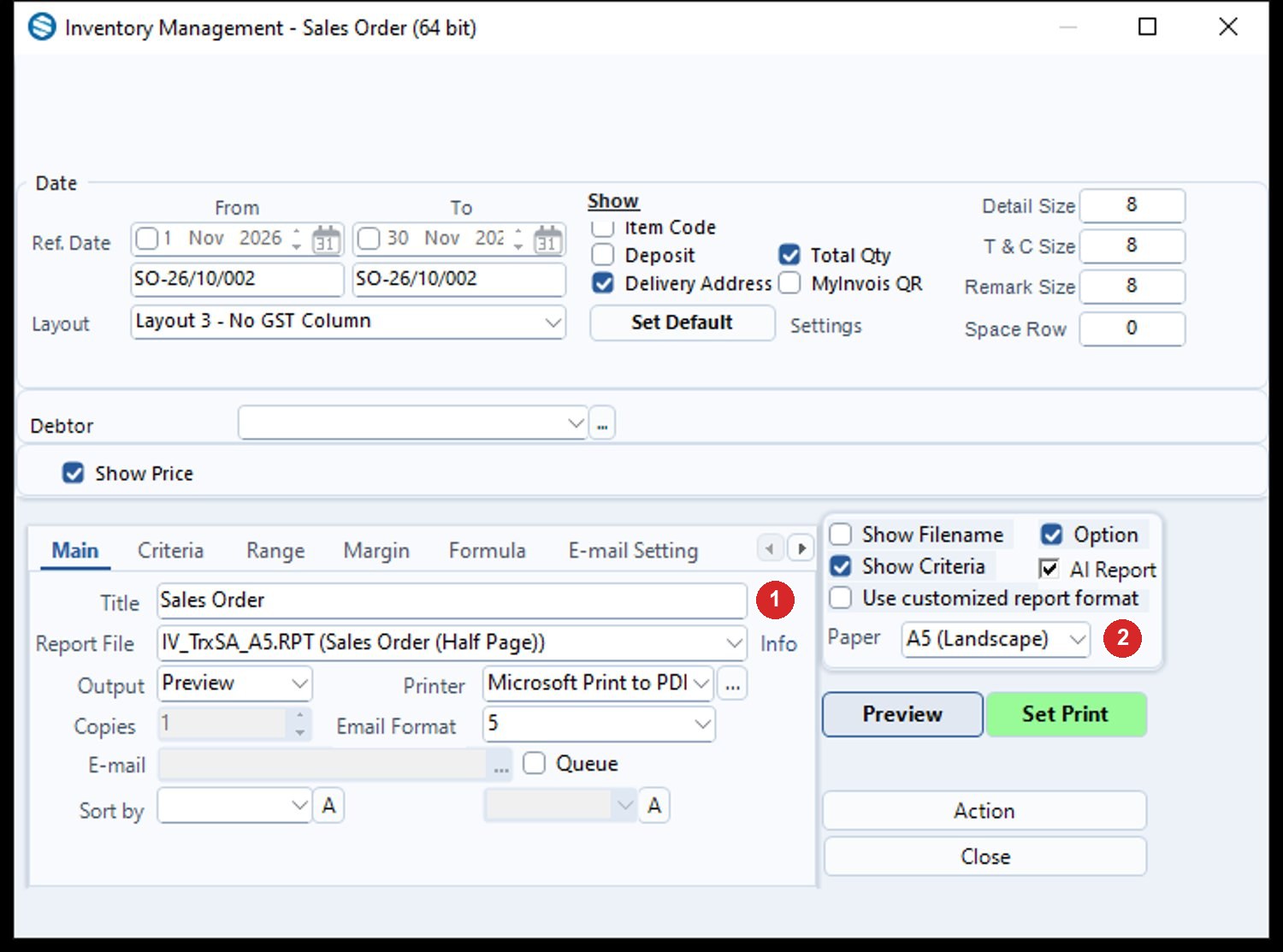
| Step | What to do |
|---|---|
| 1 | Report File: the layout file for your paper (here IV_TrxSA_A5.RPT, half page). For a 58mm printer choose the 58mm version. |
| 2 | Paper: the paper size used for Preview and printing. |
3. Is A4 printing on the receipt printer?
Ask Synergy support to reset the print settings and set one printer as the Windows default printer. Then print again.
4. Is Direct Print shrunk on an 80mm printer?
In the print setting for Direct Print, choose the paper size Cheque, set it as default, and do a test print.
5. Does the receipt show ### or missing text on a 58mm printer?
The text is too long for the paper. Ask Synergy support to shorten the text so it fits.
6. Is the receipt cut in the middle after self-service QR was added?
Untick Cut paper (character based printing) in the print setting.
7. Is the registration number missing on the receipt?
Enter your business registration number (BRN) in the company information so it prints.
8. Does the report preview give an error?
Choose Microsoft Print to PDF or XPS as the printer before Preview. Also check the report path.
9. Is printing slow or showing a Print Spooler error?
Open Services and restart Print Spooler. Try another printer driver and do a Windows test print.
10. Do long item descriptions overlap, or does content start on page 2?
Keep one line per part in the item description, because too many lines push content to the next page. Also check that the debtor address has no extra spaces or blank lines.
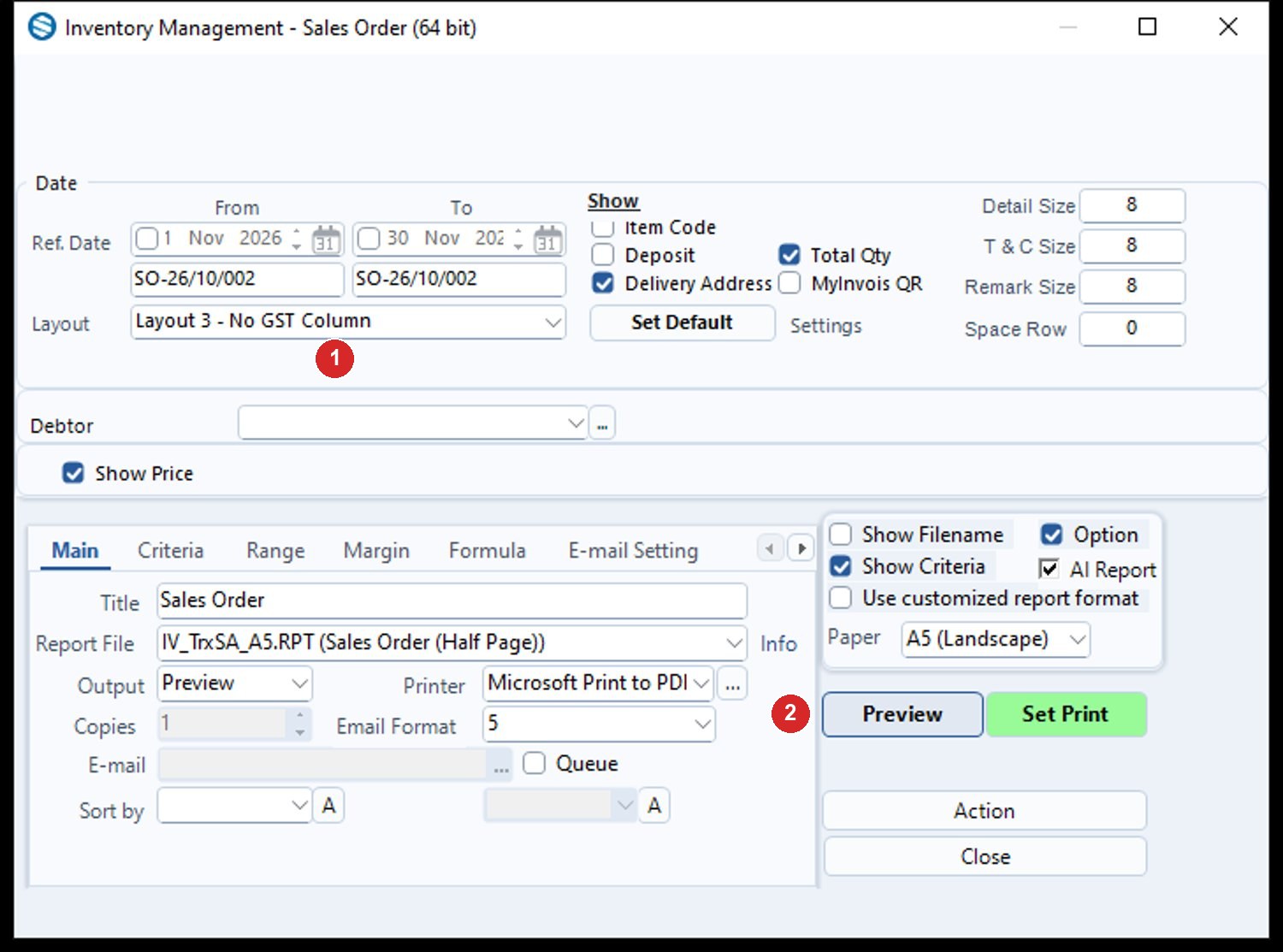
| Step | What to do |
|---|---|
| 1 | Layout: try another layout before you Preview. Layout 2 leaves out the discount column and Layout 3 the GST column, so the item description gets more room than in Layout 1. |
| 2 | Then click Preview. |
11. Did the format change after an update?
Close the software on every PC and reopen it, then Preview again. If you want the same format in another company database, choose the same layout there (for example Layout 3).
12. Need a wider box, bigger text or a layout change?
Contact Synergy support. They can widen or move a box, add a field, adjust the address font size, set row spacing, or move long Terms and Conditions away from the signature area.
Tips
- Reference and description fonts are fixed and cannot be changed by you.
- A font size change applies to all words, not single words.
- For bold words in a description, use the bold tags exactly as shown by Synergy support.
- A description cannot be centred.
- Showing more characters in a field is a chargeable customisation handled by the developer.
- You cannot have several print icons (for example 80mm and A4) for the same document on one PC, because only one default print type is kept.
- If strange codes appear above the name and address, Preview again. If they come back, tell Synergy support.
- For barcode labels with text that is too small, support can raise the text size by one step. Check afterwards that the label still scans.
Common problems
A4 prints on the receipt printer.
Ask Synergy support to reset the print settings and set one Windows default printer.
Direct print is shrunk but the preview looks fine.
In the Direct Print setting choose paper size Cheque, set it as default and test print.
The receipt prints ### or some text is missing.
The text is too long for the 58mm paper. Ask Synergy support to shorten it.
The receipt is cut in the middle.
Untick Cut paper (character based printing).
Report preview gives an error.
Choose Microsoft Print to PDF or XPS as the printer, and check the report path.
Layout looks different after an update.
Close the software on every PC, reopen it, then Preview again.
Nothing above has helped.
Contact Synergy support with the printer model and driver name, a photo of the printout, the document or report name and the layout number ready.