
Landed cost adds what it cost to bring goods in (freight, customs duty, insurance) to the cost of the goods themselves. In Synergy you enter the forwarder’s or customs agent’s invoice as an Invoice Received with Invoice Type Landed Cost, put the charges on it as charge items, then pick the supplier’s bill for the goods and press Distribute. The charges are shared over the goods by value, so each item’s cost includes its share. This guide uses an example: a forwarder bills Sea Freight 85.00, Import Customs Duty 49.50 and Marine Insurance 6.50 (141.00) for goods bought on bill IR2611-001 (T-shirts 240.00 and mugs 90.00).
Before you start
- The supplier’s bill for the goods is already saved as an Invoice Received (here IR2611-001 from Sample Supplies Sdn Bhd).
- You have the forwarder’s (or customs agent’s) invoice for the charges. The forwarder must exist as a creditor.
- Only items whose Item Type is Freight, Customs Duties or Insurance can be used on a Landed Cost invoice. Create these charge items once (step 1).
Steps
1. Set up the charge items (once)
Go to Inventory Management > Masterfile > Item and create one item for each kind of charge, for example LC-FREIGHT Sea Freight Charges, LC-DUTY Import Customs Duty and LC-INSUR Marine Insurance. The Item Type decides which column the charge goes into when it is distributed.
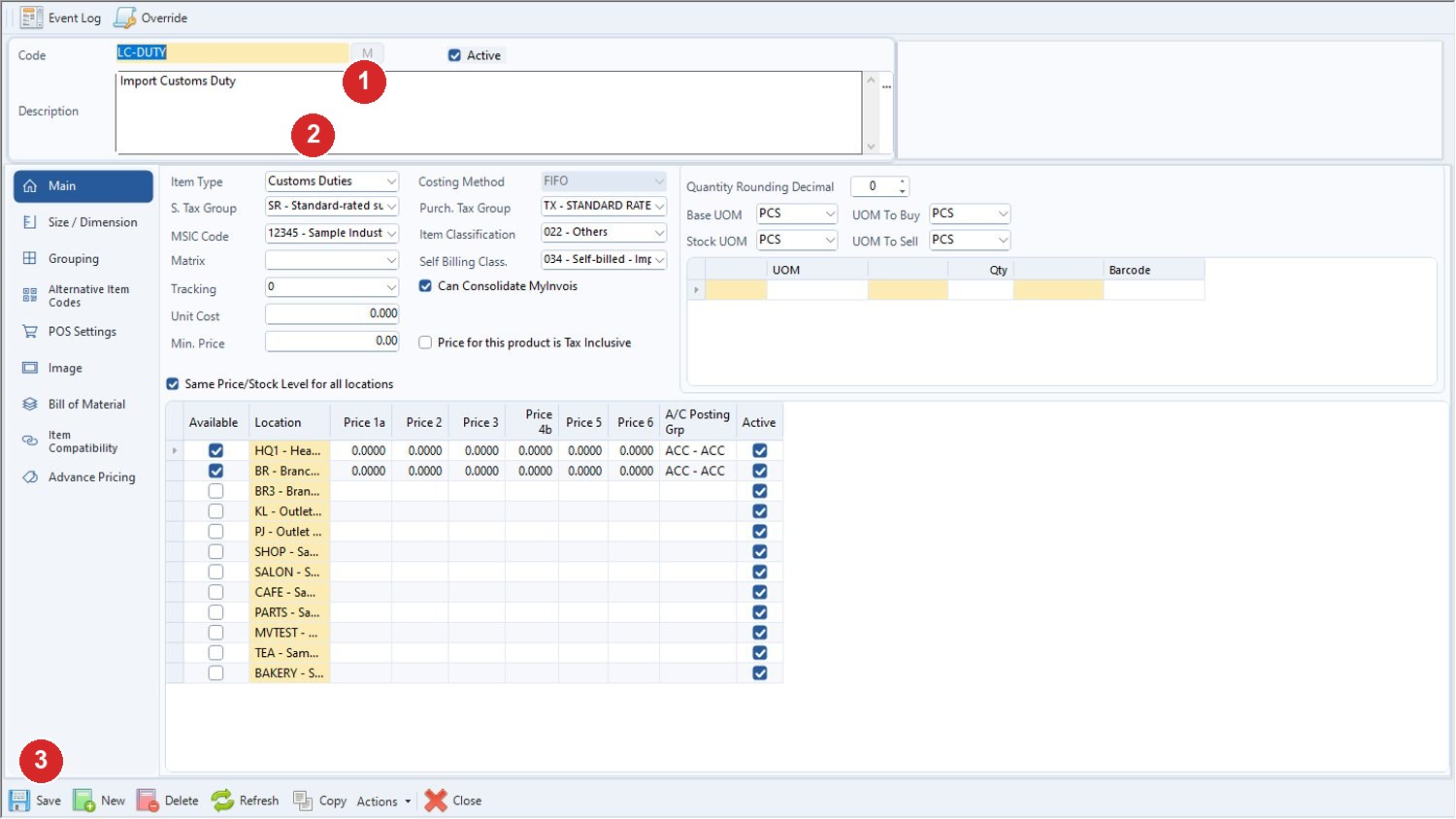
| Step | What to do |
|---|---|
| 1 | Code and Description of the charge, for example LC-DUTY Import Customs Duty. |
| 2 | Item Type: Freight, Customs Duties or Insurance (here Customs Duties). |
| 3 | Click Save. Do the same for the other charges. |
2. Enter the forwarder’s invoice as Landed Cost
Go to Sales and Purchases > Transactions > Purchase Process > Invoice Received and click New. Fill in the header, then add the charges on the Items tab with the amounts on the forwarder’s invoice. With Invoice Type Landed Cost, the item list only offers the charge items.
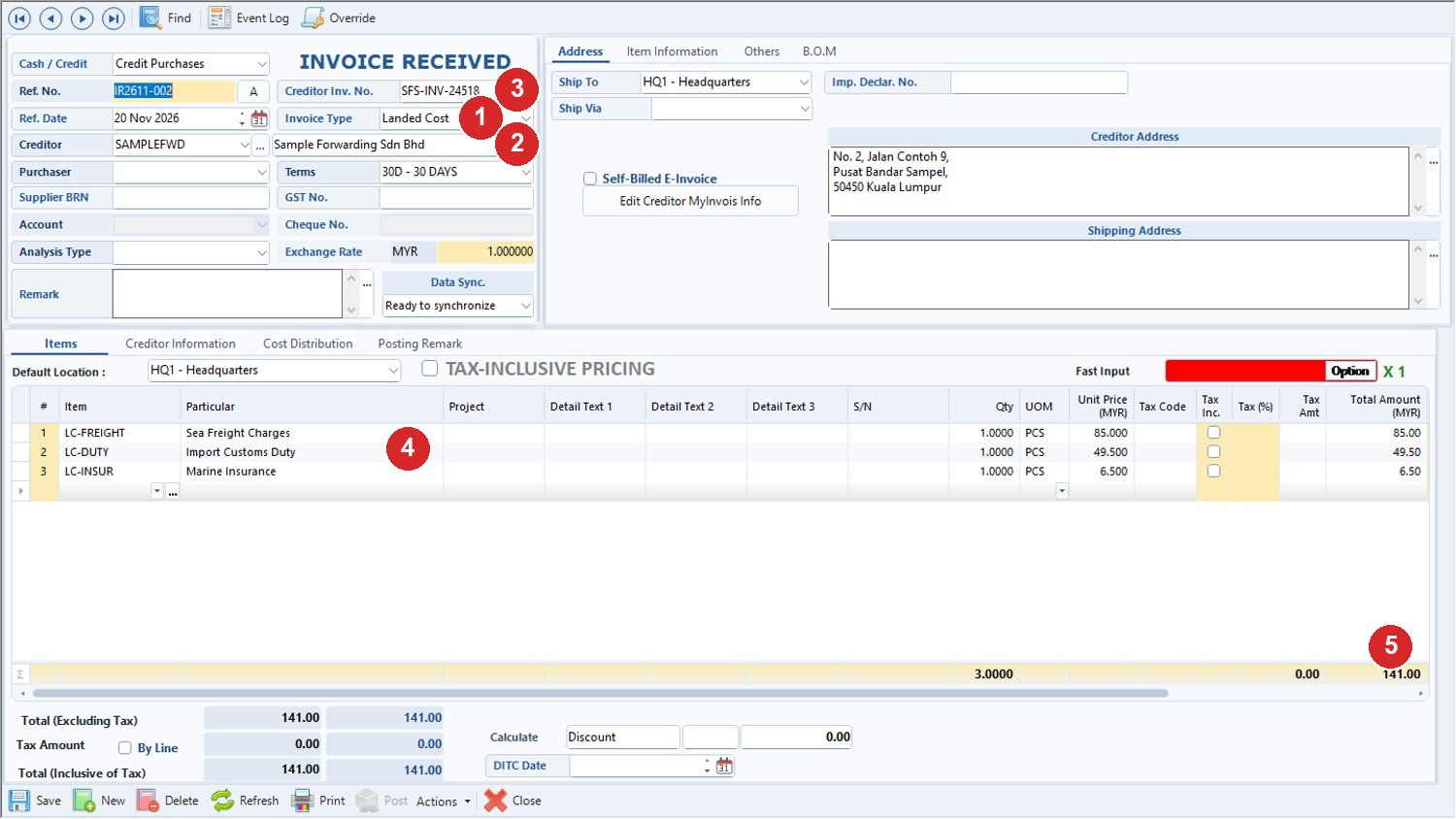
| Step | What to do |
|---|---|
| 1 | Invoice Type: Landed Cost. |
| 2 | Creditor: the forwarder or customs agent who billed the charges (here Sample Forwarding Sdn Bhd). |
| 3 | Creditor Inv. No.: the forwarder’s invoice number. |
| 4 | Items tab: one line per charge with its amount (Sea Freight Charges 85.00, Import Customs Duty 49.50, Marine Insurance 6.50). |
| 5 | The total (141.00) is what will be shared over the goods. |
3. Choose the goods bills
Open the Cost Distribution tab and click Select Bill For Distribution. The Cost Distribution window opens. Find the supplier’s bill for the goods these charges belong to.
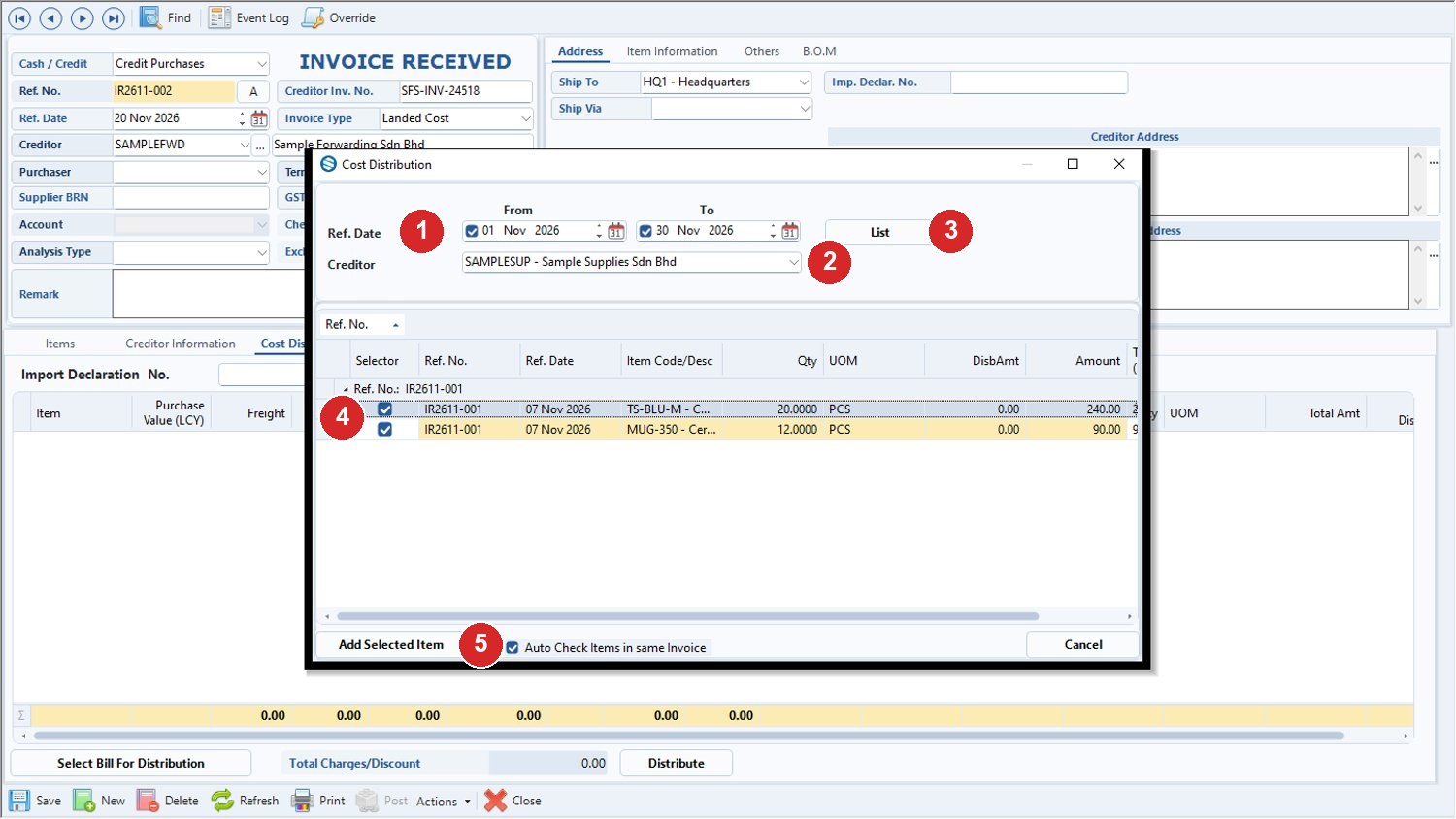
| Step | What to do |
|---|---|
| 1 | Ref. Date: tick From and To and set the dates of the goods bill. A date whose box is not ticked is not used. |
| 2 | Creditor: the supplier of the goods (not the forwarder), or ALL. |
| 3 | Click List. |
| 4 | Tick the lines of the bill. With Auto Check Items in same Invoice ticked, one tick ticks every line of that bill. |
| 5 | Click Add Selected Item. The lines are added to the Cost Distribution tab. |
4. Distribute and save
Back on the Cost Distribution tab, click Distribute. Each charge is shared over the bill lines by their value: here the T-shirts (240.00) get 61.82 freight, 36.00 duty and 4.73 insurance, and the mugs (90.00) get the rest. Purchase Value + Cost shows each line’s new cost. Check the shares, change them by hand if needed, then click Save.
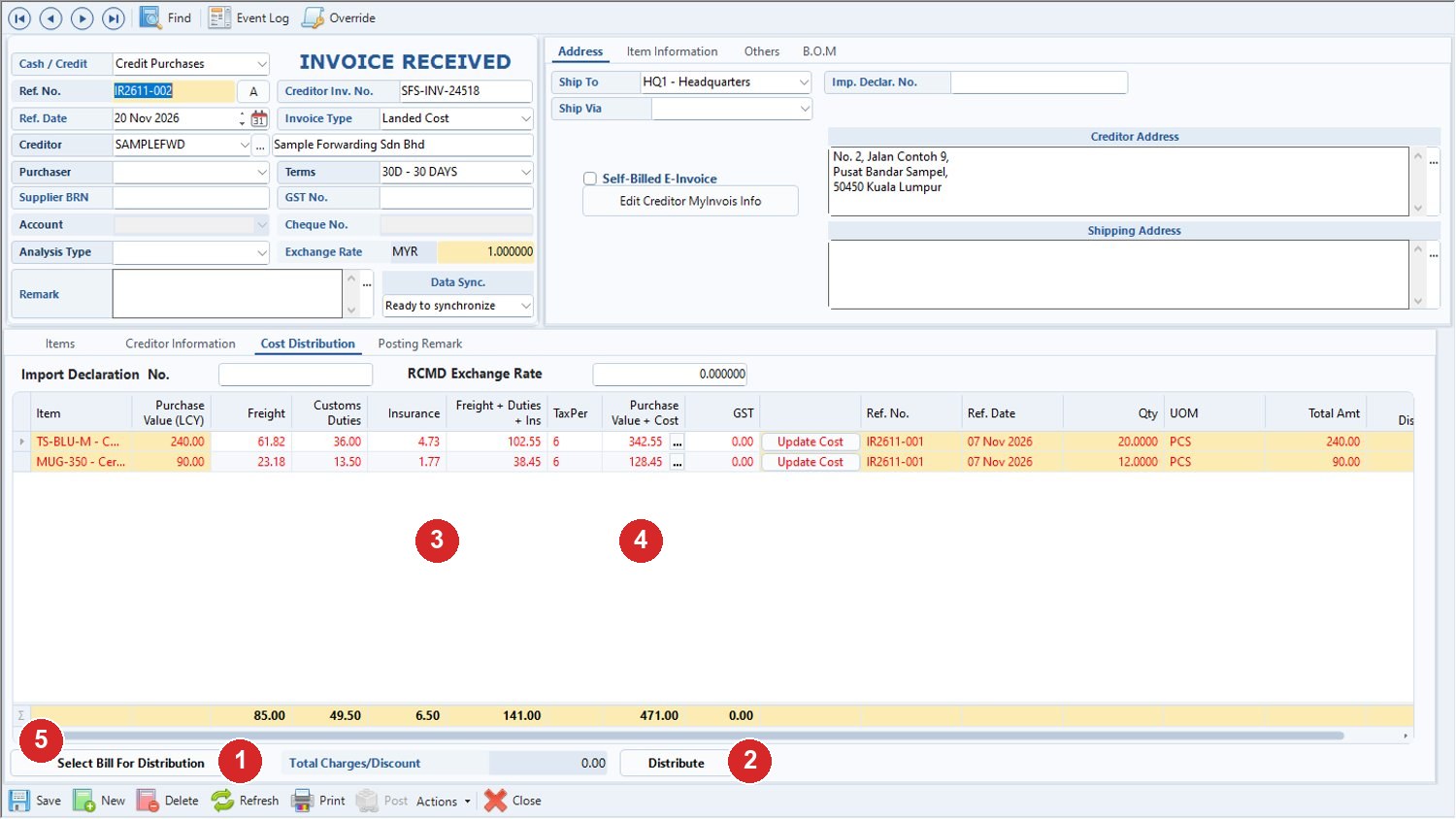
| Step | What to do |
|---|---|
| 1 | Select Bill For Distribution adds more bills if the charges cover several shipments. |
| 2 | Click Distribute. |
| 3 | Freight, Customs Duties and Insurance: each line’s share of the charges. |
| 4 | Purchase Value + Cost: the goods’ value with their landed cost (342.55 and 128.45, total 471.00). |
| 5 | Click Save. |
Tips
- Distribute shares by value only; there is no option to share by quantity or weight. You can type a different share in the grid before saving.
- Distribute Cost in the right-click menu of the Items tab lines does the same as the Distribute button.
- In the bill list, right-click for Check All, Uncheck ALL and Copy Text. On the Cost Distribution tab, right-click for Check All, Uncheck All and Delete All.
- The invoice you are working on is left out of the bill list.
- Landed cost added to a line = Freight + Customs Duties + Insurance. Tax is not part of it.
- The TaxPer column is fixed at 6%, a setting from the GST period.
- If the message ‘GST Amount Distribution does not match the Total GST.’ appears, you cannot save until the shares match.
- If the message ‘Charges/Discount not fully distributed.’ appears, you can tick the box to continue anyway.
- Do not confuse this with the Distribute Discount/Freight button on the toolbar, which spreads discount or freight lines over the items of the same bill.
Common problems
The charge item cannot be found on the Items tab.
With Invoice Type Landed Cost only items of Item Type Freight, Customs Duties or Insurance are offered. Open the item and set its Item Type.
Distribute leaves Freight, Customs Duties and Insurance at 0.00.
The charges come from the Items tab of this invoice. Add the charge lines with their amounts on the Items tab first, then click Distribute again.
The bill list is empty.
Choose the supplier of the goods (not the forwarder) or ALL, and untick the date boxes or widen the date range.
‘No item selected.’
You clicked Add Selected Item without ticking any line. Tick the lines first.
Add Selected Item does nothing.
Click List first.
There is no Cost Distribution tab.
Set Invoice Type to Landed Cost (or Customs Tax).