
Use this guide when a report freezes on preview, will not open on a new or freshly formatted PC, or opens by itself when you log in. Work down the checks in order. For a report that opens but shows no data or wrong figures, see the guide “Synergy Acc2026 – What To Do When a Report Shows No Data or Wrong Figures”. For a client PC where reports will not open, the guide “Synergy Acc2026 – Reports Will Not Open on a PC” has the same path check.
Before you start
- The name of the report and the date range.
- Whether the PC is old or slow, and how big your data is.
- Whether it is a new or freshly formatted PC.
- Whether the software on that PC is up to date.
Steps
1. A heavy report hangs on preview
Heavy reports such as Sales Cost Analysis can hang. Use Sales by Outlet or a summary report instead.
2. Update the software on that PC
Update the software on the PC where the report hangs. See the guide “Synergy Acc2026 – Updating the Program”.
3. Reports will not open on a new PC
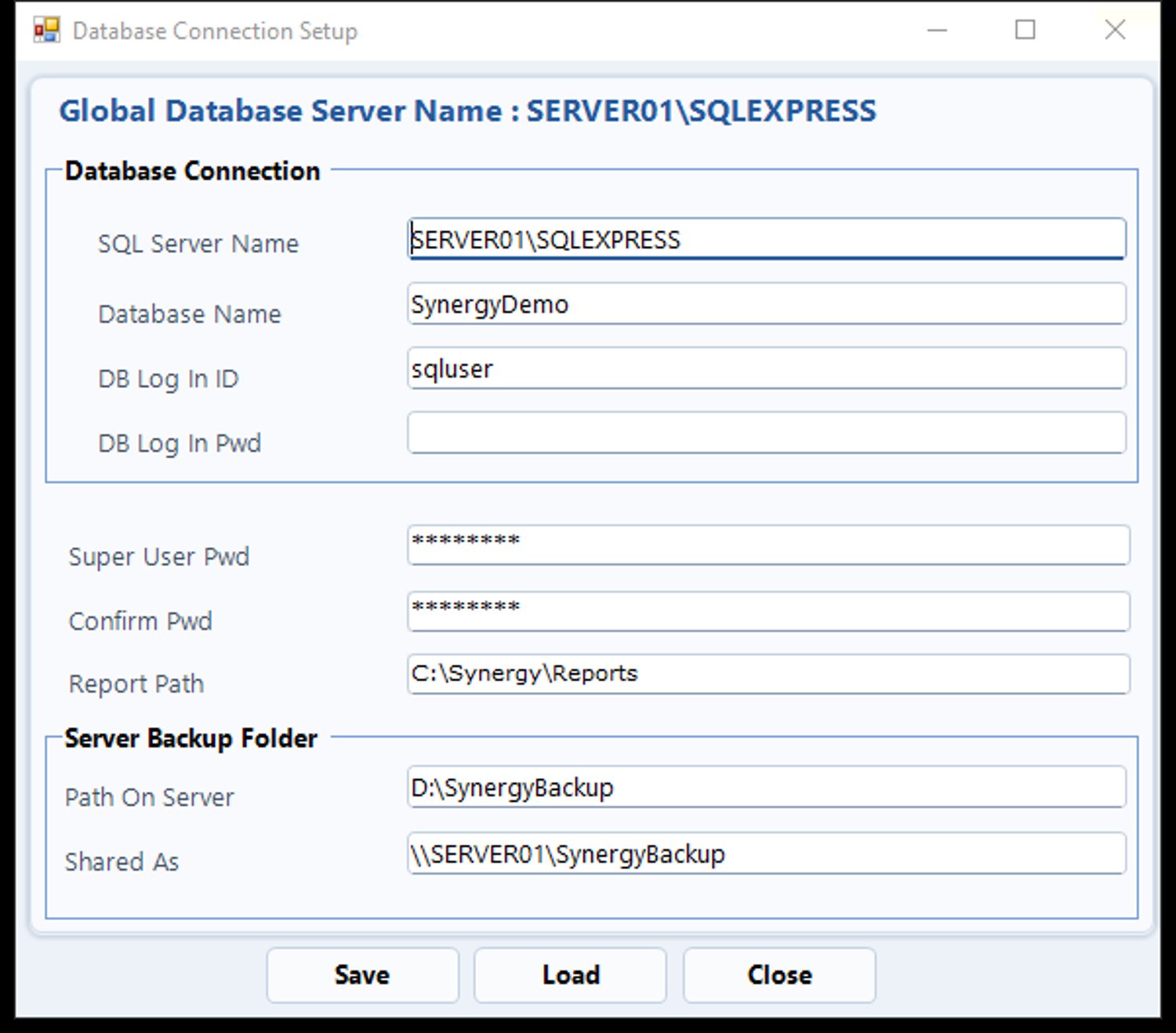
On a new or freshly formatted PC, open Database Connection Setup and check the report path. A wrongly copied path was a real cause.
4. A report opens by itself when you log in
This means an option to show a report at login has been ticked for that user. Ask Synergy support to untick it, then reopen the software.
5. The PC is old or slow
A large amount of data on an old CPU makes reports slow. Consider upgrading the PC.
Tips
- Common causes: a large amount of data on a slow or old CPU, a wrong report path, and a user option that shows a report at login.
Common problems
The same report hangs again and again.
Contact Synergy support. In one case, settings changed on the main PC fixed it. Have the PC name, the report name and the date range ready.
A document label or date shows wrongly on one PC again and again.
Contact Synergy support. This needed setting changes in a remote session.