
Resident Management is an optional module for condominium and residential management. It bills each resident (a debtor) for maintenance fee, sinking fund, water, electricity and parking. This guide shows the setup: Parameter Settings, each resident’s Unit Size, the Parking Bays and the Resident Management Billing box of the Transaction Type.
Before you start
- Resident Management is an optional module. It needs the Resident Management option in your licence. If the Resident Management menu is missing, contact Synergy.
- Residents are debtors. Create each resident as a debtor first.
Steps
1. Open Parameter Settings
From the menu, open Main, then Resident Management. The menu lists Generate Monthly Bills, Generate Yearly Bills, Water Meter Reading, Electricity Meter Reading, Parking Bays and Parameter Settings.
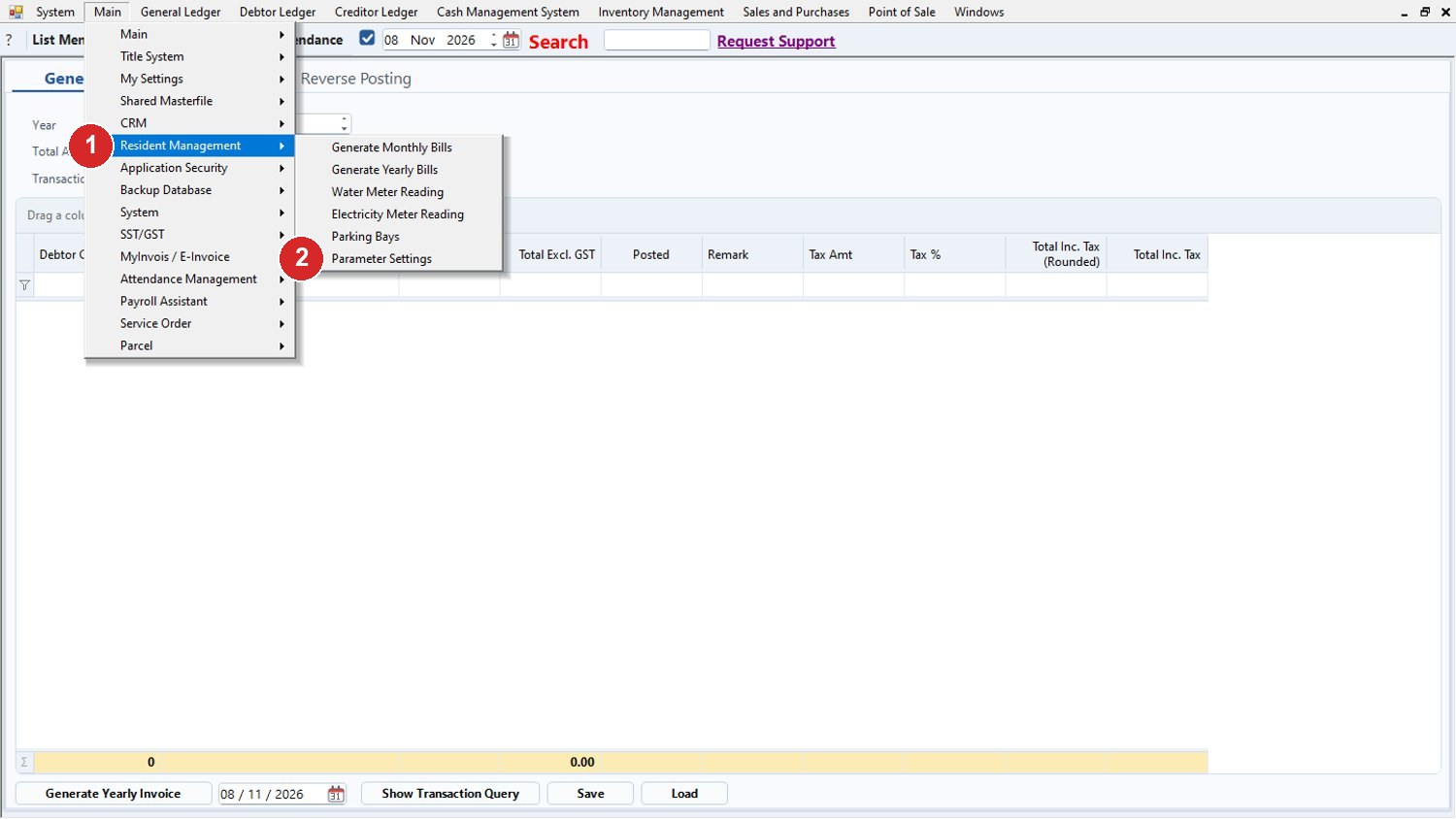
| Step | What to do |
|---|---|
| 1 | Point to Resident Management. |
| 2 | Click Parameter Settings. |
2. Set the rates
Fill in each charge you will bill. Fire Insurance and Quit Rent are marked obsolete on the screen: leave them. Tick Price Is Tax Inclusive if your prices include tax, and choose the Rounding Account.
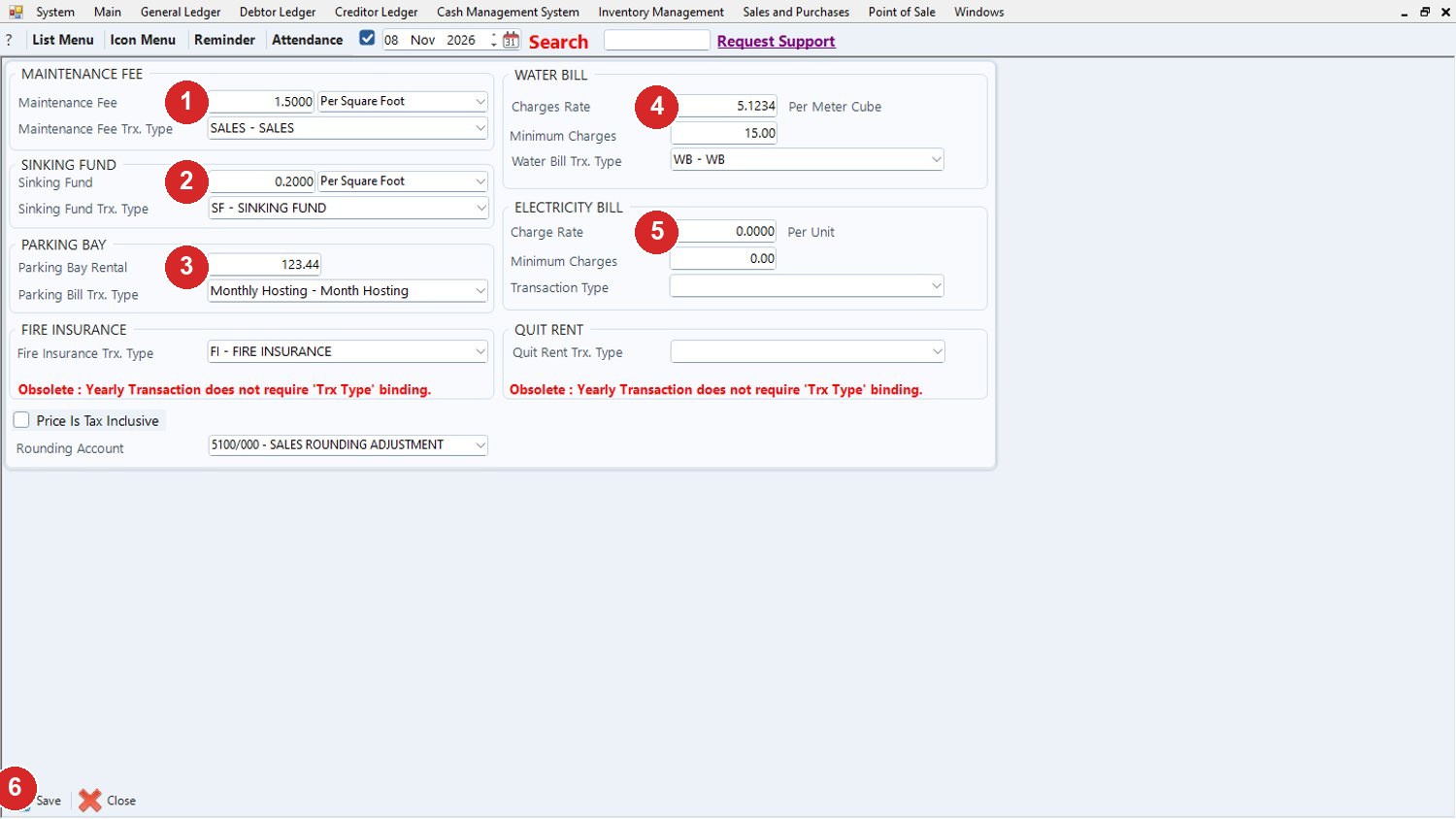
| Step | What to do |
|---|---|
| 1 | Maintenance Fee: type the rate, choose the method (Per Square Foot, or your own wording or Fixed) and choose the Trx Type. |
| 2 | Sinking Fund: type the rate, choose the method (Per Square Foot, or your own wording, Fixed or % of M.Fee) and choose the Trx Type. |
| 3 | Parking Bay: type the Parking Bay Rental and choose the Trx Type. |
| 4 | Water Bill: type the Charges Rate per cubic metre and the Minimum Charges, and choose the Trx Type. |
| 5 | Electricity Bill: type the Charge Rate per unit and the Minimum Charges, and choose the Transaction Type. |
| 6 | Click Save. The message Setting Saved. appears. |
3. Change the unit wording (optional)
If you charge per share unit, not per square foot, change the words. Below the rates, click Change wording (e.g. Square Foot to Share Unit). Customize Description opens on Resident Management Wording. Only the words change: the fee is still worked out from each resident’s Unit Size.
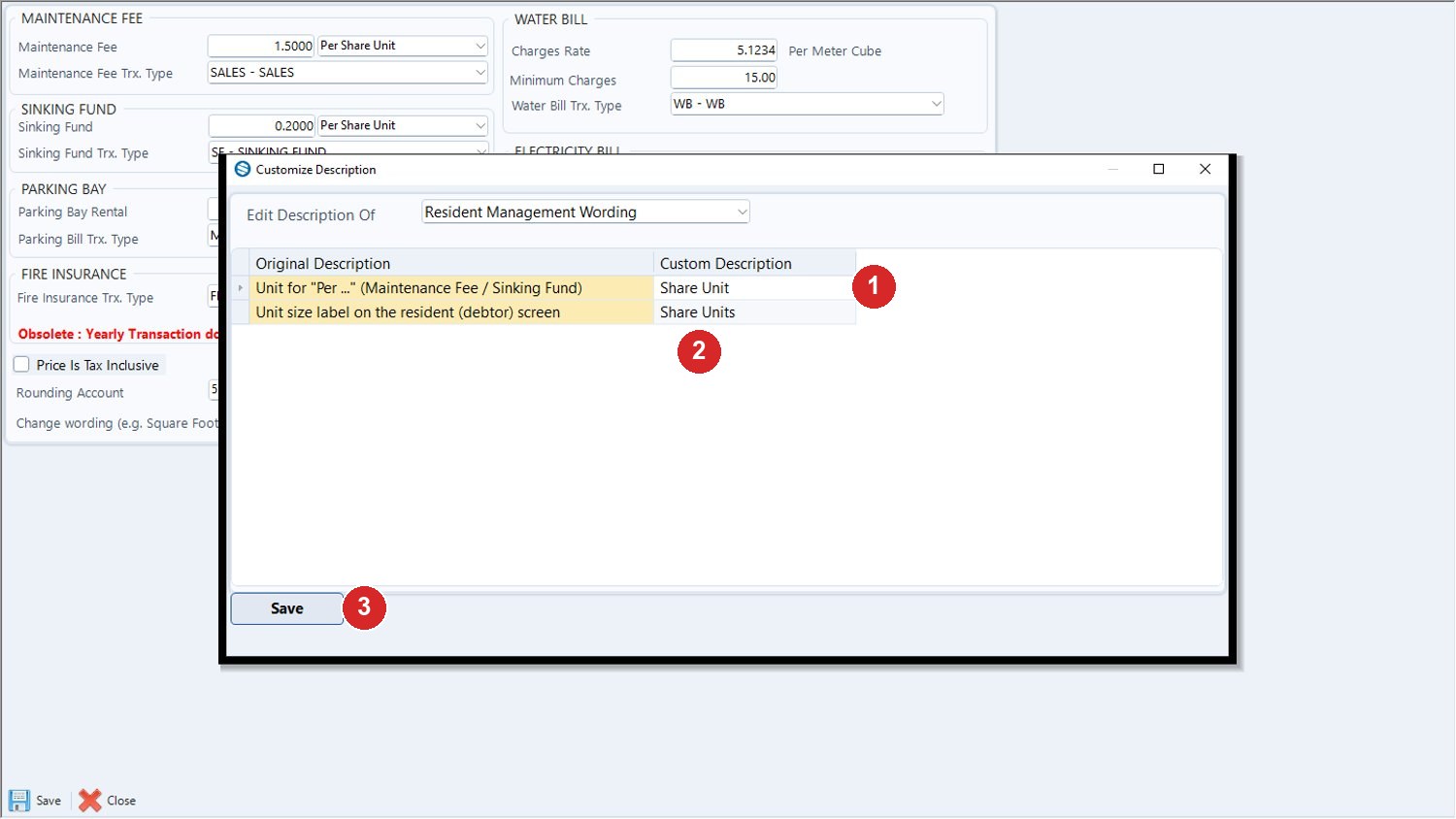
| Step | What to do |
|---|---|
| 1 | Unit for “Per …” (Maintenance Fee / Sinking Fund): type the unit, for example Share Unit. The method then reads Per Share Unit. |
| 2 | Unit size label on the resident (debtor) screen: the word shown next to Unit Size, for example Share Units. |
| 3 | Click Save. The method list on Parameter Settings shows the new words at once. |
4. Enter each resident’s Unit Size
Open the resident in the Debtor masterfile and go to the Others tab. Unit Size is the size of the unit in square feet; it sets the fee when the method is Per Square Foot. The box shows only when the Resident Management option is on. To load many residents at once, the Debtor Import also accepts a Unit Size column.
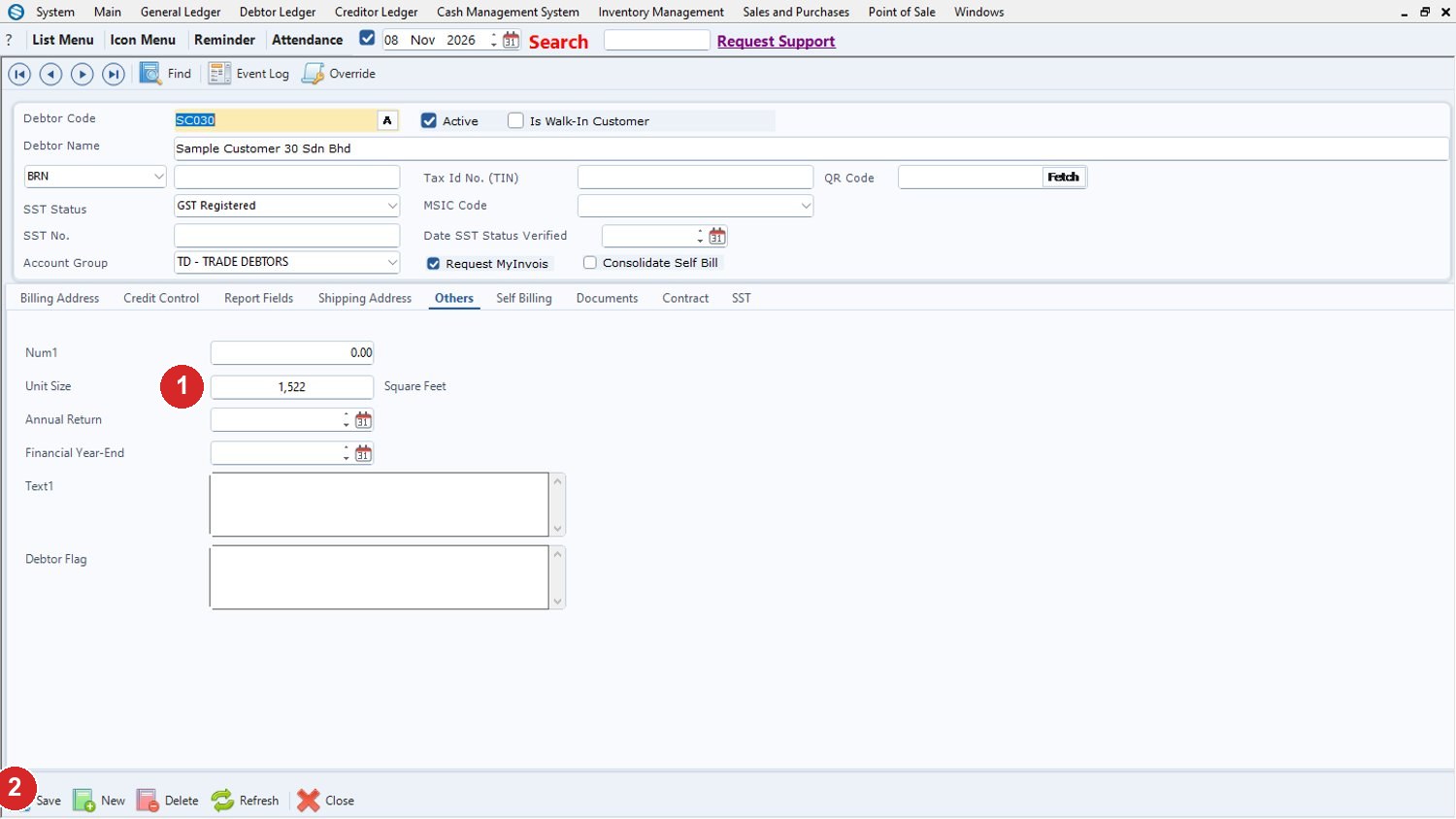
| Step | What to do |
|---|---|
| 1 | Type the Unit Size in square feet. |
| 2 | Click Save. |
5. List the Parking Bays
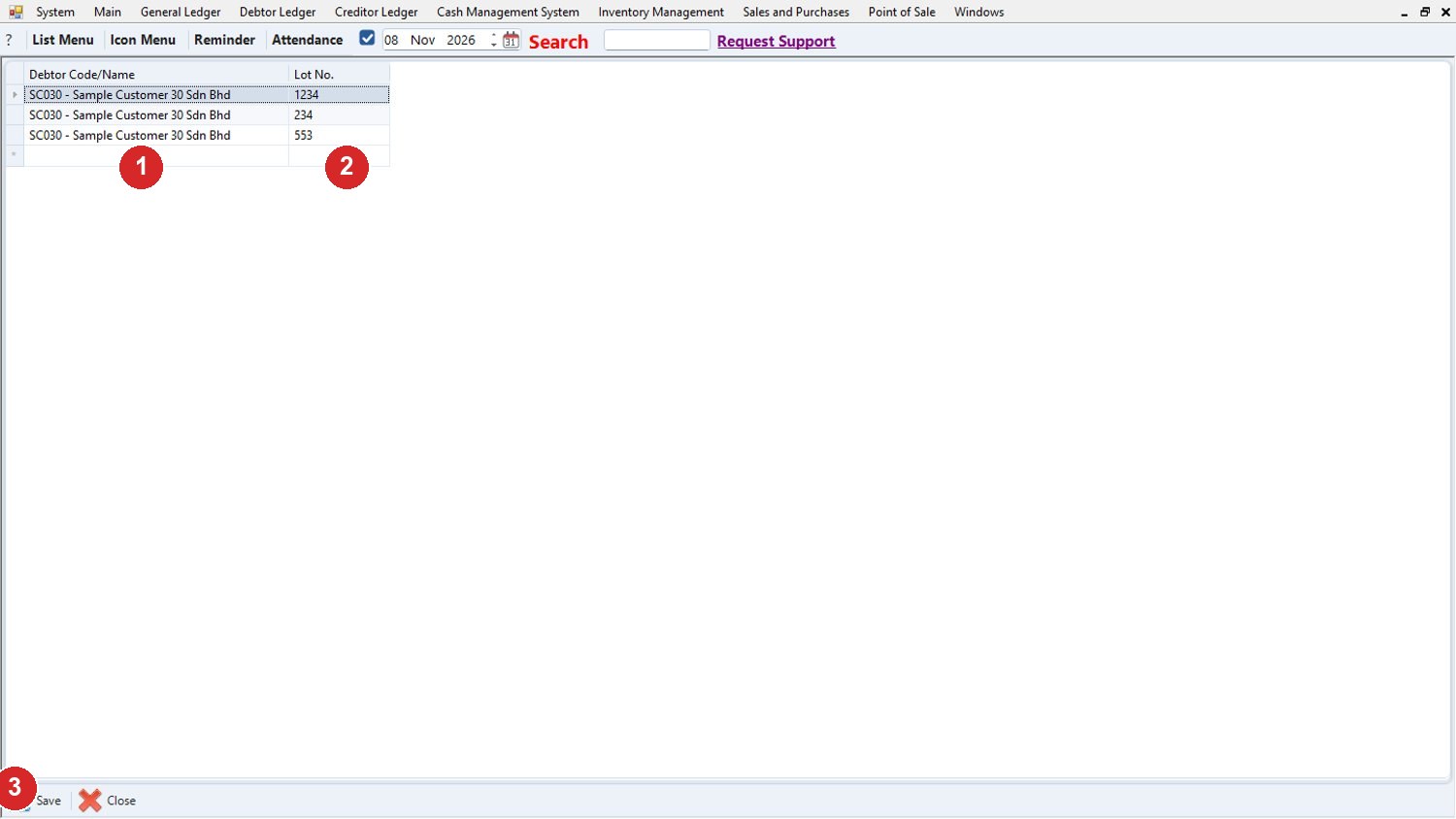
Go to Main > Resident Management > Parking Bays. The grid has one row per parking bay. Check the whole list before you save: Save replaces the full list and does not check the rows.
| Step | What to do |
|---|---|
| 1 | Choose the Debtor in a row. |
| 2 | Type the Lot No. |
| 3 | Click Save. |
6. Check the Transaction Type
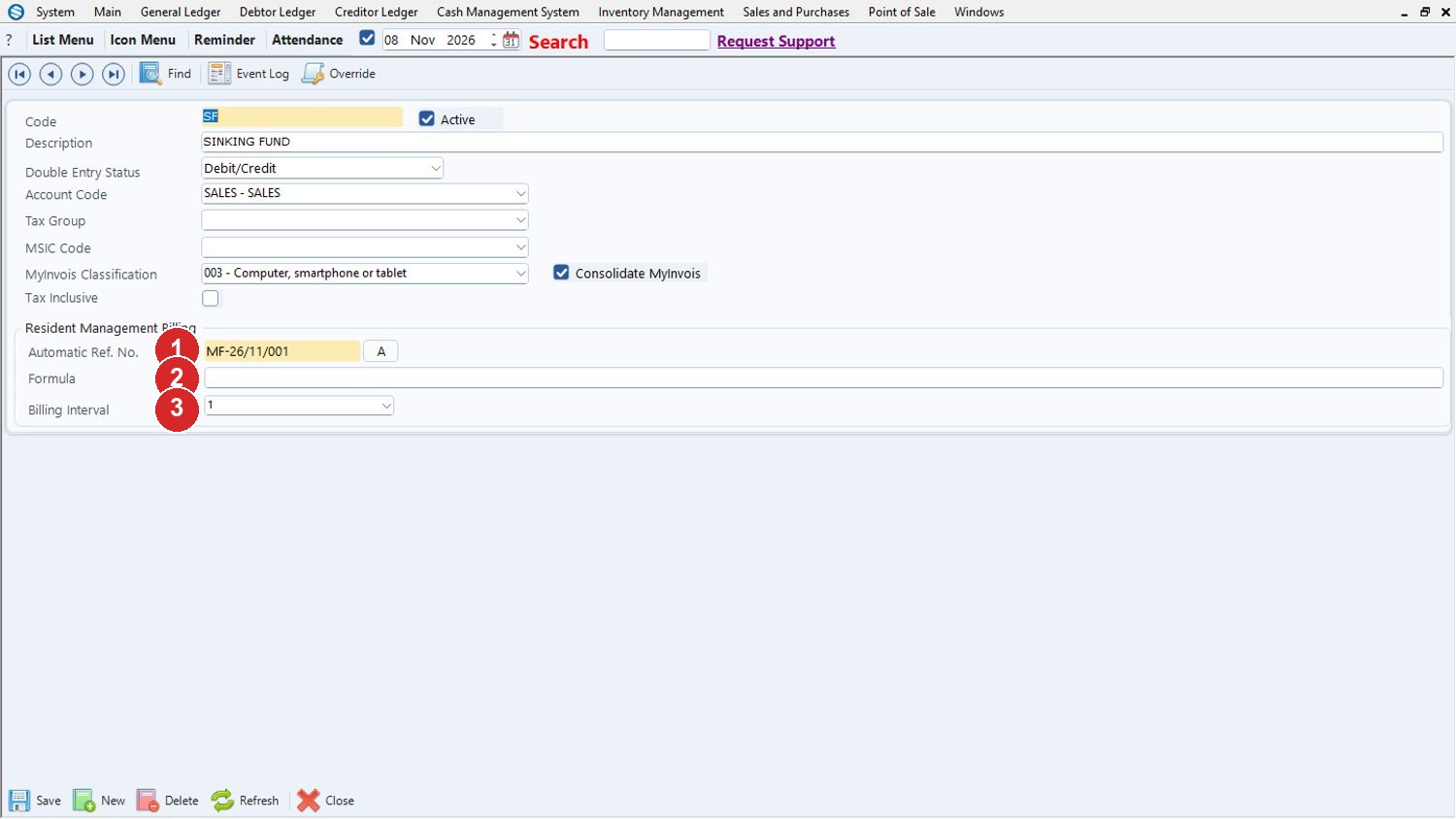
On the debtor Transaction Type screen, the Resident Management Billing box holds the billing settings of a type. The box shows only when the Resident Management option is on.
| Step | What to do |
|---|---|
| 1 | Automatic Ref. No.: set the automatic reference number. |
| 2 | Formula: type the formula, if one is used. |
| 3 | Billing Interval: choose Monthly, Bi-Monthly or Quarterly. |
Tips
- Fire Insurance and Quit Rent are obsolete: the screen says yearly transactions do not need a Trx Type binding.
- A fee set to Per Square Foot needs the Unit Size of every resident.
- Save on Parking Bays replaces the whole list, so keep every row you still need.
- The unit words are your own: Square Foot is only the starting wording. The Unit Size of each resident is in that same unit.
Common problems
The Resident Management menu is missing.
It is an optional module. Contact Synergy to have the Resident Management option added to your licence.
There is no Unit Size box on the debtor.
The box shows only when the Resident Management option is on in your licence. Contact Synergy.