
Generate Monthly Bills creates the monthly invoices for your residents: maintenance fee, sinking fund, parking, water and electricity. It creates AR sales invoices. A posted month can also be reversed.
Before you start
- Resident Management is an optional module. If the Resident Management menu is missing, contact Synergy.
- Set up Resident Management first (see the guide Set Up Resident Management). For water and electricity, see the guide on meter readings.
- Check the list before you generate. Reversing posted bills cannot be undone.
Steps
1. Open Generate Monthly Bills
From the menu, go to Main > Resident Management > Generate Monthly Bills.
2. Choose the charges, month and year, then list
The screen remembers the charges you ticked. Contract Billing Options is optional: tick it to bill contract groups and amounts. If the message No records found. appears, there is nothing to bill for your choices.
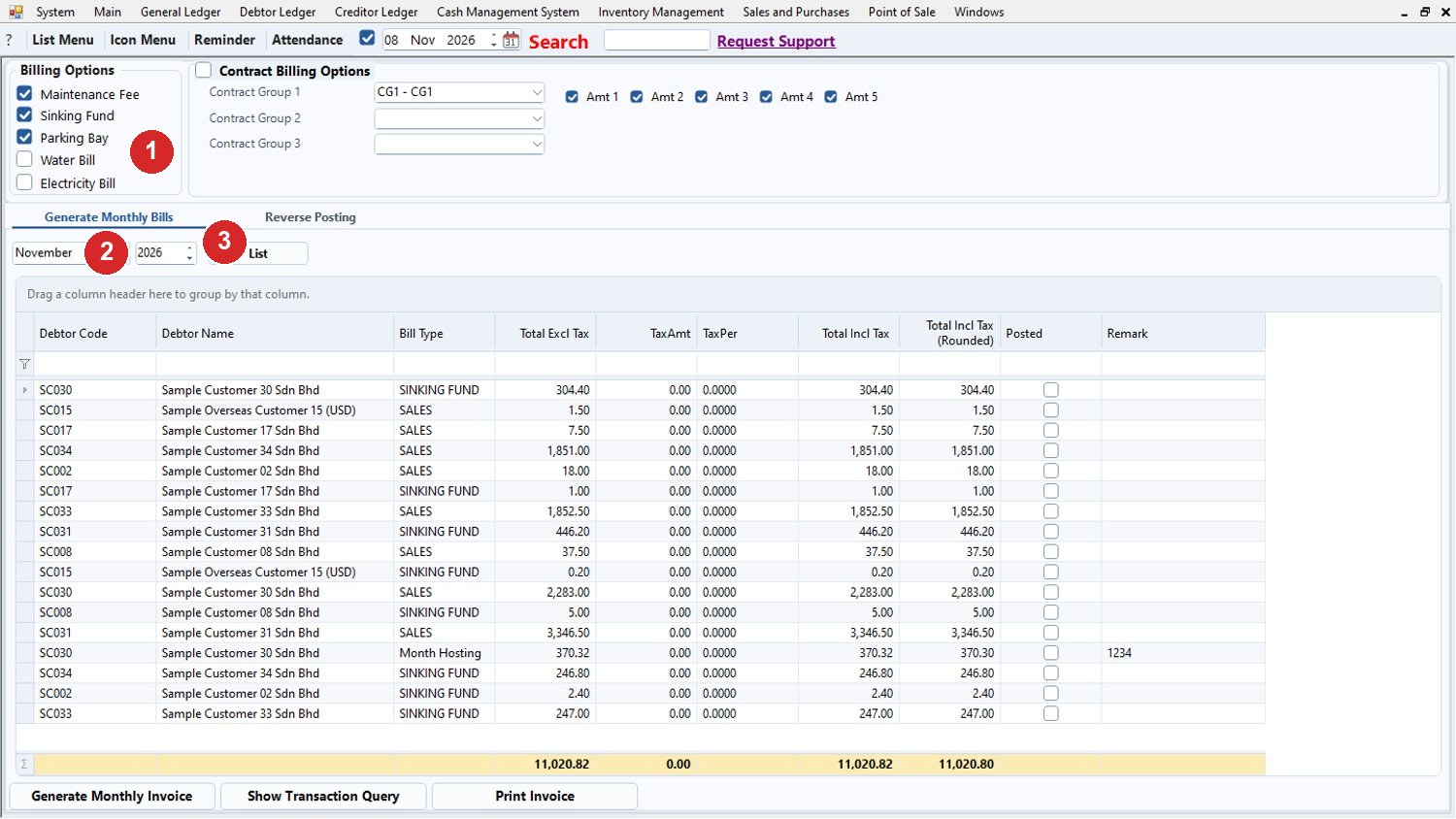
| Step | What to do |
|---|---|
| 1 | Tick the charges to bill: Maintenance Fee, Sinking Fund, Parking Bay, Water Bill, Electricity Bill. |
| 2 | Choose the Month and the Year. |
| 3 | Click List to calculate the bills. |
3. Check the list
Each line is a bill for a resident. If needed, change the amount, tax or net amount in the grid.
4. Generate the invoices
Click Generate Monthly Invoice. If some charges are zero, a prompt asks you to tick to confirm. If a message asks you to configure the GL Account for Rounding Adjustment, set the Rounding Account in Parameter Settings first. When Do you want to generate bills? appears, confirm. The message Done. shows when the invoices are created.
5. Print or view the invoices
Click Print Invoice to print the invoices. Show Transaction Query shows the transactions; it needs the permission to query AR transactions.
6. Reverse a posted month (if needed)
Open the Reverse Posting tab. The reversal uses the same charge ticks, so tick the charges to reverse first. Warning: reversing is not reversible.
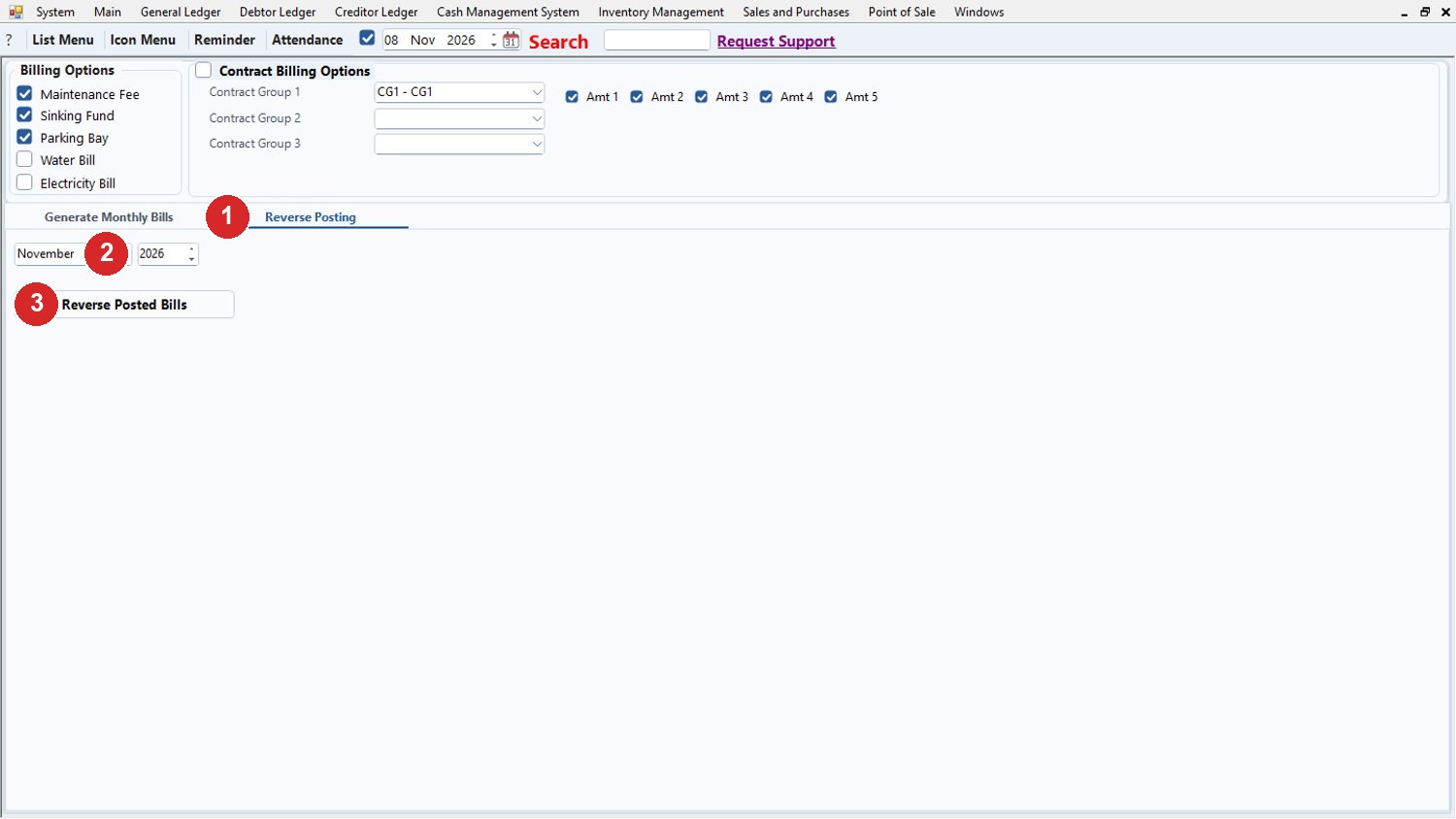
| Step | What to do |
|---|---|
| 1 | Click the Reverse Posting tab. |
| 2 | Choose the Month and the Year. |
| 3 | Click Reverse Posted Bills. |
Tips
- The charge ticks are remembered for next time.
- Reversing posted bills cannot be undone: check the month and the ticks first.
- Show Transaction Query needs the permission to query AR transactions.
Common problems
The message No records found. appears.
Nothing could be billed for the ticked charges, month and year. Check the ticks, the month and year, and that the Parameter Settings and Unit Sizes are filled in.
A message asks to configure the GL Account for Rounding Adjustment.
Choose the Rounding Account in Parameter Settings, then generate again.
A prompt asks me to tick to confirm before generating.
Some of the ticked charges are zero. Check them, then tick to confirm if that is correct.