
Generate Yearly Bills creates the yearly invoices for your residents from a Transaction Type and a total amount you enter. The bills of a year can also be reversed.
Before you start
- Resident Management is an optional module. If the Resident Management menu is missing, contact Synergy.
- Set up Resident Management first (see the guide Set Up Resident Management).
Steps
1. Open Generate Yearly Bills
From the menu, go to Main > Resident Management > Generate Yearly Bills.
2. Enter the year, amount and type, then list
The Transaction Type and the Total Amount are required.
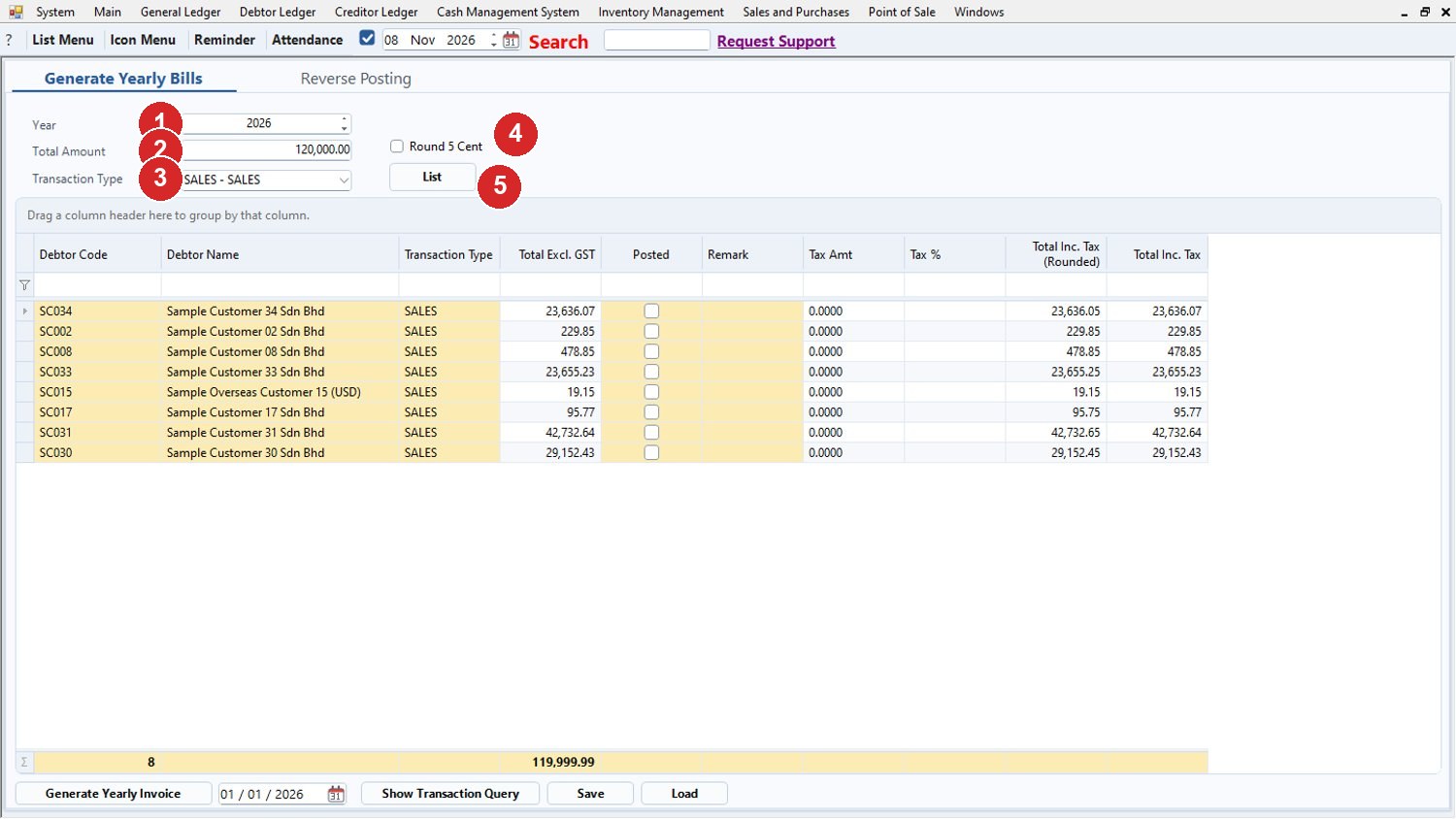
| Step | What to do |
|---|---|
| 1 | Set the Year. |
| 2 | Type the Total Amount. |
| 3 | Choose the Transaction Type. |
| 4 | Tick Round 5 Cent if you want it (optional). |
| 5 | Click List to calculate. |
3. Check and save the list
Edit the list if needed, then click Save. The message Changes saved… appears. If you edited the list, save it before you generate. Load brings back the last calculation.
4. Generate the invoices
Set the invoice date beside the Generate Yearly Invoice button (it starts at 1 January), then click Generate Yearly Invoice. If the invoice date is more than 2 days old, a warning about the e-Invoice deadline appears.
5. Reverse the bills of a year (if needed)
Open the Reverse Posting tab, choose the year and the type, and reverse the posted bills.
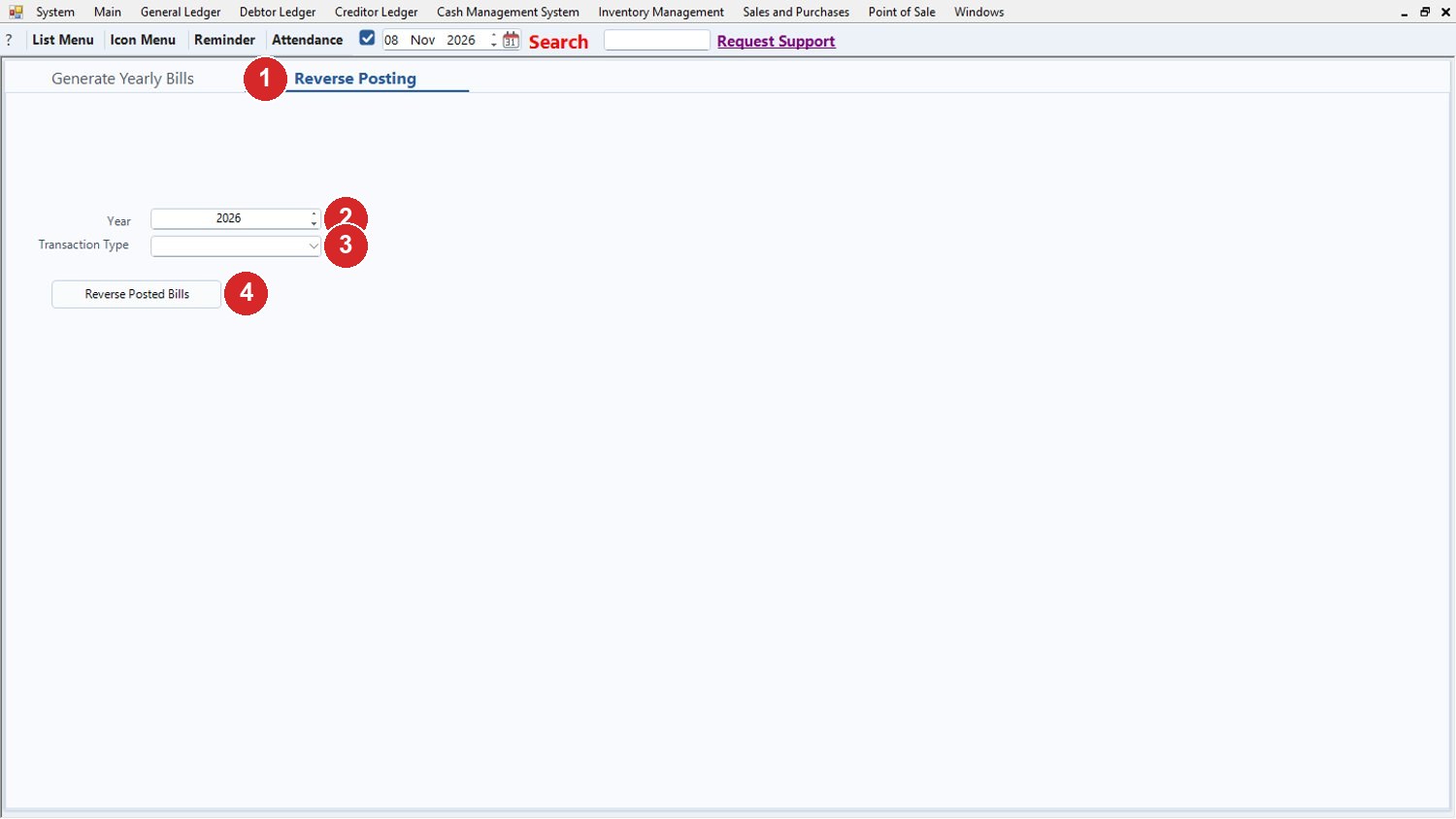
| Step | What to do |
|---|---|
| 1 | Click the Reverse Posting tab. |
| 2 | Choose the Year. |
| 3 | Choose the Transaction Type. |
| 4 | Click Reverse Posted Bills. |
Tips
- The Transaction Type and the Total Amount must be filled in before you click List.
- Save the list before you generate if you edited it.
- An invoice date more than 2 days old triggers a warning about the e-Invoice deadline.
Common problems
A message says the Transaction Type and the amount are required.
Choose the Transaction Type and type the Total Amount, then click List again.
A warning about the e-Invoice deadline appears when I generate.
The invoice date is more than 2 days old. Check the invoice date beside Generate Yearly Invoice.
A message asks me to save before generating.
You edited the list. Click Save first, then click Generate Yearly Invoice.