
This guide explains what to do when you need to bring back your data from a backup, for example after a PC failure, when reopening an old company, or when the main PC is down. Restoring is done with help from Synergy support, so this guide shows what to prepare and what to expect.
Before you start
- Find your backup file (for example on drive D, an external disk, a pendrive or Google Drive) and note when it was made.
- Know whether this is the main PC or a branch/client PC.
- Note which SQL Server version is installed on the PC, and which version made the backup, if you know.
- Write down the exact error text or take a screenshot if the restore fails.
- Have your branch name ready if you are a branch.
Steps
1. Find your backup file
Locate the most recent backup you kept. If you have several backups, keep them all for now. An old company may have no backup saved, so check any pendrive, external disk or cloud drive.
2. Unzip the backup if needed
If the backup was made with the zip option, unzip it to a .bak file first. A zipped backup cannot be restored directly.
3. Contact Synergy support
Reinstalling and restoring need a remote session with support. Tell them what happened and have your backup file, SQL version, branch name and error text ready. Support will also check that your licence can run on the PC, and a licence reset can take time.
4. Ask everyone to exit Synergy
Before the restore, make sure everyone else has exited Synergy. The system disconnects all users during a restore.
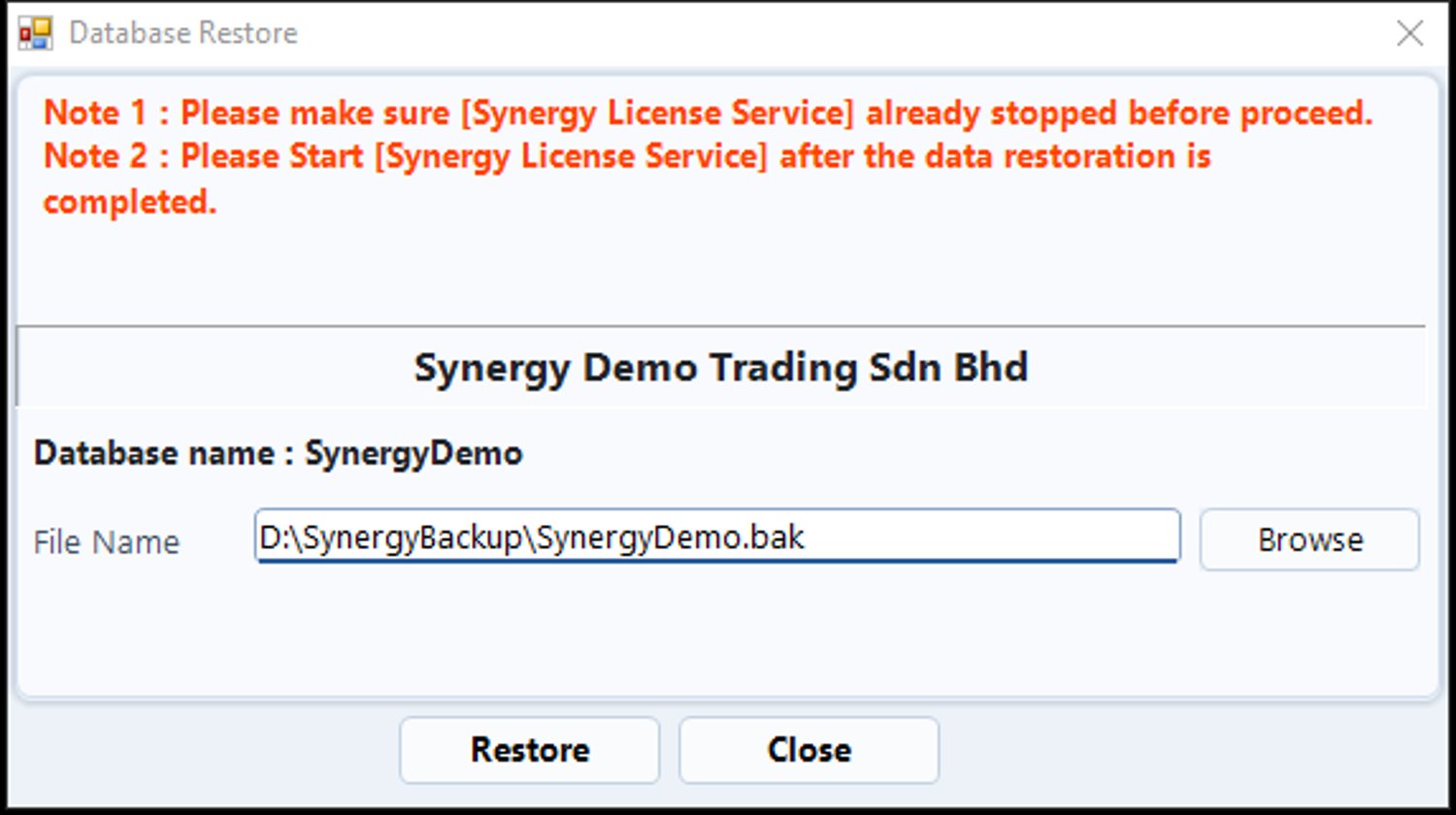
5. Restore on the correct PC only
Restoring replaces everything in the database on that PC with the backup. Anything entered after the backup was made is lost. Restore only on the PC that will be the main PC.
6. Update the client PCs
After the restore on the main PC, go to Service Agent > Increase version so the client PCs update to the restored data. Tell your staff that client PCs will then show the restored data.
7. If the main PC is replaced by another PC
Point all other PCs to the new main PC using Connection Setup. Do not use the old main PC again with the same data until support has checked it, otherwise you will have two different sets of data.
8. Enter any missed sales
If sales were missed after a reinstall, go back to the earlier date and open the shift (open cash) as normal. Enter the transactions, close the day and move to the next day.
Tips
- Client PCs do not hold the database. It lives on the main PC, and there is no mirror of it.
- Take a backup every day to a pendrive or cloud drive, and keep a copy away from the main PC.
- Keep several recent backups. Do not delete the old ones, because the newest backup may be bad or may have been made after a mistake.
- If there is no backup, only a blank database can be installed. A branch can then get its items back by downloading from HQ.
- While the main PC is down, there is no other way to operate the POS on the client PCs.
- The licence reset is done first by the technical team. One shop waited about 1.5 hours with the shop stopped.
Common problems
The restore fails with an error.
The PC may have an older SQL Server version than the one that made the backup. In one case a backup from SQL 2017 would not restore on SQL 2008 until SQL 2017 was installed. Contact Synergy support with your backup file, SQL version and the exact error text.
The main PC shows the old restored data but the client PC still shows current data.
On the main PC, go to Service Agent > Increase version so client PCs update to the restored data.
The old company has no backup.
Contact Synergy support. An old company may have no backup saved, and without one it cannot be restored.
The software will not open after the PC or disk failed, or the SSD was replaced.
The software must be reinstalled and the latest backup restored, which needs support in a remote session. Have your backup location, branch name and an error screenshot ready.
.NET 3.5 will not install.
Ask Synergy support to help. They can enable it in a remote session.