
This guide shows how to prepare a Quotation, record a Sales Order, record a Delivery Order, and then make one invoice from one or more Delivery Orders. It also covers a few small tasks, such as printing a DO-format document from an invoice. The example follows quotation QT2610-001 to Sample Trading Sdn Bhd (617.60) through sales order SO-26/10/002 to invoice SA2-2610-002.
Before you start
- Have your customer (debtor) details and item list ready.
- If the customer needs an e-invoice, have the buyer details ready.
Steps
1. Open the Quotation screen
Go to Sales and Purchases > Transactions > Sales Process > Quotation and click New. Fast Input can speed up item entry. Choose TAX-INCLUSIVE PRICING and By Line if you need them, and check Total (Inclusive of Tax), Tax Amount and Total (Excluding Tax).
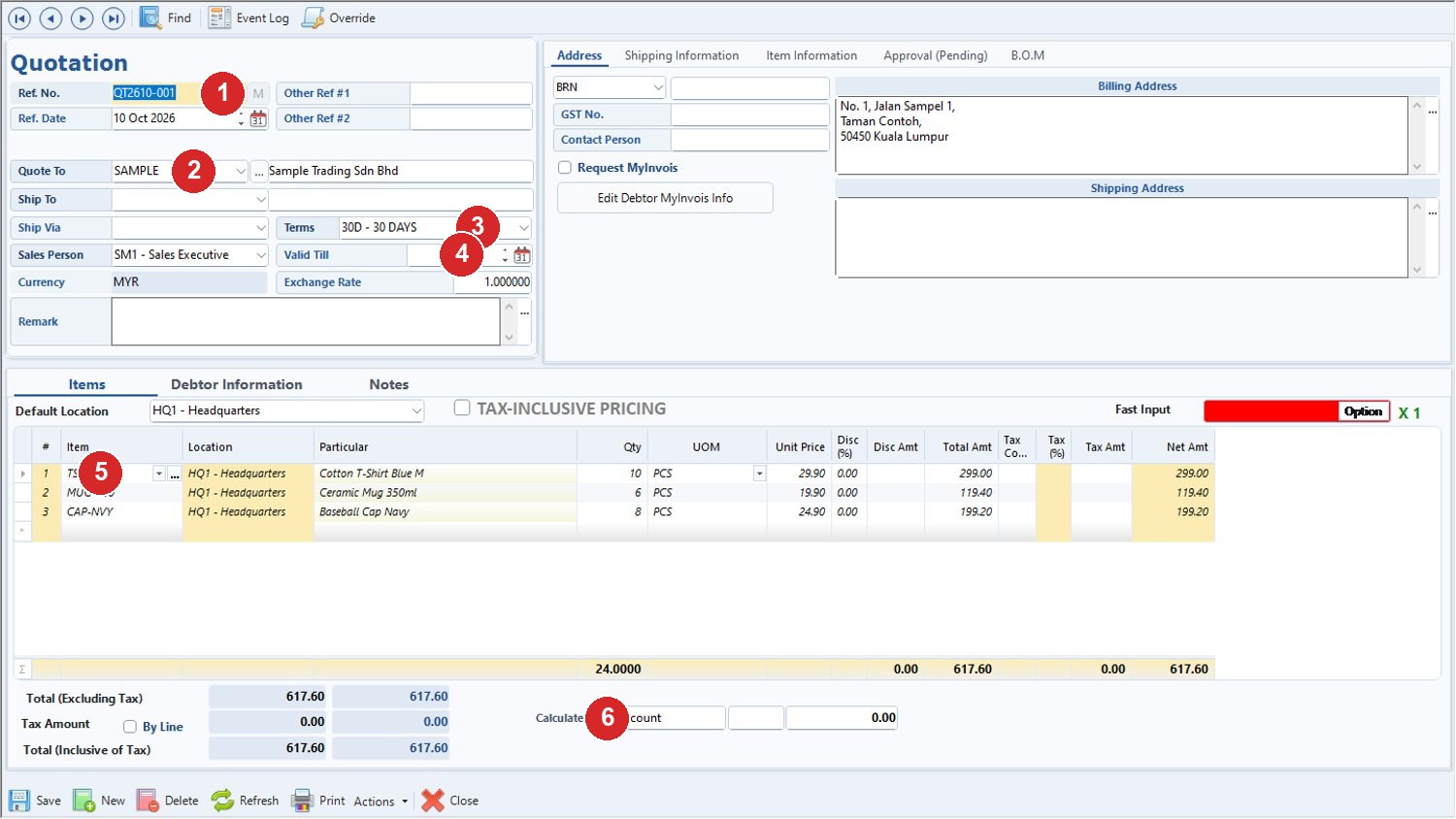
| Step | What to do |
|---|---|
| 1 | Ref. No. (here QT2610-001) and Ref. Date. |
| 2 | Quote To: the customer. The billing address fills in on the Address tab. |
| 3 | Terms, Sales Person and Currency. |
| 4 | Valid Till: how long the prices hold. |
| 5 | Items tab: set the Default Location, then each item with its quantity and price (here 10 T-shirts, 6 mugs and 8 caps). |
| 6 | Lump sum discount: enter it, then click Calculate to spread it over all items. |
2. Fill in the Address tab and save the quotation
Fill in Billing Address, Shipping Address, Contact Person and GST No. If an e-invoice is required, tick Request MyInvois and use Edit MyInvois Info. Then click Save.
3. Open the Sales Order screen
Go to Sales and Purchases > Transactions > Sales Process > Sales Order and click New.
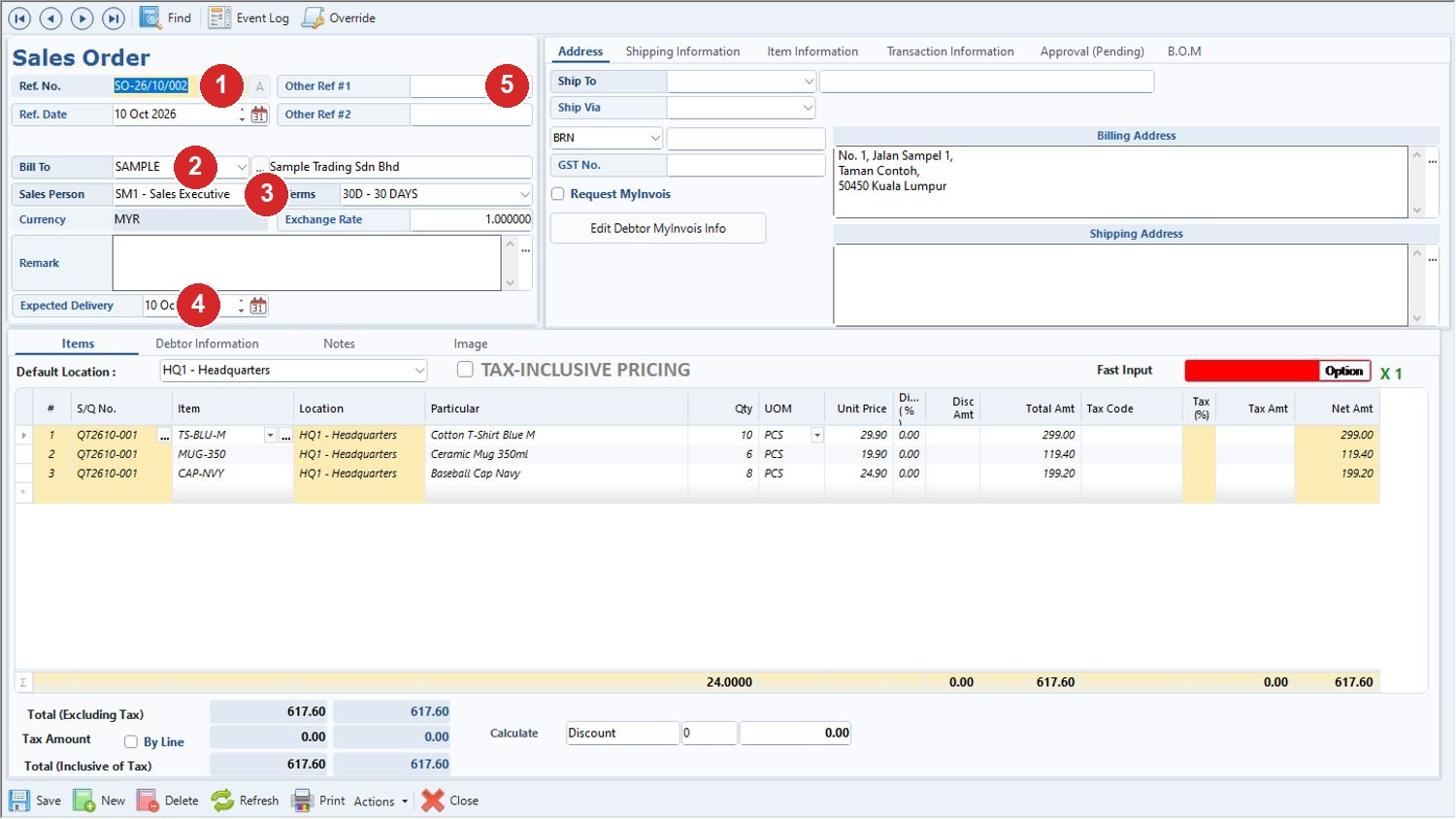
| Step | What to do |
|---|---|
| 1 | Ref. No. (it may be automatic for new records; here SO-26/10/002) and Ref. Date. |
| 2 | Bill To: the customer. |
| 3 | Sales Person, Terms, Currency and Exchange Rate. |
| 4 | Expected Delivery. |
| 5 | Other Ref #1 and Other Ref #2 if needed, for example the customer’s PO number. |
4. Add items and check the Address tab
On the Items tab, set the Default Location and add your item lines. On the Address tab, check Ship To, Billing Address, Shipping Address and Ship Via. Tick Request MyInvois if needed. Click Save. If your company uses approval, use Approve on the Approval tab.
5. Open the Delivery Order screen
Go to Sales and Purchases > Transactions > Sales Process > Delivery Order and click New. Add a Remark or Other Reference if needed.
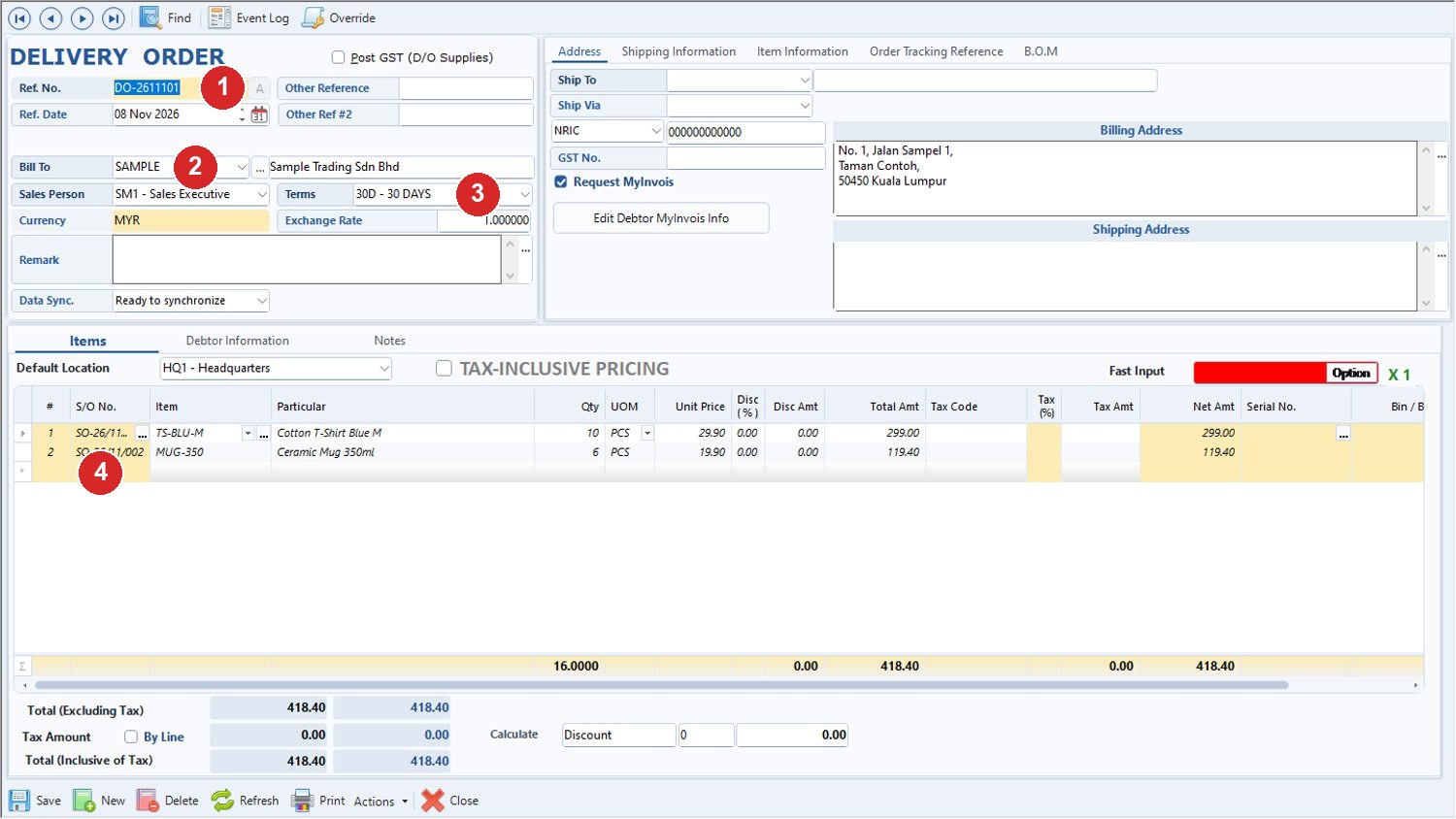
| Step | What to do |
|---|---|
| 1 | Ref. No. (here DO-2611101) and Ref. Date. |
| 2 | The customer (Bill To). |
| 3 | Terms, Sales Person, Currency and Exchange Rate. |
| 4 | Items tab: the goods being delivered. |
6. Fill the DO from another document if you want
On the Delivery Order, open the Actions menu. You can choose Copy From Quotation, Load Sales Order or Load Goods Received.
7. Enter the DO items and save
On the Items tab, set the Default Location and enter each line. If you give a lump sum discount, click Calculate. Check Total (Excluding Tax), Tax Amount and Total (Inclusive of Tax), then click Save.
8. Make one invoice from one or more DOs
Open Sales Invoice and choose Action > Load Delivery Order. Select every DO that should be on the invoice.
9. Save the invoice
Save the invoice. Remain Qty reduces on each DO you selected.
Tips
- A proforma invoice is made as a Sales Order.
- Ship Via codes are added in Main > Shared Masterfile > Ship Via. Marking is only a note for your own reference.
- Convert To Sales Invoice from a single DO only reduces that one DO. Use Load Delivery Order to cover several DOs.
- Several users can key in invoices at the same time. Each invoice gets a new reference number automatically, so numbers do not duplicate.
- To print a DO from an invoice, open the invoice > Print, change the report file to the DO format, then Preview. No DO is recorded and the number stays the invoice number.
- The invoice credit term follows the debtor, not the invoice.
- Quotation rows cannot be loaded into an invoice.
- An invoice date can be changed. After an invoice is submitted as an e-invoice it cannot be edited.
- WhatsApp sending needs to be set up first and sends a Google Drive link, not the file itself.
Common problems
A message says a field is required (for example Ref. No., Debtor Code or Default Location)
Fill in the missing field, then save again.
No Item Code specified for one or more rows
Fill in the item code on every line.
Sell below minimum price not allowed
The price is lower than the item’s minimum price. Correct the price.
Credit Limit exceeded on a Delivery Order
Someone with permission to override the credit limit must approve it. Otherwise the message says Must override to proceed and the save stops.
Lump sum discount is not fully distributed to items
Click Calculate to spread the discount over all items.
Excel file will not load into a quotation
The Excel file must have a Code or Barcode column and a Qty column.
This item cannot be deleted because it has been loaded in an invoice (on a Delivery Order)
The item is already used in an invoice, so it cannot be deleted.
A new invoice is not found in Find
Untick the Date filter in the Find screen and search again.
Ref No turned manual on a new document
Click the M button at Ref No and choose Auto Reference / Select. This works on a new record only.
Load Delivery Order does not work as expected, or you see a duplicate invoice number
Contact Synergy support. Have the DO numbers and a screenshot of the Load Delivery Order list ready, or a screenshot of both documents for a duplicate number.