
This guide shows how to check the billing and shipping addresses on a sales invoice and how to request an e-invoice for it.
Before you start
- Open or start a sales invoice (Sales and Purchases > Transactions > Sales Process > Sales Invoice).
- If the customer needs an e-invoice, have the buyer details ready.
Steps
1. Open the Address tab
On the invoice, go to the Address tab (top right of the screen).
2. Check the addresses
On the invoice, go to the Address tab (top right of the screen) and check the details.
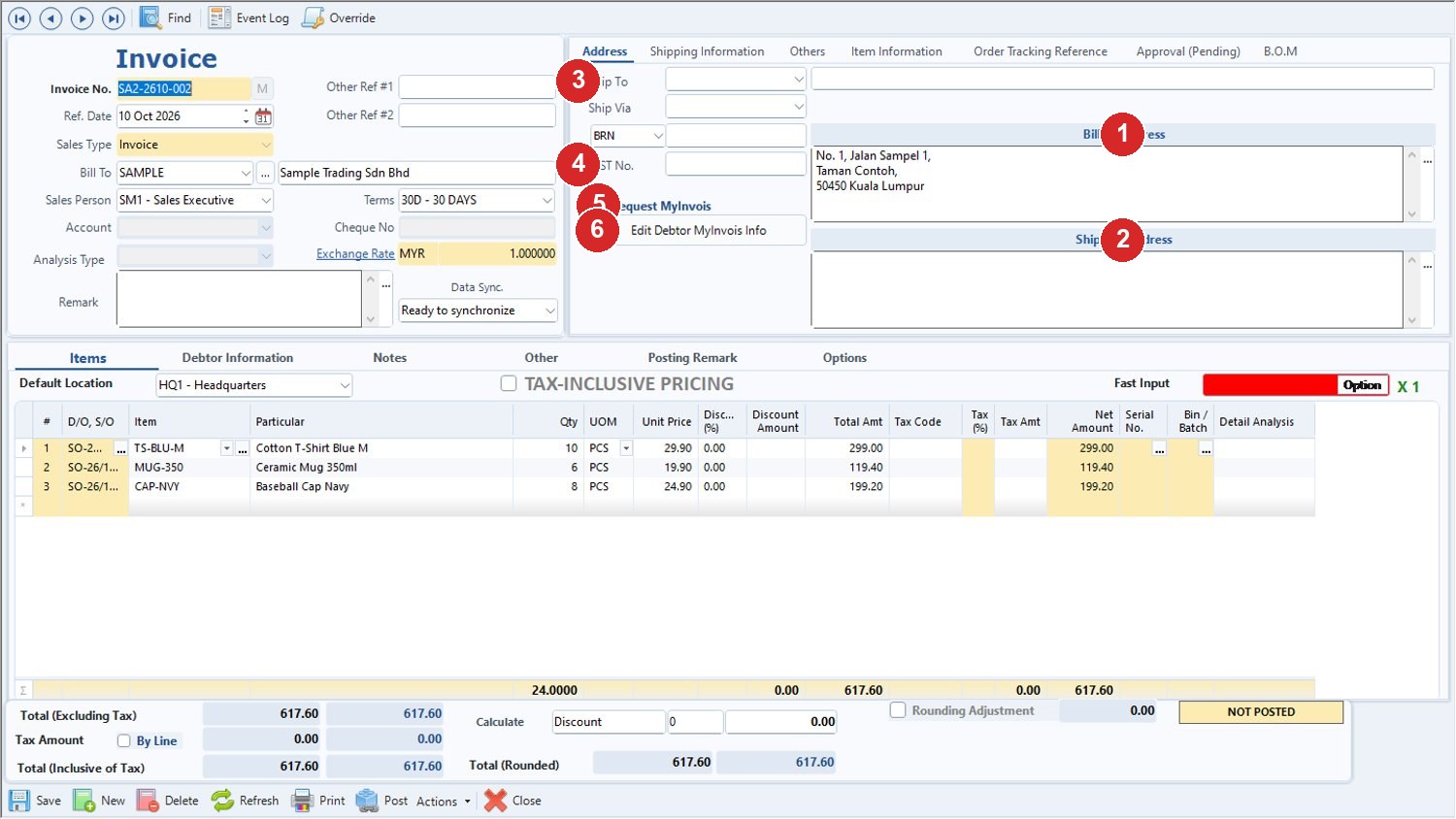
| Step | What to do |
|---|---|
| 1 | Billing Address. |
| 2 | Shipping Address. |
| 3 | Ship To and Ship Via, where they are needed. |
| 4 | The registration number type and number (BRN) and GST No. |
| 5 | Request MyInvois: tick it if the customer needs an e-invoice for this document. |
| 6 | Edit Debtor MyInvois Info: enter the details the e-invoice needs. |
3. Fill in the delivery details
Fill in Ship To, Ship Via and GST No. where they are needed.
4. Ask for an e-invoice if needed
If the customer needs an e-invoice for this document, do this.
5. Enter the e-invoice details
Click Edit MyInvois Info and enter the details the e-invoice needs. While details are missing, the label MyInvois Info Missing is shown.
6. Save the invoice
Click Save.
Tips
- The Address tab is also on the Debit Note and Cash Bill screens.
- How addresses are built from the address parts depends on the Address Settings tab in the inventory System Settings. See the guide Show or Hide Columns and Choose the Address Style.
- Ship Via codes are added in Main > Shared Masterfile > Ship Via. See the guide Sales Documents: From Quotation to Delivery Order to Invoice.
Common problems
You cannot save because MyInvois details are missing
Tick Request MyInvois and complete Edit MyInvois Info, then save.
Invoice Total over Rm10,000 is required to Issue E-Invoice. Please tick [Request MyInvois] and enter required information.
Tick Request MyInvois here and fill in the details. Depending on your e-invoice setting, the message may ask for permission, ask you to confirm, or stop the save.