
This guide shows how to fill in the top part of a sales invoice (who it is billed to, terms and references), give a lump sum discount, and check the totals before you save. Cash Bill and Debit Note use the same screen. The example is invoice SA2-2610-002 to Sample Trading Sdn Bhd for 10 T-shirts, 6 mugs and 8 caps (617.60).
Before you start
- Have the customer (debtor) and the items you are selling ready.
- For a cash sale, know which account receives the money.
Steps
1. Open the invoice screen
Go to Sales and Purchases > Transactions > Sales Process > Sales Invoice. Debit Note and Cash Bill in the same menu open the same kind of screen.
2. Fill in the header
Fill in the header details of the invoice.
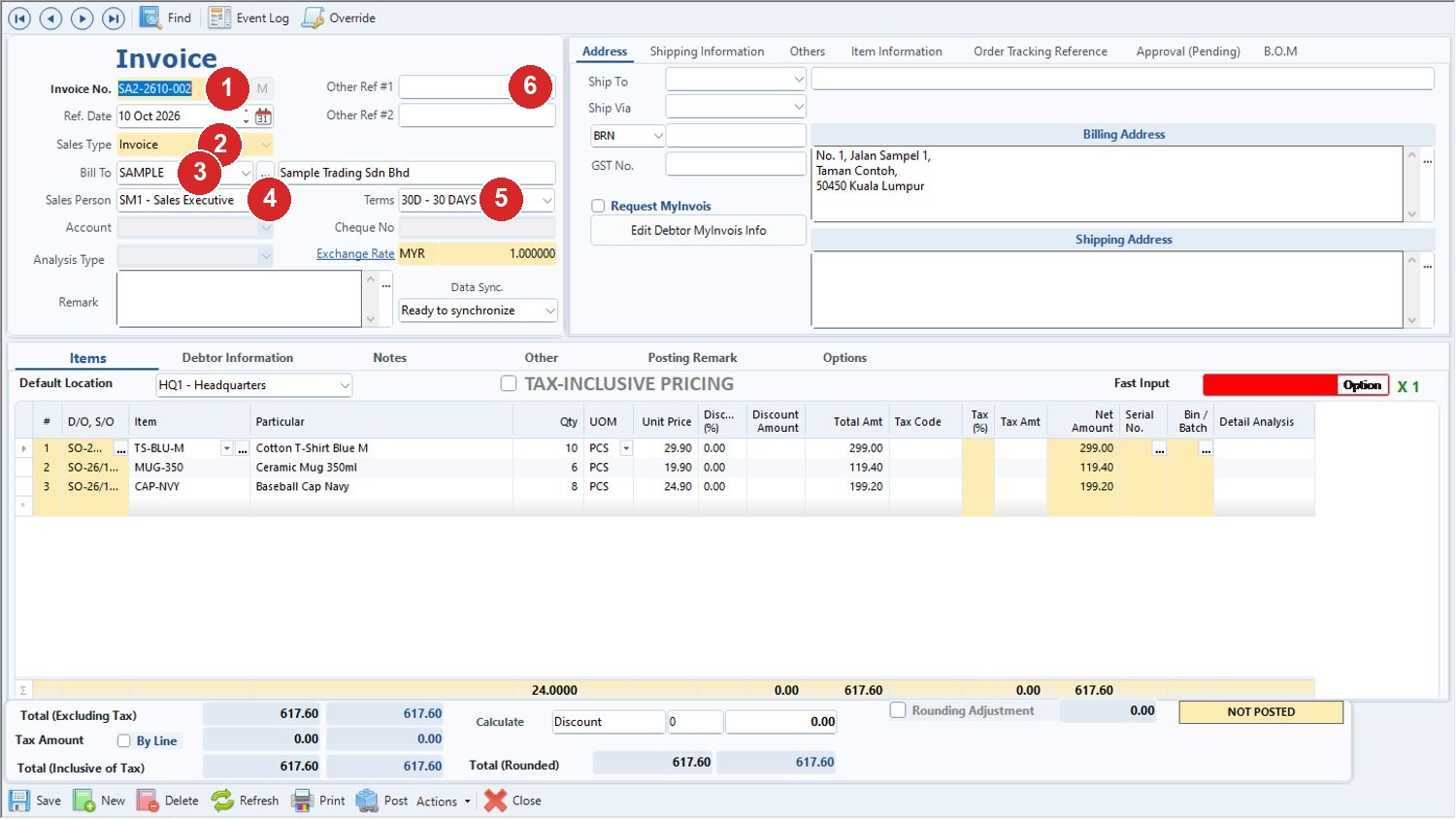
| Step | What to do |
|---|---|
| 1 | Invoice No. (filled in for you when numbering is automatic) and Ref. Date. |
| 2 | Sales Type: Invoice for credit, Cash Bill for a cash sale. |
| 3 | Bill To: the customer. The name and billing address fill in. |
| 4 | Sales Person. |
| 5 | Terms (here 30 days) and the currency with its Exchange Rate. |
| 6 | Other Ref #1 and #2, for example the customer’s PO number. |
3. For a cash sale, fill in the payment fields
For a cash sale, set Sales Type to Cash Bill, then fill in Account and Cheque No. These two fields are available only for cash sales.
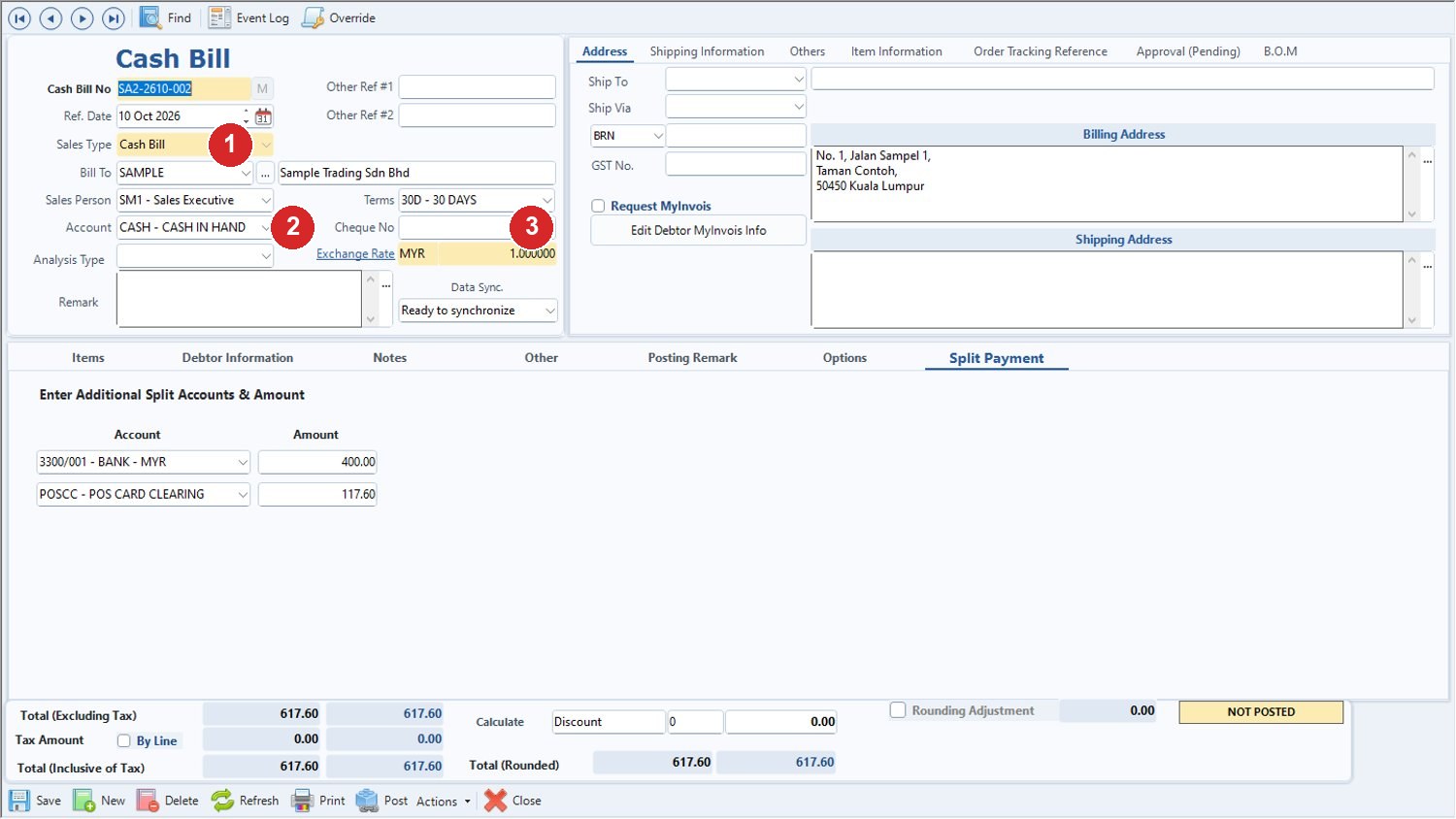
| Step | What to do |
|---|---|
| 1 | Sales Type: Cash Bill. The heading changes to Cash Bill. |
| 2 | Account: where the money goes, for example CASH – CASH IN HAND. |
| 3 | Cheque No, if paid by cheque. |
4. Enter the item lines
Add the items on the Items tab (see the guide on the Items tab). Right-click a line to use Insert Row, Delete Row, Copy Text, Bold, Underline, Larger or Smaller.
5. Check the Exchange Rate
If the invoice is in another currency, check the Exchange Rate before you continue.
6. Give a lump sum discount
Enter the discount, then click the Calculate link. Calculate spreads the discount over all the items. Check the totals before you save.

| Step | What to do |
|---|---|
| 1 | Calculate: the label for the discount (here Discount). |
| 2 | The discount as a percent, or as an amount in the box beside it, then click Calculate to spread it over the items. |
| 3 | By Line: tick it if tax should be worked out line by line instead of on the total for each tax code. |
| 4 | Total (Excluding Tax), Tax Amount and Total (Inclusive of Tax). |
| 5 | Total (Rounded): what the customer pays. |
7. Choose how tax is worked out
Tick By Line if the tax amount should be worked out line by line instead of on the total for each tax code.
8. Check the totals and save
Check Total (Excluding Tax), Tax Amount, Total (Inclusive of Tax) and Total (Rounded). For a cash sale, enter Amount Received if it is shown, and Change is shown for you. Then click Save.
Tips
- Amount Received and Change appear only when your company has switched that option on.
- The marks INVOICE, PRINTED, POSTED & APPLIED and Data Sync. show the state of the invoice.
- Analysis Type is an optional field for your own analysis.
- To make an invoice from Delivery Orders, see the guide Sales Documents: From Quotation to Delivery Order to Invoice.
- For discounts and special prices see Discounts, FOC and Special Prices. To send or print the invoice see E-mail, WhatsApp and SMS for Documents and Fixing a Printed Layout.
Common problems
Lump sum discount is not fully distributed to items. Please click the [Calc Discount]
Click the Calculate link beside the lump sum discount, then save again.
Invoice Total over Rm10,000 is required to Issue E-Invoice. Please tick [Request MyInvois] and enter required information.
Open the Address tab, tick Request MyInvois and fill in the details with Edit MyInvois Info. Depending on your e-invoice setting, this message may ask for permission to continue, ask you to confirm, or stop the save.
This transaction has items which cannot be consolidated for E-Invoice. Please tick [Request MyInvois] and fill up required fields.
The save is stopped until Request MyInvois is ticked and its details are completed on the Address tab.
Other Ref #1 […] already used in transaction […]. Do you want to proceed anyway?
This shows only when your company keeps Other Ref #1 unique. Confirm to continue, or cancel and change the value.
Invalid [Amount Received] entered.
Correct the Amount Received and save again.