
This guide shows how to list the items on a sales invoice, and how to look at an item’s stock and pending quantities without leaving the invoice. The example is invoice SA2-2610-002 to Sample Trading Sdn Bhd for 10 T-shirts, 6 mugs and 8 caps (617.60).
Before you start
- Open or start a sales invoice (Sales and Purchases > Transactions > Sales Process > Sales Invoice).
- Know the stock location the goods come from.
Steps
1. Go to the Items tab
In the lower part of the invoice, open the Items tab.
2. Choose the Default Location
Open the Items tab in the lower part of the invoice and choose the Default Location. New lines use it.
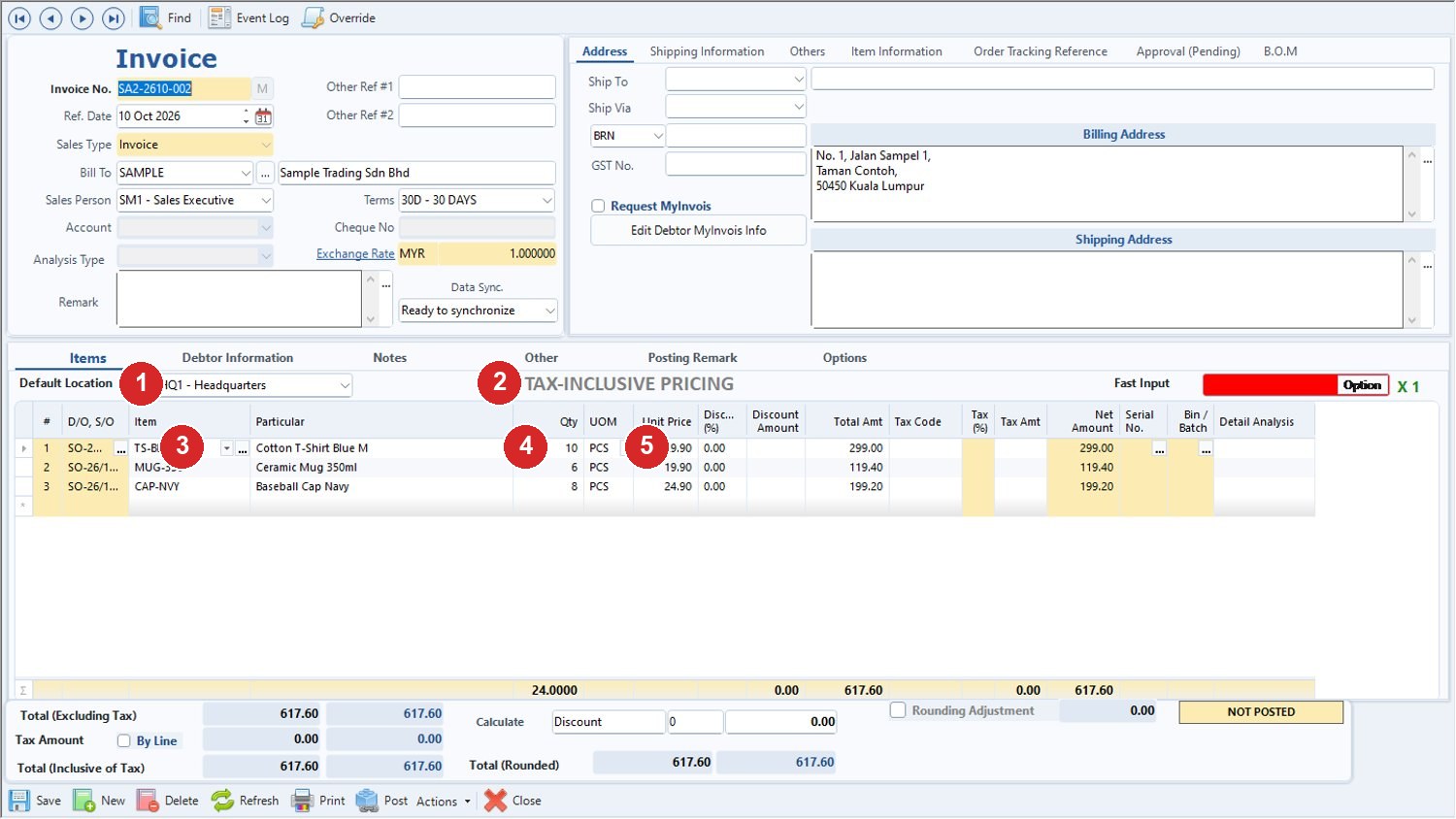
| Step | What to do |
|---|---|
| 1 | Default Location: new lines use it (here HQ1 – Headquarters). |
| 2 | TAX-INCLUSIVE PRICING: tick it if your prices already include tax. |
| 3 | Item: type or pick the item code. Particular fills in. |
| 4 | Qty and UOM. |
| 5 | Unit Price and discount; Net Amount works out by itself. |
3. Choose how prices are entered
Tick TAX-INCLUSIVE PRICING if your prices already include tax.
4. Enter the items
Add the items of the invoice.
5. Share out a lump sum discount
If you give a lump sum discount, click the Calculate link so it is spread over every item.
6. Look at the item’s stock
You see Brand, Category, P/O Pending Receipt, Stock-In-Hand and S/O Pending Delivery without leaving the invoice. Transaction History shows the item’s past documents.
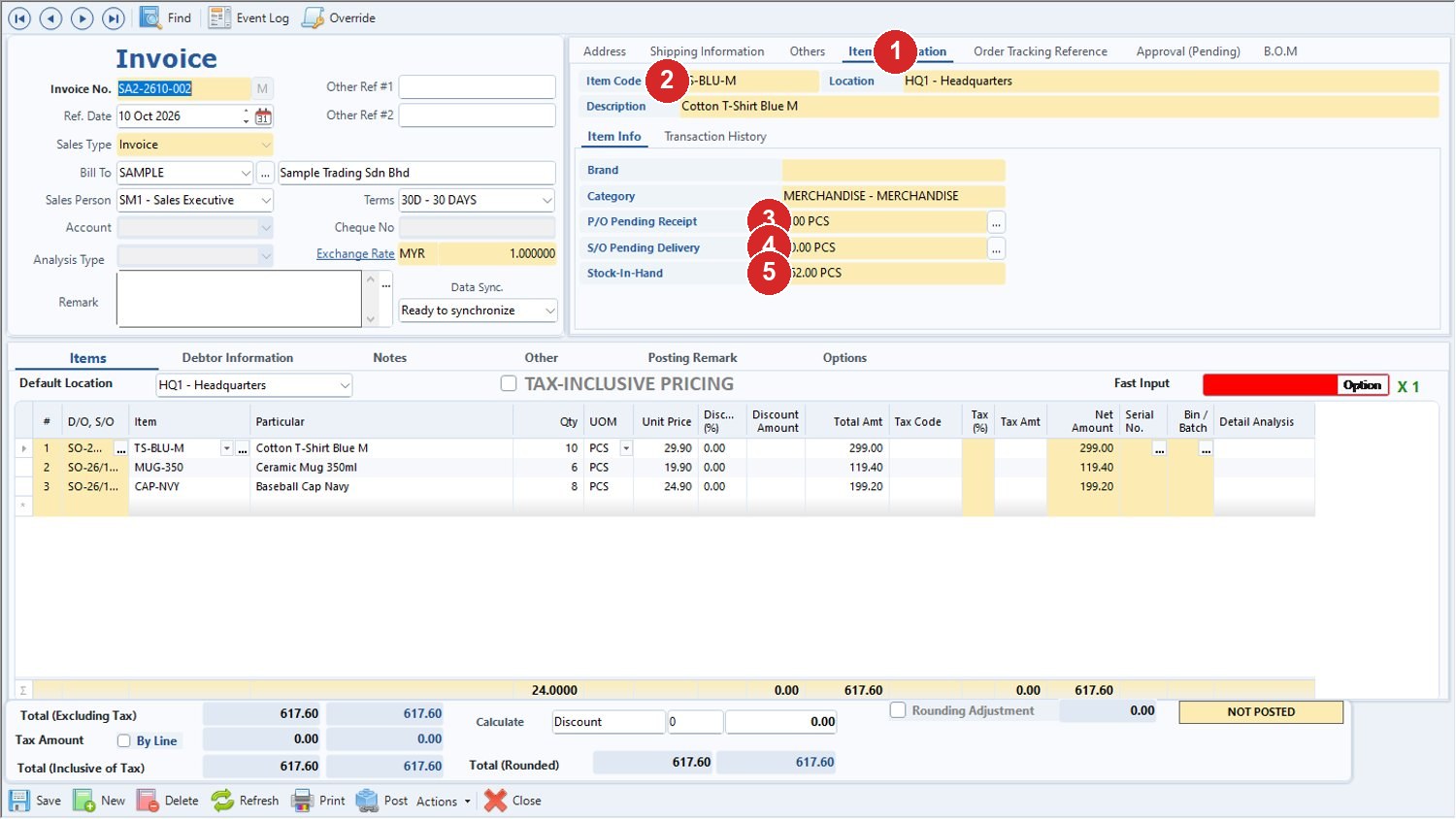
| Step | What to do |
|---|---|
| 1 | Click a line on the Items tab, then open the Item Information tab at the top. |
| 2 | Item Code, Description and Location of that line. |
| 3 | P/O Pending Receipt (the … button lists the orders). |
| 4 | S/O Pending Delivery (here 10.00 PCS). |
| 5 | Stock-In-Hand (here 152.00 PCS). |
7. Save or post the invoice
Save the invoice, or post it if your company posts invoices.
Tips
- P/O Pending Receipt is the quantity ordered from suppliers and not yet received. S/O Pending Delivery is the quantity on sales orders not yet delivered.
- Whether pending sales orders are counted in the stock figure depends on the stock setting Include Sales Order quantity when calculating SOHQ. See the guide Stock and Credit Warnings, Over-Quantity and Approvals.
- Whether Project fields and some columns are shown depends on the Show / Hide Columns settings. See the guide Show or Hide Columns and Choose the Address Style.
- Discounts and special prices are in the guide Discounts, FOC and Special Prices.
Common problems
A message about a lump sum discount appears when you save
Click the Calculate link beside the lump sum discount, then save.
An e-invoice message appears when you save
Open the Address tab, tick Request MyInvois and complete Edit MyInvois Info. See the guide Sales Invoice: Address Tab and E-Invoice (MyInvois) Details.
The stock figure is not what you expect
Pending sales orders may or may not be counted, depending on the stock setting above.