
This guide shows how to link an invoice to a project, use the extra date and group fields on the Others tab, and use the extra text and number fields on the Other tab. They are for your own analysis and reports.
Before you start
- Open or start a sales invoice (Sales and Purchases > Transactions > Sales Process > Sales Invoice).
- The Other tab and its fields appear only for fields your company has named.
Steps
1. Open the Others tab
Use the tabs at the top right of the invoice.
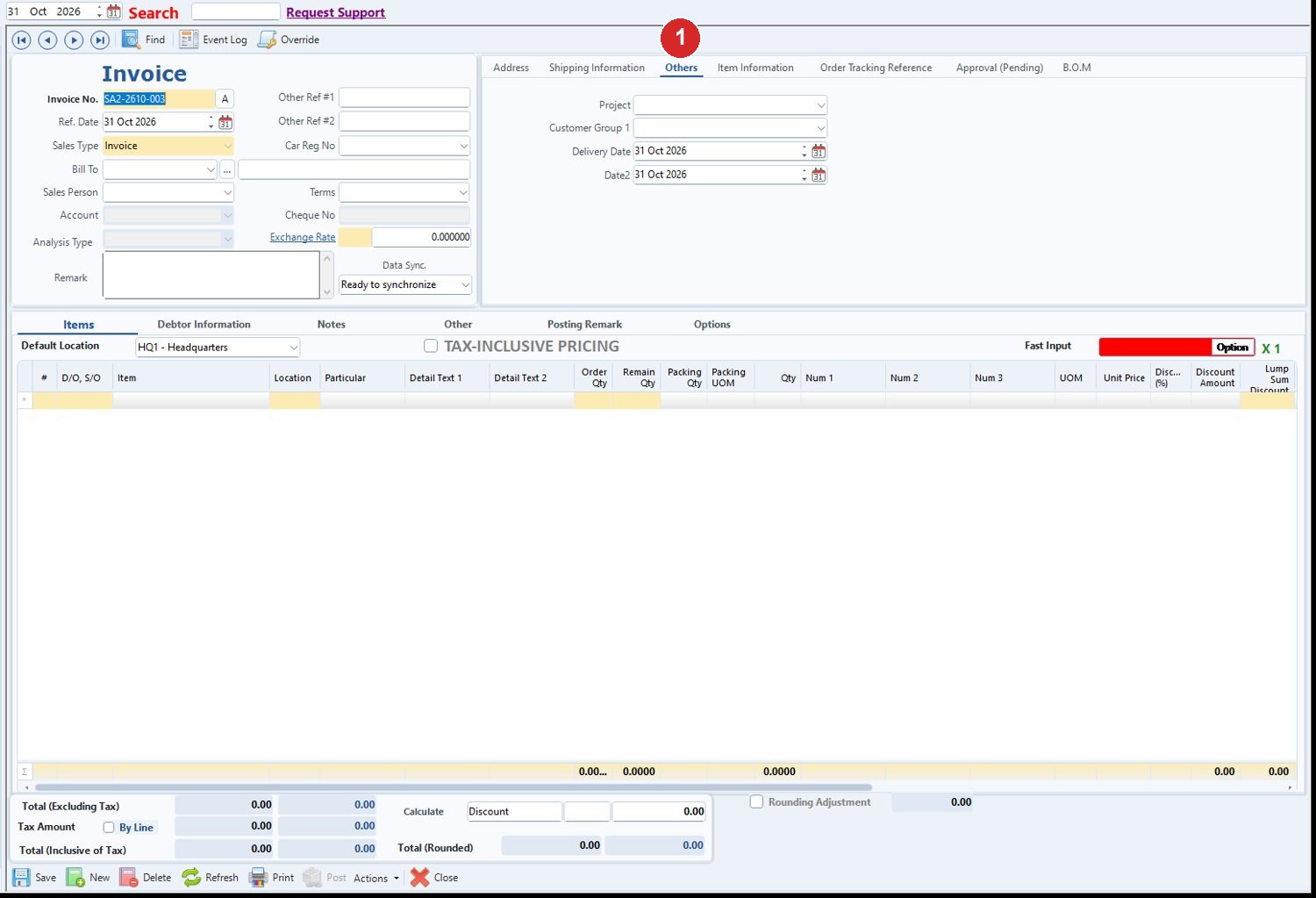
| Step | What to do |
|---|---|
| 1 | Click the Others tab. |
2. Choose the project
Click the link caption Project and choose the project from the list.
3. Fill in the date and group fields
Fill in the two user-defined date fields and the user-defined debtor group field. They carry the names your company has given them.
4. Open the Other tab
If you cannot see it, your company has not named any field (see the tips).
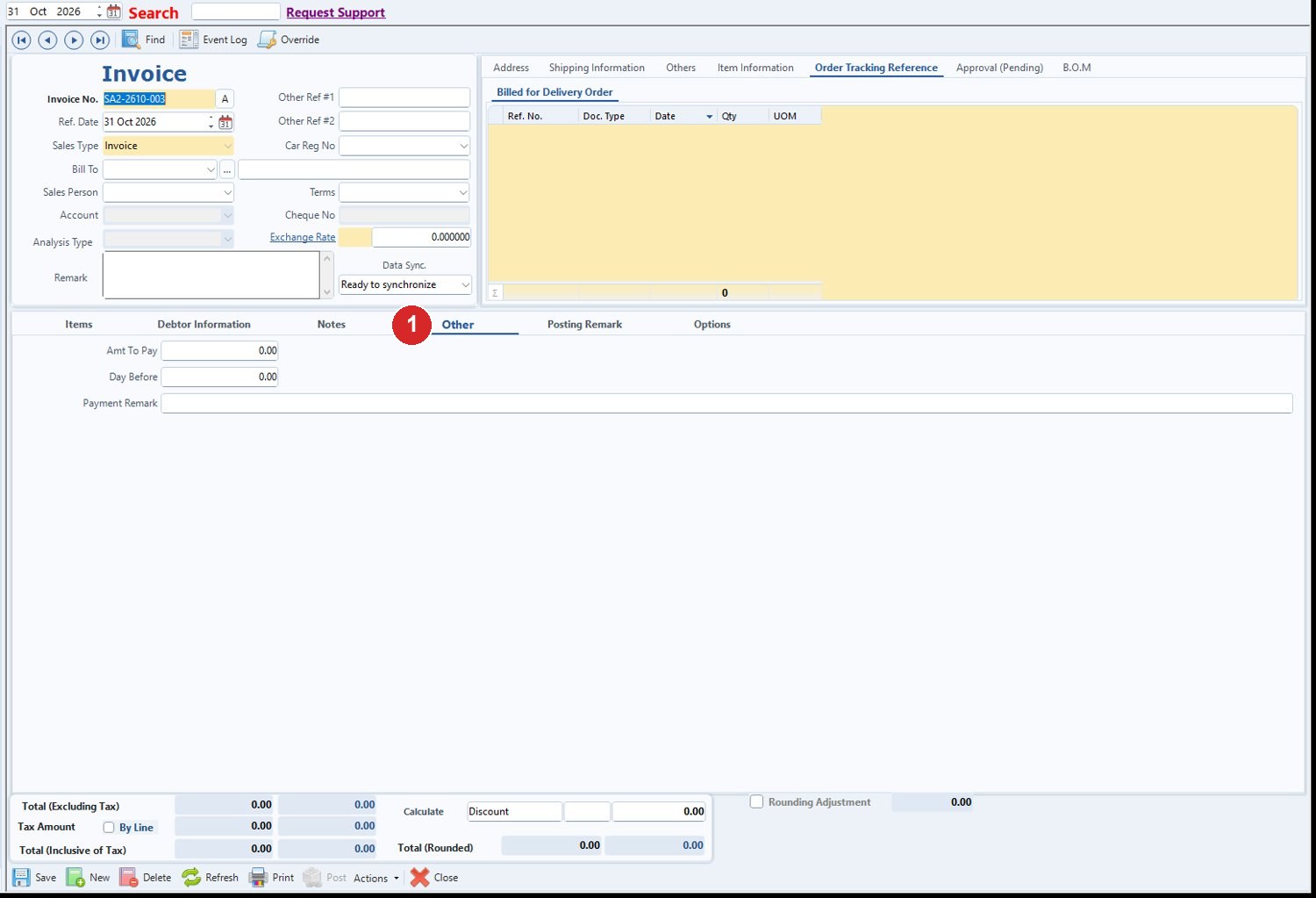
| Step | What to do |
|---|---|
| 1 | In the lower part of the invoice, click the Other tab. |
5. Fill in the extra fields
Type any extra text in the text field and any extra amounts in the number fields. There is one text field and up to six number fields.
6. Save the invoice
Click Save.
Tips
- Each field on the Other tab shows only if your company has set a name for it. If no field is named, the tab is not shown.
- What each extra field is used for depends on how your company uses it.
- Whether Project fields are shown on invoices depends on the settings Show Project Code and Show Detail Analysis (Project). See the guide Show or Hide Columns and Choose the Address Style.
Common problems
I cannot see the Other tab or a field on it
Your company has not named that field. Names are set up by your company, so ask whoever manages your settings.